Highlight 2 MRI - 1.1
Description
The Highlight 2 MRI extension provides a solution for those wishing to view CAST Highlight results directly in CAST Imaging. This functions as follows:
- The Highlight 2 MRI extension includes an embedded version of the CAST Highlight agent.
- When an analysis is launched, the CAST Highlight agent is also launched and will scan all source code submitted for analysis.
- The CAST Highlight agent will inject CAST Highlight results as properties of objects generated during the analysis.
- Results are then generated as normal.
- The CAST Highlight results can then be visualized in various different features (see below).
This extension is only visible in CAST Extend for those Extend users that are also CAST Highlight customers.
Prerequisites
The CAST Highlight agent requires an installation of the Java JRE on the node machine:
- Java JRE 11, with appropriate %JAVA_HOME% system environment variable.
Supported technologies
| Technology | Supported |
|---|---|
| C++ | ✅ |
| C# | ✅ |
| Java/JEE | ✅ |
| JavaScript | ✅ |
| Python | ✅ |
| TypeScript | ✅ |
| VB.NET | ✅ |
Download and installation instructions
Installation of this extension behaves as follows, depending on the release of CAST Console/Imaging-Services you are using:
- in ≥ 2.10, saving the entries in Administration Center - Settings - CAST Highlight Settings will ensure that the extension is automatically added to the Force Installation list - in other words the extension will be automatically installed in all existing applications when the next analysis is run and all new applications by default.
- in ≤ 2.9, the extension will not be automatically added to the Force
Installation list, therefore CAST highly recommends that you either:
- add it to the Force Install list
- manually install the extension in all applications that require it using the Application - Extensions interface.
Configuration
This extension provides various different output results:
- some results require no further configuration other than performing an analysis and importing into CAST Imaging
- other results require that CAST Imaging Console is aware of the CAST Highlight connection settings before performing an analysis and importing into CAST Imaging Viewer:
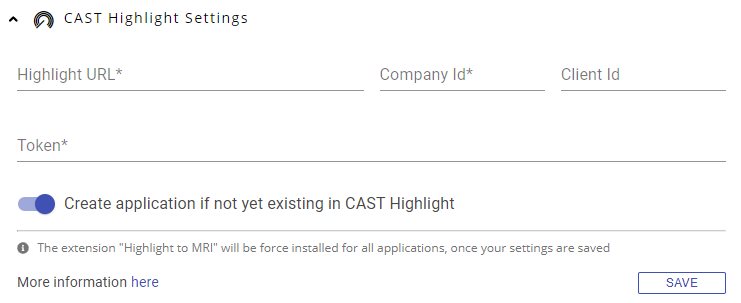
E.g.:
| Result Type | CAST Highlight Settings configured | Notes |
|---|---|---|
| CloudReady Blockers and Boosters / Containerization Blockers data | ❌ | This data is generated by the Highlight Agent embedded in the extension. |
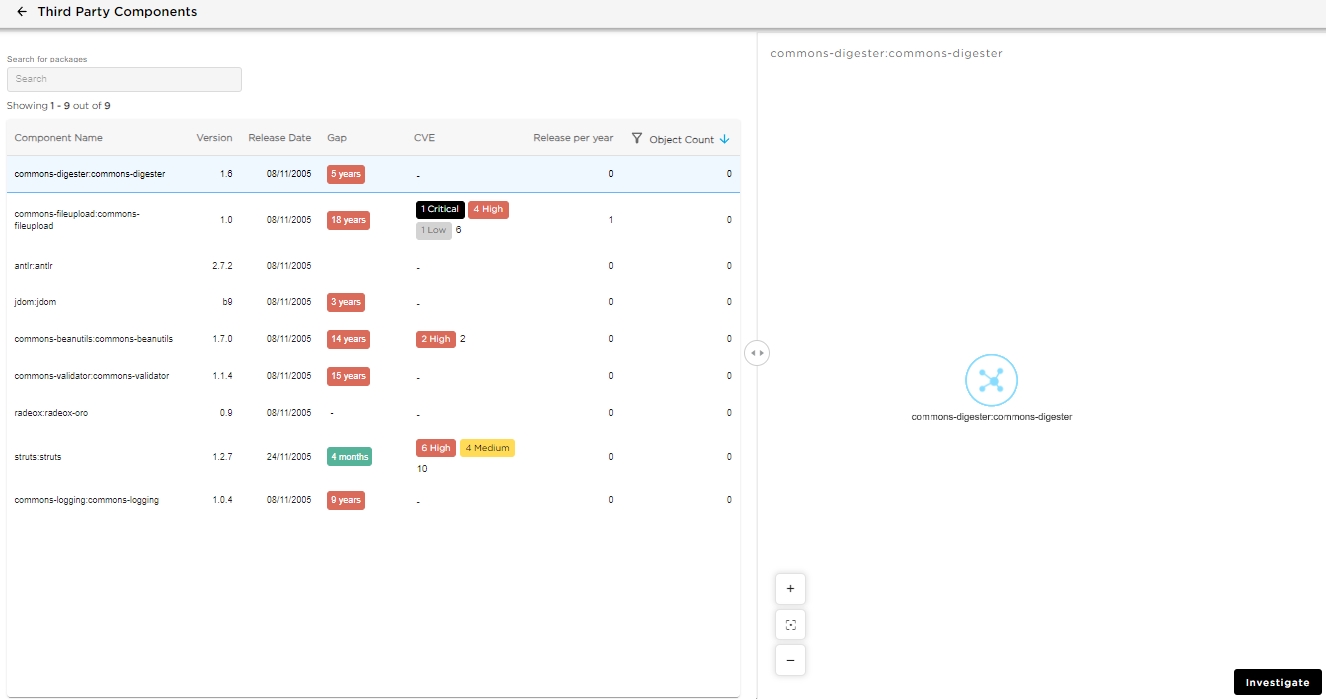
| Third Party Components (vulnerabilities/obsolescence/CVEs) | ✅ | This data is stored in the CAST Highlight SCA database and therefore requires that the CAST Highlight configuration is filled in in CAST Console/Imaging-Services. |
Per-application configuration via xml
The Highlight analyzer can be configured on a per-application basis by placing a highlight.configuration.xml file at the root of the delivered source code. A default global version of this file also exists in the installed extension directory.
Options are resolved in the following order of precedence:
- Local options (source root
highlight.configuration.xml) - if present, these are merged over global options and stored in the_localschema (SYS_SITE_OPTIONS). - Active options (stored in
SYS_SITE_OPTIONS) - used if no local file is present. - Global options (extension directory
highlight.configuration.xml) - used as fallback when neither local nor active options exist. On first use they are also stored as the active options.
Note: an empty local highlight.configuration.xml file resets the active options back to the global defaults.
Supported options:
| Option | Type | Description |
|---|---|---|
snapshotLabel |
text | Label for the Highlight snapshot |
ignoreDirectories |
text (list) | Directories to exclude from analysis |
ignoreFiles |
text (list) | File patterns to exclude |
ignorePaths |
text (list) | Paths to exclude |
dbgMatchPatternDetail |
bool | Enable debug pattern matching detail |
skipUpload |
bool | Skip uploading results |
technologies |
text (list) | Restrict analysis to specific technologies |
analyzeBigFiles |
bool | Analyse files above the normal size threshold |
allowGeneratedCode |
bool | Include generated code in analysis |
includeAllDependencies |
bool | Include all dependencies |
includeArchiveContent |
num | Archive content inclusion level |
zipResult |
text | Path to save a ZIP of results |
uploadZipFile |
bool | Upload the ZIP result file |
skipScan |
bool | Skip the scan step |
- Tags for options of type “text (list)” should contain an
<item>sub-tag for each element of the list. - See Highlight Automated Code Scan (Command Line) for full option descriptions.
Example highlight.configuration.xml:
<HighlightConfig>
  <dbgMatchPatternDetail>True</dbgMatchPatternDetail>
  <ignoreDirectories>
    <item>node_modules</item>
    <item>nugetPck</item>
    <item>mavenHttpPck</item>
    <item>.git</item>
    <item>vendor</item>
    <item>min</item>
    <item>.idea</item>
  </ignoreDirectories>
  <ignoreFiles>
    <item>.*\.min\.js</item>
  </ignoreFiles>
</HighlightConfig>
What results can you expect?
CAST Highlight results can be visualized throughout CAST Imaging Viewer in various different features: Note that the screenshots shown below may not be an accurate representation of this release.
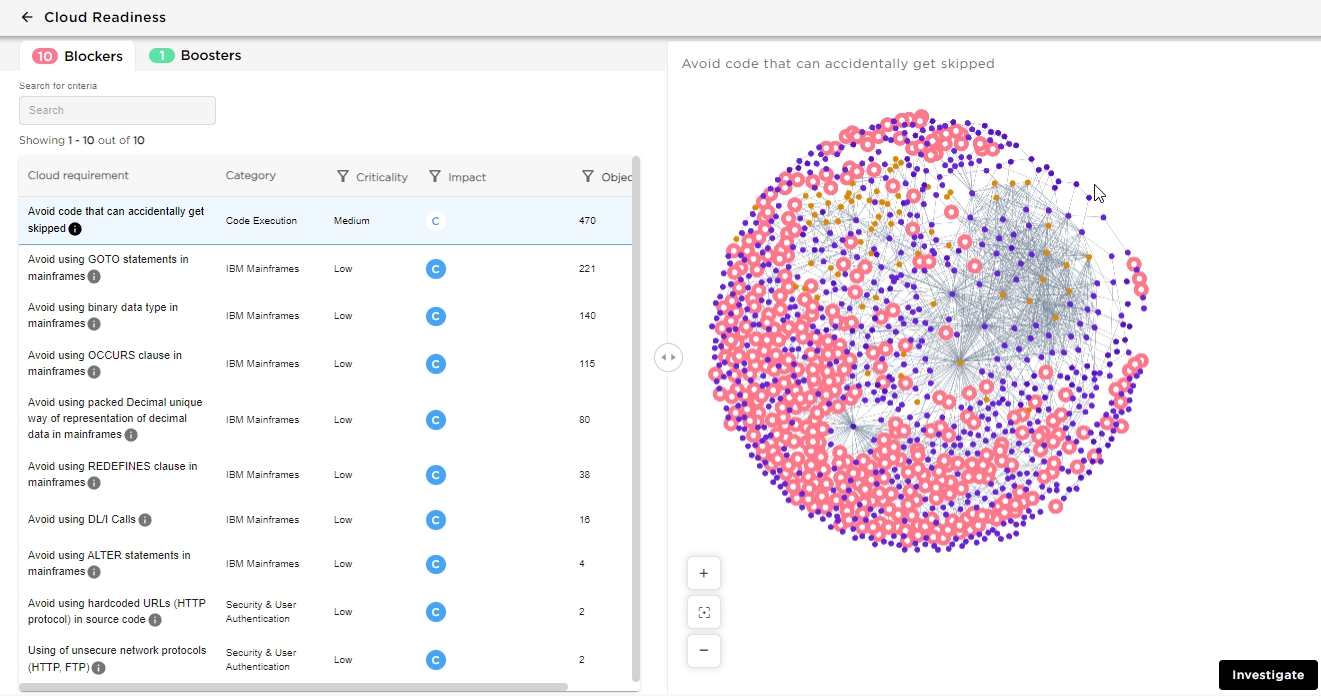
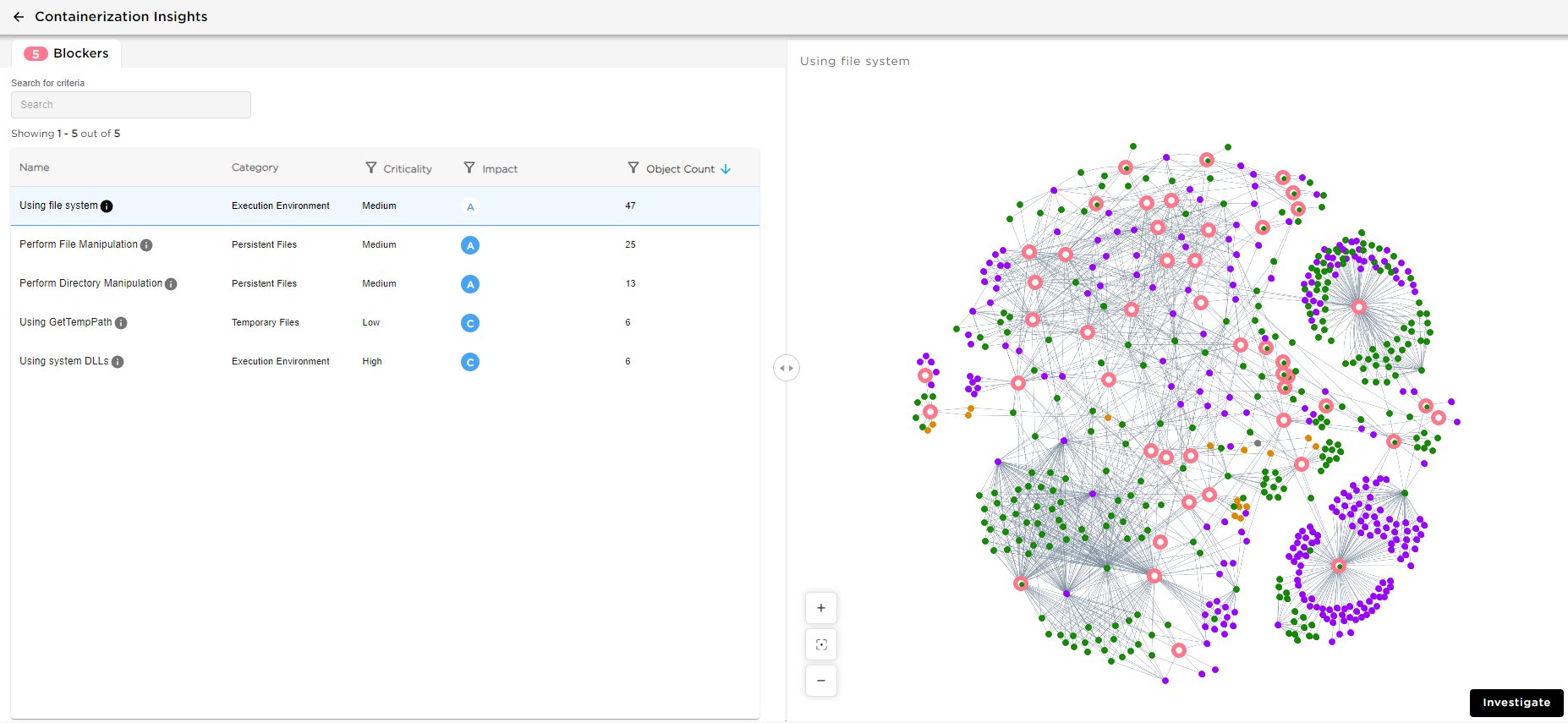
CloudReady Blockers and Boosters / Containerization Blockers data
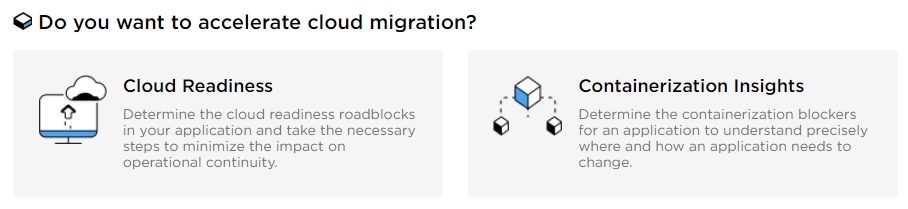
Welcome page - Cloud Migration information tiles
Available in CAST Imaging ≥ 2.14.
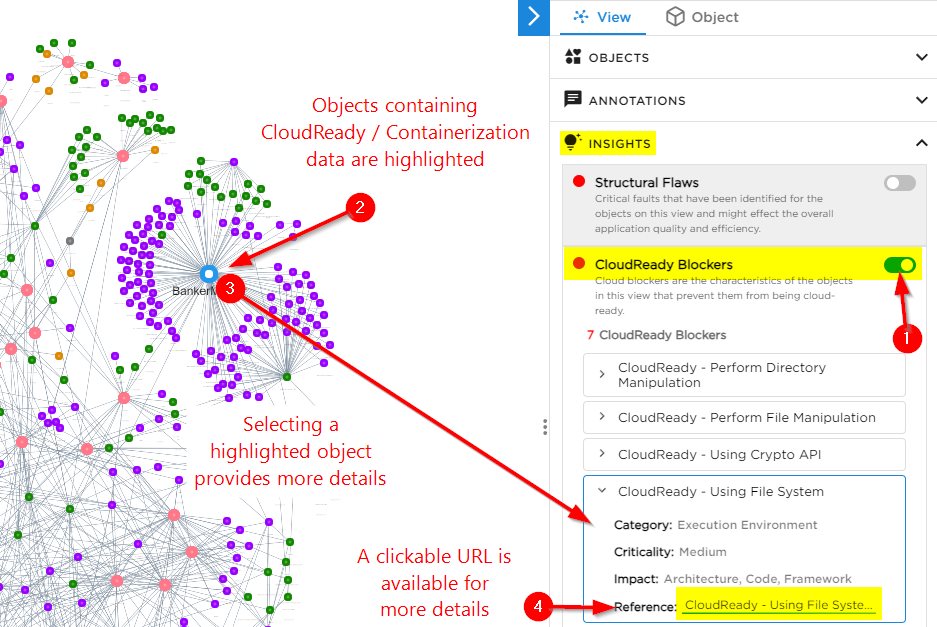
Legends panel - Insights
Available in CAST Imaging ≥ 2.15.
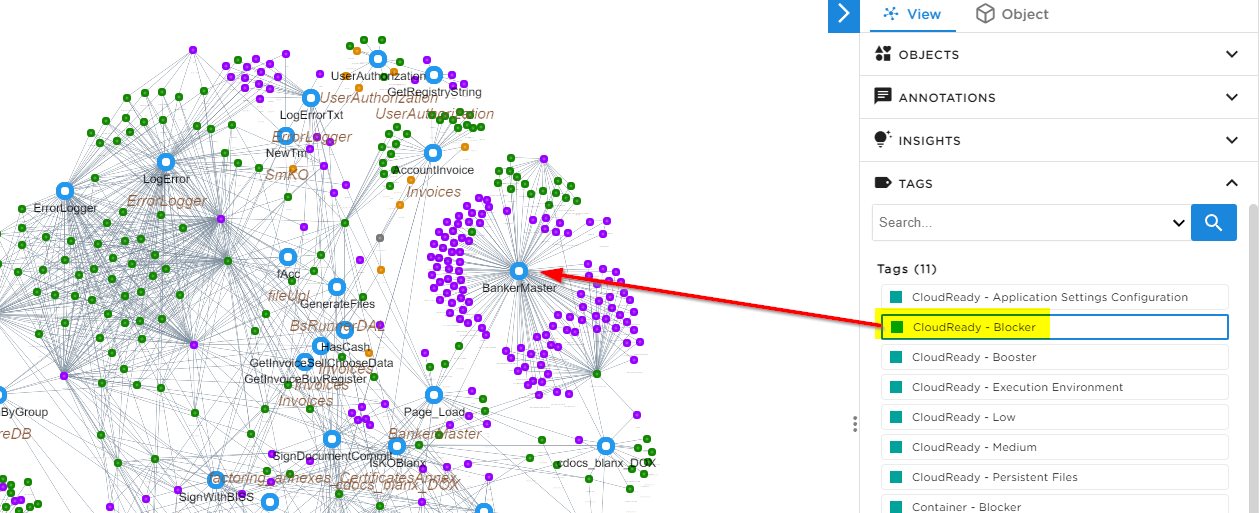
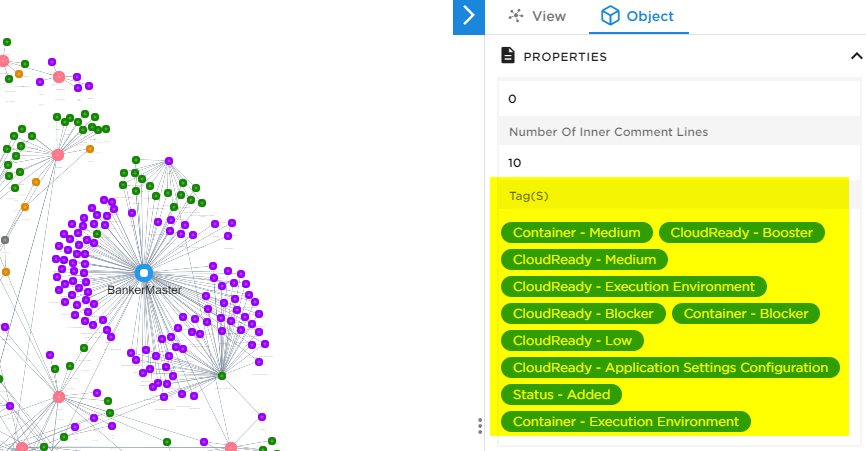
Legends panel - Tags
Third Party Components (vulnerabilities/obsolescence/CVEs)
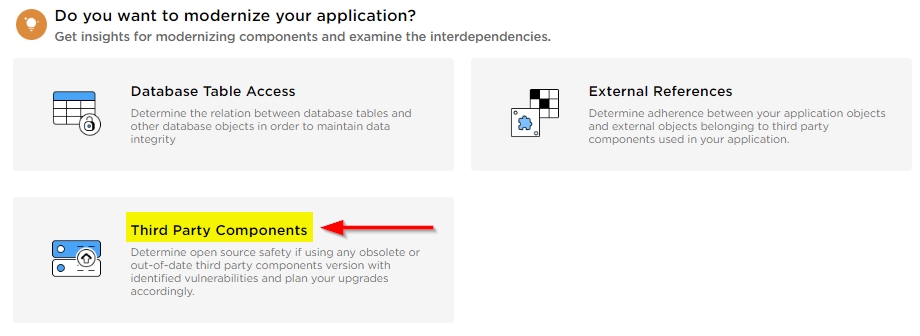
Welcome page - Third party Components tile
Available in CAST Imaging ≥ 2.15.