Application analysis configuration - Config - Analysis
For information about settings related to specific technologies, please see the following pages:
Starting 3.6.0-funcrel, analysis configuration settings for C/C++, JEE and Mainframe are available after an onboarding/fast-scan and before the initial analysis. For all other technologies and releases, analysis configuration options are only exposed after an initial analysis.
File extensions
Each technology exposes a list of file extensions that determines which files the analyzer will process.
Updated in 3.6.7-funcrel
Before the initial analysis, these lists are populated with all the file extensions supported by the discoverers that are installed for the technologies found in the delivered source code. Previously the lists contained a subset of these extensions, which meant that files analyzed during the initial analysis could be ignored in subsequent analyses.
This alignment only occurs before the initial analysis. If a new technology is detected in a subsequent New scan, the file extension lists for that technology are not populated in the same way:
- the first analysis that includes the new technology will process all the files supported by the installed discoverers
- any subsequent analysis will only process the files matching the extensions listed in the analysis configuration options, therefore some files that were analyzed previously will be ignored
For example, if you onboard an application containing only JEE source code and run an analysis, then run a New scan which adds Mainframe source code containing .ctl files, these .ctl files will be analyzed in the next analysis, but they will be ignored in all analyses after that. To avoid this, add the .ctl extension to the JCL file extension list in the analysis configuration options before you run the next analysis.
Drop analysis results
Updated in 3.6.9-funcrel
Deactivating an Analysis Unit stops it from being analyzed, but it no longer deletes anything. The results already stored for it stay in place, so you can deactivate an Analysis Unit to save analysis time without losing its objects. Previously, deactivating an Analysis Unit caused the next analysis to drop the stored results of every Analysis Unit in the same execution unit, without warning.
To delete stored results, use the drop button (the red bin icon) in the toolbar above the list of Analysis Units, next to Activate and Deactivate. After you click Delete in the Drop Analysis Results confirmation dialog, a Drop analysis results job starts immediately. Click View logs on the job page to see its log, or find it later in the Logs page. A drop cannot be undone and can take a long time on a large application.
Results are stored and dropped per execution unit, never for one Analysis Unit alone. Dropping the results of one Analysis Unit also drops the results of all the other Analysis Units that were analyzed with it in the same execution unit.
Technologies with Execution Groups
For technologies whose Analysis Units are shown in Execution Groups, each Execution Group has its own toolbar, and its drop button is always enabled. It drops the results of the whole Execution Group, whichever Analysis Units are selected:
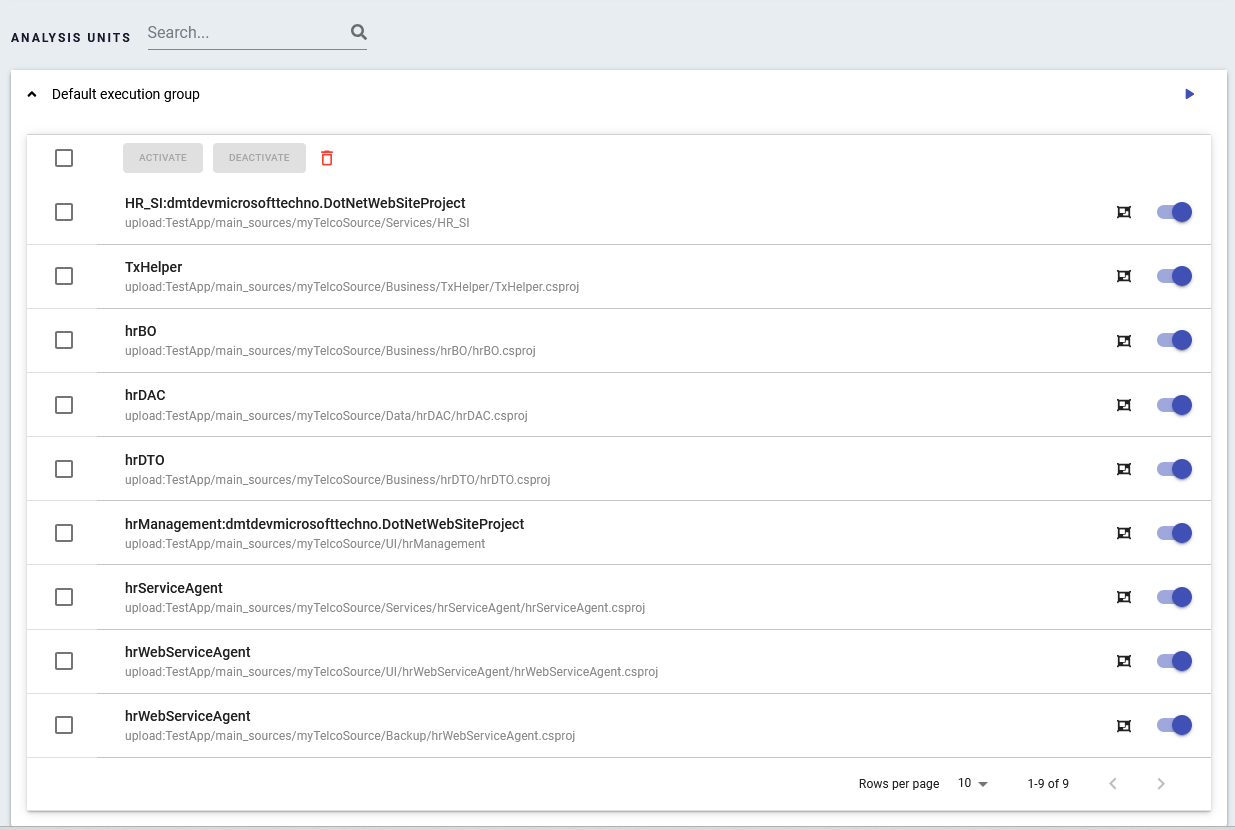
The confirmation dialog names the Execution Group:
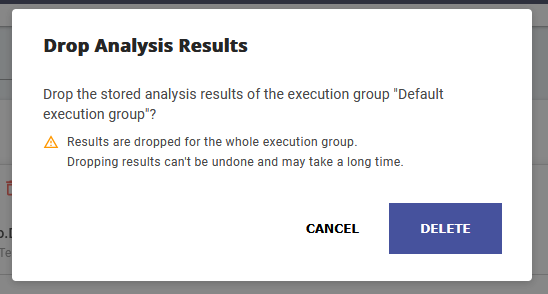
The execution unit that is dropped is the one created at the last analysis. If you have moved an Analysis Unit to a different Execution Group since the last analysis, dropping either group also drops the results of the group the Analysis Unit was analyzed in.
Other technologies
For other technologies, the drop button is disabled until you select at least one Analysis Unit:
-
Select the Analysis Units whose results you want to drop. The drop button turns red.
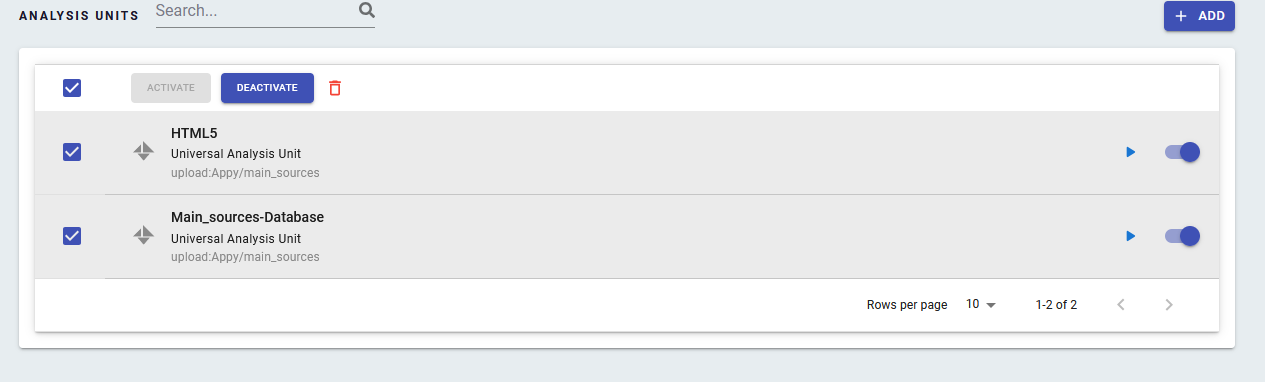
-
Click the drop button. The confirmation dialog shows how many Analysis Units are selected and their names.
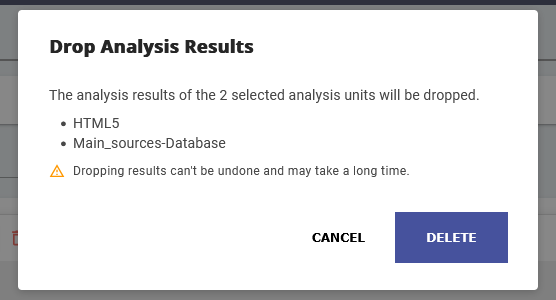
-
Click Delete.
What happens after a drop
The objects are removed from the analysis schemas as soon as the job finishes. What you see next depends on what you run:
| You run | Result |
|---|---|
| Generate views only | The objects are removed from the viewer |
| A full analysis, with the Analysis Units active | The objects are created again |
| A full analysis, with the Analysis Units deactivated | The objects do not appear in the analysis results or in the viewer |
To remove an Analysis Unit’s objects from the results permanently, deactivate it, drop its results, then run an analysis or generate the views.
Also see the child pages listed below.