AI Settings
By configuring authentication for an AI provider, CAST Imaging users will be able to send snippets of source code to an AI provider, via the CAST Imaging interface. CAST Imaging does not provide any specific governance of this, therefore you must ensure that your organization’s internal policies around AI authorize this usage.
Overview
CAST Imaging integrates with AI technology to provide an automated AI driven explanation of objects materialized during an application analysis. You can find out more details about using AI services in Leverage AI services.
Two things are configured on this page:
- Primary AI provider - the provider and model used by all AI driven features to generate their responses.
- Embedding provider and model - used by GraphRAG to build a semantic knowledge graph. This can be the same provider as the primary AI provider, or a different one.
CAST supports the following AI providers:
- OpenAI
- Azure OpenAI
- Ollama AI - local or cloud deployments
- Google Vertex AI
- AWS Bedrock - allows you to access various LLMs, including Claude AI from Anthropic, Amazon Titan, Cohere, and others
- Google Gemini Available in ≥ 3.6.4-funcrel
- Claude AI - Anthropic’s Claude models, configured directly with an Anthropic API key Available in ≥ 3.6.6-funcrel
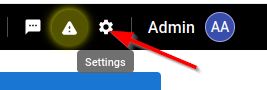
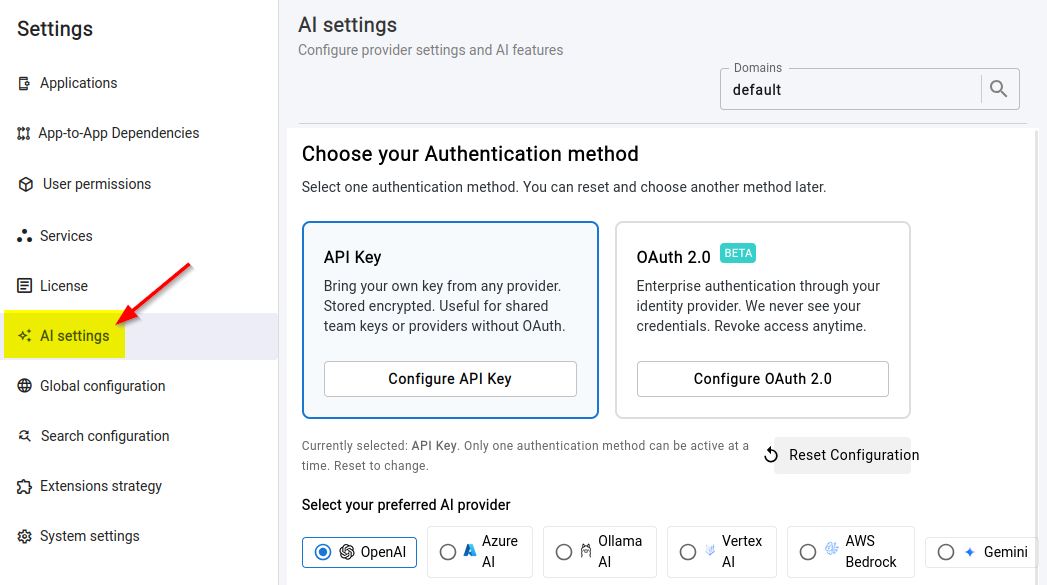
Configuring a provider
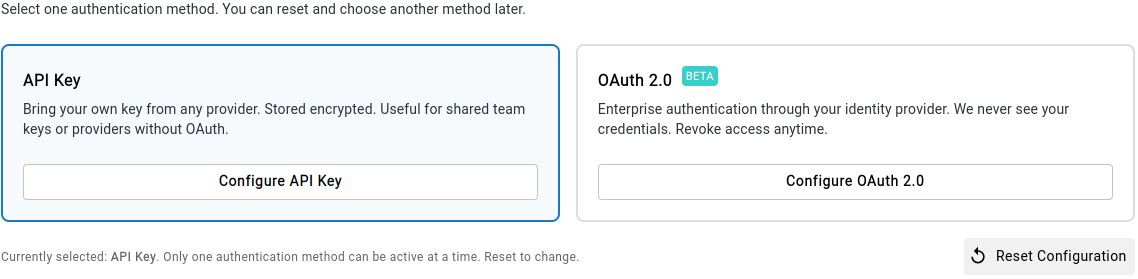
CAST Imaging supports two methods of authenticating with an AI provider:
- API key / provider configuration - the default method, described below, where you enter an API key and/or the configuration data required by your chosen provider.
- OAuth 2.0 - Available in ≥ 3.6.4-funcrelan alternative method, for connecting to an LLM endpoint (for example, your organization’s LLM gateway) that requires OAuth 2.0 authentication. See Authenticating with OAuth 2.0.
Authenticating with API key
Choose the provider and enter the required configuration values, then click Save Configuration:
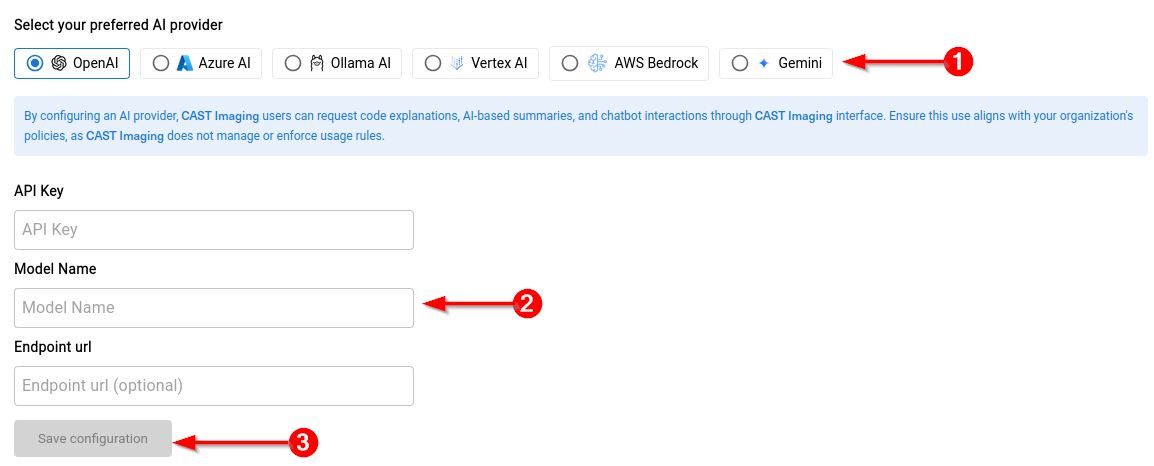
The following is required:
| Provider | Required |
|---|---|
| OpenAI |
|
| Azure OpenAI |
|
| Ollama AI |
|
| Vertex AI |
|
| AWS Bedrock |
When invoking Claude AI models through AWS Bedrock, you’re subject to model-specific invocation limits. Below are the minimum recommended starting quotas for Claude 3.5 Sonnet, suitable for most general-purpose integrations:
ThrottlingException), it’s likely due to hitting one of the above thresholds. Additionally, AWS allows for short burst rates beyond the standard quotas. However, sustained traffic above these values will trigger throttling unless higher limits are granted. |
| Google Gemini |
|
| Claude AI Available in ≥ 3.6.6-funcrel
|
|
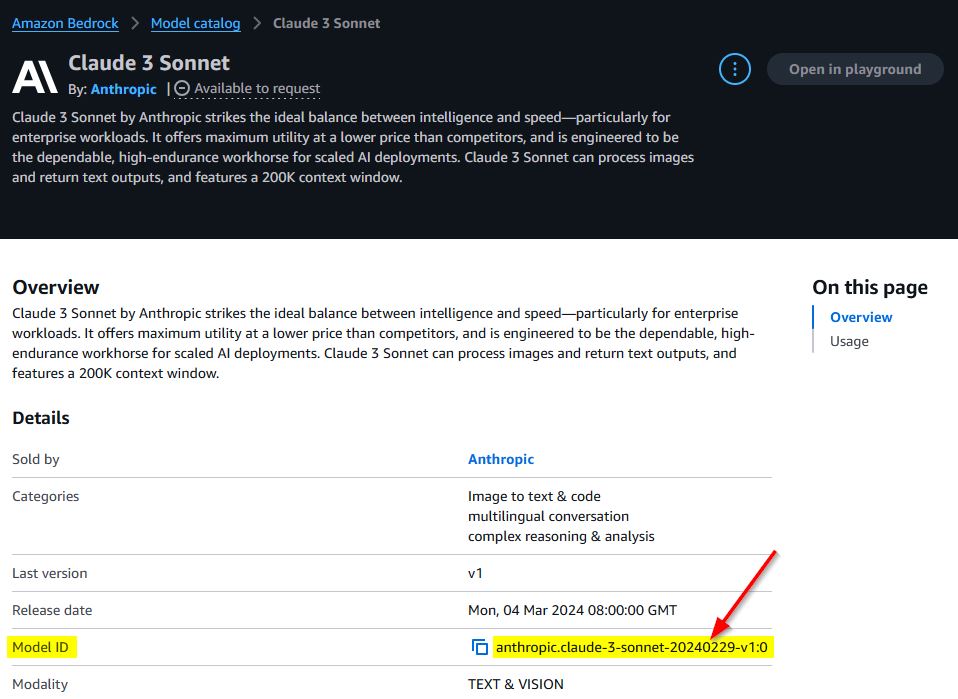
- An internet connection is required when inputting the configuration details for third-party cloud providers.
- Anthropic's Claude models can be configured in two ways: select Claude AI to connect directly to the Anthropic API with an Anthropic API key, or select AWS Bedrock to reach the same models through your AWS deployment.
Authenticating with OAuth 2.0
Support for OAuth 2.0 authentication is currently provided in beta.
Instead of an API key, you can choose to authenticate with OAuth 2.0. This method uses the OAuth 2.0 client credentials flow to obtain a bearer token, and is intended for connecting CAST Imaging to an LLM endpoint - for example, your organization’s LLM gateway - that requires OAuth 2.0 authentication.
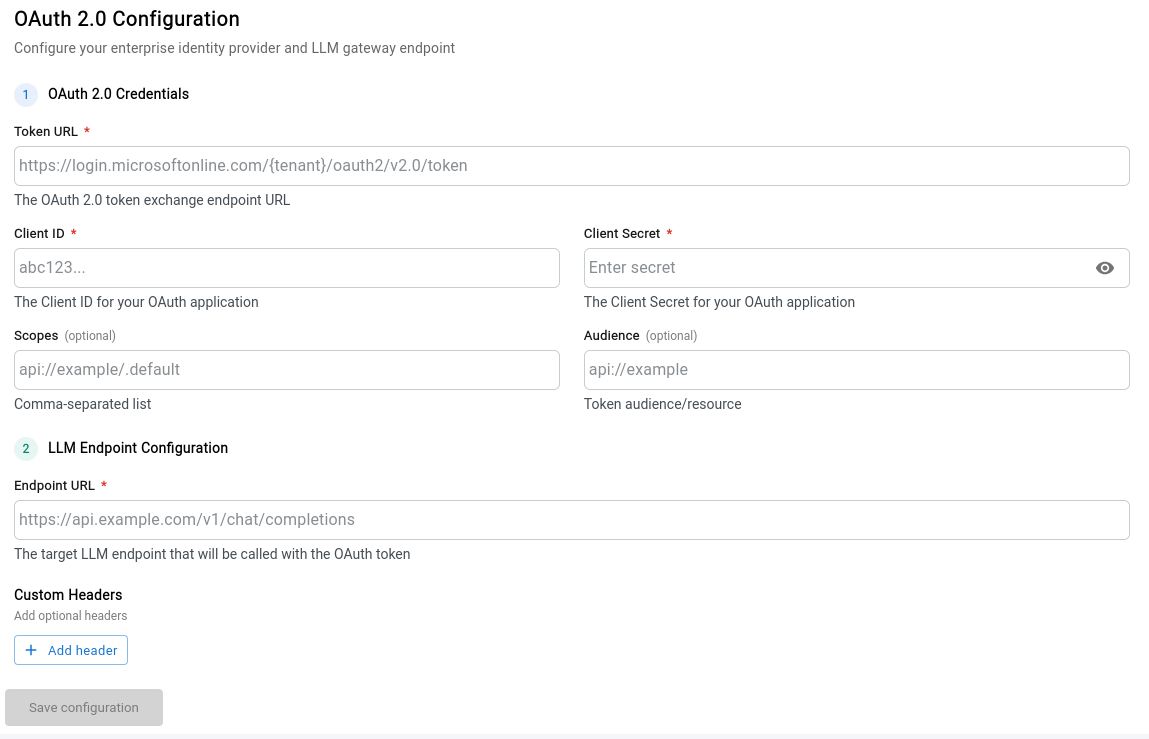
The following is required:
OAuth 2.0 Credentials
| Field | Required | Description |
|---|---|---|
| Token Endpoint URL | ✅ | The OAuth 2.0 token URL used to obtain the bearer token, for example https://login.microsoftonline.com/{tenant}/oauth2/v2.0/token . |
| Client ID | ✅ | The OAuth 2.0 client identifier. |
| Client Secret | ✅ | The OAuth 2.0 client secret. This value is masked on input and stored encrypted in the backend, in the same way as an API key. |
| Scopes | ❌ | One or more OAuth 2.0 scopes, entered as a comma-separated list. |
| Audience | ❌ | The intended audience of the token, where required by your authorization server. |
LLM Endpoint Configuration
| Field | Required | Description |
|---|---|---|
| LLM Endpoint URL | ✅ | The target LLM API endpoint that CAST Imaging will call with the bearer token. |
| Custom Headers | ❌ | One or more additional HTTP headers, entered as key/value pairs, that CAST Imaging will include on each request to the LLM Endpoint URL. Use this when your LLM gateway requires extra headers - for example a routing, version or subscription header such as X-Gateway-Route or api-version - in addition to the OAuth 2.0 bearer token. |
An internet connection is required when inputting the OAuth 2.0 configuration details.
Enabling AI features
When a valid API key or configuration data is defined, the various AI feature toggles will become available. Use the check boxes to enable the features you require:
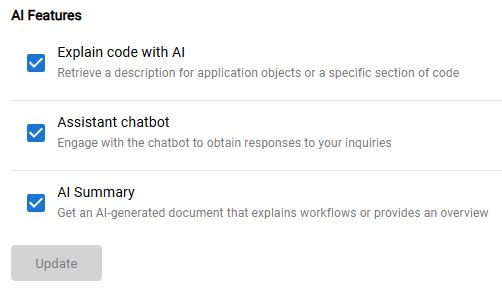
| Option | Description |
|---|---|
| Explain code with AI | Enables right click contextual menu options when consulting results and working at Object level - with options providing explanations directly in the source code: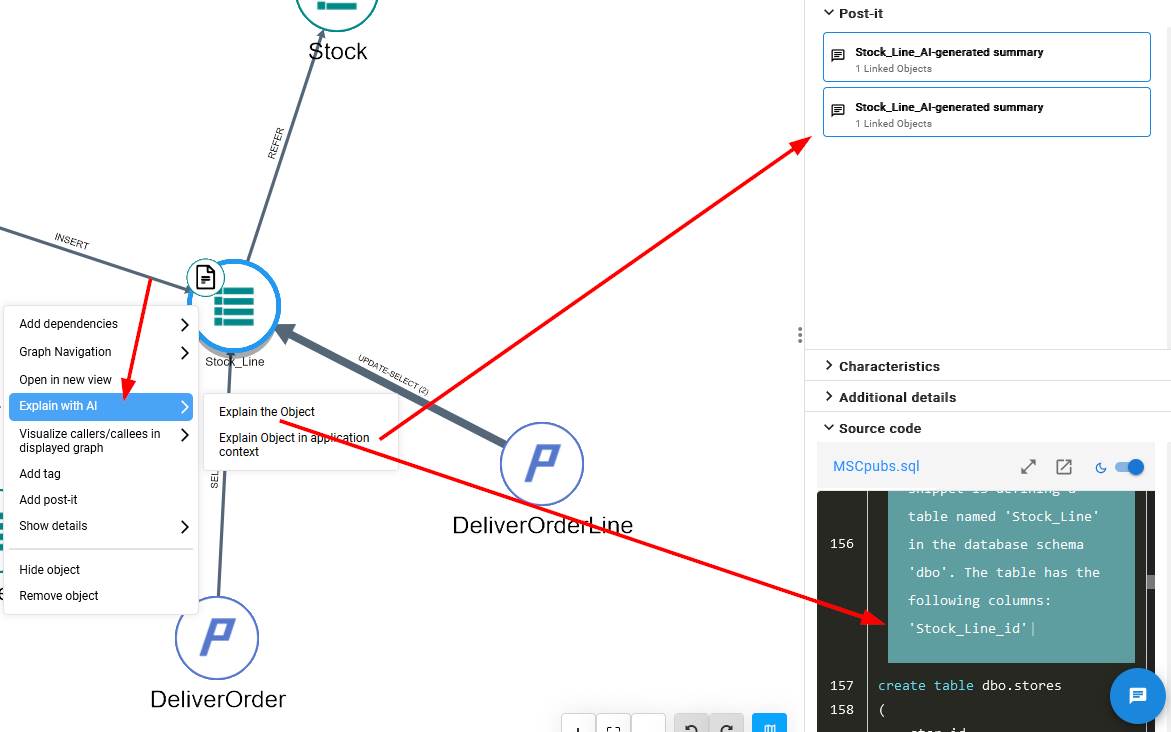 |
| Assistant chatbot | Enables the Ask me anything feature within the Imaging Assistant when consulting results. Updated in ≥ 3.6.8-funcrel
This option also enables CAST Imaging Agents. In releases before 3.6.8-funcrel, the assistant was located in the lower right corner; it is now opened from the Action toolbar in the graph view and opens at the bottom left - see CAST Imaging Assistant chatbot (note that the Summarize with AI option will remain disabled - it is enabled via the AI Summary option explained below):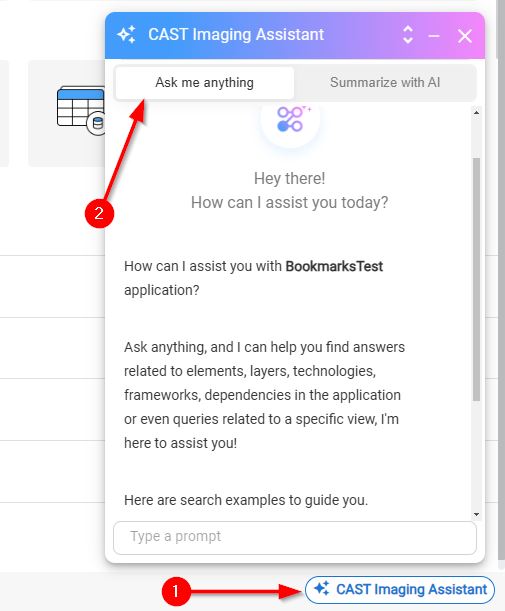 |
| AI Summary | Enables two features that can generate an AI driven explanation of items in your application, displayed in a Post-It:
|
| GraphRAG Available in ≥ 3.6.6-funcrel
|
Enables GraphRAG, which builds a queryable semantic knowledge graph of your application to uncover relationships and insights. You must also choose an embedding provider and an embedding model before the GraphRAG pipeline can be run - see GraphRAG below. |
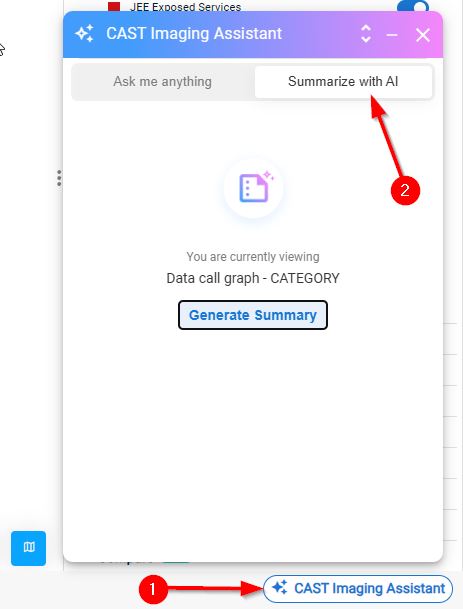
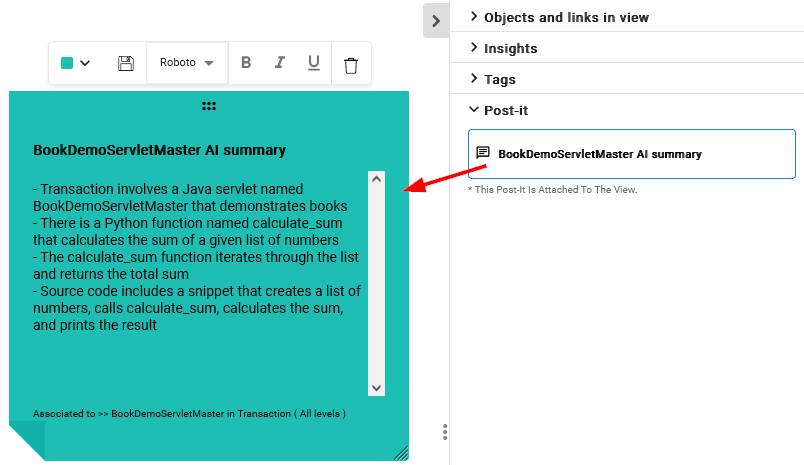
- You can find out more details about using AI in Leverage AI services.
- Configuring an AI API key will automatically enable LLM input for the Module Assistant feature.
- Some AI-driven features have no check box of their own and become available as soon as a provider is configured. This is the case for AI Mode in Custom Aggregation and Global Search - until a provider is configured, the AI Mode tab stays disabled with the tooltip "AI provider is not configured".
GraphRAG
GraphRAG is currently provided in beta.
GraphRAG builds a semantic knowledge graph from the functional documents and source code context available for an application, which you can then query with natural-language questions from an MCP client.
GraphRAG needs an embedding model in addition to the primary AI provider:
- Primary AI provider - generates the completions used to extract business concepts and their relationships.
- Embedding provider and model - creates the semantic representations that make the knowledge graph searchable.
The same provider can fill both roles, or you can use two different providers - for example Claude AI for completion and OpenAI for embeddings.
Choose how embeddings are generated
Configure the primary AI provider first, as described in Configuring a provider. Two options are then available:

| Option | Description |
|---|---|
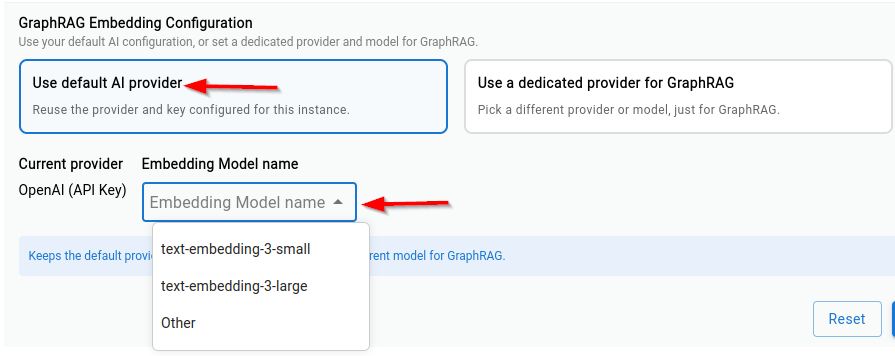
| Use the primary AI provider | Reuses the provider and credentials you have already saved. Available only where your primary provider supports embedding generation. You must still select an embedding model - the model used for completion is not used for embeddings. |
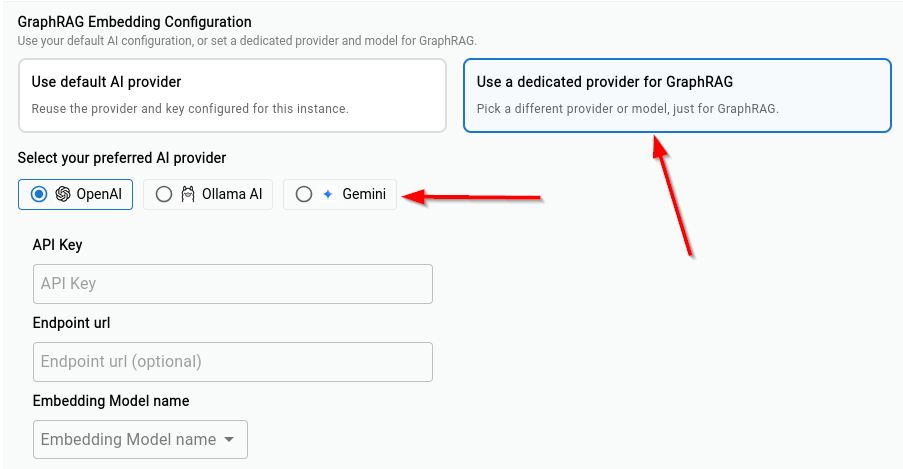
| Use a different AI provider | Nominates a separate provider purely for GraphRAG embeddings. You must supply that provider’s own credentials in addition to the embedding model. Use this option when your primary provider does not support embedding generation. |
When you reuse the primary AI provider, only the embedding model has to be selected:
When you use a different provider, select the provider, enter its credentials and then select the embedding model:
Supported embedding providers
The following providers are supported for GraphRAG embedding generation, whichever option you choose:
| Embedding provider | Required | Default embedding model |
|---|---|---|
| OpenAI |
|
text-embedding-3-small |
| Google Gemini |
|
gemini-embedding-001 |
| Ollama AI |
|
nomic-embed-text:v1.5 |
The CAST Imaging UI lists additional AI providers for the primary AI provider. For the embedding configuration, use one of the providers listed above.
Select the embedding model
For your chosen provider, either select a model from the dropdown list, or choose Other and enter a custom model name:

A custom model name must correspond to an embedding model that is available to your provider account or deployment. An unsupported model, or a model that produces vectors of a different size to the one already used for an application, will cause the GraphRAG pipeline or semantic search to fail.
Save the configuration
When all the required details have been provided, click Save Configuration:
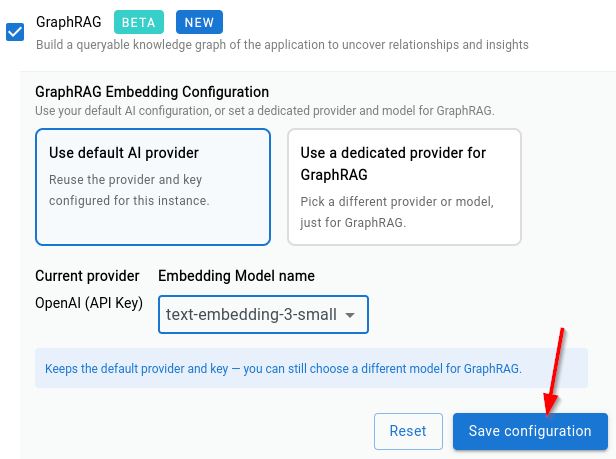
The embeddings stored in the knowledge graph are specific to the embedding provider and model used to create them. If you change the embedding provider or model after a knowledge graph has been generated, rerun the GraphRAG pipeline before using semantic search again - otherwise semantic search can fail or return poor results.
- Generating the knowledge graph is done from the application's GraphRAG page - see Query your application with GraphRAG.
- For normal tenant-based operation, the CAST Imaging MCP Server reads the embedding provider, model and credentials configured here.
Ensure your source code is accessible
The AI-driven features are all based on the source code of objects in your application, therefore, CAST Imaging must be able to display source code for these feature to function correctly. The only exception to this is the Summarize with AI feature specifically on the Application scope.
- For applications that have been fully analyzed with CAST Imaging, source code will be available by default in the right panel. You do not need to do anything else.
- For applications whose results have been imported into CAST Imaging (i.e. the application has not been fully analyzed), you will need to ensure that a datasource is configured. See Managing data source configuration