Neo4j on a dedicated machine (Docker)
Overview
In a standard installation, the Neo4j database runs in a container alongside the other imaging-viewer services on the same machine. From 3.6.4-funcrel you can instead split the imaging-viewer component so that Neo4j runs on its own dedicated machine, separate from the other imaging-viewer services.
When to use this:
- Performance isolation - Neo4j runs on hardware sized and tuned for a database (memory, disk), independently of the machine hosting the other services.
- Independent lifecycle - because Neo4j is deployed separately, you can update CAST Imaging without being forced to update Neo4j at the same time. Neo4j is treated like an independent database instance.
- Separate ownership - environments where the Neo4j instance is managed by a different team or process.
This option applies only to deployment scenarios that include imaging-viewer - S1 (All Components), S2 (Viewer Only) and S3 (Viewer + Analysis). It is not relevant to S4 and S5, where the imaging-viewer component is not installed.
How it is controlled
From 3.6.6-funcrel the split is driven entirely by the standard global installer and updater, using the NEO4J_INSTALLATION_MODE variable in configuration.conf:
NEO4J_INSTALLATION_MODE=embedded(default) - Neo4j is installed together with the otherimaging-viewerservices on the same machine. This is the standard behaviour and nothing changes.NEO4J_INSTALLATION_MODE=external- Neo4j runs on its own dedicated machine. A newneo4jinstaller parameter deploys it, and the machine hosting the Viewer services is pointed at it withIMAGING_NEO4J_HOSTNAME.
Any value other than external is treated as embedded. You do not need to run any per-component script, and you do not need to edit any .env file - see Installation variables.
In 3.6.4-funcrel and 3.6.5-funcrel this deployment required the per-component install.sh / install-podman.sh script to be run by hand. Those flags still work but are no longer the documented path - see Installing on 3.6.4-funcrel and 3.6.5-funcrel at the end of this page.
Known limitation
The Neo4j image still contains CAST-specific components (the data migration tool, the v2 to v3 version upgrade tool, and plugins including APOC and the CAST procedures jar). Its installation and update lifecycle are now independent, but the image itself is still versioned and released together with CAST Imaging Viewer, so upgrading Neo4j on a fully independent cadence is not supported.
Requirements
Read and understand the following before starting:
You will need two machines for the split, in addition to the machine(s) hosting the other components:
- a Neo4j machine, and
- a Viewer services machine for the remaining
imaging-viewerservices
The Viewer machine must be able to reach the Neo4j machine on the Bolt port (7687) and HTTP port (7474). Open these ports inbound on the Neo4j machine - see Hardware requirements.
Step 1 - Download the installation media
Perform the following on each machine, including the Neo4j machine.
Download the installer using curl:
$ curl -# -O -J "https://extend.castsoftware.com/api/package/download/com.castsoftware.imaging.all.docker/<version>?platform=linux_x64" \
  -H "x-nuget-apikey: <api-key>" \
  -H "accept: application/octet-stream"
Where:
<version>: uselatestfor the most recent release, or a specific version such as3.6.0-funcrel<api-key>: your CAST Extend API key (obtain from https://extend.castsoftware.com/#/profile/settings )
Example for latest release:
$ curl -# -O -J "https://extend.castsoftware.com/api/package/download/com.castsoftware.imaging.all.docker/latest?platform=linux_x64" \
  -H "x-nuget-apikey: a9999a9a-c999-999d-999b" \
  -H "accept: application/octet-stream"
Unzip the resulting ZIP file anywhere on your local disk:
$ unzip /path/to/<installer>.zip -d /path/to/folder
Where:
-d /path/to/folder: tells the unzip utility to unzip to a specific folder (omitting the option will unzip to the current folder)
The following files and folders will be created:
cast-imaging-dashboards/(folder)cast-imaging-node/(folder)cast-imaging-services/(folder)cast-imaging-viewer/(folder)tools/(folder)cast-imaging-install.shcast-imaging-install-podman.shcast-imaging-update.shconfiguration.conf
Make the install script executable
Ensure the installation script is set to executable:
$ chmod +x cast-imaging-install.sh
Step 2 - Install Neo4j (Neo4j machine)
Install Neo4j first. The dedicated Neo4j instance must be installed and reachable on its Bolt port before you install the Viewer services.
Perform the following on the machine that will host Neo4j. Nothing else is deployed on this machine: locate configuration.conf at the root of the unzipped files and open it in a text editor (nano or vi). Set the following:
| Variable | Set to |
|---|---|
NEO4J_INSTALLATION_MODE |
external |
INSTALL_DIR |
The root installation location on this machine (default: /opt/cast) |
IMAGING_VIEWER_VERSION |
The release you are installing - this is pre-populated with the correct value and does not normally need to be changed |
OFFLINE_MODE |
true for an air-gapped machine, otherwise leave blank or set to false |
NEO4J_INSTALLATION_MODE=external
INSTALL_DIR=/opt/cast
OFFLINE_MODE=false
No xxx_HOSTNAME variable needs to be set on this machine - IMAGING_SERVICES_HOSTNAME in particular is not required here. See Installation variables for a full reference.
Now set the Neo4j password in the cast-imaging-viewer/.env file (located in the cast-imaging-viewer folder of the unzipped package):
NEO4J_PASSWORD=<your_password>
NEO4J_PASSWORD is the one setting for this deployment that is configured in .env rather than in configuration.conf. Make a note of the value - you must set the same password on the machine hosting the Viewer services.
Run the following from the root of the unzipped files:
$ ./cast-imaging-install.sh neo4j
This installs only Neo4j - nothing else is deployed on this machine. Neo4j is exposed on the network on two ports only: HTTP (7474) and Bolt (7687).
Air-gapped installation
Offline mode is honoured for the neo4j parameter exactly as for any other parameter - there is no separate offline command. castimaging/neo4j is the only image required on this machine. On an internet-connected machine, pull and export it, transfer the archive to the Neo4j machine and load it:
$ docker pull castimaging/neo4j:<version>
$ docker save castimaging/neo4j:<version> -o neo4j.tar
$ docker load -i neo4j.tar
Then set OFFLINE_MODE=true in configuration.conf before running the installer. See Air-gapped installation for the equivalent procedure on the machines hosting the other components.
Installation prechecks
Before it makes any change to the machine, the installer validates the environment it is about to install into: the operating system, the software it depends on, the hardware resources available, the ports it needs, and the endpoints it must reach. These checks run automatically and cannot be skipped.
Where a blocking failure is reported, the installation does not start and nothing on the machine is changed: resolve the reported condition and run the installer again. Where a warning is reported, the installation continues.
See Installation prechecks for the full list of checks, and the Precheck message reference for the meaning of a specific failure or warning message.
The Neo4j ports (HTTP 7474 and Bolt 7687) are verified free on this host before anything is installed.
Verify Neo4j is running
$ docker ps
$ docker logs neo4j
Note this machine’s FQDN or static IP - you need it in Step 3.
Step 3 - Install the other components (services and Viewer machines)
Perform the following on each machine that hosts a CAST Imaging component, in addition to the standard variables required by your scenario.
Neo4j must already be installed, running and reachable on its Bolt port (7687) before you install the Viewer.
In configuration.conf, set:
| Variable | Set to |
|---|---|
NEO4J_INSTALLATION_MODE |
external |
IMAGING_NEO4J_HOSTNAME |
FQDN or static IP of the dedicated Neo4j machine |
NEO4J_INSTALLATION_MODE=external
IMAGING_NEO4J_HOSTNAME=<Neo4j-machine-IP-or-FQDN>
On the machine that hosts the Viewer services, also set the Neo4j password in the cast-imaging-viewer/.env file. It must be the same password you set on the Neo4j machine:
NEO4J_PASSWORD=<same_password_as_the_Neo4j_machine>
NEO4J_PASSWORD is the one setting for this deployment that is configured in .env rather than in configuration.conf. If the two values do not match, the Viewer services cannot authenticate against Neo4j.
Because the mode is external, whichever command installs the Viewer (all or imaging-viewer) installs the Viewer services without a local Neo4j and connects them to bolt://<IMAGING_NEO4J_HOSTNAME>:7687 automatically. You do not need to set the Bolt endpoint yourself.
If IMAGING_NEO4J_HOSTNAME is left empty while NEO4J_INSTALLATION_MODE=external, the installation aborts immediately with an explanatory error rather than partially deploying.
Now install the components as normal, following the installation guide for your scenario (use the multi-machine topology where the scenario offers one):
No step is skipped and no command changes: run ./cast-imaging-install.sh all, or imaging-services / analysis-node / dashboards / imaging-viewer individually, exactly as documented for your scenario. Because NEO4J_INSTALLATION_MODE=external, whichever command installs the Viewer deploys the Viewer services without a local Neo4j and connects them to the machine from Step 2.
Step 4 - Initial startup configuration
Browse to:
http://<IMAGING_SERVICES_HOSTNAME>:8090
Log in using the default credentials: admin / admin
Available from 3.6.5-funcrel: on your first login after a fresh installation, if the admin account is still using the default password, you are redirected to a mandatory password change screen. After setting a new password, you must complete your user profile (first name, last name, and email address) before you can access CAST Imaging.
Configure the Licensing strategy. Choose one of:
Named Application- each onboarded application requires its own dedicated license keyContributing Developers- a global license key based on the number of contributing developers
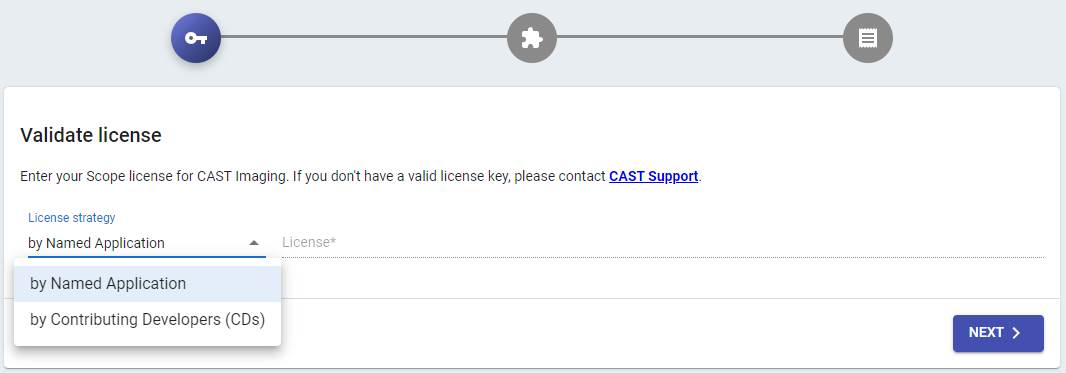
You can switch license key strategy after onboarding applications. See Manage your license keys.
Configure CAST Extend settings and Proxy settings:
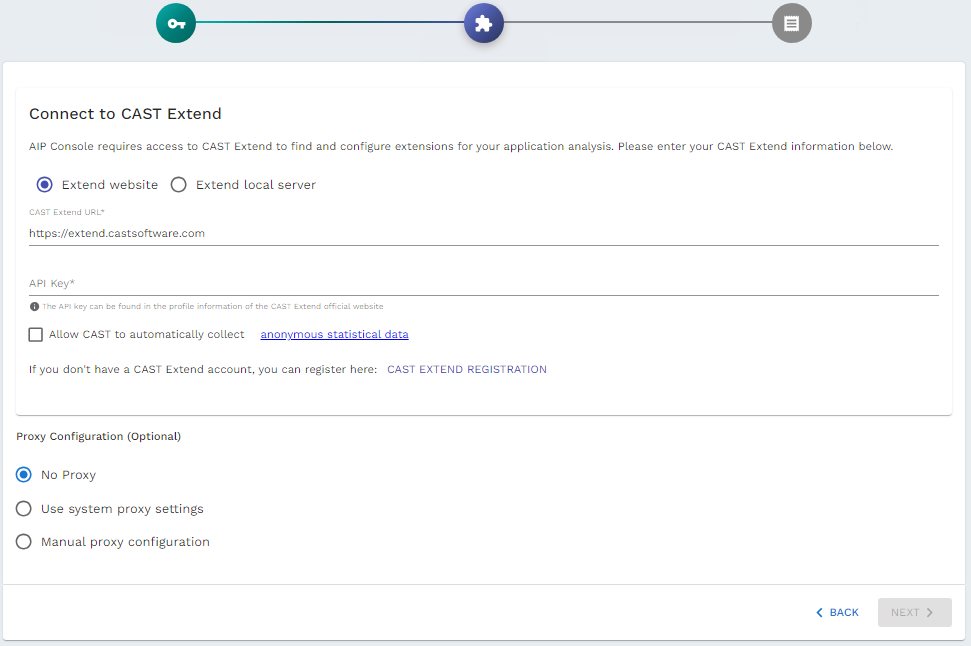
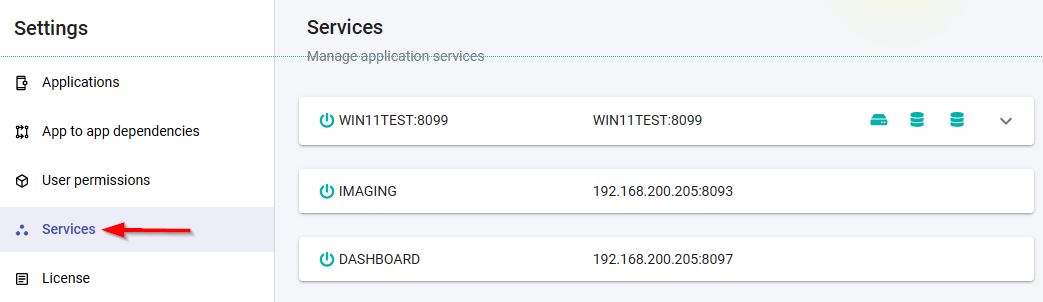
Verify that all components are available:
http://<IMAGING_SERVICES_HOSTNAME>:8090/admin/services
Step 5 - Configure authentication
Out-of-the-box, CAST Imaging uses Local Authentication (admin/admin) managed by Keycloak.
CAST recommends switching to your enterprise authentication system (LDAP or SAML) before onboarding applications. Access the Keycloak UI using the kcadmin account (or the value of KEYCLOAK_LOGIN_ADMIN_USER if customized during installation). See Authentication for full instructions, and Keycloak accounts and passwords for an explanation of each account provided and how to change its password.
Updating
Follow the standard in-place component update procedure - download and extract the target release on each machine, check INSTALL_DIR in configuration.conf, then run the updater with the parameter for that machine:
| Machine | Command |
|---|---|
| Dedicated Neo4j machine | ./cast-imaging-update.sh neo4j |
| Viewer machine | ./cast-imaging-update.sh all or ./cast-imaging-update.sh imaging-viewer |
On the dedicated Neo4j machine - the neo4j parameter updates Neo4j only:
- The Neo4j data migration runs here, because this is where Neo4j lives. Pass
--skip-neo4j-migrationto skip it - the same opt-out flag as for a standard installation, issued on this machine instead of the Viewer machine. - The
neo4jparameter is accepted only whenNEO4J_INSTALLATION_MODE=external. Inembeddedmode it is rejected with an explanatory error and no changes are made.
On the Viewer machine - the all or imaging-viewer parameter updates the Viewer services only:
- The services are updated in Viewer-only mode, matching how they were installed.
- The Neo4j data migration is skipped automatically, with a message pointing to the Neo4j machine - there is no local Neo4j to migrate. This happens whether or not you pass
--skip-neo4j-migration. - Existing configuration is preserved, including the Bolt connection to the external Neo4j host.
Update order. The two updates are independent, so the machines can be updated in any order - there is no requirement to update Neo4j before or after the Viewer services.
Install-mode enforcement. Each machine’s installed mode (full, viewer or neo4j) is recorded on disk at install time and verified on every update. If a mismatched parameter is used - neo4j on a machine installed as Viewer-only, or vice versa - the update refuses to proceed and reports the mismatch rather than corrupting the installation. Updating a Viewer-only or Neo4j-only machine also starts and stops only the services that belong on that machine.
Connect AI tools to your results
Optional. Expose this deployment’s results to AI clients such as GitHub Copilot, Claude Desktop and Cursor via the MCP Server for CAST Imaging - a standalone component, installed separately, that lets you query application architecture, transactions, quality insights and code objects in natural language. See Getting started with CAST Imaging MCP Server.
Installing on 3.6.4-funcrel and 3.6.5-funcrel
In 3.6.4-funcrel and 3.6.5-funcrel the global installer could not be used for this deployment: Neo4j and the Viewer services had to be installed by running the per-component install.sh script by hand. These flags still work in later releases, but the procedure above is the documented path.
Expand for the 3.6.4-funcrel and 3.6.5-funcrel procedure
Step 1 - Install the other components
Install imaging-services first (and analysis-node / dashboards if required by your scenario) using the global installer, by following the installation guide for your scenario (use the multi-machine topology where the scenario offers one):
When following the scenario guide, skip the cast-imaging-install.sh imaging-viewer step - the Viewer (Neo4j + Viewer services) is installed separately in Steps 3 and 4 below. imaging-services must be fully running before you install the Viewer (Neo4j + Viewer services) services.
Step 2 - Download the installation media (Neo4j and Viewer machines)
Perform the following on both the Neo4j machine and the Viewer machine.
Download the installer using curl:
$ curl -# -O -J "https://extend.castsoftware.com/api/package/download/com.castsoftware.imaging.all.docker/<version>?platform=linux_x64" \
  -H "x-nuget-apikey: <api-key>" \
  -H "accept: application/octet-stream"
Where:
<version>: uselatestfor the most recent release, or a specific version such as3.6.0-funcrel<api-key>: your CAST Extend API key (obtain from https://extend.castsoftware.com/#/profile/settings )
Example for latest release:
$ curl -# -O -J "https://extend.castsoftware.com/api/package/download/com.castsoftware.imaging.all.docker/latest?platform=linux_x64" \
  -H "x-nuget-apikey: a9999a9a-c999-999d-999b" \
  -H "accept: application/octet-stream"
Unzip the resulting ZIP file anywhere on your local disk:
$ unzip /path/to/<installer>.zip -d /path/to/folder
Where:
-d /path/to/folder: tells the unzip utility to unzip to a specific folder (omitting the option will unzip to the current folder)
The following files and folders will be created:
cast-imaging-dashboards/(folder)cast-imaging-node/(folder)cast-imaging-services/(folder)cast-imaging-viewer/(folder)tools/(folder)cast-imaging-install.shcast-imaging-install-podman.shcast-imaging-update.shconfiguration.conf
Ensure the installer is executable:
$ chmod +x cast-imaging-viewer/install.sh
Step 3 - Install Neo4j (Neo4j machine)
Perform the following on the machine that will host Neo4j.
Ensure the imaging-viewer version in configuration.conf (located one level above the installer, at the root of the unzipped package) is set to the current release you are installing (this should already be the case):
IMAGING_VIEWER_VERSION=<version>
Set the following variables in cast-imaging-viewer/.env:
| Variable | Set to |
|---|---|
SERVICE_HOST |
FQDN or static IP of this (the Neo4j) machine |
NEO4J_PASSWORD |
The password to set for Neo4j |
NEO4J_HTTP_PORT |
7474 (default) |
NEO4J_BOLT_PORT |
7687 (default) |
SERVICE_HOST=<Neo4j-instance-IP-or-FQDN>
NEO4J_PASSWORD=<your_password>
NEO4J_HTTP_PORT=7474
NEO4J_BOLT_PORT=7687
Run the installer from the cast-imaging-viewer folder, passing your installation directory and the --neo4j flag:
$ ./install.sh /opt/cast/imaging --neo4j
For air-gapped machines, first load all required Neo4j images (see Air-gapped installation for the image list and the docker save / docker load procedure), then append offline:
$ ./install.sh /opt/cast/imaging --neo4j offline
Verify Neo4j is running and note this machine’s IP/FQDN for Step 4:
$ docker ps
$ docker logs neo4j
Step 4 - Install the Viewer services (Viewer machine)
Perform the following on the machine that will host the remaining imaging-viewer services (Server, ETL, AI Manager, CAST Imaging APIs).
Neo4j must already be installed, running and reachable on its Bolt port (7687) before you proceed with the installation.
Ensure the imaging-viewer version in configuration.conf (located one level above the installer, at the root of the unzipped package) is set to the current release you are installing (this should already be the case):
IMAGING_VIEWER_VERSION=<version>
Set the following variables in cast-imaging-viewer/.env:
| Variable | Set to |
|---|---|
SERVICE_HOST |
FQDN or static IP of this (the Viewer) machine |
EUREKA_HOST |
FQDN or static IP of the imaging-services machine |
EUREKA_PORT |
8098 (default) |
NEO4J_PASSWORD |
The same password set on the Neo4j machine |
SERVICE_HOST=<Viewer-instance-IP-or-FQDN>
EUREKA_HOST=<main-services-instance-IP-or-FQDN>
EUREKA_PORT=8098
NEO4J_PASSWORD=<same_password_as_Neo4j_instance>
You do not need to edit the Bolt endpoint manually: passing --viewer <neo4j-host> to the installer (see below) automatically sets NEO4J_BOLT_ENDPOINT=bolt://<neo4j-host>:7687 in .env.
Run the installer, passing the Neo4j machine’s IP/FQDN to the --viewer flag:
$ ./install.sh /opt/cast/imaging --viewer <neo4j-host>
For air-gapped machines, first load all required Viewer images, then append offline:
$ ./install.sh /opt/cast/imaging --viewer <neo4j-host> offline
Verify all Viewer services are running:
$ docker ps
Then complete the initial startup configuration and authentication steps above.
Updating
From 3.6.5-funcrel, the per-component update.sh (Docker) / update-podman.sh (Podman) script supports updating each instance independently:
--neo4j- updates Neo4j only, on the Neo4j instance--viewer- updates the Viewer services only, on the Viewer instance
The existing -t <version> flag specifies the target image tag:
$ ./update.sh -t 3.6.5 /opt/cast/imaging --neo4j
$ ./update.sh -t 3.6.5 /opt/cast/imaging --viewer
At install time a .install-mode marker file (neo4j, viewer or full) is written to the installation directory. The update script reads this marker, so running update.sh --neo4j on a Viewer instance (or vice versa) fails immediately with a clear error pointing to the correct instance.