Generate AI Summary
Overview
This feature is available for all scopes except Custom Aggregation and relies on both a valid AI API key and on access to source code - required for all scopes except the Application scope (source code access is configured via a data source - an error message is displayed when a functioning data source is not available). See also Right panel - About this view.
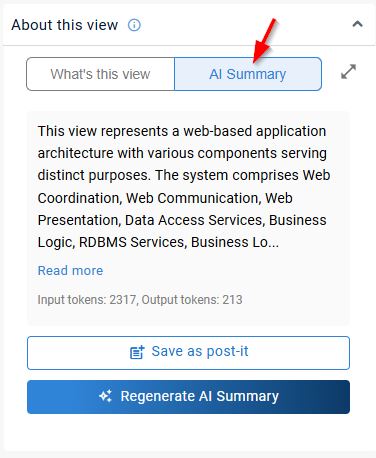
In previous releases (3.5.x-funcrel or earlier), this feature was available in the CAST Imaging Assistant:
How does it work?
- User triggers summary generation: the user initiates summary generation from the user interface.
- System filters relevant objects: objects with a cyclomatic complexity of less than 1 will be excluded.
- Share the object code snippets and its metadata with LLM: the system shares:
- Object metadata (Object name, count)
- Source code snippet for objects/sub-objects
- Link type between objects
- LLM reads and generates an object-level purpose for each object:
- Identify the purpose and functionality of individual objects
- Process multiple objects in parallel for efficiency
- LLM generates summary based on object-level purposes:
- LLM uses a composite prompt built from individual code piece insights to generate a summary
- Focus on identifying and listing object-level purposes in the order of decreasing complexity, starting with those most likely to contain meaningful logic
- Send the raw summary to the LLM for formatting: prompt the LLM with the raw summary to generate and return a formatted response:
- Technical Explanation
- Functional Explanation
- Objects of Interest
- Get the response received from LLM and store it in Neo4j: the response is stored in the Neo4j database.
- Display summary for the user
Key points:
- The source code for objects involved is shared to the LLM.
- AI Summary can be generated for different scopes (Individual/Bulk: Transactions / Data Call Graphs / Modules / Projects/ Services / Custom Views / Saved Views)
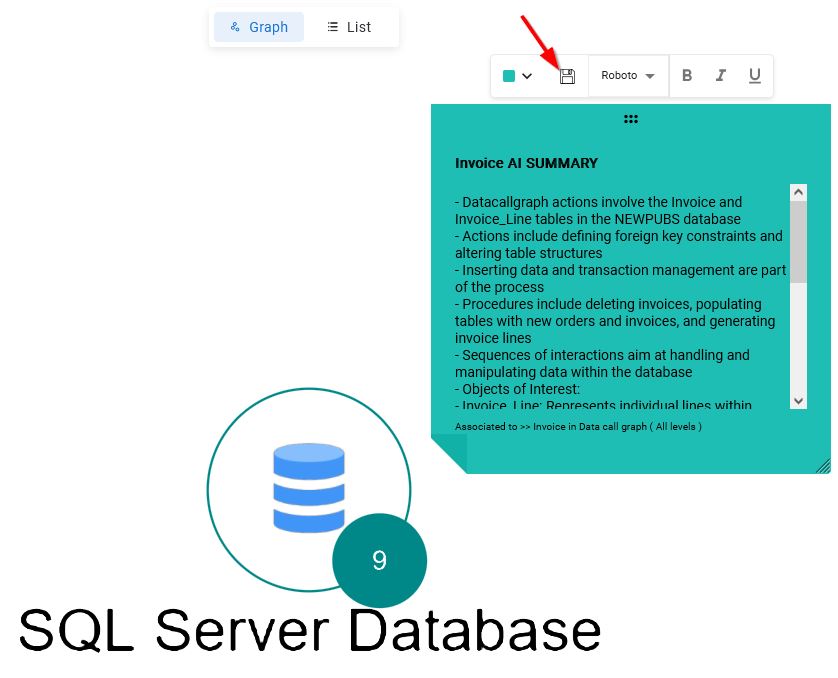
- Save it as a Post-It for documentation reference.
What does it do?
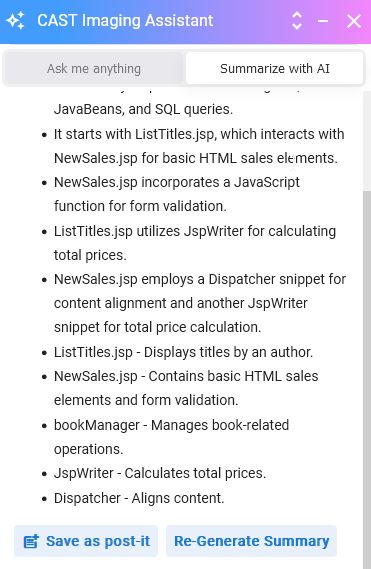
It will generate a summary of the purpose of the selected scope, display it and then give you the option to save the summary to a Post-It:
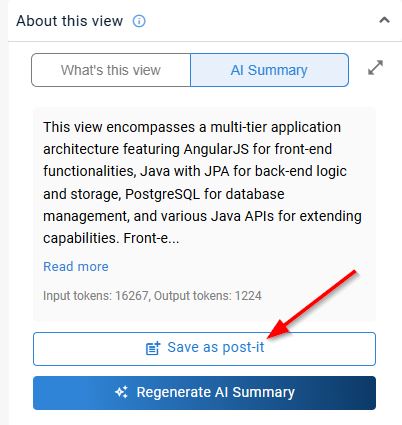
Ensure you save the Post-It if you want to access it in a future session from the Post-It section in the right panel:
Bulk AI summary
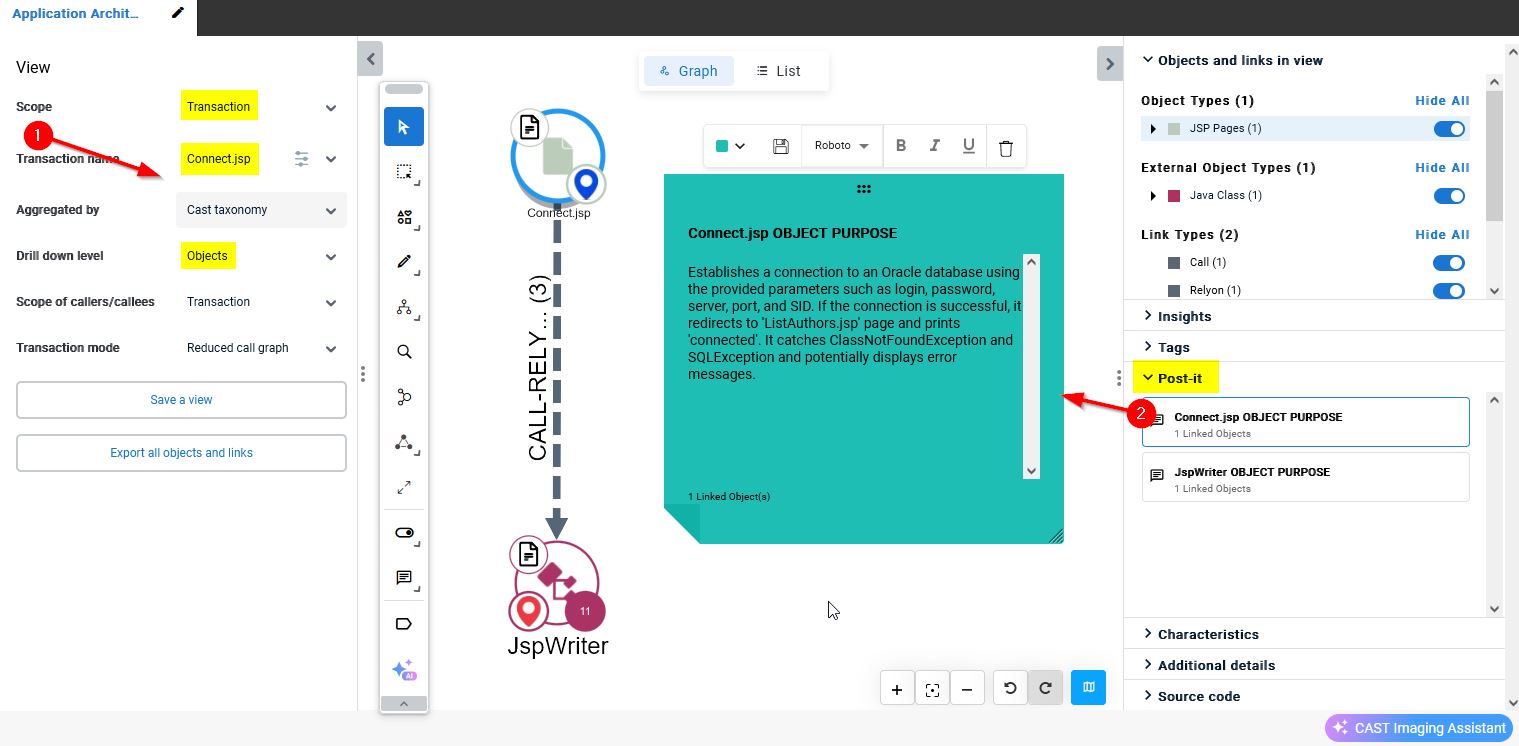
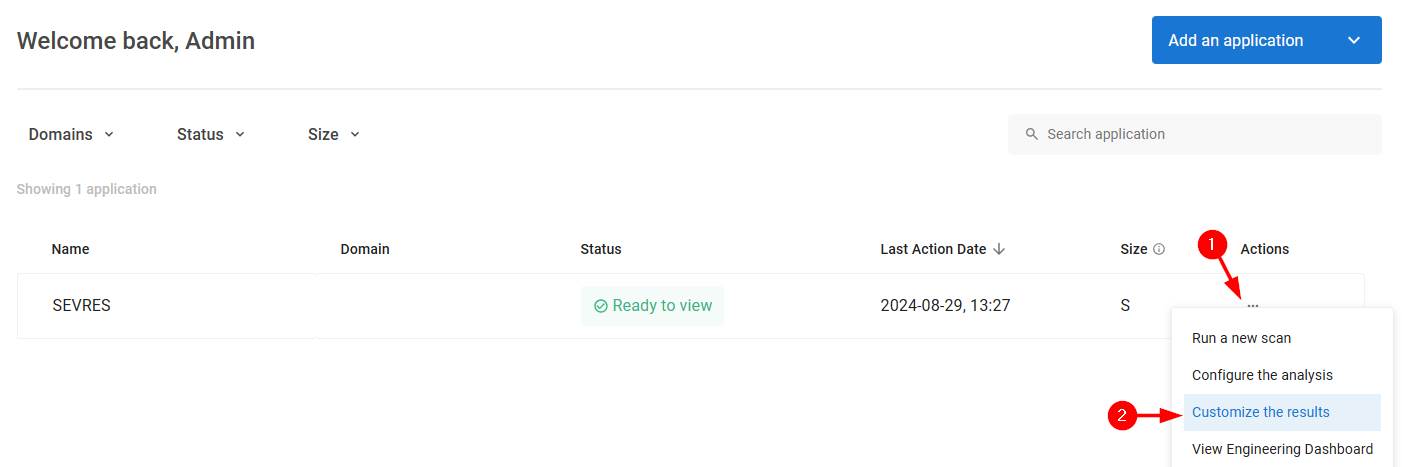
Creates an AI-driven explanation of all the objects within a given module, transaction, data call graph, service, project structure, displayed in a Post-It associated to the object itself. To access this feature you will need to use the Customize the Results option available in the Landing page:
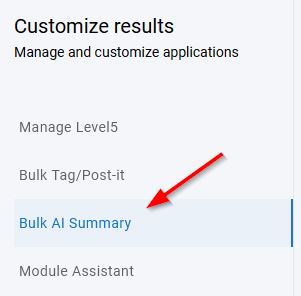
Then choose the Bulk AI Summary tab:
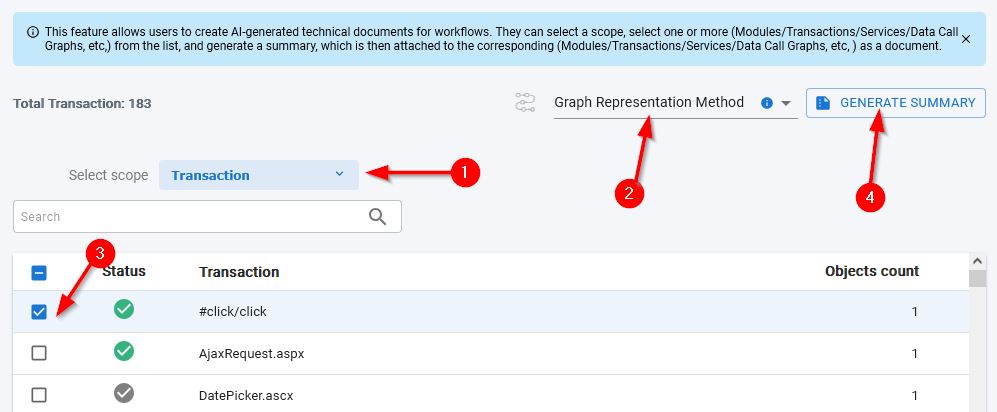
To generate the AI-driven explanation:
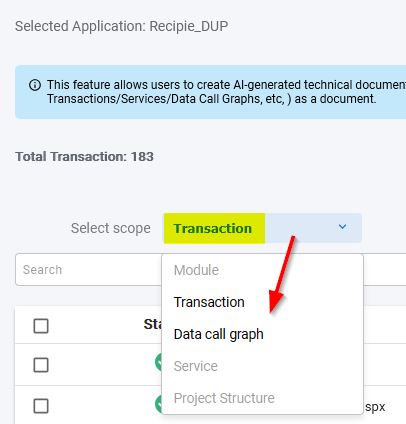
- select the scope you are interested in:
- module
- transaction
- data call graph
- service
- project structure
- choose the method of generating the explanation:
- Graph Representation Method: summarizes transactions by providing the entire transaction graph, offering a comprehensive overview of all connected objects and their relationships for a holistic understanding
- Exclusive Object Method: summarizes transactions by focusing on unique objects within the transaction graph, highlighting key points of divergence or importance
- choose the item(s) you want to generate the summary for
- click the Generate Summary button to begin the process
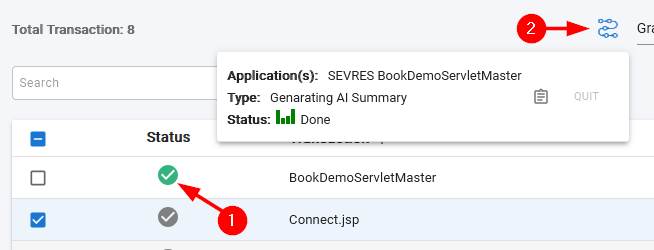
A green tick will indicate that the process has completed. A status icon also exists showing the process of any on-going and queued jobs:
To view the result:
- consult your application results
- switch to the scope and select the item you have generated an AI-driven explanation for
- drill down to the object level
- the items will display in a new tab
- click the Post-It to view the AI explanation for each object: