Upgrading the Advisor
Overview
The Advisor feature provides information about the status of your application (i.e., the level of “cloud readiness” of your application) with regard to a migration to a cloud provider such as AWS (Amazon Web Services) or Oracle Cloud. A series of checks are run against the application during the analysis and the result of these checks is presented in a way which makes it easy to see which objects in your application may need work to ensure a smooth migration to the given cloud provider (for example, removal if they are not supported in a cloud environment).
The checks that are used are embedded in the current release of CAST Imaging, therefore upgrading the checks will ensure that your application is using the most recent that are available.
Upgrading the checks will completely reset the results displayed by the Advisor and cannot be reversed. You may find that after the upgrade has completed, new violations of checks may appear.
When should I use the Upgrade Advisor option?
Since the checks that form the information provided by the Advisor are specific to each release of CAST Imaging, only applications which have been analyzed with the current release of CAST Imaging will be using the most recent checks that are publicly available. Therefore you should use this option in the following situations:
- On applications that have been imported into the current release of CAST Imaging: these applications will be using checks that were provided in the release of CAST Imaging from which the application was originally exported.
- When an upgrade to a new release of CAST Imaging has been actioned: all applications will be using checks that were provided in the previous release of CAST Imaging
Which applications are eligible?
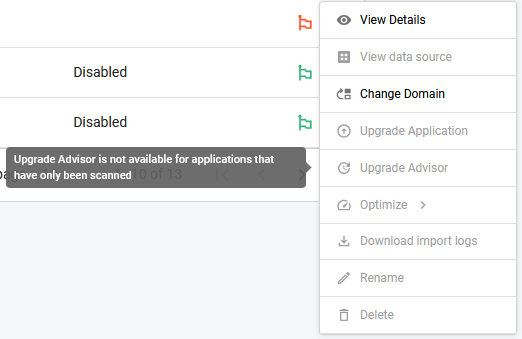
The Advisor upgrade is available only for applications whose results have been generated for imaging-viewer, i.e. applications that have completed a deep analysis. Applications that have only been through a fast scan are not eligible: the Upgrade Advisor action is disabled for them, and hovering over it displays “Upgrade Advisor is not available for applications that have only been scanned”.
How do I run the upgrade?
You can upgrade the Advisor for one application or for several at once.
One application
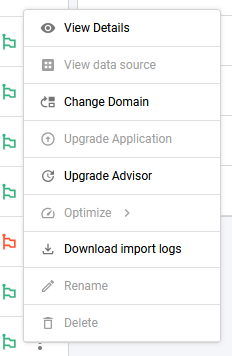
Open the application’s contextual menu in the Actions column and choose Upgrade Advisor:
Several applications
Select the applications and then use the Upgrade Advisor icon above the list:

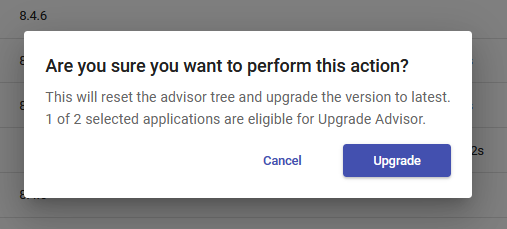
The icon is enabled when at least one of the selected applications is eligible. A confirmation dialog shows how many of the selected applications are eligible. Click Upgrade to run the upgrade on the eligible applications only:
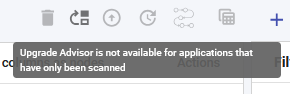
If none of the selected applications is eligible, the icon is disabled and displays the same tooltip as the contextual menu:
How do I follow progress?
The upgrade should not take too long, and the Queue icon will indicate the ongoing job:
