CAST Imaging Agents
Overview
CAST Imaging Agents is currently provided in beta and is flagged as such in the interface. Review its answers carefully before relying on them.
CAST Imaging Agents is an agentic chatbot for exploring an application in plain language: understanding how it is structured and what depends on what, identifying quality and security issues, and working out what a change would affect.
It differs from the CAST Imaging Assistant chatbot in the way it reaches an answer. Rather than generating a reply directly, the agent works out which tools it needs to answer your question, runs them, and uses their results to build its response. That activity is shown in the conversation, so you can see how your question is being handled.
Not every question needs a tool: for a simple one, the agent may answer directly.
Before you start
Four things are required:
- You hold the
AI Features Accessrole - see Default profiles and roles. - An AI provider is configured - see AI Settings. Currently we support the following:
- OpenAI: gpt-5.5, gpt-5.4, gpt-5.4-mini, gpt-5.2, gpt-5.2-pro, gpt-6-luna
- Gemini: 3.1 Flash Lite, 3.6 Flash
- The Assistant chatbot option is enabled in the list of AI features in AI Settings. The same option enables the CAST Imaging Assistant chatbot.
- The CAST Imaging MCP Server is installed and running - the agent uses it to run its tools. See Getting started with CAST Imaging MCP Server.
Open the chatbot
- Open the application you want to ask about.
- Select CAST Imaging Agents to open the chat window.
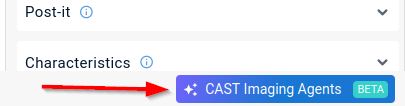
The chat window opens full screen.
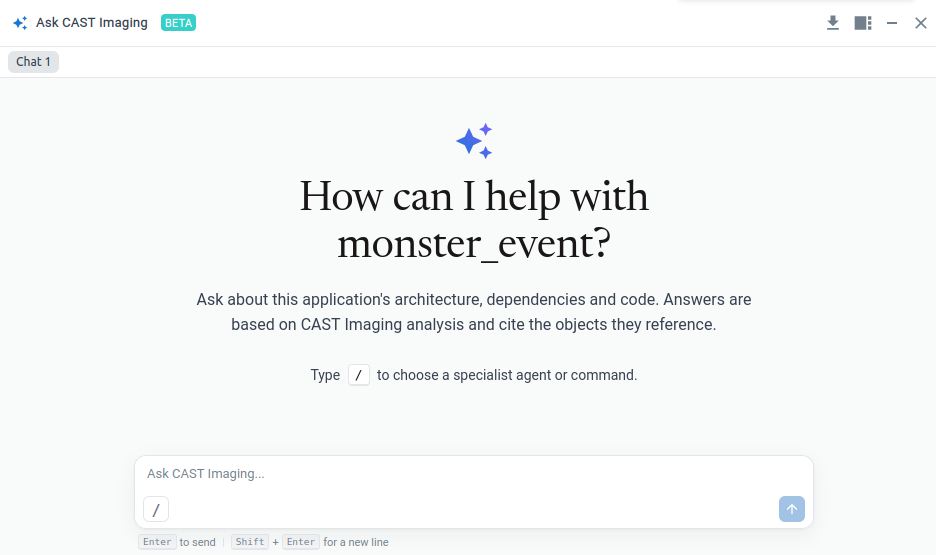
The CAST Imaging Agents button replaces the CAST Imaging Assistant button that occupied the footer in releases before 3.6.8-funcrel. The assistant is still available and is now opened from the Action toolbar in the graph view - see CAST Imaging Assistant chatbot.
Ask a question
Type your question into the input box in plain language.
While the agent works, it reports what it is doing in the conversation, including the tools it calls. These sections are expanded by default; collapse one to hide the detail, and expand it again to review it.
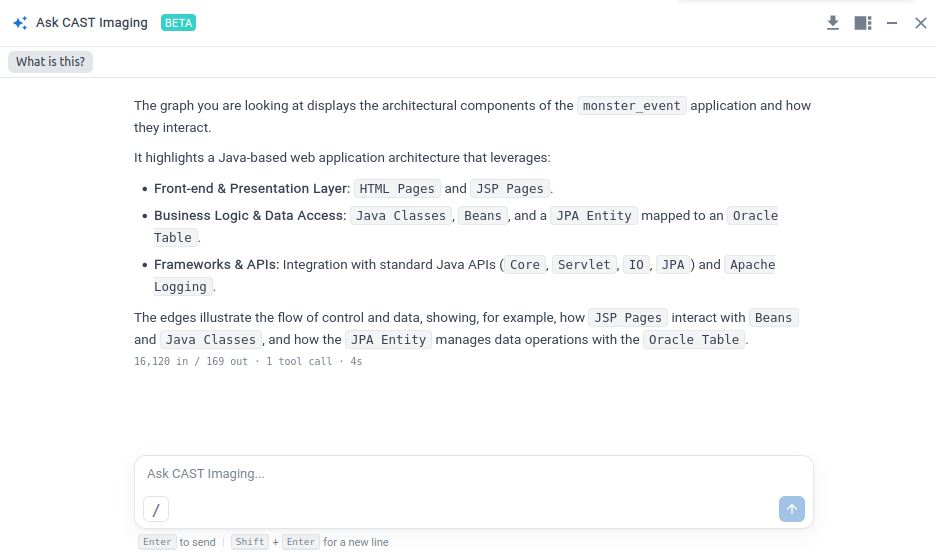
Stop a response
Select Stop while a response is being generated to halt it.
To pick up where the conversation stopped, send continue as your next message. The agent resumes from that point.
Chat window options
| Option | Description |
|---|---|
| Export as Markdown | Exports the entire session to an .md file. |
| Dock | Docks the chat window to the right of the screen, so you can consult the application and the conversation side by side. |
| Minimize | Minimizes the chat window. The conversation remains available. |
| Close | Closes the chat window and ends the session - see Sessions. |
Slash commands
Slash commands give direct access to specific agent capabilities. Use one by selecting the / button in the input box, or by typing / there.
| Command | Use it to |
|---|---|
/status |
Check the health of the agent services and confirm that the services it needs are available. |
/quality-advisor |
Get focused information about the quality and security of the application, with recommendations and a plan for addressing what it finds. |
/impact-analysis |
Find out what could be affected, or break, when an object is changed. |
/structural-discovery |
Understand how the application is put together and how its components are connected. |
Token usage and tool calls
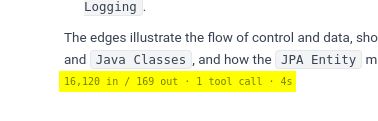
The end of each response reports the number of tokens consumed and the number of tool calls made during the conversation.
Sessions
Closing the chat window ends the current session. CAST recommends starting a new session rather than continuing a long conversation, since responses are better in a fresh one.