Step 3 - Run a full analysis and generate a snapshot
Configure and run a full code analysis in, then publish and make results available in CAST Imaging
Overview
This page explains how to configure and run a full code analysis in CAST Imaging, then publish the results so they become accessible to end users. It is intended for application owners and CAST Imaging operators.
Before you start
| Requirement | Detail |
|---|---|
| Role | Administrator, Application Owner |
| Application registered | Source code delivered and fast scan completed without errors. |
Step 1 - Configure the analysis
- Select the application to analyze:
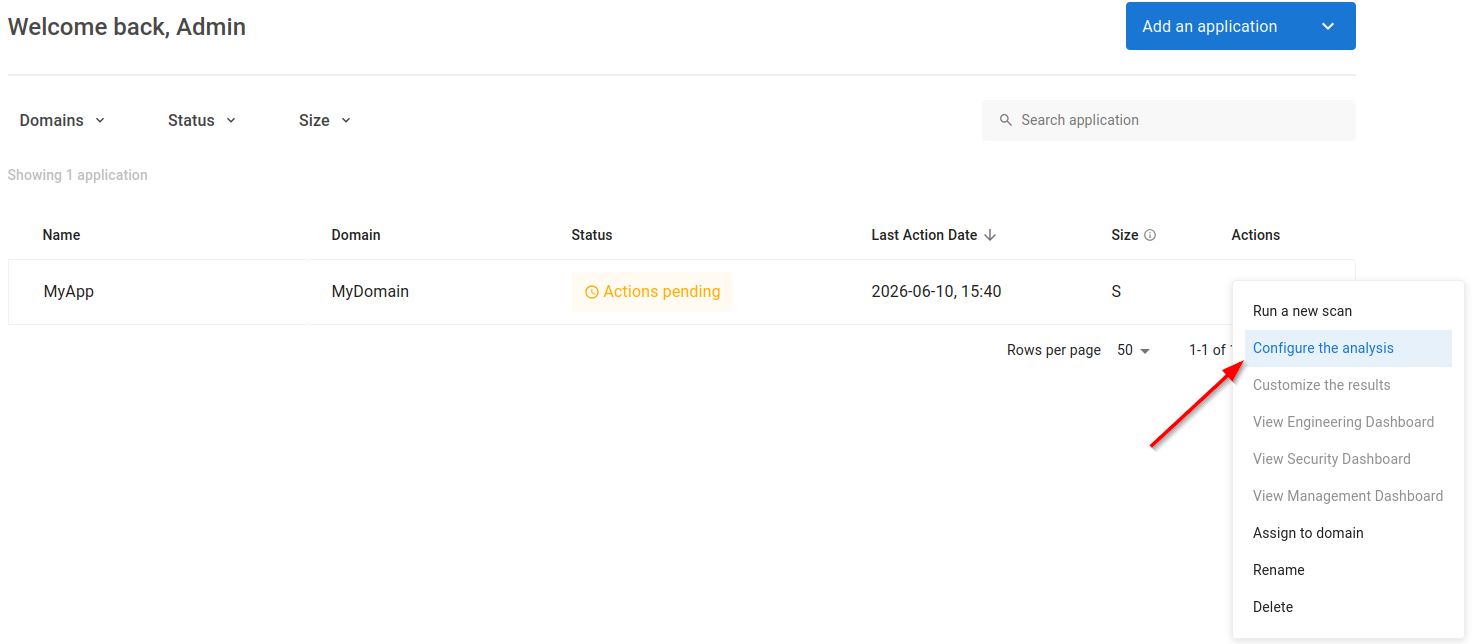
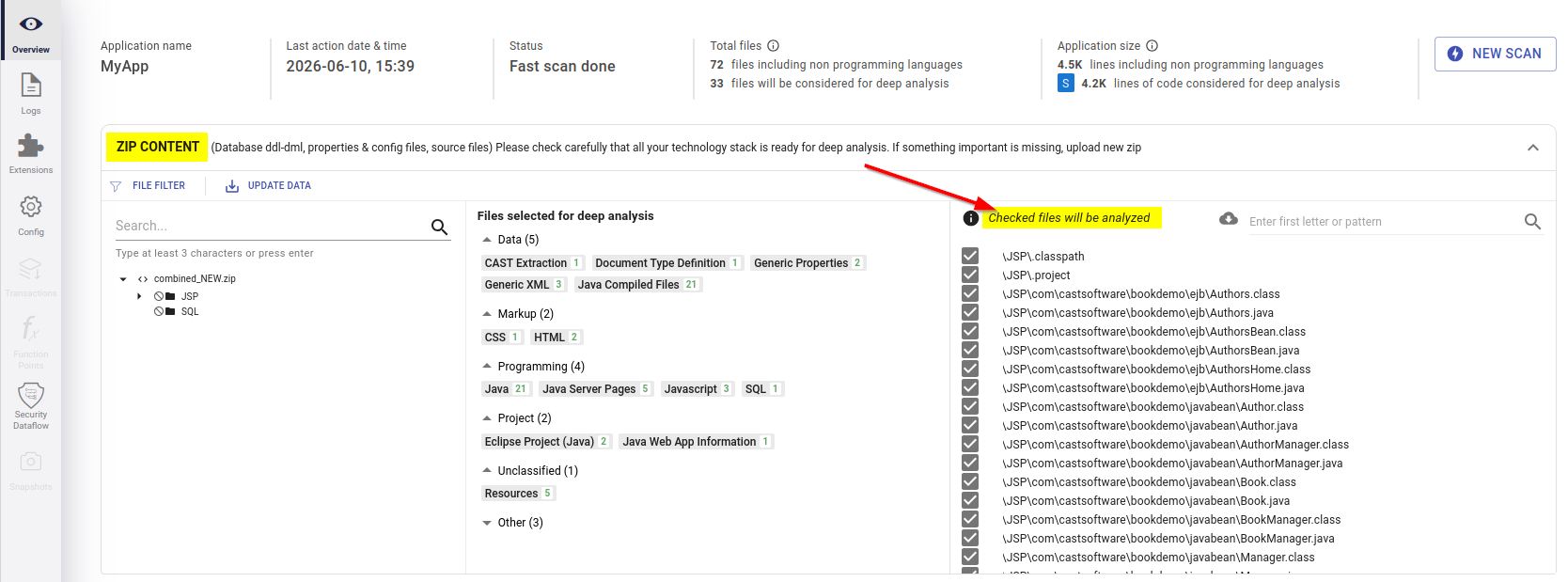
- Set exclusion rules for any directories or file patterns that should not be analyzed (see Zip/Folder Content section):
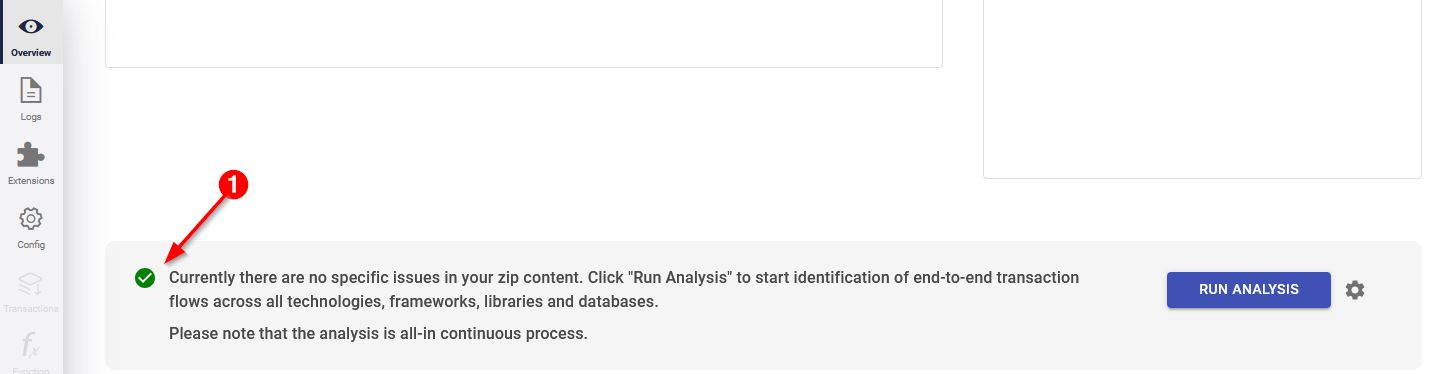
- Check for an warnings or errors:
- Check the extensions that have automatically been added - add or remove as appropriate - see Extensions page:
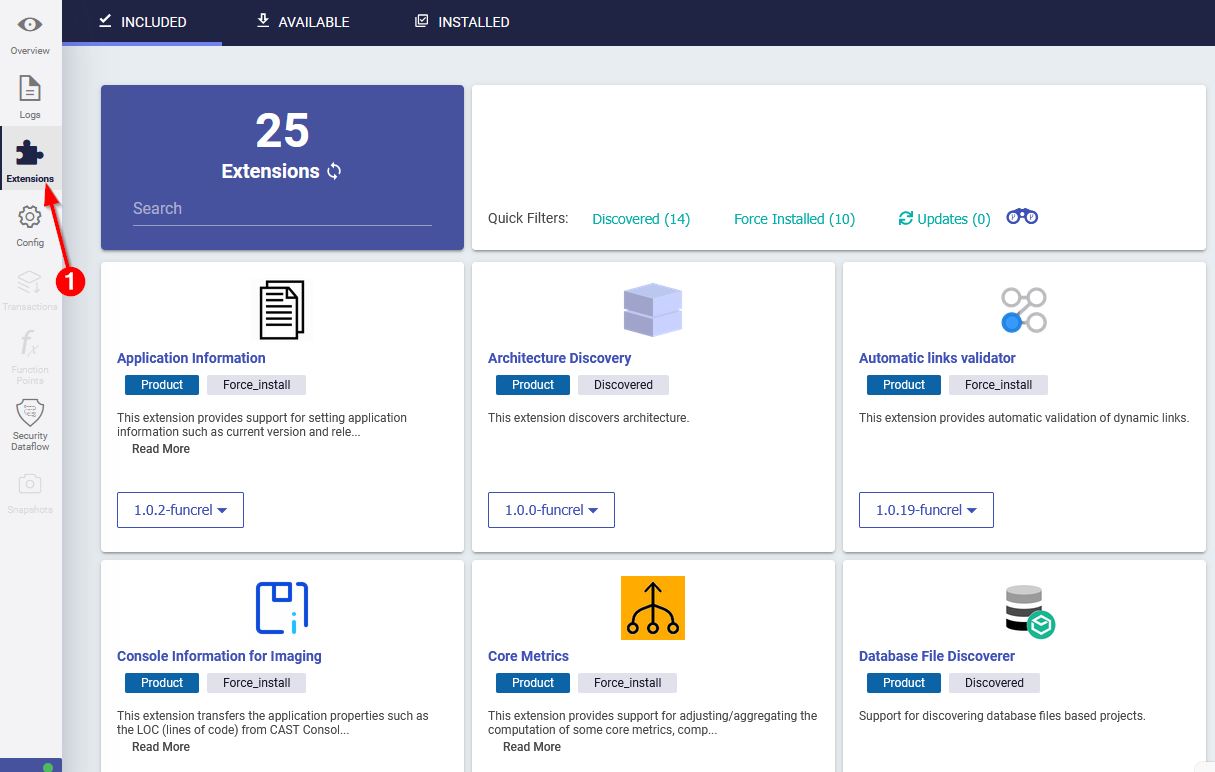
Step 2 - Run the analysis
- Click Run analysis at the foot of the Overview page - this will run all analysis steps in one go (Overview - Run Analysis section):

- Monitor progress in the Logs panel. The analysis is complete when the status changes to Completed.
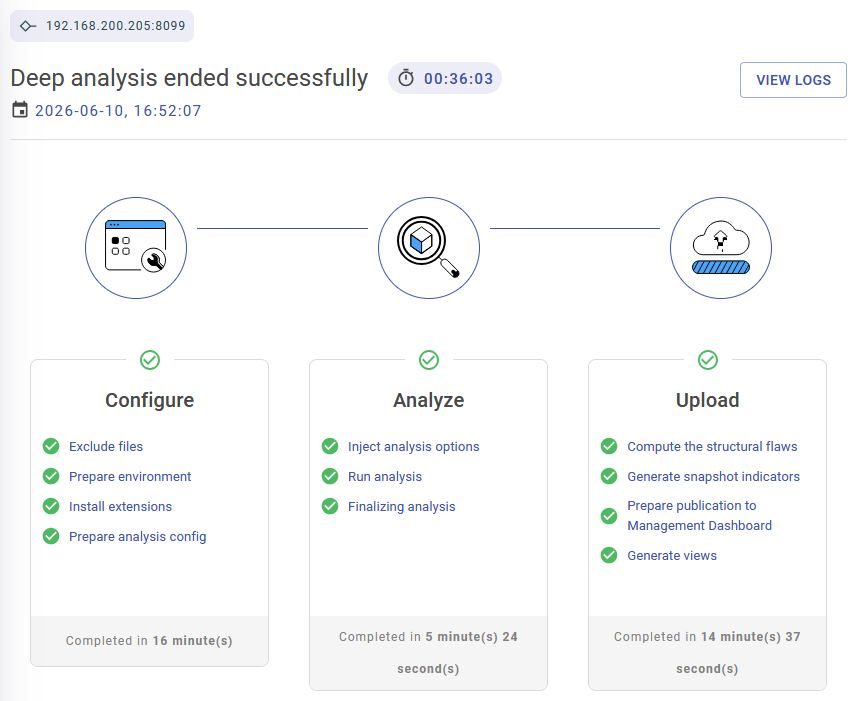
Step 3 - Review analysis results
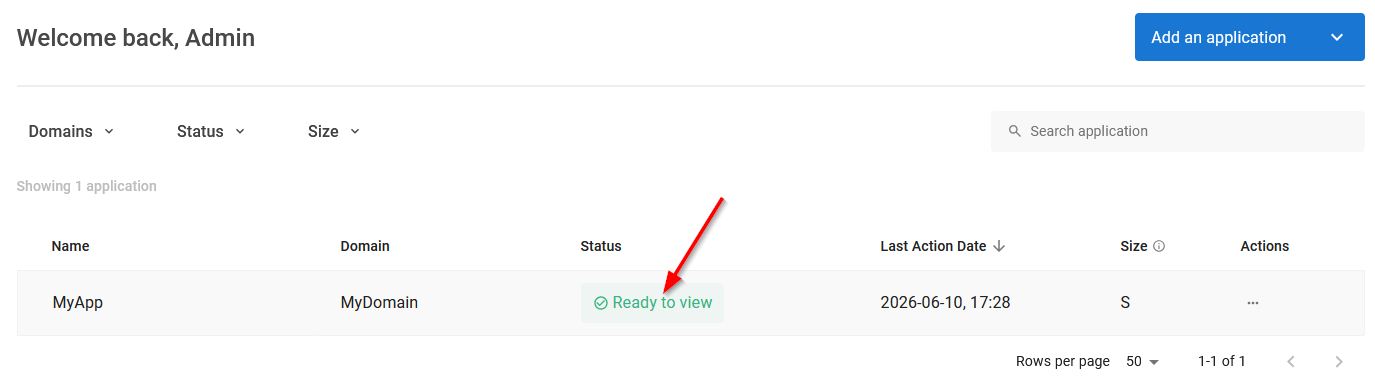
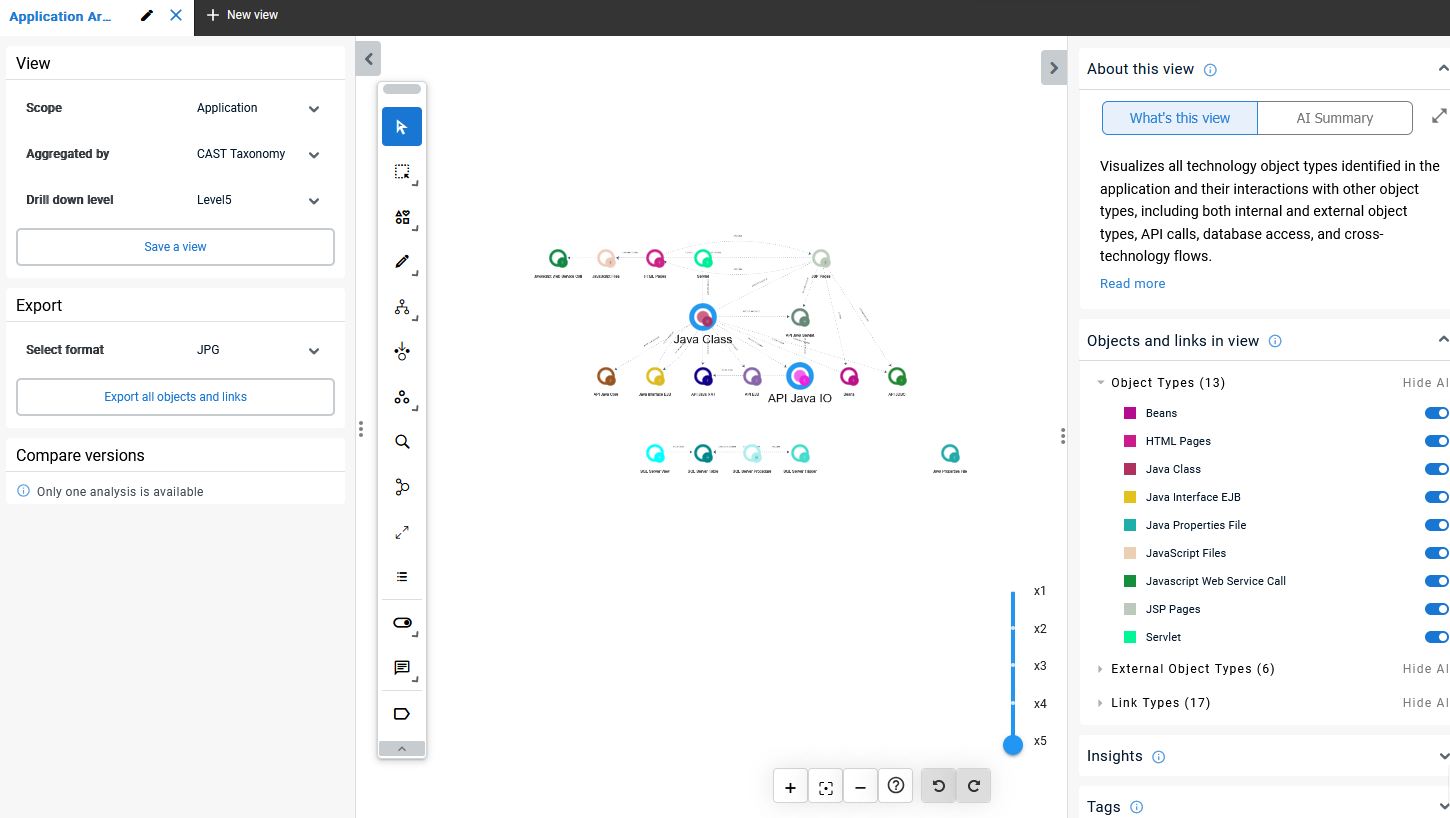
After the analysis completes, review the results using “viewer” - click Ready to view in the Application landing page:
Next steps
The application is now analyzed and its results are available in CAST Imaging. See Explore results for what you can do with them.