What hardware do I need?
Hardware requirements depend on various factors related to the Application(s) you are analyzing and these must be considered:
- Number of lines of code (LOC)
- Number of objects after analysis
- Number of violations after analysis
- Technologies used
- Number of users accessing results
Due to these different factors, it is difficult to make precise hardware recommendations, therefore what we provide in this page is indicative only. We provide these figures as a guide to the absolute minimum required to run CAST Imaging and your own configuration will likely require better hardware. Installations on machines with resources that are lower than the minimum required or that barely meet the minimum requirements will have the following limitations:
- analysis runtime and SQL operations will be sub-optimal
- you cannot run more than one application in parallel
- disk space can be quickly overloaded
- in some cases installers may be blocked from running
In addition, it is important to consider the number of analyses that will run in parallel. This will determine the number of “analysis nodes” that need to be deployed and the resources required to support them. For example, if you analyze only one large application per day, a single analysis node with sufficient resources (see Analyzing complex applications) may be enough. However, if multiple medium-sized applications need to be analyzed at the same time, additional analysis nodes will be required to handle the workload efficiently. Therefore, both the frequency of your analyses and the number of concurrent analyses need to be considered when sizing your infrastructure.
Which requirements apply to me?
CAST Imaging can be deployed on four platforms. Use the table below to find the section that applies to your platform - the sizing factors described in the box above apply to all platforms:
| Platform | Applicable section |
|---|---|
| Microsoft Windows | VM-based deployments |
| Linux via Docker | VM-based deployments |
| Linux via Podman | VM-based deployments |
| Kubernetes | Kubernetes |
VM-based deployments (Microsoft Windows and Linux via Docker/Podman)
Hardware requirements
These requirements are valid for Microsoft Windows and Linux via Docker/Podman deployments. They do not apply to Kubernetes - see the Kubernetes section below for cluster sizing:
- Physical or virtual machine(s)
- CPU
- Minimum 1 CPU / 2 cores, e.g.:
- Intel Core i5, 2.6 GHz
- Intel Xeon, 2.2 GHz
- Recommended 1 CPU / 4 cores, e.g:
- Intel Core i7, 2.8 GHz
- Intel Xeon, 2.6 GHz
- Minimum 1 CPU / 2 cores, e.g.:
- RAM
- Single machine as part of an enterprise/distributed deployment:
- 16GB RAM absolute minimum, 32GB RAM highly recommended. On a machine configured as a node where the com.castsoftware.securityforjava extension is used for Security Dataflow 32GB RAM is required.
- Standalone mode (all components on one machine):
- 32GB RAM absolute minimum
- Single machine as part of an enterprise/distributed deployment:
- Free disk space: 256GB minimum free disk space (SSD or equivalent - using storage/disk with high IOPS values (i.e. SSD disks or SANs configured with SSD) will achieve better performance) - see also File storage for more detailed information.
- Host machines with fixed IP address / hostname recommended
- See Example on-premises hardware configuration below.
- Accessing and actively using CAST Imaging from the browser on the host machine (for example in a single machine installation scenario) may require GPU resources (128MB minimum, 512MB recommended) to be allocated to the machine to ensure optimum performance.
TCP ports
The following TCP ports are required on VM-based deployments. On Kubernetes these ports are handled internally by the cluster’s services and pods rather than being opened on a host machine, so the list below does not apply:
The mcp-servers ports are listed for reference only: the CAST Imaging MCP Server and the CAST MCP Server for Gatekeeper are not delivered with the main CAST Imaging installation media - each has its own installer - therefore these ports are required only if you choose to install them.
imaging-services
- 2381: Control Panel
- 8090: Gateway Service
- 8091: Console Service
- 8092: Authentication service
- 8096: SSO Service
- 8098: Control Panel
- 9002: SSO Service
analysis-node
- 8099: Analysis Node
imaging-viewer
- 5000: Neo4j (not required in >= 3.4.0-funcrel)
- 6372, 7483, 7484, 7697: Neo4j
- 8070: Viewer APIs (>= 3.4.0-funcrel)
- 8093: Viewer Frontend
- 8094: Viewer AI Manager
- 8284: Viewer source code
- 8285: Viewer login
- 8286: GraphRAG Server
- 9010: Viewer Backend
- 9011: Viewer ETL
dashboards
- 8097: Dashboard Service
mcp-servers
- 8282: CAST Imaging MCP Server
- 8283: Gatekeeper MCP Server
PostgreSQL
- 2284: PostgreSQL
imaging-services
- 2285: PostgreSQL (embedded)
- 2381: Control Panel
- 8090: Gateway
- 8091: Console
- 8092: Authorization
- 8096: Keycloak
- 8098: Control Panel
analysis-node
- 8089: Analysis Node
imaging-viewer
- 5000: Neo4j (not required in >= 3.4.0-funcrel)
- 7473, 7474, 7687: Neo4j
- 8070: API service (>= 3.4.0-funcrel)
- 8082: AI
- 8083: Viewer front-end
- 8084: Login
- 8286: GraphRAG
- 9000: Viewer
- 9001: ETL
- 9980: Source code
dashboards
- 8097: Dashboards
mcp-servers
- 8282: CAST Imaging MCP Server
- 8283: Gatekeeper MCP Server
Communication architecture (Click to view larger image):
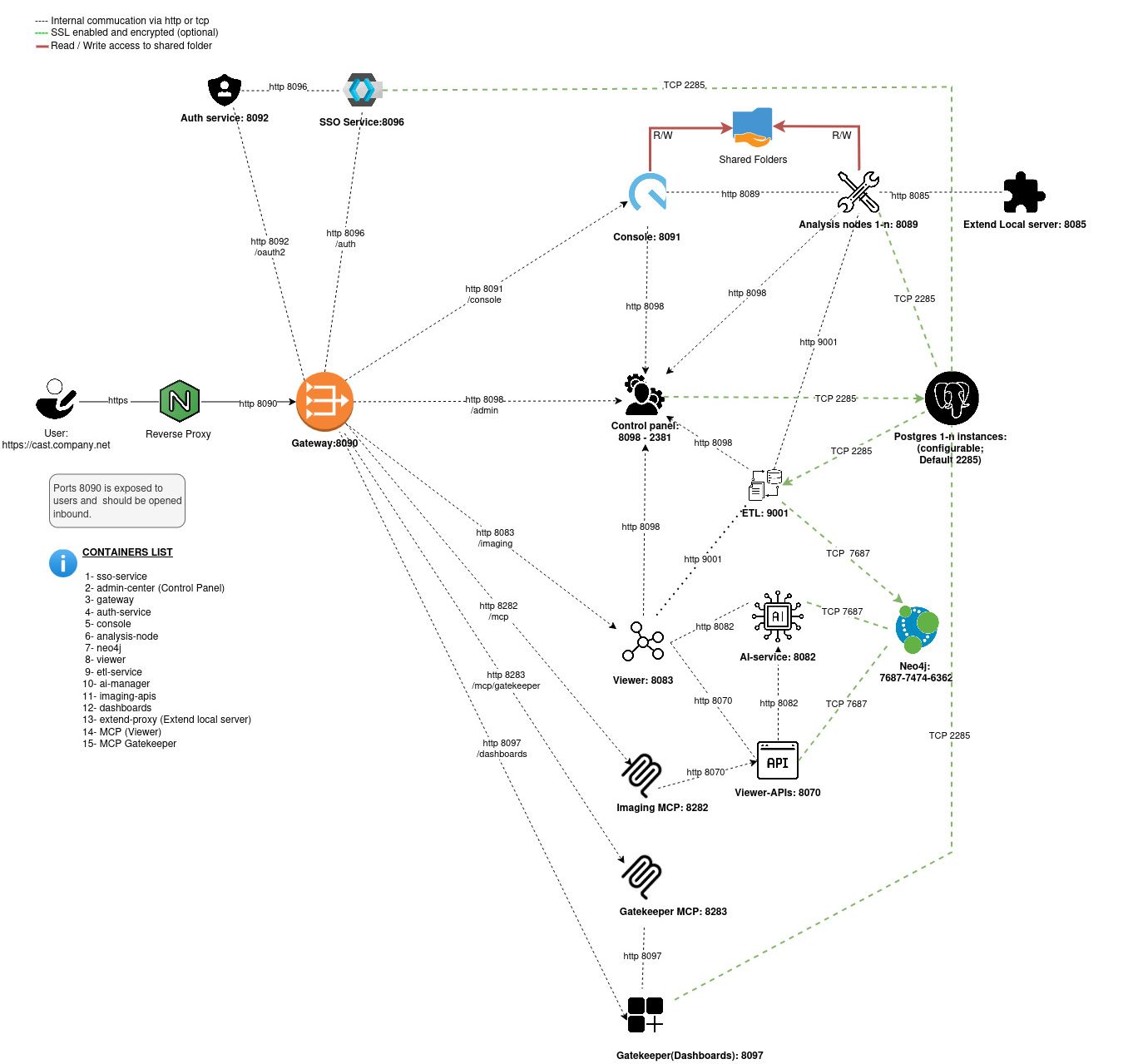
- When distributing components across multiple machines (“enterprise” installation mode), not all ports will be required on all machines.- firewall rules may be needed to grant access to
port 8090- this is the port used by end-users for all access requirements. - Once CAST Imaging is installed, it is not possible to change the port number of any service or component as part of an update or other customization - if you need to change a port, please contact CAST Support.
Example on-premises hardware configuration
Managing multiple applications
If you are managing a large number of applications, we recommend installing multiple nodes to spread the load. The disk space allocated to a single node obviously depends on the size and the number of applications that will be analyzed by the node. In a situation where all the nodes are running analyses, some nodes may need to run more than one analysis in parallel. To avoid overloading the node where more than one analysis is running at the same time, we strongly recommend deploying machines with sufficient resources.
Therefore, to analyze up to 50 applications and to run up to 5 analyses in parallel on one single node with one associated PostgreSQL instance, CAST recommends increasing RAM and DISK resources as follows:
| Component | RAM | DISK |
|---|---|---|
| Node | 32GB min | 2TB (SSD recommended) |
| PostgreSQL | 64GB min | 3TB (SSD recommended) |
Analyzing complex applications
While 90% of JEE, .NET or Mainframe applications can be analyzed with the minimum requirements, some specific (very large or not well balanced) applications require more memory than the minimum recommendations. The following configurations are examples of sizing required for very large applications. The requirements are not a linear function that are based purely on the number of files or lines of code (LoC), instead it is more complex and there is no specific formula to use.
In general, a lack of memory will cause slowness (machines will resort to the use of virtual memory) in the best case, and a crash in the worst case. The numbers presented in the table below are purely indicative and depict the varying memory requirements:
| Application | Node CPU | Peak RAM | Node - RAM (recommended minimum) | Disk space |
|---|---|---|---|---|
| JEE application with 13,000 java files and 6,300 JSP files | 2 processors, 4 cores | 22 GB | 32 GB | 256 GB |
| JEE application with 21,000 java files, 14 JSP files, 2,800 projects | As above | 10 GB | 16 GB | As above |
| JEE application with 30,000 java files and 1,200 JSP files | As above | 12 GB | 16 GB | As above |
| .NET application with 18,785 C# files | As above | 12 GB | 16 GB | As above |
| .NET application with 23,000 C# files and 4,100 cshtml files | As above | 20 GB | 32 GB | As above |
For JEE, the above does not include the com.castsoftware.securityforjava extension, which requires a minimum of 32GB RAM.
Kubernetes
Kubernetes deployments are sized at the cluster and node level rather than as a single host machine, so the VM-based CPU/RAM/disk figures above do not apply. Use the cluster requirements below instead:
Cluster requirements: base configuration (supports 1 analysis-node)
- Kubernetes version: use the latest available in your Cloud environment
- Node count: 2 nodes minimum required
- Per-node CPU: 4 vCPUs (minimum)
- Per-node RAM: 32 GB (minimum) - 64 GB (recommended) - 128 GB (for multiple complex/large applications)
Cluster scaling
To increase the concurrent analysis capability, the AnalysisNodeReplicaCount variable (values.yaml) can be incremented. For each additional analysis-node you deploy, add 1 cluster node.
Furthermore, to support higher workloads (required for multiple complex/large applications), you can choose to run the analysis node, Neo4j, and/or PostgreSQL pods on dedicated cluster nodes. Doing so requires additional cluster nodes. This is controlled by the BalancedAffinity.Enforce*Isolation options in values.yaml, which govern how pods are distributed across the cluster (note that EnforceBalancedAffinity must be set to true):
EnforceAnalysisNodeIsolation: true- each analysis pod will run on a dedicated cluster nodeEnforceNeo4jIsolation: true- the Neo4j pod will run on a dedicated cluster nodeEnforcePostgresIsolation: true- the embedded PostgreSQL pod will run on a dedicated cluster node
These isolation options will require additional cluster node, for example:
- Minimum deployment:
AnalysisNodeReplicaCount: 1→ 2 cluster nodes minimum
- Medium to large size deployment:
AnalysisNodeReplicaCount: 1+EnforceAnalysisNodeIsolation: true+EnforceNeo4jIsolation: true→ 3 cluster nodes minimumAnalysisNodeReplicaCount: 2+EnforceAnalysisNodeIsolation: true+EnforceNeo4jIsolation: true→ 4 cluster nodes minimum
- Extra large deployment (multiple complex/large applications):
AnalysisNodeReplicaCount: 3+EnforceAnalysisNodeIsolation: true+EnforceNeo4jIsolation: true+EnforcePostgresIsolation: true→ 6 cluster nodes minimum
- Increase
AnalysisNodeReplicaCountto support a higher number of concurrent analysis
Use the Util-ScaleUpAllWithBalancedAffinity.bat script to achieve optimal pod placement across the minimum number of nodes (run Util-ScaleDownAll.bat beforehand).
Tip: Configuring your cluster with an autoscaler node group is a good option to automatically adjust the number of cluster nodes to match the configured isolation settings and the number of analysis nodes (set the minimum number of nodes to 2). As you enable additional Enforce*Isolation options or increase AnalysisNodeReplicaCount, the autoscaler provisions the extra nodes required (and scales back down when they are no longer needed), avoiding the need to size the node count manually.
Cluster topology
All nodes should reside in the same Availability Zone. This also applies to the managed postgres instance in case you choose to use one.
This is recommended for storage compatibility (zone-scoped persistent volumes) and to minimize cross-node/service latency. If you run a multi-AZ cluster, you can configure a dedicated node pool pinned to a single AZ.
Storage
On Kubernetes deployments, we use the default Persistent Volume Claim (PVC) sizes as defined in the CAST documentation. See Persistent Volume Claims (PVCs) for the per-component default values.
The storage classes used by default for these PVCs support online volume expansion, so volume sizes can be extended on the fly as you go when additional space is required.