Right panel - Filter by
Overview
The Filter by section groups together all the controls for highlighting and filtering the items shown in the view. Each control is a collapsible sub-section: by default Tags and Technical roles are expanded and the remaining sub-sections are collapsed.
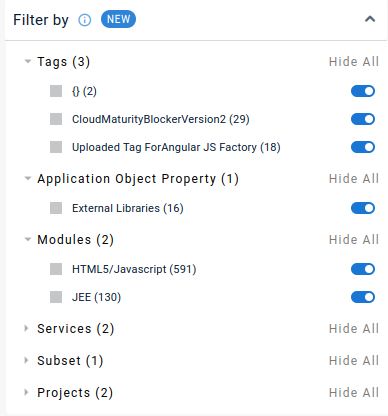
The following sub-sections are available:
Tags
Lists the custom tags that have been manually added to an object or node, for example a tag called “Test tag”:
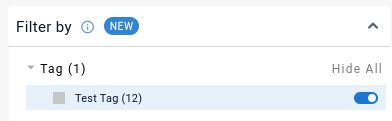
Custom Tags are added via a dedicated action icon in the view, see here or via the Global Search results dialog, see here.
Technical roles
The item’s technical role in the application, e.g. Persistence, Communication etc.
Modules
Filters items according to the module they belong to.
Services
Filters items according to the service type they belong to.
Status
Filters items according to whether the object or node (i.e. the objects in the node) is considered Added/Deleted/Unchanged in these results.
External Libraries
Filters items according to whether the object or node (i.e. the objects in the node) is provided by a third-party framework or library.
Using the filters
All filters are interactive: clicking an entry will highlight the corresponding object(s) or node(s) in the view:
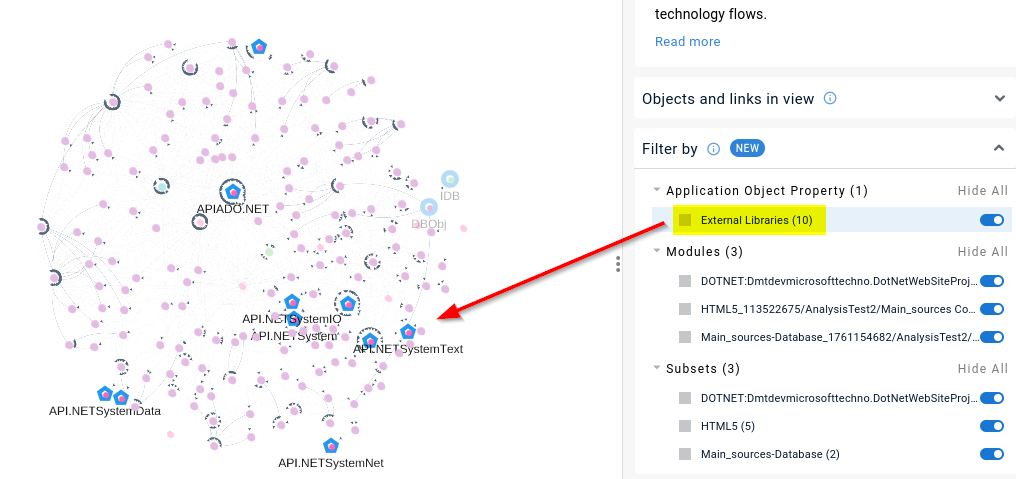
In the App to App Dependencies view, the Filter by section also exposes Application Object properties and Technologies alongside Tags.