Action plan
Overview
An action plan is a to-do list. You pick violations out of the investigation views, give each one a priority and a comment, and the dashboard tracks whether they get fixed across subsequent snapshots.
Editing an action plan requires the Quality Manager role - see User permissions. Without it you can still read the plan.
The action plan is visible when you are looking at an earlier snapshot, but it can only be edited from the most recent one.
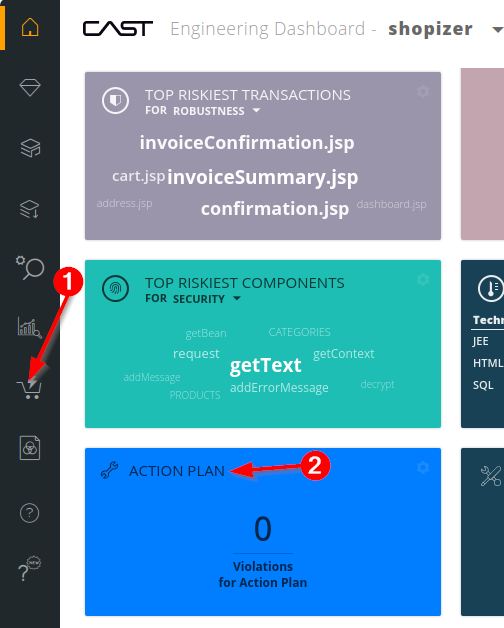
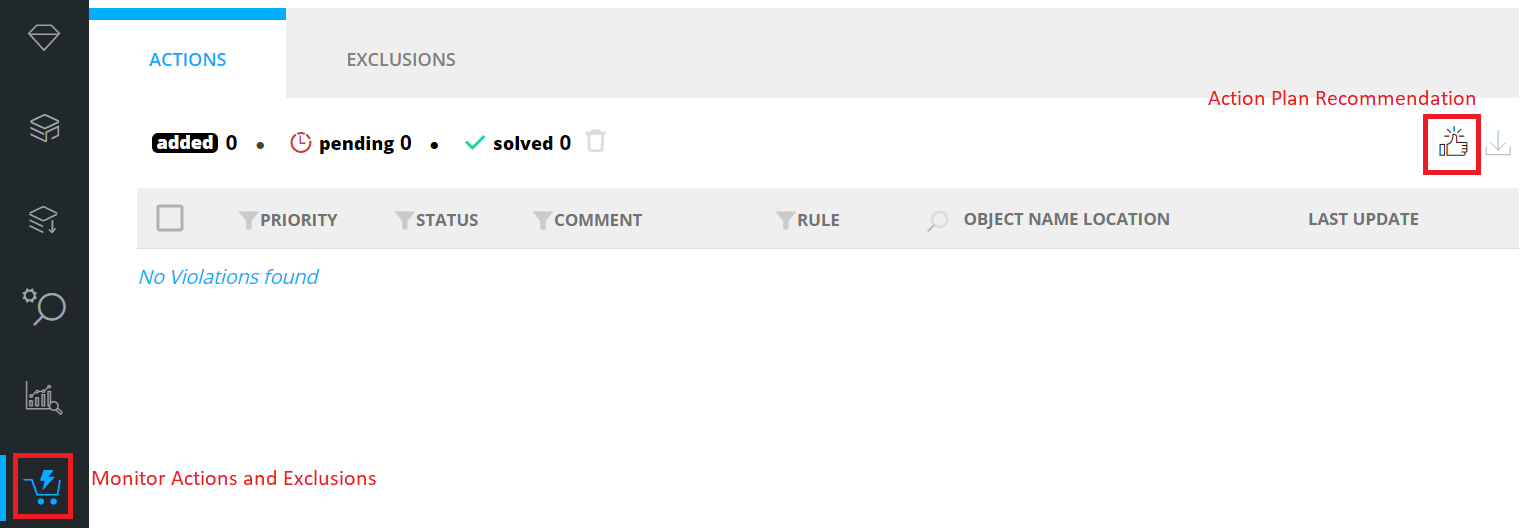
Reach it from the Action Plan tile on the home page, or from the sidebar’s Actions and Exclusions icon, which opens on the Actions tab:
The three statuses
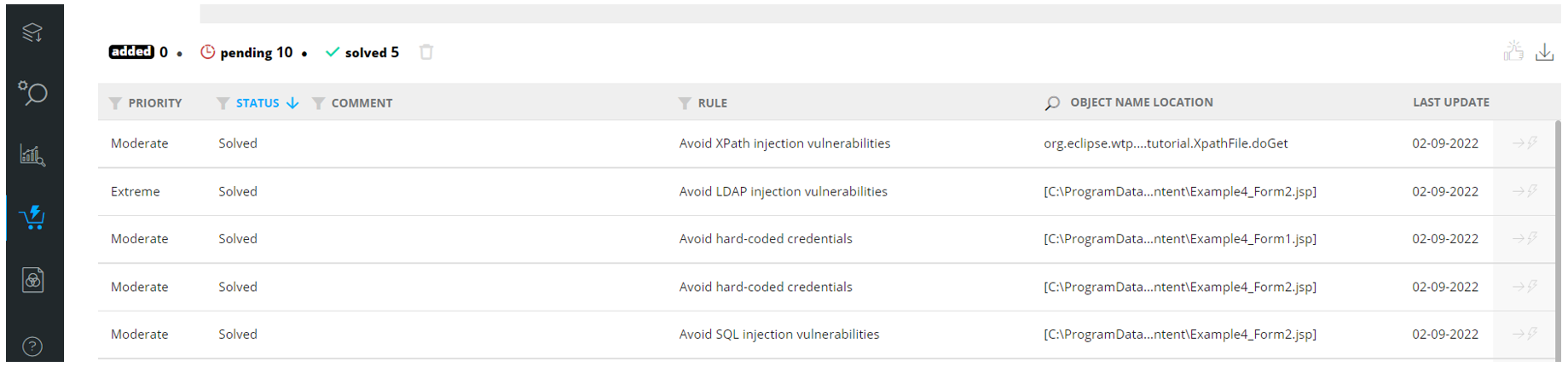
Every entry carries a status, and the dashboard recalculates it each time a snapshot is generated:
| Status | Meaning |
|---|---|
| Added | Added since the last snapshot was generated. Its status will be checked at the next snapshot |
| Pending | Still violating the rule as at the last snapshot. Not fixed yet |
| Solved | No longer violating the rule as at the last snapshot. Remediated |
Columns
| Column | Meaning |
|---|---|
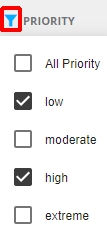
| Priority | The priority given when the violation was added: Low, Moderate, High or Extreme. Filterable, including All Tags |
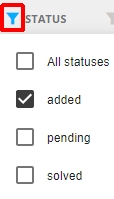
| Status | Added, Pending or Solved. Filterable, including All Statuses |
| Comment | The free-text comment given when the violation was added. Filterable, including All Comments and Empty Comments |
| Rule | The rule the violation breaks. An object can appear more than once if it breaks several rules |
| Object Name Location | The object, and where it lives. The header doubles as a search field |
| Last Update | For Added and Pending entries, when it was last changed - added, comment edited, or priority edited. For Solved entries, the date of the last snapshot |
Every column sorts by clicking its header.
An icon on each row opens the object’s source code. Another exports the plan to Excel - see Exporting data.
Adding violations
Drill to violation level in Risk investigation, Application investigation, Transaction investigation or Advanced search. Tick the checkbox on the rows you want:
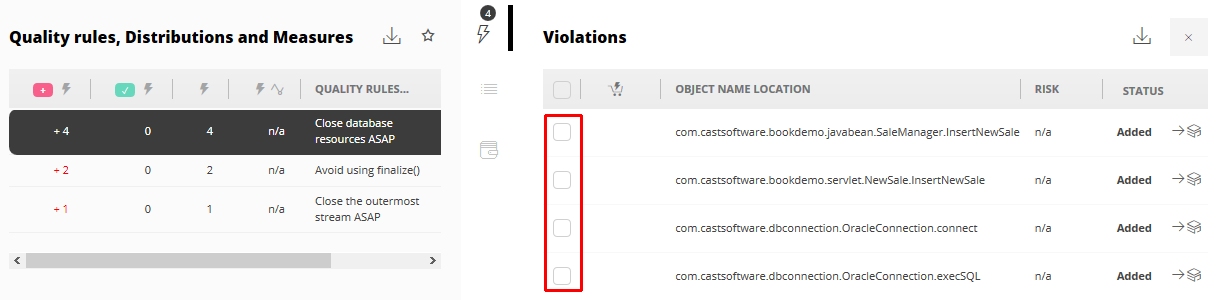
No checkbox means either your account lacks the Quality Manager role, or the violation is already in the plan.
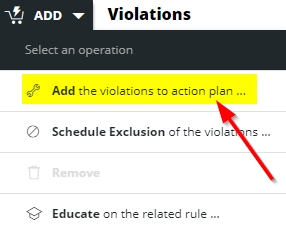
Then use Add and choose Add the violations to the Action Plan:
A comment is optional; a priority is required:
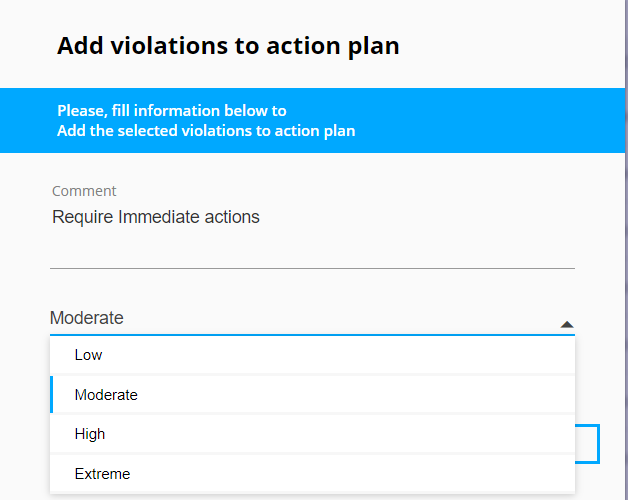
The violations then appear in the plan with the priority and comment you gave them:

To add several at once, hold SHIFT to select a range, or use the checkbox in the heading row to take every violation of the rule.
You can also promote violations from the scheduled exclusion list using Add the related violations to the Action Plan.
Managing what is in the plan
Tick one or more entries and a Manage button appears:
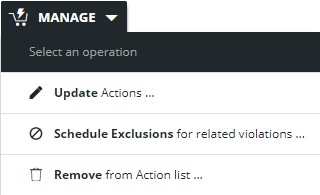
It offers three things:
- Update Actions - change the priority and comment.
- Schedule exclusions for related violations - move them to the scheduled exclusion list. This needs the
Exclusion Managerrole, and is hidden without it. - Remove From Action list - take them out of the plan.
Select all only selects the rows on the page you are looking at, not every row in the plan.
Updating priority and comment
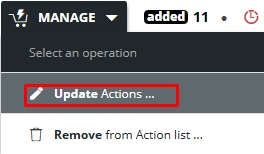
Select the entries, then Manage > Update Actions:
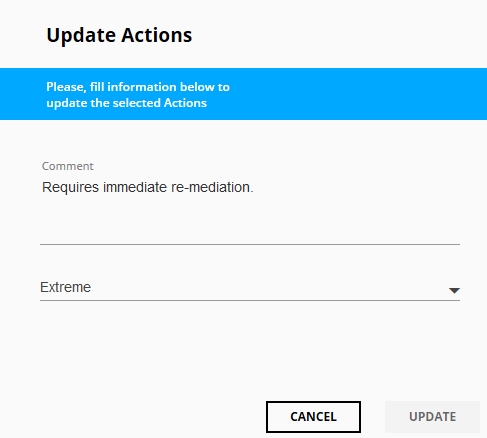
There is no need to remove and re-add a violation to change how it is annotated.
Removing violations
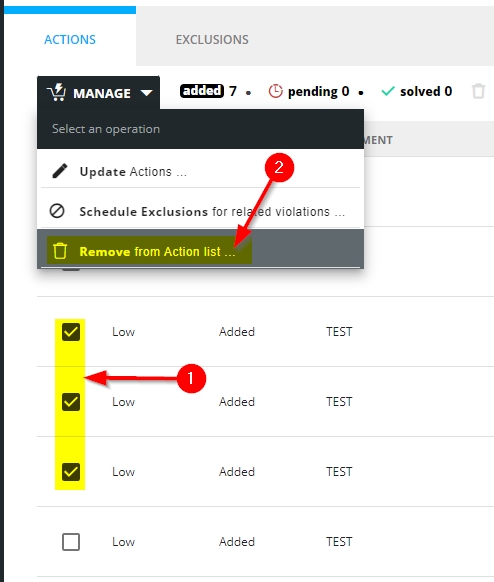
Either from the plan itself, with Manage > Remove From Action list:
Or from Risk investigation, Application investigation, Transaction investigation and Advanced search, by selecting the violations there and using the same Manage option.
Clearing solved violations
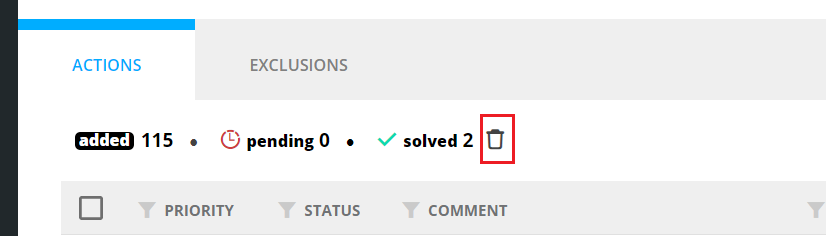
A dedicated icon removes every Solved entry at once, after a confirmation. It is disabled when there are none:
Action plan recommendation
Rather than picking violations by hand, you can state a target and let the dashboard work out which violations to fix. It builds a candidate plan aimed at improving the grade of a chosen Health Measure.
Open it from the icon in the top right of the action plan:
This feature needs the Quality Manager role, and does not work on earlier snapshots.
Choosing a target
There are four kinds of target:
| Target | The algorithm looks for |
|---|---|
| A grade, minimizing violations | A plan that reaches the grade while fixing as few violations as possible |
| A grade, minimizing effort | A plan that reaches the grade for the least total effort in man-days |
| A number of violations to fix | A plan of about that size that pushes the grade as high as it can |
| An amount of effort to spend | A plan costing about that much that pushes the grade as high as it can |
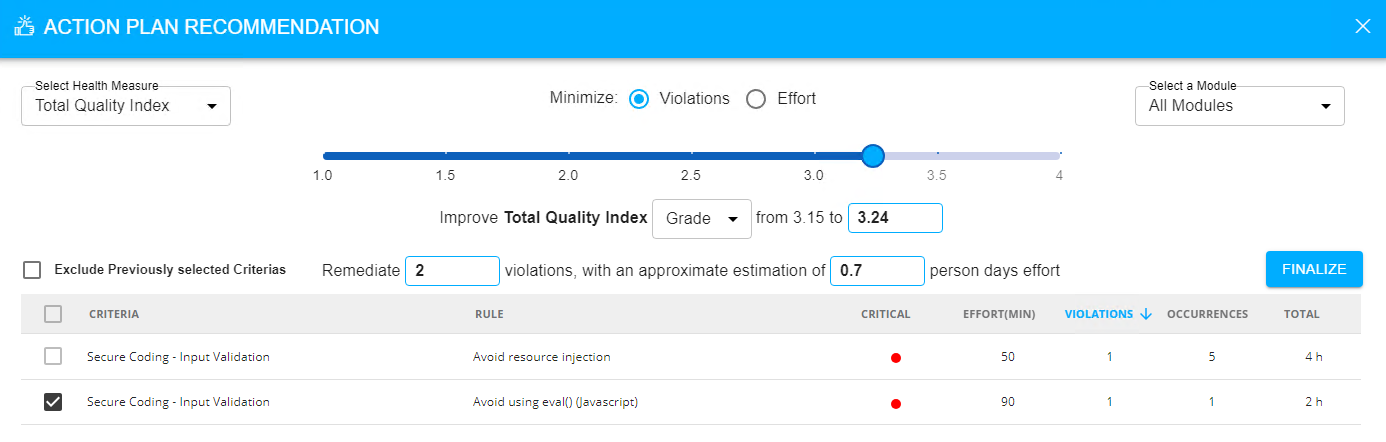
The interface offers a grade slider and a matching manual entry box, which always agree with each other, plus equivalent boxes for violations and effort. Grades run from 1 (worst) to 4 (best). Selecting Compliance (in %) instead of Grade switches the target to a compliance percentage from 0 to 100, and disables the minimize options.
Other controls:
- Select Health Measure - Total Quality Index by default. Health Measures introduced by the CISQ, MIPS Reduction, ISO-5055 and OWASP extensions are supported; for those, the Grade option is hidden.
- Select a Module - narrows the scope from the whole application to one module.
- Exclude previously selected criteria - drops rules already in the action plan from the recommendation. Off by default, so those rules may otherwise appear again.
When first opened, the target is set to correct one violation - or one additional violation if the plan already has entries. The recommendation recalculates every time you move a slider, change a box, or tick a rule.
The recommendation list
Each suggested rule is listed with:
| Column | Meaning |
|---|---|
| Criteria | The parent technical criterion of the rule |
| Rule | The rule |
| Critical | A red dot marks a critical rule |
| Effort (min) | Estimated minutes to fix a single violation |
| Violations | How many violations of the rule the plan would include |
| Occurrences | How many occurrences those violations span, which may differ from the violation count |
| Total | Effort in man-days for all the rule’s violations, being Effort (min) multiplied by Violations |
Every rule starts ticked. Unticking one excludes it and triggers a recalculation, so the rest of the list may change as the algorithm finds a different combination. A rule whose violations are already in the action plan is unticked and disabled.
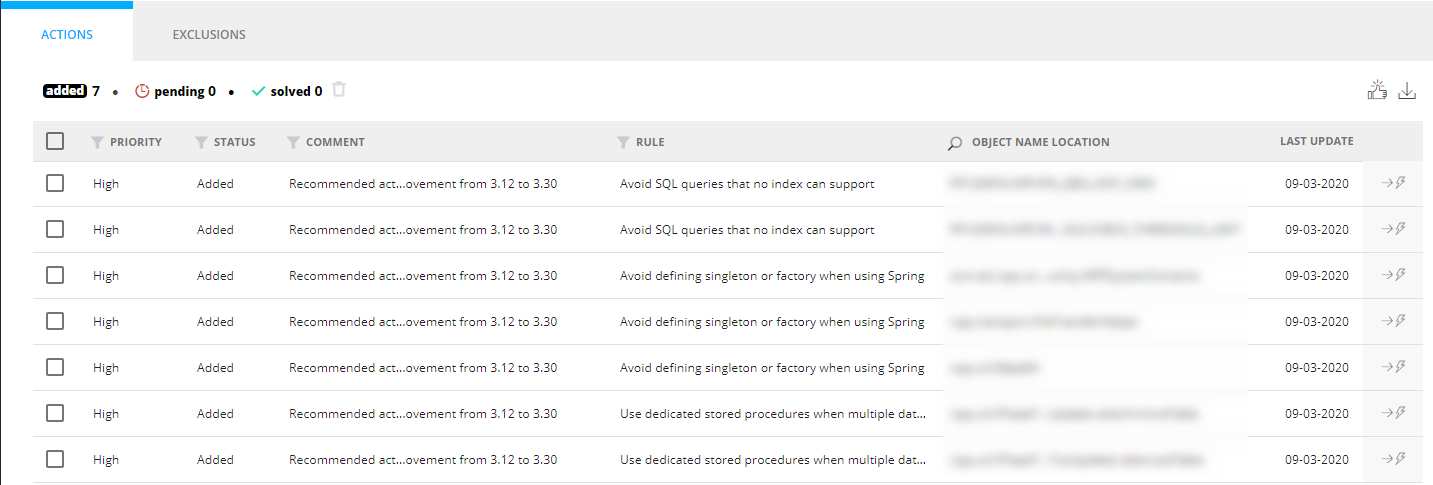
FINALIZE adds the violations for every ticked rule to the action plan, with a comment generated automatically to record the target - for example “Recommended action plan for Total Quality Index score improvement from 3.12 to 3.30”:
How effort is estimated
The effort for a rule comes from its context: for ISO rules from the ISO characteristic, for CISQ rules from the CISQ characteristic, and for everything else from the rule’s technical criterion. The total proposed for a rule is:
remediation effort x average occurrences of violations x violations to correct
Effort per violation ranges from 12 minutes for the lightest documentation and naming criteria up to 3 hours for the heaviest architecture and complexity criteria.
These figures are for choosing between plans, not for estimating a project. They take no account of technology, development practices, test coverage or team experience - a C++ fix and a COBOL fix for the same rule are not the same work.
The estimate also differs from OMG Technical Debt in three ways: it covers all rules rather than CISQ only, it is not adjusted per object for characteristics such as cyclomatic complexity, and it uses an average number of occurrences rather than the actual count. All three are compromises for calculation speed.
The algorithm solves a combinatorial optimization problem, choosing between grade, violation count and effort. There is no way to know the perfect answer, so it returns the best it finds - which may land slightly off the target you set.
Action plan exclusion
A separate feature lets action plan items be marked so they are excluded from quality calculations, with a request and review workflow: anyone can request an exclusion, and an Exclusion Manager decides.
This is disabled by default and must be switched on by an administrator - see Dashboards administration. While it is off, none of the columns or menu options below appear.
Once enabled, two columns are added to the action plan - Exclusion Status and Exclusion Notes - and the menu options depend on your role:
| Role | Can |
|---|---|
Anyone without Exclusion Manager |
View exclusion status and notes, submit a request for selected items, and filter the plan by exclusion status |
Exclusion Manager |
Review pending requests and Approve, Reject or Skip them, with notes. A skipped item takes a date it is skipped until |
An Exclusion Manager sees Exclusion Review where others see Request for Exclusion - they decide on requests rather than raising them.
Both options grey out in predictable circumstances:
| Option | Disabled when |
|---|---|
| Request for Exclusion | Any selected row already has an exclusion status of Requested, Approved or Rejected |
| Exclusion Review | Any selected row has no exclusion status yet, since only Requested items can be reviewed |
This is not the same as the exclusion list, which removes violations from future snapshots altogether. Action plan exclusion leaves the violation in the results and only affects whether the action plan item counts towards quality calculations.