Education
Overview
Not every violation gets fixed. Some are too expensive to remediate but still worth understanding, so the same mistake is not made again. The education list is for those: an architect or technical lead adds a rule to it, and can then point the team at the rule’s documentation and its existing violations as a worked example.
It has a second, more mechanical use. A rule on the education list can be set so that any new violations of it are added to the action plan automatically when the next snapshot is generated - a way of drawing a line and saying no more of these.
Managing the list requires the Quality Automation Manager role - see User permissions. Without it you can still read it.
Unlike the action plan and the exclusion lists, the education list is not available at all when you are looking at an earlier snapshot.
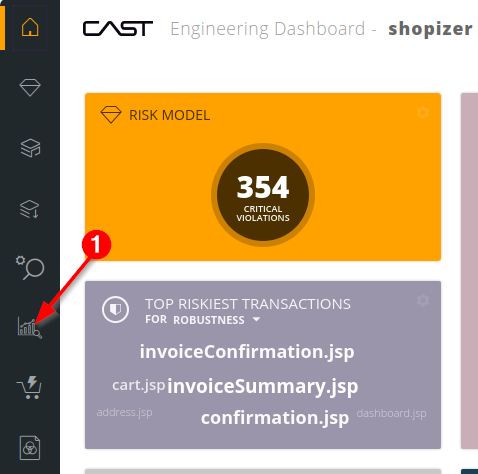
Reach it from the sidebar’s Education and Continuous Improvement icon, which opens on the Education tab:
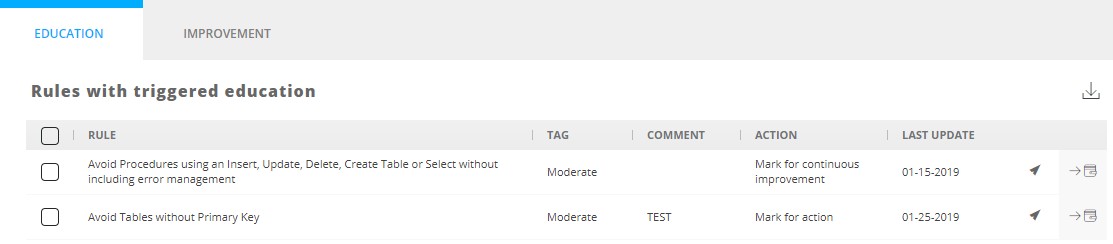
Columns
| Column | Meaning |
|---|---|
| Rule | The rule on the list |
| Tag | The priority given when it was added: Low, Moderate, High or Extreme |
| Comment | The free-text comment given when it was added, typically the reason |
| Action | Which of the two behaviours applies - see below |
| Last Update | When it was added, or its comment last edited |
Every column sorts by clicking its header. One icon shares and promotes the rule by email, another opens the rule’s documentation in Risk investigation.
The two actions
This is the choice that decides what the list actually does:
| Action | Effect at the next snapshot |
|---|---|
| Mark for continuous improvement | Violations are not added to the action plan. The rule is ticked in Continuous improvement for monitoring |
| Mark for action | Any new violations of the rule are added to the action plan |
Mark for action only catches violations that appear after the rule joins the list. Violations that already existed are not added to the action plan.
Adding rules
Drill to violation level in Risk investigation, Application investigation or Transaction investigation. There are two ways in.
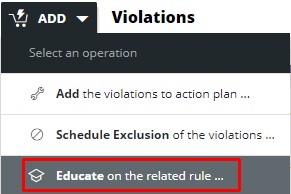
Using the checkbox. Tick a violation of the rule, then use Add and choose Educate on the related rule:
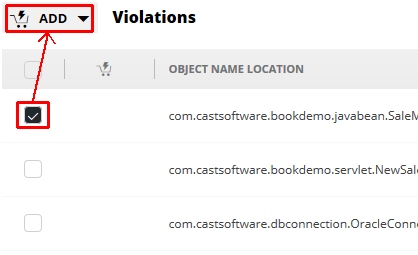
Using the education icon. The icon above and to the right of the violation list does the same thing directly.
A missing checkbox, or a greyed-out icon, means either your account lacks the Quality Automation Manager role, or the rule is already on the list.
Either route opens the same dialog:
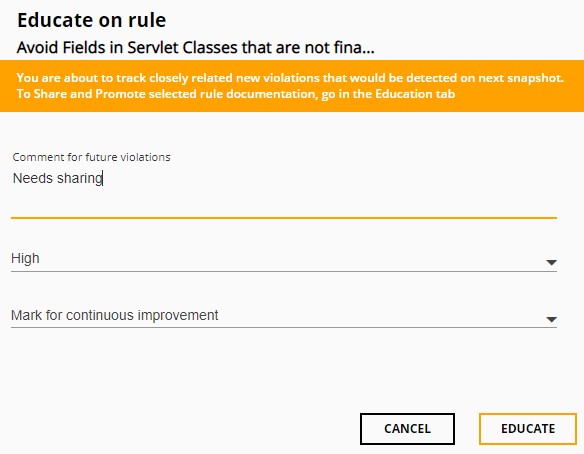
| Field | Purpose |
|---|---|
| Comment for future violations | Free text, shown in the list. Use it to record why the rule is there |
| Select a tag for future violations | Priority: Low, Moderate, High or Extreme |
| Mark for … | Continuous improvement, or action - see The two actions |
Managing the list
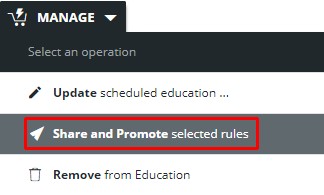
Tick one or more rules to reveal Manage, which offers three things: update the comment, tag and action; share and promote the rule; or remove it from the list.
Updating a rule
Select the rules, then Manage > Update Scheduled Education:
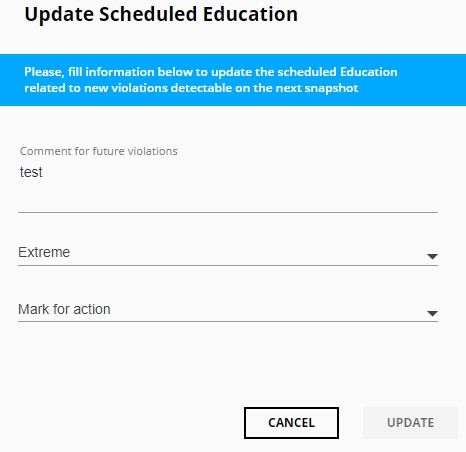
Selecting several rules with different comments, tags or actions and then editing replaces all of their existing values with what you enter.
Removing rules
Select the rules, then Manage > Remove From Education and confirm:
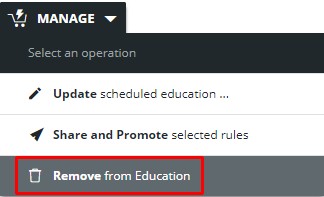
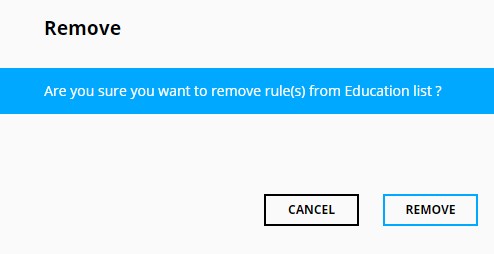
The rule leaves the list and can be added again later.
Share and promote
Select a rule and use Manage to open a new email in your local mail client, containing a link to the education list. The point is to get the rule and its documentation in front of the people writing the code:
Spotting rules on the list
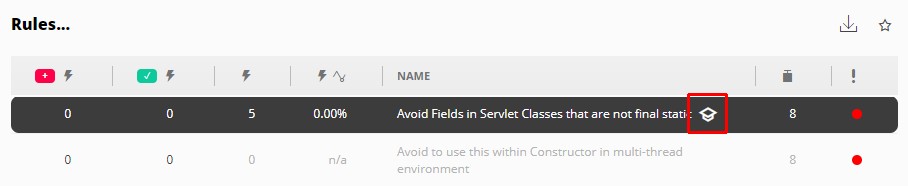
A rule already on the education list carries an academic cap wherever it appears: