Manage user permissions
CAST Imaging controls access with roles and profiles: you bundle roles (and, optionally, specific applications/domains) into a profile, then assign that profile to users or groups. This page explains the model; the pages below cover the tasks.
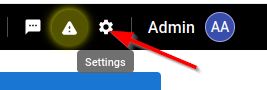
Access the settings in the UI:
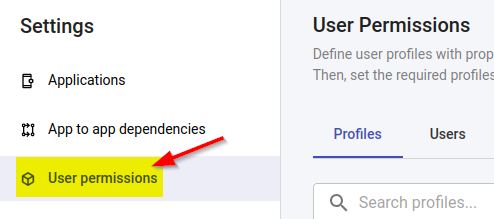
How access works
- A role grants permission to perform specific actions or view specific data (for example
Source Code AccessorApplication Owner). - A profile bundles one or more roles, and can be scoped to all - or only specific - applications and domains.
- A profile is assigned to a user or group. A user must have a profile (directly or via a group) before they can log in.
- A user must be assigned a profile (either directly or via a group) before using CAST Imaging - login is not possible otherwise.
- All predefined profiles (except
Adminwhich has access to all applications/domains) do not, by default, have access to any applications or domains, therefore you will need to grant access either to all applications/domains or specific applications/domains before users will be able to view any data.
Where users and groups come from
Users and groups listed in the Users tab are defined via the CAST Imaging authentication system (i.e. Keycloak). Keycloak supports:
- local users/groups defined in Keycloak (recommended only for POCs or small deployments)
- integration with LDAP/Active Directory/SAML enterprise authentication systems
Users and groups are synced from Keycloak automatically - by default every day at 0300 in the time zone of the server, shown next to the Refresh button in your own time zone. You can also click Refresh to force a synchronization and fetch the latest users/groups:
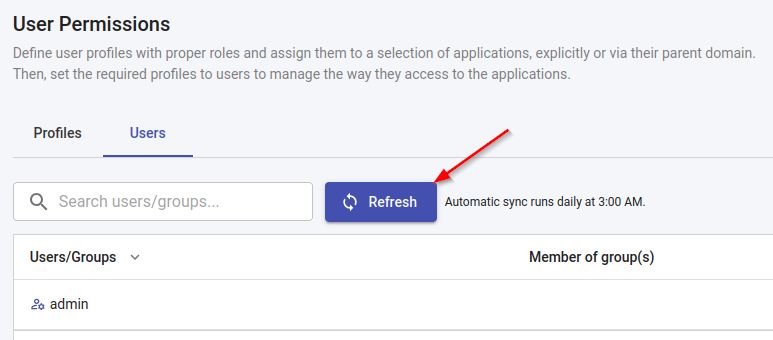
The date and time of the last successful synchronization is displayed next to the button, whether that synchronization ran automatically or was forced with Refresh. Where no synchronization has completed yet, a message is displayed in its place.
The schedule can be changed - see Change the synchronization schedule.
See Authentication for more information.
How multiple profiles combine
A user can have more than one profile - assigned directly, and/or inherited through group membership. When this happens, the most permissive permission takes priority and overrides the others. For example, an Application Owner role on an application is not reduced by a Viewer Read Only role granted through another profile on that same application.
Tasks
- Default profiles and roles - reference: the predefined profiles and every role, with the permissions each grants.
- View user details and account status - find a user in the
Userstab, check their details, and enable or disable their account. - Assign access to users and groups - give a user or group access by assigning them a profile.
- Create a custom profile - build your own profile from roles and scope it to specific applications or domains.
- Change the synchronization schedule - set when users and groups are synchronized from Keycloak.
- Example scenario - a worked multi-team example that ties the concepts together.
Looking for API keys? Each user generates their own API key from their Profile.