Define objects with AI Mode
Overview
AI Mode is currently provided in beta and is under active development. Review generated queries and results carefully before relying on them.
Creating a custom Object in Custom Aggregation normally requires understanding CAST object types, graph link semantics, and the visual rule builder - a significant barrier even for experienced users. AI Mode removes that barrier: describe the objects you want in plain English, and the AI translates your description into a query, which you can review, adjust, and run.
In Custom Aggregation, AI Mode is used to define which objects should be included when you create a new custom Object. The same capability is also available in Global Search, to bring back objects matching your description.
AI Mode requires an AI provider to be configured in AI Settings and the AI Features Access role to be granted to your profile - see Why AI Mode might be unavailable.
Where to find it
Global Search:
- Open Global Search.
- Select the AI Mode tab.
Custom Aggregation:
- Open Custom Aggregation and choose Create (or Edit) on a custom node.
- Select the AI Mode tab in the filter dialog.
- If you are editing a node that was originally created with AI Mode, the dialog opens directly into AI Mode with your original request and query already filled in - there is no need to select the tab again.
How to use it
-
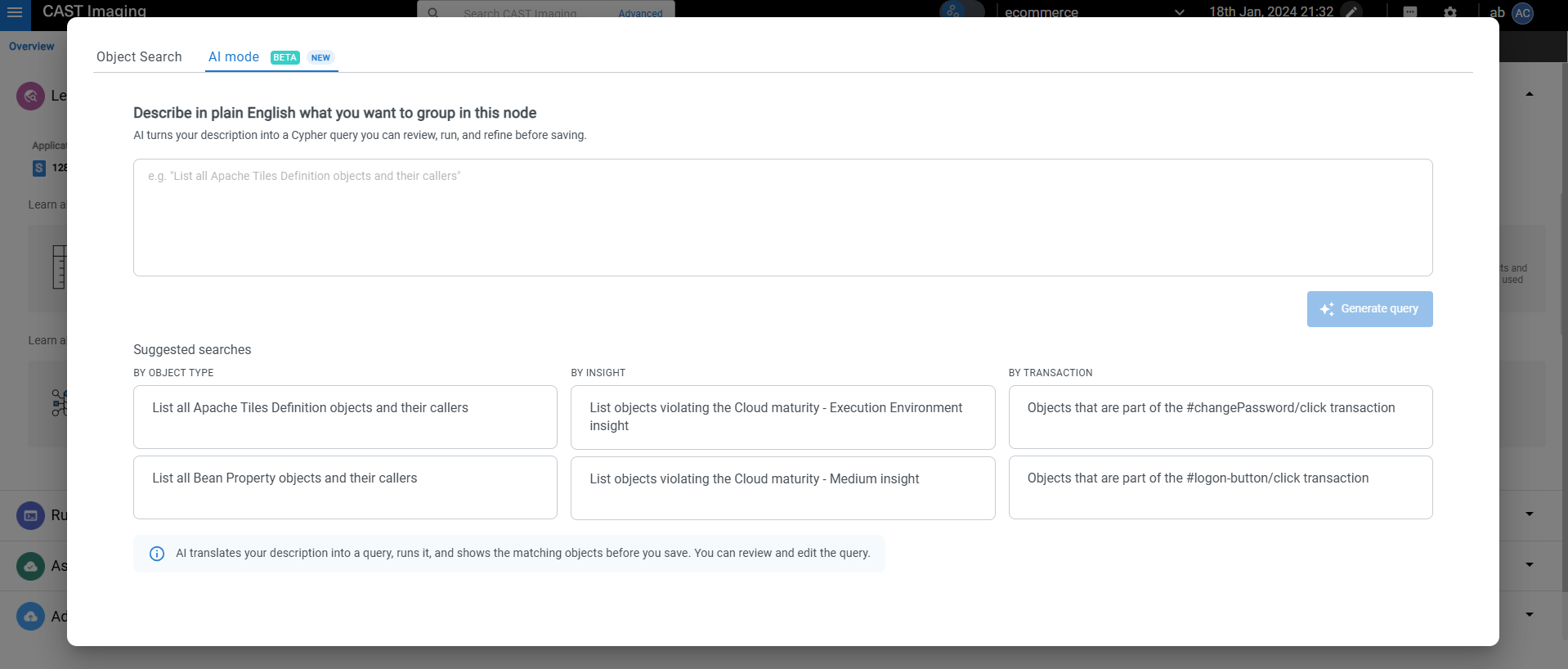
Describe the objects you want in the text box, in plain English.
If you leave the box empty, a few example requests are shown as clickable suggestions, based on data already in your application. Select one to use it as-is or as a starting point.
-
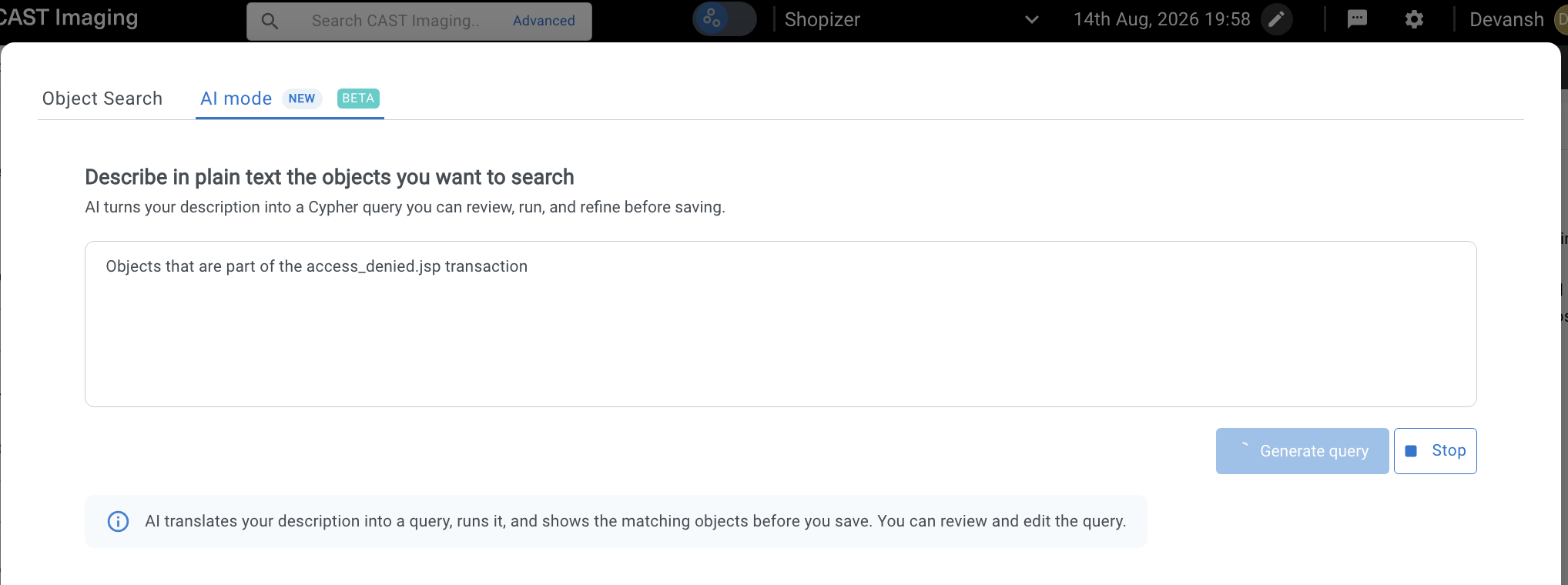
Select Generate query. The AI translates your description into a query and runs it automatically.
-
The matching objects appear below, just like a regular search or filter.
Stop appears next to Generate query while the query is being generated, so you can abandon a request rather than wait for it to finish. A note below the buttons sets out what AI Mode does with your description, and that the query it produces can be reviewed and edited before you save it:
What you can describe
AI Mode understands several kinds of requests, and can combine them in a single description:
| What you want | Example |
|---|---|
| Objects of a given type | “All COBOL programs” |
| Objects matching a name pattern | “All programs whose name starts with PAY” |
| Objects that call other objects (Caller-Of) | “All methods that call database tables” |
| Objects called by other objects (Callee-Of) | “All JPQL queries called by executable objects” |
What you see after generating
- Your original request is shown at the top, so you always know what produced the current objects.
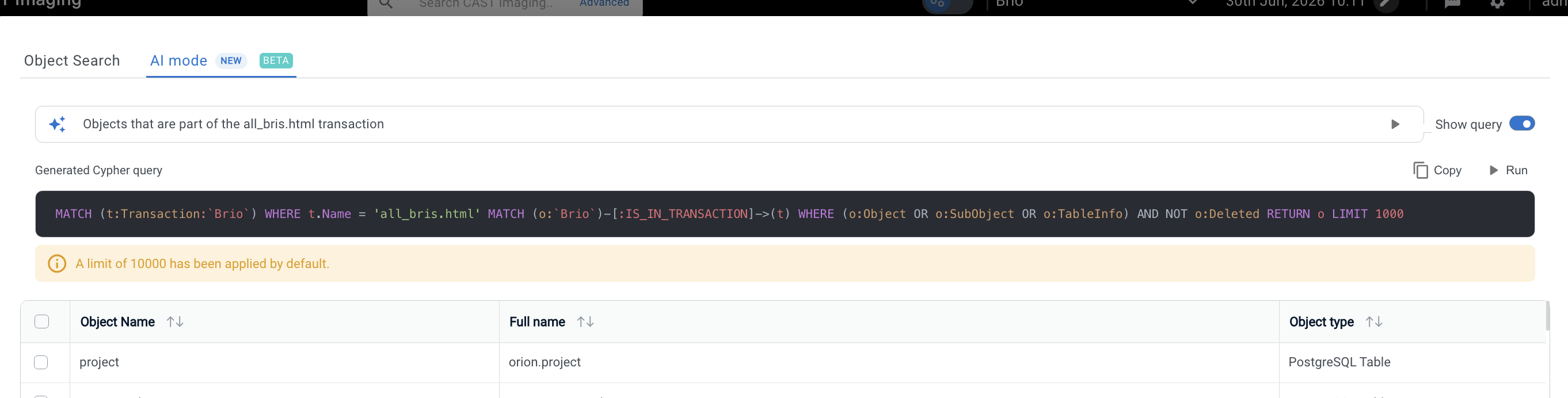
- A Show query toggle lets you view or hide the generated query. You do not need to understand it to use AI Mode, but it is available if you want to check or reuse it.
- Where your description does not set a limit of its own, results are capped at 10,000 objects and a note below the query tells you that the default has been applied. To work with a different limit, change it in the query - see Editing the generated query.
In releases before 3.6.8-funcrel, the default cap was 1,000 objects.
Editing the generated query
The generated query can be modified to fit your specific needs. You can refine which objects are matched, adjust the result limit, or make other changes before running the query again.
How it works, step by step:
- Make your changes directly in the generated query.
- Select Run, above the query, to execute your edited version. The matching objects below update accordingly.
- Once you make a change, a Manually edited label appears next to the query, so it stays clear that it no longer matches exactly what the AI originally produced.
- While a query is running, Run changes to Stop, letting you cancel the query execution.
In releases before 3.6.8-funcrel, the query had to be unlocked with an Edit option before it could be changed. That option has been removed, and the query is editable as soon as it has been generated.
Saving your work (Custom Aggregation)
When you are satisfied with the objects returned, confirming the dialog in Custom Aggregation saves both your original request and the query - including any edits you made - as the node’s rule. The custom node then includes all objects matching that rule, using the same underlying mechanism as a manually built rule. If you reopen that node later to edit it, AI Mode opens again with everything exactly as you left it, so you can review the query and its results before making changes.
Why AI Mode might be unavailable
Permissions
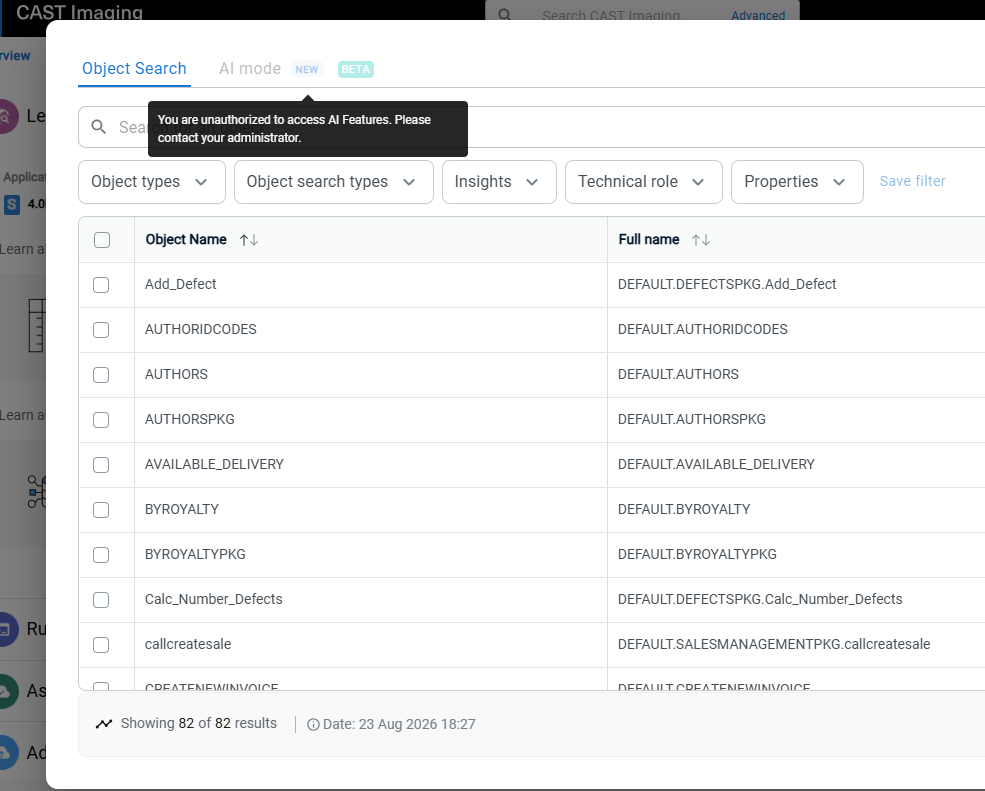
AI Mode requires the AI Features Access role, which grants the underlying AI_FEATURES permission. You have access if you are a global Administrator, or if an administrator has added the role to your profile - see Default profiles and roles. Otherwise, the tab appears disabled.
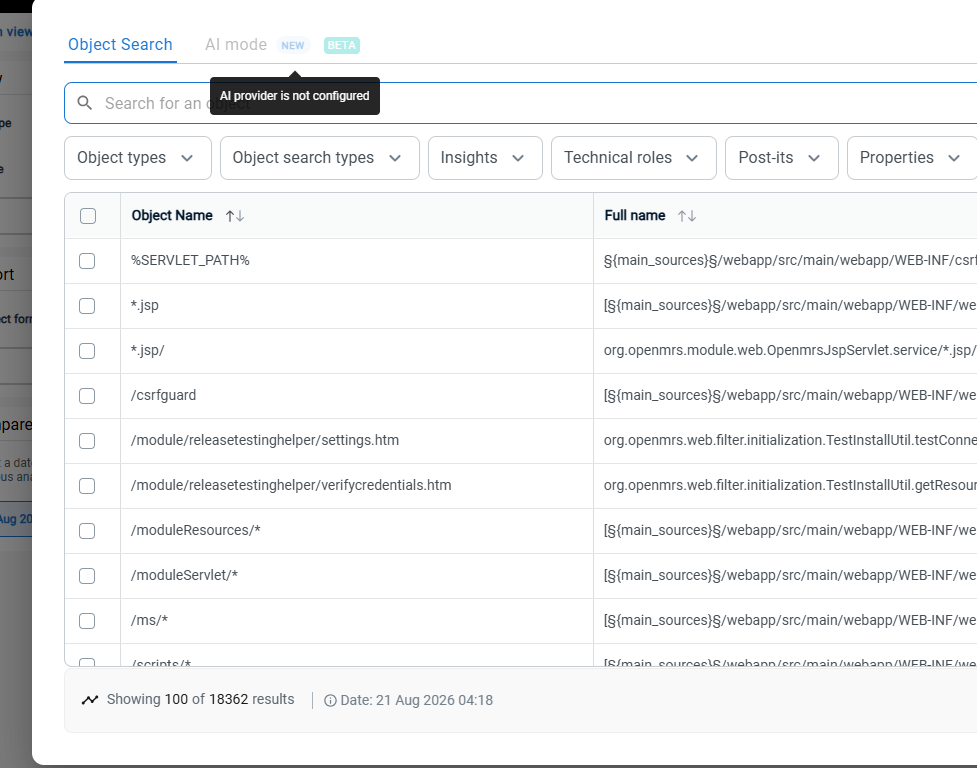
AI provider not configured
An administrator needs to set up an AI provider under AI Settings first. Until that is done, AI Mode stays disabled with a tooltip explaining that the AI provider needs to be configured.
Service unavailable
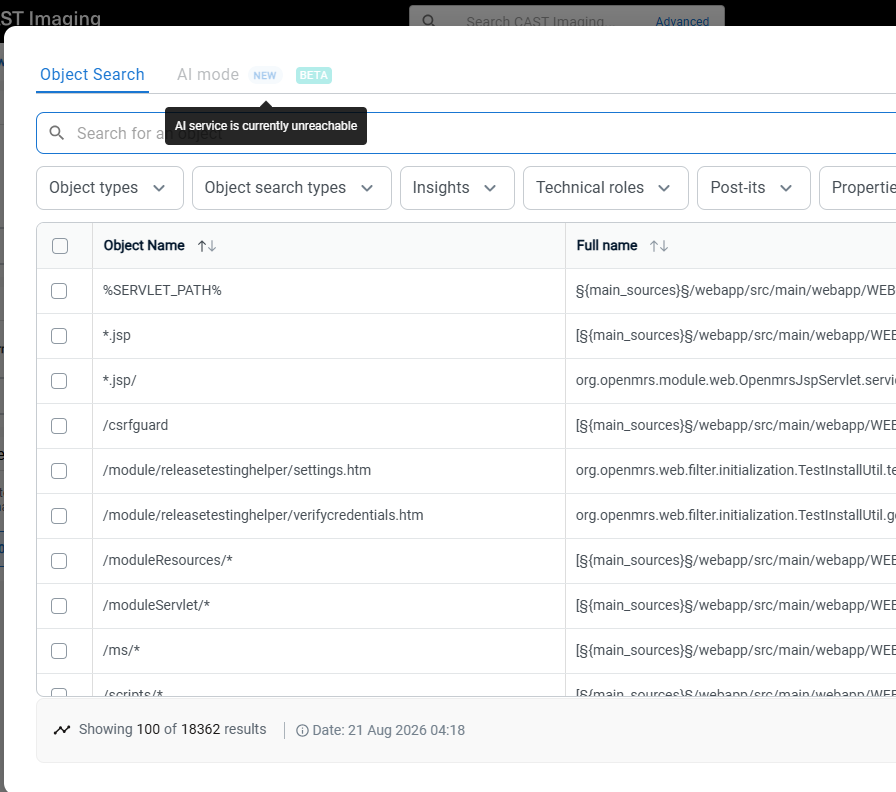
If the Agents service is temporarily unavailable, AI Mode will be disabled and a message will indicate that the service is currently unavailable.
AI Mode relies on the CAST Imaging MCP Server. To keep the AI Mode tab enabled, check that:
- MCP Server 3.1.0-beta4 or later is installed and healthy - earlier releases do not support AI Mode
- the machine on which the
imaging-viewercomponent is installed (it includes the AI service) can reach the MCP Server machine on the MCP Aggregator Gateway port: 8285 by default, unless you changed it during installation. The MCP Server registers its host and port with the Control Panel (the service registry inimaging-services) under the nameMCPSERVER. To check them, browse tohttp://<imaging-services-host>:8098/and findMCPSERVERunder Instances currently registered with Eureka - the host and port are shown in the Status column. If a firewall or network rule blocks this connection, AI Mode cannot work
Key rules
- Describe the objects you want in plain English - you do not need to know the underlying CAST object types, link directions, or query syntax.
- Use the suggestion chips as a starting point if you are not sure how to phrase your request.
- Edit the generated query if you need to change the result limit or refine which objects are matched, then select Run.
- In Custom Aggregation, confirm the dialog to save your request and query as the custom node’s rule.