Exclusions
Overview
Some violations are not worth fixing. The rule is technically broken, but in context the finding is irrelevant or a false positive. Excluding those violations takes them out of future results so they stop distorting the picture.
Managing exclusions requires the Exclusion Manager role - see User permissions. Without it you can still read the lists.
Excluding violations changes grades. The excluded violations are left out of the new results, so the effect shows up in the Management Dashboard as well as here. An exclusion applies to the next snapshot and every snapshot after it.
Exclusions are visible when you are looking at an earlier snapshot, but can only be edited from the most recent one.
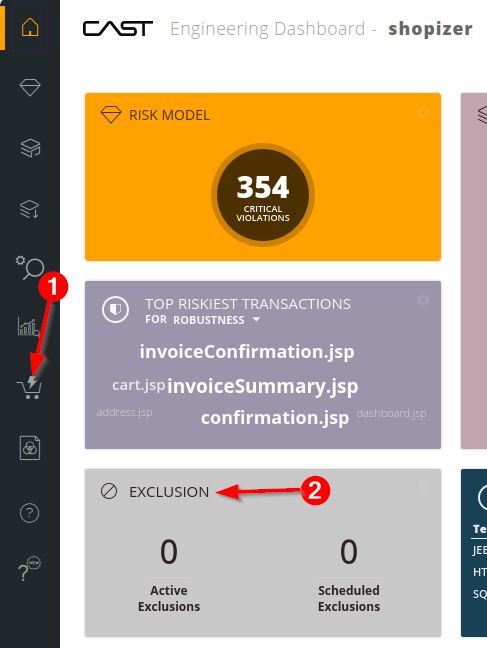
Reach them from the Exclusions tile on the home page, or from the sidebar’s Actions and Exclusions icon, which opens on the Actions tab - switch to Exclusions:
Active and scheduled
The distinction between the two lists is the whole model, and it turns on whether a snapshot has been processed since the exclusion was requested.
| List | Contains | Counting towards current results? |
|---|---|---|
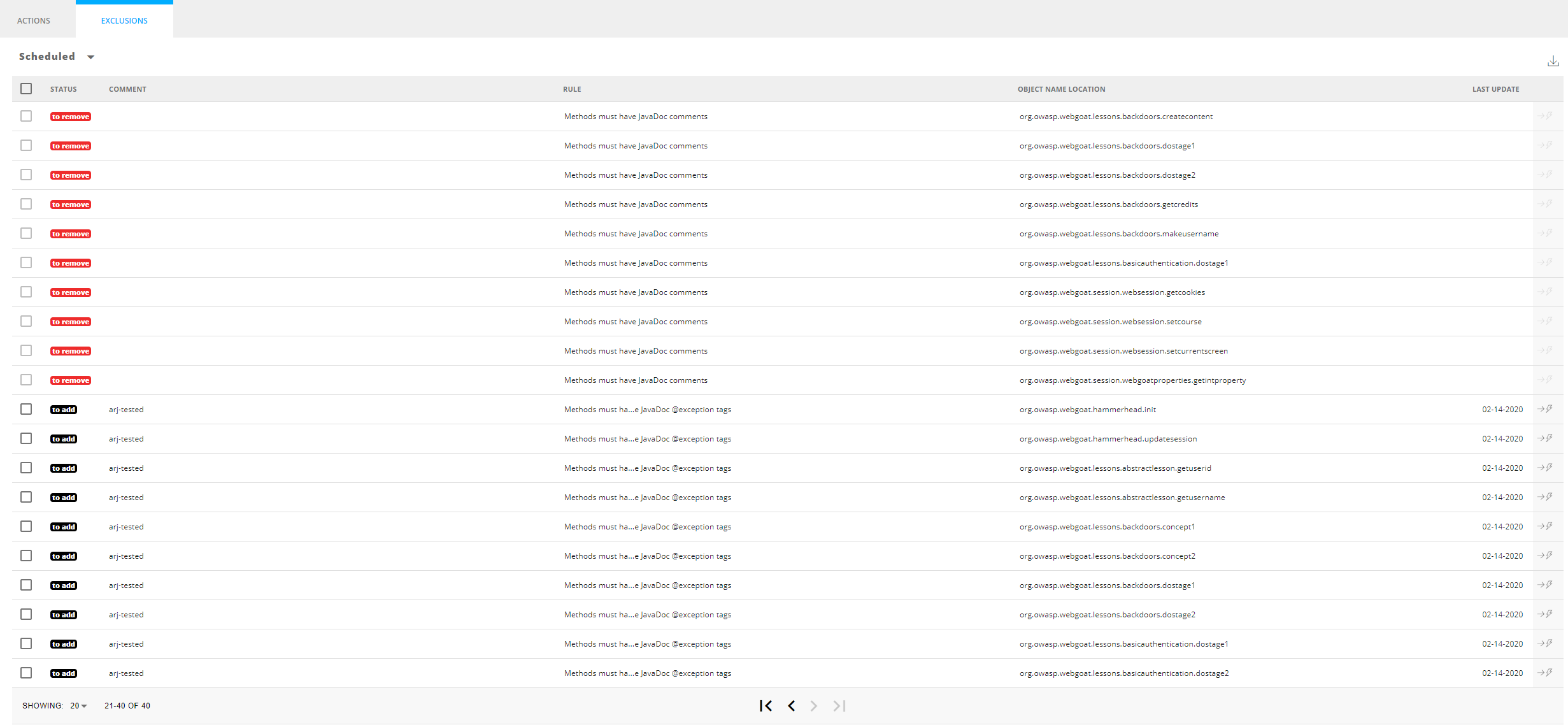
| Scheduled Exclusions | Violations added to the list where no full snapshot or consolidation has run since | Yes, still counted |
| Active Exclusions | Violations where a full snapshot or consolidation has run since | No, genuinely excluded |
So nothing is excluded the moment you ask for it. Entries sit in Scheduled until the next full snapshot or consolidation action, then move to Active.
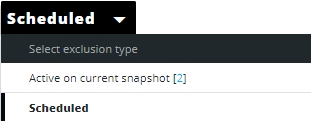
Switch between the two with the drop-down:
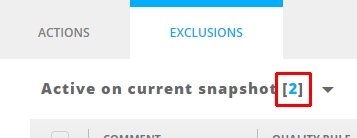
The total number of active exclusions is shown in blue:
Columns
| Column | Meaning |
|---|---|
| Status | To add - added since the last full snapshot or consolidation, and will be excluded at the next one. To remove - was active, has been manually removed, and will be counted again at the next full snapshot or consolidation before leaving the list entirely. Scheduled list only |
| Comment | The free-text comment given when the violation was added. Editable |
| Rule | The rule the violation breaks. A violation can appear more than once |
| Object Name Location | The object, and where it lives |
| Last Update | When the entry was added, or its comment last edited |
Every column sorts by clicking its header. An icon opens the violation’s source code (scheduled list only), and another exports the list to Excel - see Exporting data.
Adding violations
Drill to violation level in Risk investigation, Application investigation, Transaction investigation or Advanced search, and tick the violations you want.
No checkbox means either your account lacks the Exclusion Manager role, or the violation is already excluded.
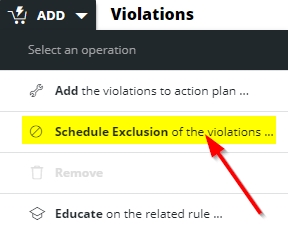
Then use Add and choose Schedule Exclusion of the violations:
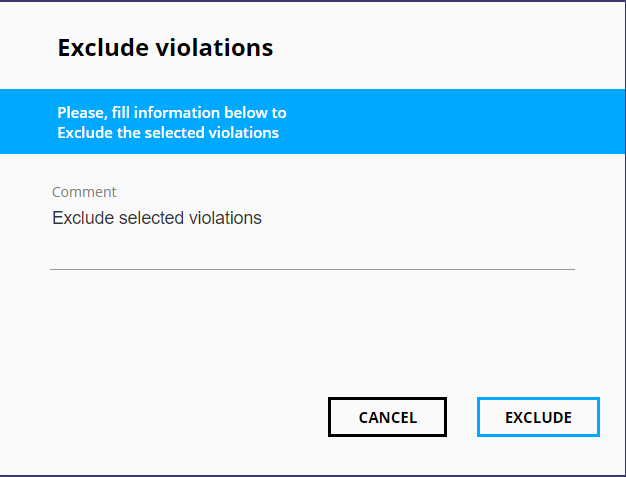
A comment is required here, unlike the action plan:
The violations appear under the Scheduled list. You can also move violations across from the action plan using Schedule exclusions for related violations, or from the investigation and search views using Manage Exclusion of the violations.
Managing exclusions
Tick one or more entries to reveal Manage:
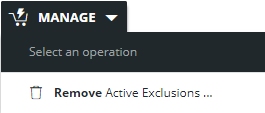
What it offers depends on which list you are in:
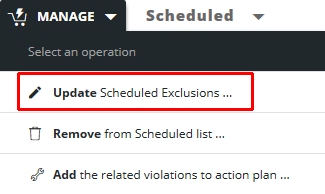
- Update Scheduled Exclusions - edit the comment. Scheduled list only.
- Remove Active Exclusions or Remove from Scheduled List - depending on the list.
- Add the related violations to the Action Plan - scheduled list only, and needs the
Quality Managerrole.
Removing exclusions
Select the entries and use Manage, then confirm:
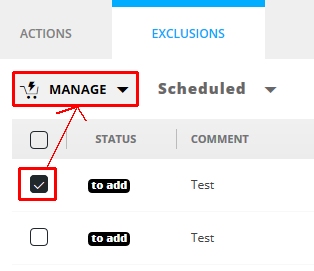
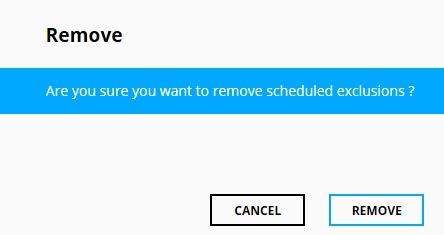
What happens next differs by list, and the asymmetry matters:
| Removing from | Effect |
|---|---|
| Active Exclusions | The entries grey out in the Active list and reappear in Scheduled as “to remove”. They are counted again at the next full snapshot or consolidation, and only then leave the list altogether |
| Scheduled Exclusions | The entries leave the list immediately and can be excluded again later |
Scheduled exclusions can also be removed from the investigation and search views, using Manage > Remove from Scheduled list. Active exclusions cannot - only from the list itself.
Updating comments
Only scheduled exclusions can have their comments changed. Select them, then Manage > Update Scheduled Exclusions:
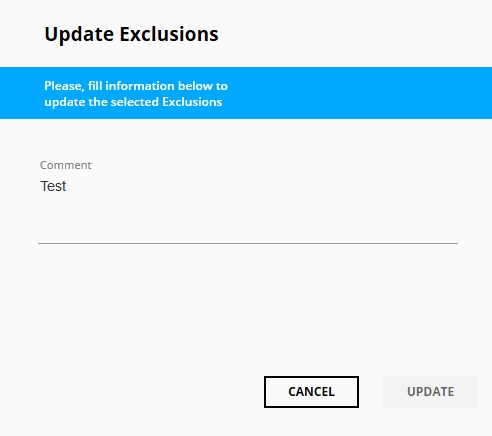
Selecting several violations that carry different comments and entering a new one replaces every existing comment with what you type.