Keycloak accounts and passwords
Overview
CAST Imaging uses Keycloak to handle authentication, and a fresh installation provides several distinct accounts. Because some of these accounts share the same default password, they are frequently mistaken for a single account, and changing the wrong one can prevent users from logging in to CAST Imaging altogether.
This page identifies each account, explains what it is for, and gives the correct procedure for changing its password.
The kcadmin Keycloak UI account, the admin Keycloak service account and the admin CAST Imaging local user are entirely separate accounts serving different purposes. Changing one has no effect on the others, and the procedure for changing each one is different.
In releases up to 3.6.5-funcrel all three share the same default password (admin), which is why they are so often mistaken for a single account. From 3.6.6-funcrel a fresh installation generates a random password for the admin service account on Linux via Docker/Podman and Kubernetes deployments, but not on Microsoft Windows - see What is the default password for the admin account?
Which account do I need?
| Account | Realm | What it is for | How to change the password |
|---|---|---|---|
kcadmin |
master |
Logging in to the Keycloak admin UI to manage authentication | Keycloak UI only, no restart required |
admin |
master |
Internal service-to-service communication. Not for UI login | Deployment-specific procedure |
admin and other local users |
aip-realm |
Logging in to CAST Imaging itself. These are not Keycloak administrators | Keycloak UI, aip-realm, Users |
For credentials that are not Keycloak accounts, such as the LDAP bind account, API keys and the
keycloak database user, see Other credentials.
The two accounts most often confused with each other are kcadmin and admin, both of which
live in the master realm. The distinction is:
kcadminis the only account intended for logging in to the Keycloak admin UI. Its password is not stored anywhere else in CAST Imaging, so you can change it freely.adminis a service account. CAST Imaging components authenticate with it internally. Its password is also held in service configuration, so changing it requires additional steps.
Keycloak UI admin account - kcadmin
Use this account to reach the Keycloak admin UI, where you manage local users and groups, or
configure LDAP or SAML Single Sign-on. Connect using the following URL,
pointing to the machine on which the imaging-services component is installed:
http://<imaging-services-fqdn>:8090/auth
On login you are taken directly to the aip-realm realm.
Where does the kcadmin account come from?
The account is created automatically during installation:
- The default username is
kcadmin. You can change it during a fresh installation only, using theKEYCLOAK_LOGIN_ADMIN_USERvariable for Linux via Docker/Podman and Microsoft Windows deployments, or theKCADMIN_USERNAMEparameter for Kubernetes deployments. - The default password is
admin, but it is temporary. On first login to the Keycloak UI you are prompted to set a new password.
How do I change the kcadmin password?
CAST Imaging does not store this password anywhere, so no configuration changes and no service restarts are required. The procedure is the same for all deployment types:
- Log in to the Keycloak admin UI as
kcadmin. - Switch to the
masterrealm. - Navigate to Users and select the
kcadminuser. - On the Credentials tab, reset the password.
Keycloak internal service account - admin
The admin account in the master realm is used exclusively for communication between
CAST Imaging services, specifically between the auth-service and the sso-service. It is
not intended for logging in to the Keycloak admin UI: use kcadmin
for that.
Changing this password in the Keycloak UI alone will break CAST Imaging. The Console returns a Whitelabel Error Page and users cannot log in, because the services continue to authenticate with the old password held in their configuration. Always follow the full procedure for your deployment type, as described below.
What is the default password for the admin account?
This has changed across releases:
| Release | Default password |
|---|---|
| ≥ 3.6.6-funcrel | Linux via Docker/Podman and Kubernetes: a random password generated during a fresh installation, unless you set one explicitly via the KEYCLOAK_SERVICE_ACCOUNT_PASSWORD variable. Microsoft Windows: admin. |
| 3.6.0-funcrel to 3.6.5-funcrel | admin, or the value of KEYCLOAK_SERVICE_ACCOUNT_PASSWORD if you set one during a fresh installation (Linux via Docker/Podman and Kubernetes only). |
| ≤ 3.5.x-funcrel | admin. A single account served both UI login and inter-service communication - see Keycloak credentials in 3.5.x-funcrel and earlier |
On Linux via Docker/Podman and Kubernetes deployments, a fresh installation generates a random
password for the admin service account rather than using admin. On Linux via Docker/Podman
the generated value is written to the .env file for the imaging-services component:
<INSTALL_DIR>/installation/imaging-services/.env
You can read this file to retrieve the generated password, but do not edit it directly - it is generated by the installer from the values in configuration.conf. See Managing the .env file for more information.
This does not apply to Microsoft Windows deployments. On Microsoft Windows the admin service account password remains admin after a fresh installation, and there is no installation variable available to set it to something else. CAST recommends changing it once the installation is running, following the procedure in How do I change the admin password on Microsoft Windows?
How do I change the admin password on Linux via Docker/Podman?
Rather than editing service configuration by hand, set the password in configuration.conf
and re-run the update script for the release you already have installed. This propagates the
new password to all components and restarts the containers:
- Open the
configuration.conffile in the root of your extracted installation media and set the new password:
KEYCLOAK_SERVICE_ACCOUNT_PASSWORD=<new-password>
- Run the update script for the same release that is currently installed:
$ ./cast-imaging-update.sh
or, for Podman:
$ ./cast-imaging-update-podman.sh
- For security, remove the password from
configuration.confonce the update completes.
Points to be aware of:
- Do not run the update script while an analysis or any other operation is in progress.
- When you next update to a new release, you must supply the custom password in
configuration.confagain. After that first update the generated.envfile carries the value forward and the variable can be left blank. See In-place component update for Linux via Docker. - Review the password requirements and restrictions before choosing a new password.
How do I change the admin password on Microsoft Windows?
There is no installation variable for this password on Windows, so the change must be made in Keycloak and then reflected in the configuration of the two services that use it:
-
Log in to the Keycloak admin UI as
kcadmin, switch to themasterrealm, navigate to Users, select theadminuser and reset the password on the Credentials tab. -
Create the following file:
%PROGRAMFILES%\CAST\Imaging\CAST-Imaging-Auth-Service\application-default.yml
- Add the new password to it:
spring:
  keycloak:
    password: ${KC_PASSWORD:<new-password>}
- Edit the following file:
%PROGRAMFILES%\CAST\Imaging\CAST-Imaging-SSO\tools\sso-service-program.bat
- Locate the
KEYCLOAK_ADMIN_PASSWORDentry and set the new password:
SET KEYCLOAK_ADMIN_PASSWORD=<new-password>
- Restart the CAST Imaging SSO Service and the CAST Imaging Authentication Service.
How do I change the admin password on Kubernetes?
Out-of-the-box Keycloak is provisioned with a service account used for intra-component communication, with the username admin. Its password is set by the KeycloakAdminPassword parameter during installation. If you need to change this password post-installation, follow the steps below:
Change the password via the UI
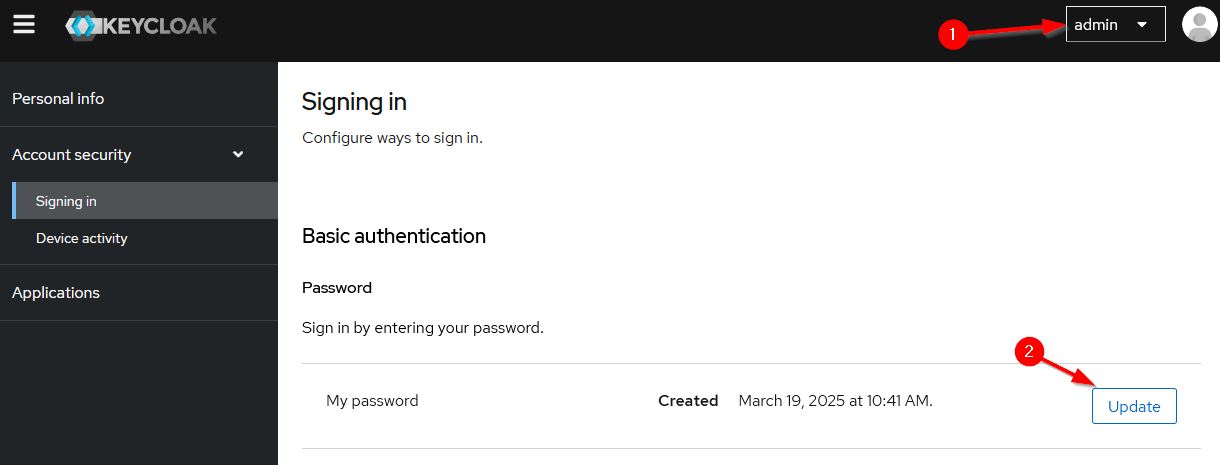
- Navigate to the Keycloak account security page using the following URL (replace
<public-external-url>with your installation’s external URL). This is the self-service account page for theadminservice account, not the Keycloak admin console:
https://<public-external-url>/auth/realms/master/account/account-security/signing-in
- Log in as the
adminservice account, using its current password - Update the password through the account settings interface
Update the password in the Helm Chart
After changing the password in the Keycloak UI, you must update the Helm chart configuration to match.
- Encode your new password in base64 format. On a Linux machine, run:
echo -n "my-new-password" | base64
The -n flag prevents adding a newline character to the encoded output.
- In your cloned Git repository containing the CAST Imaging Kubernetes installation files, open:
values.yaml
- Locate this line:
KeycloakAdminPassword: <default-password>
- Replace the defined password with your base64-encoded password:
KeycloakAdminPassword: <your-base64-encoded-password>
- Example: If your base64 output is
bXktbmV3LXBhc3N3b3Jk, the line should read:
KeycloakAdminPassword: bXktbmV3LXBhc3N3b3Jk
Apply changes
Run Util-ScaleDownAll.bat and helm-upgrade.bat to restart CAST Imaging and apply the changes.
A note on securing these files
Changing the admin service account password requires the new value to be recorded in
service configuration files in plain text. Protect these files using appropriate file system
permissions, and restrict access to the hosts on which they reside.
Password requirements and restrictions
Special characters in an admin service account password that was changed through the Keycloak
UI are now read correctly when you subsequently update CAST Imaging. In 3.5.9-funcrel and
3.6.4-funcrel this was not the case.
Avoid the following patterns when choosing a password for the admin service account. They are still not read correctly during an update, and the failure only becomes apparent later, when you update CAST Imaging:
- A password enclosed entirely in single or double quotation marks, for example
'Cast@1234'or"P@ssW0rd#342" - A password containing a blank space immediately followed by a hash, for example
Cast #1234 - A password containing a backslash (
\) or a forward slash (/)
Why does my password appear twice in the .env file?
If your password contains a dollar sign ($), it is stored as a double dollar sign ($$) in
the .env file for the imaging-services component. This is expected: the doubled character
escapes the dollar sign for shell processing, and Docker reads the value back as a single $.
No action is required.
CAST Imaging local users
Users listed in the aip-realm realm are CAST Imaging local users, not Keycloak administrators. Adding a user to aip-realm grants access to CAST Imaging, not to the Keycloak admin UI.
A fresh installation provides one CAST Imaging local user called admin, with the password
admin and the global ADMIN profile.
The default password for this account is temporary. On first login to CAST Imaging you are required to change it before you can continue. In releases up to 3.6.4-funcrel there is no such prompt, and CAST recommends changing the password immediately after your first login.
This mirrors the behaviour of the kcadmin account, which also requires a password change on first login to the Keycloak UI. The two prompts are separate: changing one does not change the other.
For instructions on changing this password, adding further local users, and creating local groups, see Local Authentication. To grant permissions to your local users and groups, see Manage user permissions.
Local authentication is intended for initial setup and small deployments. For enterprise deployments, CAST recommends LDAP or SAML Single Sign-on.
Other credentials
Several other credentials are involved in a CAST Imaging deployment but are not Keycloak accounts:
- LDAP bind account - the Bind DN and Bind credentials that allow Keycloak to query your directory. See LDAP.
- API keys - used to authenticate API and automation calls in place of a username and password. See API key.
keycloakdatabase user - allows Keycloak to reach its own PostgreSQL schema. See Database requirements.
For the complete set of credentials a deployment holds, and the order to change them in, see Rotate credentials.
Keycloak credentials in 3.5.x-funcrel and earlier
In releases up to and including 3.5.x-funcrel there was no separate kcadmin account.
Keycloak was provided with the single set of default credentials admin/admin, used both for
Keycloak UI login and for inter-service communication. The password could be customized
during a fresh installation for Linux via Docker.
If you have not customized this password, CAST recommends changing it once the installation
is running, using the following URL and pointing to the machine on which the
imaging-services component is installed:
http://<imaging-services-fqdn>:8090/auth/realms/master/account/account-security/signing-in
Troubleshooting
Whitelabel error page after changing a Keycloak password
Symptom: after changing a Keycloak password, browsing to CAST Imaging returns a Whitelabel Error Page and no users can log in.
Cause: the password for the master realm admin service account was changed in the
Keycloak UI only. CAST Imaging services still authenticate using the old password held in
their configuration.
Resolution: follow the full procedure for your deployment type, described in Keycloak internal service account - admin. If you have already followed it, confirm that your password does not use one of the patterns listed under password requirements and restrictions.
The kcadmin account does not exist
Symptom: you cannot log in to the Keycloak UI as kcadmin, and the account is not listed
in the master realm.
Cause: on installations updated from 3.5.9-funcrel to any release from 3.6.0-funcrel to
3.6.5-funcrel, the init.sh file that creates the kcadmin account was created as a
directory rather than as a file, so the account was never created. To confirm, check the
following path and verify that init.sh is a file:
<INSTALL_DIR>/installation/imaging-services/keycloak/init.sh
Resolution: update to 3.6.6-funcrel or later. The update recreates init.sh correctly and
creates the kcadmin account. See In-place component update for Linux via Docker.
Do not work around a missing kcadmin account by changing the master realm admin password so that you can use it for UI login. The admin password is held in service configuration, and changing it in the Keycloak UI alone will prevent users from logging in to CAST Imaging.