Installation on On-premises / vanilla Kubernetes
Overview
This guide covers the installation of CAST Imaging on an on-premises (or otherwise non-managed) Kubernetes cluster (i.e. a “vanilla” Kubernetes distribution that you operate yourself) using Helm charts.
The same CAST Imaging Helm chart is used for both cloud-managed clusters (EKS / AKS / GKE) and on-premises clusters. The main differences are:
- The
K8SProvidervariable invalues.yamlmust be set toK8S. - The cluster does not provide managed storage classes, load balancer integration, or ingress controllers out of the box. You are responsible for selecting, installing, and operating these building blocks on your cluster (CSI storage drivers, a load-balancer implementation, an ingress / gateway controller, etc.). The CAST Imaging chart simply consumes whatever you have installed.
This page focuses on the on-premises specifics. For everything else (Keycloak parameters, initial start-up configuration, authentication, start/stop scripts, external PostgreSQL, storage locations, etc.) the chart behaves identically to the cloud-managed variants and the same documentation applies.
Requirements
Before installing, review the values.yaml parameters reference. It describes every parameter in values.yaml. Pay particular attention to the parameters marked Install-time only: they must be set before the first deployment and cannot be changed afterwards.
- Access to Docker Hub registry - CAST Imaging Docker images are available as listed in the table below
- A clone of the latest release branch from the Git repository containing the Helm chart scripts:
git clone https://github.com/CAST-Extend/com.castsoftware.castimaging-v3.kubernetessetup(to clone an older release, add the “-b x.x.x” flag with the desired release number). - A valid CAST Imaging License
- A working Kubernetes cluster with, at minimum:
- Kubernetes version 1.31 or higher
- CSI storage drivers installed by your cluster administrator, exposing at least one block / disk storage class and one shared file storage class (required for the shared-datadir volume, which must be accessible by multiple Imaging services). CAST Imaging is agnostic to the specific driver (e.g.
local-path-provisioner,longhorn, orvsphere-csifor block/disk;nfs-csifor shared file;rook-cephfor either), provided it meets the following permission requirements (setting this up is the cluster administrator’s responsibility): CAST Imaging pods run as non-root users and rely on the KubernetesfsGroupsecurity context setting to make their volumes writable. The storage classes must therefore supportfsGroup. If your driver does not support it (typically an NFS export withroot_squash), the volumes must be pre-provisioned writable by the UID/GID of the pods that use them: see Volume permissions when the storage driver does not support fsGroup. - A load-balancer implementation such as MetalLB . Without one, services will remain in
<pending>state for their external IP. Setting this up is the cluster administrator’s responsibility. - (Optional) an ingress / gateway controller (NGINX Ingress, NGINX Gateway Fabric, Istio, etc.) if you want HTTPS access. See Step 3.
- Optional setup choices:
- Use an external PostgreSQL instance (by default, an embedded PostgreSQL instance is deployed)
- Enable the analysis node autoscaler to automatically add and remove analysis nodes based on the job queue (≥ 3.6.9, see Analysis node autoscaling)
Docker images
CAST Imaging is provided in a set of Docker images as follows:
| CAST Imaging component | Image name | URL |
|---|---|---|
imaging-services |
Gateway | castimaging/gateway |
imaging-services |
Control Panel | castimaging/admin-center |
imaging-services |
SSO Service | castimaging/sso-service |
imaging-services |
Auth Service | castimaging/auth-service |
imaging-services |
Console | castimaging/console |
dashboards |
Dashboards | castimaging/dashboards-v3 |
analysis-node |
Analysis Node | castimaging/analysis-node |
imaging-viewer |
ETL | castimaging/etl-service |
imaging-viewer |
AI Service | castimaging/ai-service |
imaging-viewer |
API Service | castimaging/imaging-apis |
imaging-viewer |
Viewer Server | castimaging/viewer |
imaging-viewer |
Neo4j | castimaging/neo4j |
imaging-viewer |
MCP Server | castimaging/imaging-mcp-server |
extend-local-server |
Extend Proxy | castimaging/extend-proxy |
utilities |
Init Container | castimaging/init-util |
Installation process
Before starting the installation, ensure that your Kubernetes cluster is running, all the CAST Imaging docker images are available in the registry and that helm and kubectl are installed on your system.
Step 1 - Cluster prerequisites
- Make sure your Kubernetes cluster is up and that
kubectlis configured to point at it:
$ kubectl get nodes
-
Install
kubectl(if not already installed) - see https://kubernetes.io/docs/tasks/tools/ -
Install
helm:- Binary download: https://github.com/helm/helm/releases
- Documentation: https://helm.sh/docs/intro/quickstart
-
Ensure your cluster administrator has installed and tested:
- One CSI block / disk storage class: note its name (referred to below as
<your-disk-storage-class>). - One shared file storage class supporting
ReadWriteMany. Note its name (referred to below as<your-file-storage-class>). - A load-balancer implementation (e.g. MetalLB).
- One CSI block / disk storage class: note its name (referred to below as
You can list the storage classes available on your cluster with:
$ kubectl get storageclass
Step 2 - Prepare and run the CAST Imaging installation
-
Review and adjust the parameter values in the
values.yamlfile (located at the root of the cloned Git repository branch) in between the section separated with # marks. -
Set the
K8SProvider:option toK8S:
K8SProvider: K8S
- Storage classes: disable storage-class creation by the chart and point CAST Imaging at the storage classes already installed on your cluster:
CreateStorageClass: false
DiskClassName: <your-disk-storage-class>   # e.g. local-path, longhorn, rook-ceph-block, ...
FileClassName: <your-file-storage-class>   # e.g. nfs-csi, rook-cephfs, ...  (must support ReadWriteMany, even with a single analysis-node)
On an on-premises cluster, CreateStorageClass must be set to false. The chart only knows how to create storage classes for the cloud-managed providers (AKS, EKS, GKE…) and cannot create them for your on-premises storage. You are responsible for creating the storage classes (block / disk and shared file) on your cluster beforehand, and for setting their exact names in DiskClassName and FileClassName.
- Run
helm-install.bat|sh(depending on your base OS) located at the root of the cloned Git repository branch
Keycloak component parameters
CAST Imaging uses the Keycloak system to manage all authentication requirements (see Authentication for more information, and Keycloak accounts and passwords for an explanation of each account provided and how to change its password). You should take note of two parameters that you may wish to customize before running the installation:
KeycloakAdminPassword: <default-password>
KCADMIN_USERNAME: kcadmin
-
KeycloakAdminPassworddefines the password for the Keycloakadmin“service” account used for intra-component communication. Set this if you wish to define the password yourself, e.g. by runningecho -n "my-new-password" | base64to generate a new encrypted password. In releases up to 3.6.5-funcrel this password defaults to “admin” (encrypted in base64);Updated in ≥ 3.6.6-funcrela fresh installation generates a random password when you do not set one. This password can also be updated post install (see below). -
KCADMIN_USERNAMEdefines the name of the account (kcadminby default with password “admin”) used to login in to the Keycloak UI to administer authentication. Updatekcadminto your preferred account name. Note that this change can only be done BEFORE a new installation.
Step 3 - Configure network settings for console-gateway (main entrypoint) and extendproxy (optional) services
By default, with CreateLoadBalancer: true and none of the ingress/gateway flags enabled, the chart deploys the console-gateway service as a Kubernetes Service of type LoadBalancer, accessible over HTTP on port 8090. For this to result in an actual external IP, a load-balancer implementation such as MetalLB must be available on the cluster. Without one, the service’s external IP stays <pending>; you can still reach the service via NodePort or by port-forwarding for testing.
If you want HTTPS access, use one of the three options below (they are the same as for cloud-managed Kubernetes). Choose one of the three options below (Gateway API, NGINX Ingress, or Istio). All three options share a common Final steps subsection at the end.
Option A: If you want to use a Gateway API implementation
Modern, vendor-neutral Kubernetes ingress using the Gateway API standard.
The Gateway API is the modern, vendor-neutral successor to the Kubernetes Ingress API. CAST Imaging provides a GatewayAPI.yaml template that creates the Gateway and HTTPRoute resources needed to expose console-gateway-service and (optionally) extendproxy. The template has been tested with NGINX Gateway Fabric (NGF), but the Gateway / HTTPRoute resources are portable to any conformant implementation (Istio, Envoy Gateway, etc.).
- Set
UseGatewayAPI: trueinvalues.yaml:
UseGatewayAPI: true
- Install the Gateway API CRDs on the cluster (if not already installed):
$ kubectl apply -f https://github.com/kubernetes-sigs/gateway-api/releases/download/v1.5.1/standard-install.yaml
- Install a Gateway controller. For NGINX Gateway Fabric:
$ helm install ngf oci://ghcr.io/nginx/charts/nginx-gateway-fabric --create-namespace -n nginx-gateway
Verify the installation:
$ kubectl get gatewayclass
$ kubectl get pods -n nginx-gateway
-
Configure the
Gatewayresource invalues.yaml. Two options are supported:- Option 1 - Create a new Gateway dedicated to CAST Imaging (default):
Gateway: create: true className: nginx # Use "nginx" for NGF, or the gatewayClassName of your controller- Option 2 - Attach to an existing shared Gateway already deployed on the cluster:
Gateway:
  create: false
  name: my-shared-gateway
  namespace: my-gateway-namespace
When attaching to an existing Gateway, it must already define listeners named
https(andhttps-extendifExtendProxy.enableistruewith a different hostname for the extend proxy). The shared Gateway’s listener must also allow routes from the CAST Imaging namespace (allowedRoutes.namespaces.from: Allor a matchingSelector). -
Create TLS Secret(s) using the certificate files associated to the DNS name(s) you are planning to use. The secrets must be created in the CAST Imaging namespace (Gateway listeners read certificates from the Gateway’s own namespace, unless a
ReferenceGrantis used):
$ kubectl create secret tls tls-secret-cast --cert=my-cert-folder\myhostname.com\fullchain.pem --key=my-cert-folder\myhostname.com\privkey.pem -n castimaging-v3
# Optional (only needed if you are deploying ExtendProxy):
$ kubectl create secret tls tls-secret-cast-extend --cert=my-cert-folder\myextendhostname.com\fullchain.pem --key=my-cert-folder\myextendhostname.com\privkey.pem -n castimaging-v3
# (fullchain.pem <=> tls.crt ; privkey.pem <=> tls.key)
If you are deploying ExtendProxy (optional) and want to use the same hostname for both services, just create the 2 secrets using the same certificate files.
The standard Gateway API has no portable equivalent to the NGINX Ingress proxy-body-size annotation. When Gateway.className is nginx or ngf, the chart additionally creates ClientSettingsPolicy resources (an NGF-specific extension) to raise the client body size limit for the main route and the extendproxy route. These policies are applied via Helm post-install / post-upgrade hooks so they reconcile after their target HTTPRoutes. Other Gateway implementations (Istio, Envoy Gateway, etc.) handle body size limits through their own native resources, and these policies are not rendered.
➡️ Continue with the Final steps (Gateway API, Istio or NGINX Ingress) subsection below.
Option B: If you want to use a Kubernetes NGINX Ingress
Traditional Kubernetes Ingress backed by the NGINX Ingress controller.
- Set
CreateIngress: trueinvalues.yaml:
CreateIngress: true
- Install the Ingress driver on the cluster:
$ helm repo add ingress-nginx https://kubernetes.github.io/ingress-nginx
$ helm repo update
$ helm install ingress-nginx ingress-nginx/ingress-nginx --namespace ingress-nginx --create-namespace
On an on-premises cluster, the ingress-nginx controller is itself exposed via a LoadBalancer service by default. Make sure your cluster provides a load-balancer implementation (e.g. MetalLB), otherwise the controller’s external IP will stay <pending>.
- Create TLS Secret(s) using the certificate files associated to the DNS name(s) you are planning to use:
$ kubectl create secret tls tls-secret-cast --cert=my-cert-folder\myhostname.com\fullchain.pem --key=my-cert-folder\myhostname.com\privkey.pem -n castimaging-v3
# Optional (only needed if you are deploying ExtendProxy):
$ kubectl create secret tls tls-secret-cast-extend --cert=my-cert-folder\myextendhostname.com\fullchain.pem --key=my-cert-folder\myextendhostname.com\privkey.pem -n castimaging-v3
# (fullchain.pem <=> tls.crt ; privkey.pem <=> tls.key)
If you want to use the same hostname for both services, just create the 2 secrets using the same certificate files.
➡️ Continue with the Final steps (Gateway API, Istio or NGINX Ingress) subsection below.
Option C: If you want to use an Istio Ingress Gateway
Service-mesh-based ingress using Istio.
- Set
CreateIstioGateway: trueinvalues.yaml:
CreateIstioGateway: true
Note that Istio may be already installed on your cluster. Please check with your administrator.
- Install Istio on the cluster (Linux/Mac):
$ curl -L https://istio.io/downloadIstio | sh -
$ cd istio-*
$ export PATH=$PWD/bin:$PATH
$ istioctl install --set profile=default -y
- Install Istio on the cluster (Windows - PowerShell using Chocolatey):
choco install istioctl
istioctl install --set profile=default -y
- Install Istio on the cluster (Windows - PowerShell using manual download and install of a specific version)
$ISTIO_VERSION="1.30.1"  # Check https://github.com/istio/istio/releases for latest
Invoke-WebRequest -Uri "https://github.com/istio/istio/releases/download/$ISTIO_VERSION/istio-$ISTIO_VERSION-win.zip" -OutFile "istio.zip"
Expand-Archive -Path "istio.zip" -DestinationPath "." -Force
cd "istio-$ISTIO_VERSION"
$env:PATH = "$PWD\bin;$env:PATH"
istioctl install --set profile=default -y
On an on-premises cluster, the istio-ingressgateway is exposed via a LoadBalancer service by default. Make sure your cluster provides a load-balancer implementation (e.g. MetalLB), otherwise the gateway’s external IP will stay <pending>.
- Optional - If you want to use a specific Istio Gateway already deployed on your cluster, set the gateway name in ExistingIstioGatewayName:
UseIstioGateway: true
ExistingIstioGatewayName: "some-namespace/my-gateway"
- Create TLS Secret(s) using the certificate files associated to the DNS name(s) you are planning to use (to be created in the istio-system namespace):
$ kubectl create secret tls tls-secret-cast --cert=my-cert-folder\myhostname.com\fullchain.pem --key=my-cert-folder\myhostname.com\privkey.pem -n istio-system
# Optional (only needed if you are deploying ExtendProxy):
$ kubectl create secret tls tls-secret-cast-extend --cert=my-cert-folder\myextendhostname.com\fullchain.pem --key=my-cert-folder\myextendhostname.com\privkey.pem -n istio-system
# (fullchain.pem <=> tls.crt ; privkey.pem <=> tls.key)
If you want to use the same hostname for both services, just create the 2 secrets using the same certificate files.
➡️ Continue with the Final steps (Gateway API, Istio or NGINX Ingress) subsection below.
Final steps (Gateway API, Istio or NGINX Ingress)
Common steps that apply to Options A, B, and C above.
Starting with Imaging 3.6.7, the UseCustomTrustStore option is not required anymore: a certificate that cannot be verified (e.g., self-signed certificate or internal CA) on the console-gateway service is no longer a blocking issue in Imaging. The instructions below only apply to versions prior to 3.6.7.
Optional - When Gateway API, Istio or NGINX Ingress is implemented to access the console-gateway service with a certificate that cannot be verified (e.g., self-signed certificate or internal CA), the certificate will need to be stored in CAST auth-service to avoid certificate validation errors:
- set:
UseCustomTrustStore: trueinvalues.yaml - Insert the encoded certificate:
- directly inside the
auth.caCertificatevariable invalues.yaml - or using
helm upgrade ... --set-file auth.caCertificate=ca.crt ...to override the variable value with theca.crtfile content
- directly inside the
UseCustomTrustStore: true
auth:
  caCertificate: |
    -----BEGIN CERTIFICATE-----
    XXXXXXXXXXXXXXXXXXXXXXXXXXXXXXXXXXXXXXXXXXXXXXXXXXXXXXXXXXXXXXXX
    XXXXXXXXXXXXXXXXXXXXXXXXXXXXXXXXXXXXXXXXXXXXXXXXXXXXXXXXXXXXXXXX
    XXXXXXXXXXXXXXXXXXXXXXXXXXXXXXXXXXXXXXXXXXXXXXXXXXXXXXXXXXXXXXXX
    -----END CERTIFICATE-----
If you are also deploying ExtendProxy (optional), choose one of the two sub-options below:
- Set hostnames in values.yaml - same-hostname-option: use the same hostname for all services
FrontEndHost: https://myhostname.com
ExtendProxy
  enable: true
  exthostname: myhostname.com
Exposed URLs will be:
-
https://myhostname.com(orhttps://myhostname.com/mycontextifContextUrlis enabled) -
https://myhostname.com/extendproxy -
Set hostnames in values.yaml - different-hostname-option: use a different hostname for each service:
FrontEndHost: https://myhostname.com
ExtendProxy
  enable: true
  exthostname: myextendhostname.com
Exposed URLs will be:
-
https://myhostname.com(orhttps://myhostname.com/mycontextifContextUrlis enabled) -
https://myextendhostname.com/extendproxy -
Apply the
helmchart changes by runninghelm-upgrade.bat|sh(depending on your base OS) located at the root of the cloned Git repository branch. -
Create a DNS record pointing at the reverse proxy external IP address. To retrieve the external IP:
# For NGINX Gateway Fabric, use this command:
$ kubectl get gateways -n castimaging-v3
#
# For an NGINX Ingress, use this command:
$ kubectl get ingress -n castimaging-v3
#
# For an Istio Ingress, use this command:
$ kubectl get service istio-ingressgateway -n istio-system
Step 4 - Install Extend Local Server (optional)
To install Extend Local Server:
- In
values.yaml(located at the root of the cloned Git repository branch), setExtendProxy.enabletotrueand update theExtendProxy.exthostnamevariable with the DNS name. In case you want to access it thru its Load Balancer (set “CreateLoadBalancer: true”), use the LoadBalancer external IP address instead or the DNS name (kubectl get service -n castimaging-v3 extendproxyto get the IP):
ExtendProxy:
    enable: true
    exthostname:  myextendhost.com # or LoadBalancer external IP address
- Run
helm-upgrade.bat|sh(depending on your base OS) located at the root of the cloned Git repository branch. - Review the log of the
extendproxypod to find the Extend Local Server administration URL and API key (these are required for managing Extend Local Server and configuring CAST Imaging to use it - you can find out more about this in Extend Local Server). You can get theextendproxypod name by runningkubectl get pods -n castimaging-v3then runkubectl logs -n castimaging-v3 castextend-xxxxxxxxto display the log. - In Console System Settings, use this value for the “CAST Extend URL”:
http://extendproxy:8085
Step 5 - Initial start up configuration
License and Extend API key steps can be skipped if values were provided for these helm chart variables:
- ImagingLicenseType
- ImagingLicense
- ExtendApiKey
If not, when the install is complete, browse to the public/external URL (on AWS, the FrontEndHost URL) and login using the default local admin/admin credentials.
Available from 3.6.5-funcrel: on your first login after a fresh installation, if the admin account is still using the default password, you are redirected to a mandatory password change screen. After setting a new password, you must complete your user profile (first name, last name, and email address) before you can access CAST Imaging.
You will then be prompted to configure:
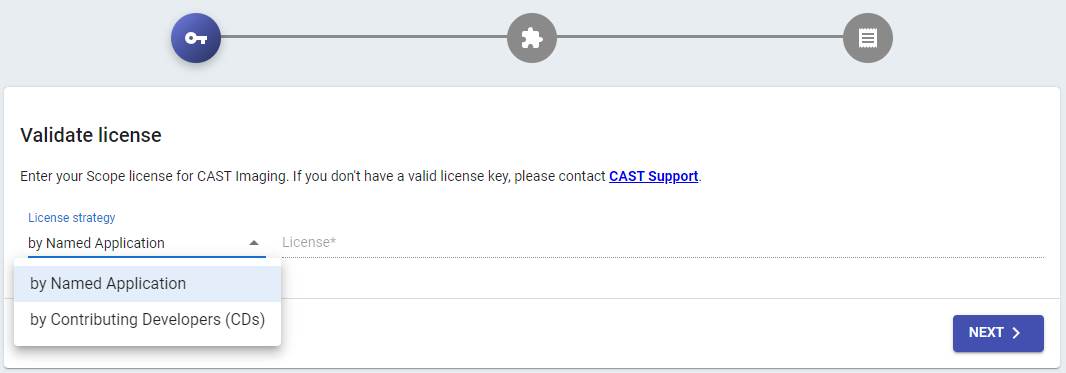
- your licensing strategy. Choose either a
Named Applicationstrategy (where each application you onboard requires a dedicated license key entered when you perform the onboarding), or aContributing Developersstrategy (a global license key based on the number of users):
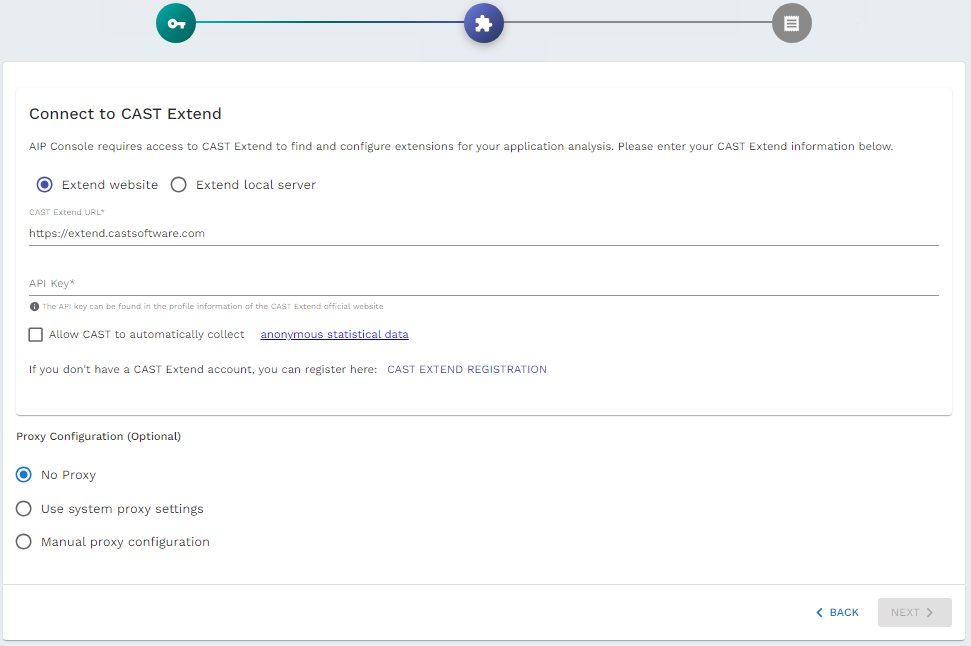
- CAST Extend settings / Proxy settings (if you chose to install Extend Local Server (see Step 4 above) then you now need to input the URL and API key so that CAST Imaging uses it).
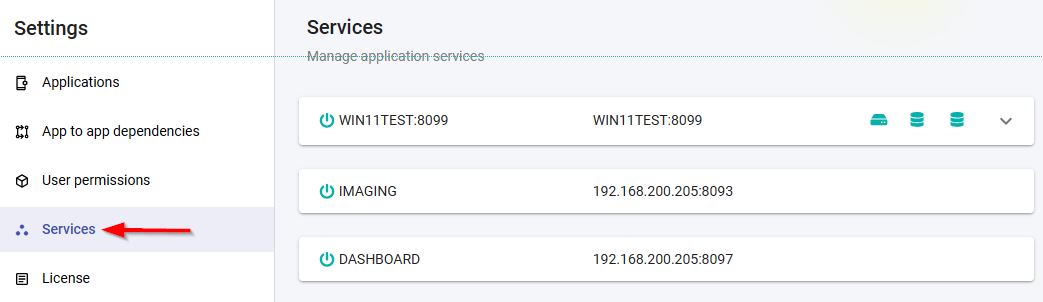
As a final check, browse to the URL below and ensure that you have at least one CAST Imaging Node Service, the CAST Dashboards and the CAST Imaging Viewer components listed:
https://<public or external URL>/admin/services
Step 6 - Configure authentication
Out-of-the-box, CAST Imaging is configured to use Local Authentication via a simple username/password system managed by Keycloak. Default login credentials for CAST Imaging are provided (admin/admin) with the global ADMIN profile so that installation can be set up initially.
CAST recommends configuring CAST Imaging (via the Keycloak component) to use your on-premises enterprise authentication system such as LDAP or SAML Single Sign-on instead before you start to onboard applications. To access the Keycloak UI to configure your authentication system, use the kcadmin account. See Authentication for more information, or Keycloak accounts and passwords for an explanation of each account and how to change its password.
Updating the Keycloak admin service account password post installation
Out-of-the-box Keycloak is provisioned with a service account used for intra-component communication, with the username admin. Its password is set by the KeycloakAdminPassword parameter during installation. If you need to change this password post-installation, follow the steps below:
Change the password via the UI
- Navigate to the Keycloak account security page using the following URL (replace
<public-external-url>with your installation’s external URL). This is the self-service account page for theadminservice account, not the Keycloak admin console:
https://<public-external-url>/auth/realms/master/account/account-security/signing-in
- Log in as the
adminservice account, using its current password - Update the password through the account settings interface
Update the password in the Helm Chart
After changing the password in the Keycloak UI, you must update the Helm chart configuration to match.
- Encode your new password in base64 format. On a Linux machine, run:
$ echo -n "my-new-password" | base64
The -n flag prevents adding a newline character to the encoded output.
- In your cloned Git repository containing the CAST Imaging Kubernetes installation files, open:
values.yaml
- Locate this line:
KeycloakAdminPassword: <default-password>
- Replace the defined password with your base64-encoded password:
KeycloakAdminPassword: <your-base64-encoded-password>
- Example: If your base64 output is
bXktbmV3LXBhc3N3b3Jk, the line should read:
KeycloakAdminPassword: bXktbmV3LXBhc3N3b3Jk
Apply changes
Run Util-ScaleDownAll.bat and helm-upgrade.bat to restart CAST Imaging and apply the changes.
How to start and stop CAST Imaging
Use the following script files (located at the root of the cloned Git repository branch) to stop and start CAST Imaging:
Util-ScaleDownAll.bat|shUtil-ScaleUpAll.bat|sh
Storage class selection
The FileClassName you set in values.yaml must point to a storage class backed by a CSI driver supporting ReadWriteMany (RWX) access mode, because the shared pvc-shared-datadir volume is mounted at the same time by the analysis node(s), console-service and console-control-panel. RWX is therefore required even with a single analysis node. Examples of RWX-capable on-premises options include NFS-based CSI drivers, CephFS (via Rook), GlusterFS, etc. A standard block-storage driver (e.g. local-path-provisioner, plain iSCSI) only supports ReadWriteOnce (RWO) and cannot be used for FileClassName.
Volume permissions when the storage driver does not support fsGroup
CAST Imaging pods run as fixed, non-root users. When a pod starts, Kubernetes uses its fsGroup setting to change the group ownership of the volume so that the pod can write to it (with fsGroupChangePolicy: OnRootMismatch, this is only done when the root folder of the volume does not already have the expected ownership). Some drivers do not apply fsGroup, and NFS servers configured with root_squash (the default) refuse the ownership change. In that case, pods fail to start or fail when writing their files (Permission denied in the pod logs), and the storage administrator must prepare the volumes so that they are owned by the UID/GID used by the pods:
| Volume (PVC) | Used by | UID:GID |
|---|---|---|
pvc-shared-datadir (shared, FileClassName) |
analysis nodes, console-service, control-panel | 10001:10001 |
castdir-console-analysis-node-<n> |
analysis nodes | 10001:10001 |
pvc-consoleservice-logs, pvc-controlpanel-logs |
console-service, control-panel | 10001:10001 |
pvc-authenticationservice-logs, pvc-gatewayservice-logs, pvc-ssoservice-logs |
authentication, gateway and SSO services | 65532:65532 |
pvc-dashboards-logs |
dashboards | 65534:65534 |
db-data |
embedded PostgreSQL | 999:999 |
neo4jdata-viewer-neo4j-0 |
Neo4j | 7474:7474 |
pvc-extendproxy-data |
ExtendProxy | 1001:1001 |
pvc-imagingviewer-v3-*, pvc-mcpserver-logs, pvc-mcpserver-data |
Viewer services, MCP server | 1000:1000 |
Block / disk drivers formatting the volume with a standard Linux filesystem (ext4, xfs) support fsGroup, so this situation mostly concerns the shared pvc-shared-datadir volume when it is backed by NFS. The example below shows how to pre-provision it on an NFS server, using a static PersistentVolume that the chart’s pvc-shared-datadir claim binds to.
-
On the NFS server, as
root, create the folder, give it to UID/GID10001, and set thesetgidbit so that files and folders created inside it keep the10001group:mkdir -p /exports/castimaging/shared-datadir chown -R 10001:10001 /exports/castimaging/shared-datadir chmod 2770 /exports/castimaging/shared-datadir # Check the result: owner and group must be 10001, permissions drwxrws--- ls -ldn /exports/castimaging/shared-datadirUID/GID
10001does not need to exist as a user on the NFS server or on the Kubernetes nodes: only the numeric IDs matter. -
Export the folder to the Kubernetes nodes. Keep
root_squash(the default), as the pods do not run asroot. For example, in/etc/exports:/exports/castimaging/shared-datadir 10.0.0.0/24(rw,sync,no_subtree_check,root_squash)Replace
10.0.0.0/24by the network of your Kubernetes nodes, then reload the exports:exportfs -ra exportfs -v # check that the folder is exported with the expected optionsIf your NFS server uses
all_squash, also addanonuid=10001,anongid=10001to the export options so that all files are created as10001:10001. -
Before running the installation, create a PersistentVolume pointing to this folder. Its
storageClassNamemust be the value ofFileClassNameinvalues.yaml, its capacity at leastsize_shared_datadir(default100Gi), and itsclaimRefmust target thepvc-shared-datadirclaim in the CAST Imaging namespace (defaultcastimaging-v3):apiVersion: v1 kind: PersistentVolume metadata: name: pv-castimaging-shared-datadir spec: capacity: storage: 100Gi volumeMode: Filesystem accessModes: - ReadWriteMany persistentVolumeReclaimPolicy: Retain storageClassName: <your-file-storage-class> # same value as FileClassName mountOptions: - nfsvers=4.1 nfs: server: <nfs-server-name-or-ip> path: /exports/castimaging/shared-datadir claimRef: namespace: castimaging-v3 name: pvc-shared-datadirkubectl apply -f pv-castimaging-shared-datadir.yamlAfter the installation,
kubectl get pvc pvc-shared-datadir -n castimaging-v3must show the claim asBoundtopv-castimaging-shared-datadir.This PersistentVolume uses the NFS volume type built into Kubernetes, so no CSI driver is needed, and the storage class named in
storageClassNamedoes not need a provisioner. However:- The NFS client tools must be installed on every node that can run a CAST Imaging pod (
nfs-commonon Debian/Ubuntu,nfs-utilson RHEL/Rocky/SUSE), because the volume is mounted by the kubelet from the node itself. Without them, the pods remain inContainerCreatingwith amount failederror inkubectl describe pod. nfsvers=4.1requires an NFS server supporting NFSv4.1. If your server only supports NFSv3, usenfsvers=3instead (the nodes then also needrpcbindfor file locking), or removemountOptionsto let the client and server negotiate the version.
- The NFS client tools must be installed on every node that can run a CAST Imaging pod (
-
After the installation, check from an analysis node that the shared volume is writable:
kubectl exec -n castimaging-v3 console-analysis-node-0 -- sh -c 'id; ls -ldn /opt/cast/shared; touch /opt/cast/shared/.write-test && rm /opt/cast/shared/.write-test && echo OK'The command must display
uid=10001 gid=10001, a folder owned by10001 10001, andOK.
If the volume was instead created dynamically by an NFS provisioner (for example nfs-csi, which creates one sub-folder per volume in its export), apply the same ownership to that sub-folder. Find it from the PersistentVolume bound to the claim:
kubectl get pv $(kubectl get pvc pvc-shared-datadir -n castimaging-v3 -o jsonpath='{.spec.volumeName}') -o jsonpath='{.spec.csi.volumeAttributes}'
Then, on the NFS server, run chown -R 10001:10001 and chmod 2770 on the corresponding sub-folder (for nfs-csi, <share>/<subDir>, by default <share>/<pv name>), and restart the pods using it with Util-ScaleDownAll / Util-ScaleUpAll.
The same procedure applies to the other volumes listed above if their driver does not support fsGroup: use the UID/GID of the corresponding row, and the PVC name and size (size_* values in values.yaml) of that volume in the claimRef and capacity of the PersistentVolume. For the castdir and neo4jdata volumes, which are created per pod, create one PersistentVolume per pod (for example castdir-console-analysis-node-0, castdir-console-analysis-node-1, etc.).
Do not make the folders world-writable (chmod 777) to work around permission errors: the shared volume contains application source code and analysis results.
Use an external PostgreSQL instance
If you do not want to use the embedded PostgreSQL instance preconfigured in this helm chart, you can disable it and configure an external PostgreSQL instance instead.
-
Setup your external PostgreSQL database
- PostgreSQL 15 - 8GB RAM minimum recommended
- Instance must be placed in the same network and the same data center as the Kubernetes cluster nodes: this is required to avoid high network latency, which would significantly impact processing performance in CAST Imaging
- Define a superuser authenticated by password
-
In
values.yaml:- Set
CastStorageService.enabletofalse(will disable the embedded PostgreSQL installation) - Set
CustomPostgres.enabletotrue - Set
CustomPostgres.hostandCustomPostgres.portto match your custom database host name and port number - Set
CustomPostgres.adminloginandPostgresDbPasswordto match the superuser login name and password of your custom database
- Set
-
Proceed with the CAST Imaging installation described above
Analysis node autoscaling
console-analysis-node pods to match the analysis workload:
- it adds analysis nodes when the job queue holds work that no running analysis node can take
- it removes analysis nodes once they become idle, choosing which node to remove: an analysis node that is running an analysis is never removed
The autoscaler reacts to the depth of the job queue, not to CPU or memory usage. When nothing is queued, the analysis node fleet shrinks to the configured minimum. The feature is disabled by default.
How it works
The autoscaler is a small controller (console-analysis-node-autoscaler Deployment) deployed by the Helm chart when the feature is enabled. It polls the job queue exposed by console-service and resizes the console-analysis-node-core StatefulSet accordingly.
A standard Kubernetes StatefulSet always deletes the highest-numbered pod when scaling down, and that pod may be the one running an analysis. To remove a specific idle pod, the autoscaler relies on the Advanced StatefulSet provided by OpenKruise (reserveOrdinals feature). When autoscaling is enabled, the console-analysis-node-core StatefulSet is therefore created as an OpenKruise StatefulSet (apps.kruise.io/v1beta1) instead of a standard one (apps/v1).
Analysis capacity per node
The number of analyses an analysis node can run in parallel (its capacity) is defined by MaxParallelAnalysisPerNode in values.yaml, and can then be changed for each node in the CAST Imaging UI. The autoscaler uses both values:
- The capacity set in the UI is the one used to compute the spare capacity of the running nodes and to decide whether a node can be removed.
- When a node is added, a node that was previously removed is brought back first (so that its
castdirvolume is reused), with the capacity it had in the UI when it was removed. Previously removed nodes with the largest capacity are brought back first. Only a node that never existed starts withMaxParallelAnalysisPerNode.
To remember the capacity of removed nodes, the autoscaler records every capacity that differs from MaxParallelAnalysisPerNode in the imaging.castsoftware.com/ordinal-capacity annotation of the console-analysis-node-core StatefulSet (for example {"1": 4} for node 1 with a capacity of 4). The capacity of a removed node cannot be changed in the UI: it is restored as recorded when the node is brought back.
Requirements
- CAST Imaging ≥ 3.6.9: earlier releases dispatch jobs directly to an analysis node, so the queue is always empty and the autoscaler never scales up.
- OpenKruise operator installed in the cluster: this is an infrastructure prerequisite that is not installed by the CAST Imaging Helm chart (see Install OpenKruise below).
- One schedulable worker node per analysis node: anti-affinity rules give each analysis node its own worker node, and one worker node is used by
viewer-neo4j. The practical maximum number of analysis nodes is thereforeschedulable worker nodes - 1. - Each analysis node has its own
castdirvolume (100Gi by default, seesize_castdir). Plan block storage capacity for up tomaxNodes×size_castdir.
Install OpenKruise
OpenKruise adds cluster-wide resource types (CRDs), a controller and admission webhooks, so it must be installed by a user with cluster-admin rights:
$ helm repo add openkruise https://openkruise.github.io/charts/
$ helm repo update
$ helm install kruise openkruise/kruise --version 1.9.0
Check that the OpenKruise pods are running before going further:
$ kubectl get pods -n kruise-system
See the OpenKruise installation documentation for more information.
Check your namespace rights (if you do not have cluster-admin rights)
If CAST Imaging is installed by a user who only has rights on the CAST Imaging namespace, the following commands must all return yes, otherwise the whole helm install / helm upgrade fails (not only the autoscaler):
$ kubectl auth can-i create statefulsets.apps.kruise.io -n castimaging-v3
$ kubectl auth can-i patch  statefulsets.apps.kruise.io -n castimaging-v3
$ kubectl auth can-i delete statefulsets.apps.kruise.io -n castimaging-v3
$ kubectl auth can-i create roles.rbac.authorization.k8s.io -n castimaging-v3
$ kubectl auth can-i create rolebindings.rbac.authorization.k8s.io -n castimaging-v3
The OpenKruise Helm chart grants its rights to the built-in admin and edit cluster roles. A RoleBinding to the built-in admin role in the namespace is therefore sufficient. The edit role is not sufficient, because it cannot create Roles and RoleBindings. If needed, ask your cluster administrator to run:
$ kubectl create rolebinding <your-user>-admin -n castimaging-v3 --clusterrole=admin --user=<your-user>
In this situation, you must also set AnalysisNodeAutoscaling.allowNodeRead: false in values.yaml (see below): with the default value (true), the chart creates a ClusterRole and a ClusterRoleBinding, which cannot be created without cluster-admin rights.
Enable the autoscaler in values.yaml
Enabling (or disabling) the autoscaler on an existing deployment replaces the console-analysis-node-core StatefulSet and restarts the analysis nodes once. Do it in a maintenance window, when no analysis is running: a running analysis would be lost. The existing castdir volumes are kept, only the pods restart.
Set the following in values.yaml:
AnalysisNodeAutoscaling:
  enabled: true
  minNodes: 1
  maxNodes: 3
Then run the CAST Imaging installation (helm-install.bat|sh) or, on an existing deployment, the upgrade (helm-upgrade.bat|sh) as usual.
AnalysisNodeReplicaCount is ignored while autoscaling is enabled: the autoscaler owns the replica count, so that a later helm upgrade does not reset it. The StatefulSet starts with one analysis node, and the autoscaler brings it up to minNodes, then adds more as the queue requires.
Always keep minNodes at 1 or more. With minNodes: 0, an idle fleet shrinks to zero analysis nodes, the Console then disables the analysis actions (no node available), no job can be queued, and the autoscaler never scales back up. To recover, set minNodes back to 1 and run the upgrade again.
Settings
All settings are in the AnalysisNodeAutoscaling section of values.yaml:
| Setting | Default | Description |
|---|---|---|
enabled |
false |
Enables the autoscaler. Also switches the console-analysis-node-core StatefulSet to the OpenKruise kind. |
minNodes |
1 |
Minimum number of analysis nodes, kept even when the whole fleet is idle. Must be at least 1. |
maxNodes |
3 |
Maximum number of analysis nodes. When allowNodeRead is true, it is also capped at schedulable worker nodes - 1. |
pollIntervalSeconds |
30 |
How often the job queue is read. |
scaleUpStabilizationSeconds |
60 |
How long a scale-up decision must hold before it is applied. |
scaleDownStabilizationSeconds |
120 |
How long a scale-down decision must hold before an idle node is removed. Do not go below about 90 seconds: a single reading can catch a node between two jobs of the same application and make it look idle. |
stuckPodTimeoutSeconds |
600 |
An analysis node pod that is not Ready for this long (e.g. Pending for lack of CPU/memory, or crash-looping) is removed, and the fleet is held at the size that did start for the same duration. 0 disables this behavior. |
dryRun |
false |
When true, the autoscaler computes and logs its decisions but never changes anything. Useful to observe its behavior before letting it act. |
allowNodeRead |
true |
Grants a cluster-scoped read of nodes, only used to cap maxNodes at schedulable worker nodes - 1. Set to false without cluster-admin rights, on clusters with node autoscaling, or with a tainted dedicated node pool (EnforceNodeAffinity: true). maxNodes is then the only ceiling and must be sized manually. |
resources |
requests 10m / 64Mi, limits 200m / 128Mi |
CPU and memory of the autoscaler pod. |
Clusters with node autoscaling
When the cluster itself adds and removes worker nodes (Cluster Autoscaler on EKS, AKS or GKE, Karpenter, etc.), two autoscalers work side by side: the CAST autoscaler changes the number of analysis node pods based on the job queue, and the cluster autoscaler changes the number of worker nodes when pods are Pending for lack of room. In this case:
- Set
allowNodeRead: false. Withtrue, the CAST autoscaler only counts the worker nodes that exist now and never requests a pod that cannot be scheduled, so the cluster autoscaler is never triggered to add a worker node. - Set
maxNodesto the maximum size of the node pool, minus the worker node used byviewer-neo4jif it runs in the same pool. - Keep
stuckPodTimeoutSecondsabove the time needed by your cloud provider to add a worker node and pull the analysis node image. Expect a slower scale-up (several minutes) when a worker node must be added. - Each
castdirvolume is usually a zonal disk (Amazon EBS, Azure Disk LRS, Google Persistent Disk) that can only be attached in the zone where it was created. If the node pool spans several zones, use a single-zone node pool, a zone-redundant storage class forcastdir(e.g. Azure ZRS, GKE regional Persistent Disk), or one node pool per zone.
Starting with 3.6.9, the console-analysis-node, console-postgres and viewer-neo4j pods carry the cluster-autoscaler.kubernetes.io/safe-to-evict: "false" and karpenter.sh/do-not-disrupt: "true" annotations (whether or not the CAST autoscaler is enabled), so a cluster autoscaler never evicts them to remove an under-used worker node and never interrupts a running analysis.
Checking that it works
$ kubectl logs -n castimaging-v3 -l imaging.service=console-analysis-node-autoscaler -f
Each poll logs what the autoscaler observed, what it decided and why, for example:
state: kind=apps.kruise.io replicas=1 ready=1 reserved=[] newNodeCapacity=2 (helm) untainted=4
queue: queued=2 nodes=[0:2/2]
decision: scale-up -> replicas=2 reserve=[]
  reason: 2 job(s) beyond 0 spare thread(s) -> +1 node(s)
  holding: decision is new, need 60s of agreement
newNodeCapacityisMaxParallelAnalysisPerNodeas set invalues.yaml: it is the capacity of a node that never existed, and is only used to compute how many nodes to add.- The
queue:line shows the number of queued jobs and, for each running node,node number:analyses in progress/capacity, the capacity being the one set in the UI. It differs fromnewNodeCapacitywhen the capacity was changed in the UI. - When removed nodes have a recorded capacity (see Analysis capacity per node), it is shown at the end of the
queue:line, for examplereservedCapacity=[1:4].
Common log messages that are expected behavior:
| Log message | Meaning |
|---|---|
holding: X/Y ready, last change has not settled |
A previous change is still in progress. If it persists, some analysis node pods are Pending (maxNodes too high, or not enough CPU/memory). |
at the ceiling (N); M job(s) must wait |
maxNodes (or schedulable worker nodes - 1) has been reached. On clusters with node autoscaling, set allowNodeRead: false. |
N pod(s) never became ready: ... |
A pod did not start within stuckPodTimeoutSeconds and has been removed. Lower maxNodes if this happens repeatedly. |
nothing removable: N idle node(s), M queued job(s) need the K spare thread(s) |
Removing a node would leave too little capacity for queued jobs. |
cannot list nodes (RBAC) - the anti-affinity ceiling is disabled |
Expected with allowNodeRead: false; maxNodes still applies. |
refusing to scale down a native StatefulSet |
The StatefulSet is not the OpenKruise kind: check that OpenKruise is installed and that the upgrade was applied. |
Disabling the autoscaler
Set AnalysisNodeAutoscaling.enabled: false in values.yaml, set AnalysisNodeReplicaCount to the number of analysis nodes you want, and run the upgrade. This removes the autoscaler and all the resources it owns, and restores the standard StatefulSet, which restarts the analysis nodes once (same precautions as when enabling it).
castdirvolumes of analysis nodes numberedAnalysisNodeReplicaCountor higher are kept but no longer used. Delete them if you do not plan to re-enable autoscaling (list them withkubectl get pvc -n castimaging-v3 | grep castdir-console-analysis-node-core).- Always disable the autoscaler before uninstalling OpenKruise: uninstalling OpenKruise first also deletes the
console-analysis-node-coreStatefulSet, and the nexthelm upgradefails.
Kubernetes storage location information
For information about storage locations used across the containers in a CAST Imaging Kubernetes deployment (for example persistent volumes, ConfigMap-backed configuration files, Secrets, and ephemeral (in-memory) volumes), see Kubernetes storage location information.
values.yaml parameters reference
This section describes each parameter of the values.yaml file provided at the root of the Helm chart, when and how to adjust it, and the risks of changing it on a deployment that is already running. The parameters are listed in the order in which they appear in values.yaml.
Unless stated otherwise, a change in values.yaml is applied by running helm-upgrade.bat|sh. The When can it be changed column uses the following conventions:
| Label | Fresh installation | Existing deployment |
|---|---|---|
| Safe | Can be set | Can be changed at any time; the affected pods are restarted by the upgrade. |
| Caution | Can be set | Can be changed, but requires extra steps, causes downtime or has side effects described in the column. |
| Install-time only | Set it before the initial installation if your environment requires it | Never change it once CAST Imaging is deployed: the upgrade fails, the deployment breaks, or data is permanently lost. |
| Keep default | Do not change it, even on a fresh installation | Do not change it. These are internal values that the Helm chart and the CAST Imaging images depend on. |
Before changing any value marked Caution on an existing deployment, take a backup of CAST Imaging (ImagingBackup.bat|sh, see ImagingBackupRestore.md in the Helm chart) and make sure that no analysis is running.
Sections in this reference:
- Which values to review before deploying
- General settings
- License and CAST Extend
- Application networking
- Storage
- PostgreSQL
- Passwords and Secrets
- Optional components
- Extra environment variables
- Analysis settings
- Security and registry access
- Replica counts
- Analysis node autoscaling
- Images
- Resources
- Pod placement
Which values to review before deploying
Most parameters can keep their default values. Use the following overview to focus on the ones that matter for your installation.
1. Always review and set before the initial installation
Review these values for one or more of the following reasons:
- Environment-specific: the default is a placeholder or a generic choice that must be adapted to your cluster (for example
FrontEndHost,K8SProvideror the storage classes). - Security-sensitive: the default is publicly known or exposes CAST Imaging more than you may want (passwords, public load balancer).
- Install-time only: the value can be set now, but never changed once CAST Imaging is deployed.
| Parameter | Why |
|---|---|
K8SProvider |
Must match your cluster (EKS, AKS, GKE or K8S). Install-time only. |
FrontEndHost |
The default (https://myhostname.com) is a placeholder: set the URL your users will use. |
One Application networking option (CreateLoadBalancer, CreateIngress, UseIstioGateway, UseGatewayAPI or UseApplicationGateway) |
Defines how CAST Imaging is exposed to users. The default (CreateLoadBalancer: true) creates a public cloud load balancer: check that this matches your security requirements, or use UseInternalLoadBalancer or another option. |
PostgresDbPassword, OperatorDbPassword + OperatorDbPasswordCrypted2, KeycloakDbPassword, Neo4jPassword, KeycloakAdminPassword (or existingSecret) |
The defaults are publicly known. Change them on any installation that is not a short-lived test, before the first deployment: changing them afterwards requires manual steps. |
AnalysisNodeFS.* for your provider (EFSsystemID on EKS, AKSprotocol and storage account settings on AKS) |
Install-time only: the shared volume configuration cannot be changed after analyses have been run. EFSsystemID is mandatory on EKS. On FIPS-enabled AKS nodes, AKSprotocol: nfs is required. |
CreateStorageClass, DiskClassName, FileClassName |
Must be false / your existing class names on-premises or when your administrator provides the storage classes. DiskClassName and FileClassName are install-time only. |
RestrictedSecurityMode |
Set to true if your cluster enforces the restricted Pod Security Standard. Install-time only. |
size_castdir, size_shared_datadir, size_db_data, size_neo4jdata |
Size them for the applications you plan to analyze: volumes can be extended later, but never reduced, and some require manual steps. |
2. Set only if it applies to your situation
These values must be set when you use the corresponding feature or environment, and can otherwise keep their defaults:
| Situation | Parameters |
|---|---|
Namespace other than castimaging-v3 |
namespace, and the helm-* and Util-* scripts |
| External PostgreSQL instead of the embedded one | CastStorageService.enable, CustomPostgres.* (decide before installation) |
| CAST Imaging served under a context path | ContextUrl.* |
| Ingress with automatic certificates | CertManager.* |
| Istio or Gateway API specifics | ExistingIstioGatewayName, CustomIstio*, Gateway.* |
| Private network only | UseInternalLoadBalancer |
| Analysis nodes without direct internet access to CAST Extend | ExtendProxy.* |
| License and Extend API key provided at deployment rather than in the UI | ImagingLicense, ImagingLicenseType, ExtendApiKey |
| Private registry or mirrored images | UseImagePullSecrets, Base64EncodedDockerconfigjson, ServiceAccountName, *Image.name |
Passwords managed outside of values.yaml |
existingSecret |
| E-mail notifications | SMTP.* |
| MCP server, or deployment without the Viewer | McpServer.enable, Viewer.enable |
| Domain/tenant mapping | CONTROLPANEL.IMAGING_DOMAIN_SYNCHRO_ENABLED (decide before installation) |
| Several analysis nodes | AnalysisNodeReplicaCount, or AnalysisNodeAutoscaling.* |
| Large applications | AnalysisNodeResources, MaxParallelAnalysisPerNode, ViewerNeo4jResources and NEO4J.* heap settings |
| Dedicated node pool, or specific pod distribution | EnforceNodeAffinity, nodeSelector, tolerations, EnforceBalancedAffinity, BalancedAffinity.* |
| Remote access to the embedded PostgreSQL | CreatePostgresLoadBalancer together with CastStorageService.ssl |
| Timeouts on long-running requests | NetworkTimeoutSeconds, ExtendProxy.timeoutSeconds |
3. Never change, even on a fresh installation (Keep default)
version, postgresqlDataMountPath, anadir.*, and the labelSelector* / podAffinityGroup* affinity rules.
4. Keep the defaults unless advised by CAST Support
*Image.tag and *Image.pullPolicy, the CSI driver names (*_DSdriver, *_FSdriver, install-time only), the log volume sizes, the other replica counts, the other *Resources, postgres_shmsize, AnalysisNode_shmsize, ConsoleEnableBackup, KCADMIN_USERNAME, and the ETL, AIMANAGER and GATEWAYSERVICE environment variables.
General settings
| Parameter | Default | Description and when to adjust | When can it be changed |
|---|---|---|---|
version |
Current CAST Imaging release | CAST Imaging release delivered by this Helm chart, used as a label (and as a fallback image tag). Do not edit: it is updated with the chart. | Keep default. |
namespace |
castimaging-v3 |
Kubernetes namespace in which CAST Imaging is deployed. If you need a different namespace, also replace castimaging-v3 in the helm-*.bat|sh and Util-* scripts provided with the Helm chart, which pass the namespace to helm and kubectl. |
Safe, provided the scripts are adjusted accordingly. |
K8SProvider |
AKS |
Kubernetes provider: EKS (AWS), AKS (Azure), GKE (Google) or K8S (on-premises, with CreateStorageClass: false). Selects the CSI drivers of the storage classes, the internal load balancer annotations and some provider-specific options. |
Install-time only: storage classes are immutable and kept on uninstall, and existing volumes cannot move between providers. |
License and CAST Extend
| Parameter | Default | Description and when to adjust | When can it be changed |
|---|---|---|---|
ImagingLicenseType |
SCOPE_CD |
License type: SCOPE_CD (by Contributing Developers) or SCOPE_APP (by Named Application). Only used when ImagingLicense is set. |
Safe. |
ImagingLicense |
empty | License key. If empty, the license is entered in the Console UI after installation. | Caution: when set, the value is written to the database each time console-service starts, overwriting any license entered in the UI. Keep it empty if you manage the license from the UI, or keep it up to date here. |
ExtendApiKey |
empty | CAST Extend API key. If empty, it is entered in the Console UI after installation. When set (and ExtendProxy.enable: false), the Extend URL is also set to https://extend.castsoftware.com. |
Caution: same behavior as ImagingLicense - re-applied at each console-service start, overwriting the value set in the UI. |
Application networking
Only one of CreateIngress, UseIstioGateway, UseGatewayAPI and UseApplicationGateway can be enabled (the installation fails otherwise). CreateLoadBalancer should be set to false when one of them is used.
| Parameter | Default | Description and when to adjust | When can it be changed |
|---|---|---|---|
FrontEndHost |
https://myhostname.com |
URL used by end users to reach CAST Imaging: scheme and host name only, no context path and no trailing /. Must match the certificate and DNS entry of your entry point. |
Caution: the Keycloak URL stored in the database is updated when console-service and console-control-panel restart. Update DNS and certificates at the same time, and check the Keycloak redirect URIs if you customized them. Users must log in again. |
NetworkTimeoutSeconds |
300 |
Maximum duration of a request between the entry point (Ingress, Istio or Gateway API) and console-gateway-service, after which a 504 Gateway Timeout is returned. Increase it if long-running operations time out. |
Safe. |
CreateLoadBalancer |
true |
Exposes console-gateway-service (and extendproxy if enabled) as a cloud LoadBalancer Service. Set to false when using an Ingress, Istio, Gateway API or Azure Application Gateway. |
Caution: the LoadBalancer Service is kept on helm uninstall (to preserve its IP address); disabling it changes the entry point, so update DNS accordingly. |
CreatePostgresLoadBalancer |
false |
Exposes the embedded PostgreSQL (console-postgres) as its own LoadBalancer Service, for example for external reporting tools. |
Caution: exposes the database outside the cluster. Also set CastStorageService.ssl: true, prefer UseInternalLoadBalancer: true, and restrict inbound access at network level. The Service is kept on helm uninstall. |
UseInternalLoadBalancer |
false |
Requests a private (VPC/VNet only) load balancer instead of a public one for all LoadBalancer Services created by the chart. No effect with Ingress, Istio, Gateway API or Application Gateway. | Caution: the load balancer is re-created with a new IP address; update DNS. Clients outside the private network lose access. |
CreateIngress |
false |
Routes traffic through an NGINX Ingress controller (installed separately). | Caution: changes the entry point (new IP address/DNS). |
CertManager.enable |
false |
Only with CreateIngress: true. Adds cert-manager annotations so that the TLS certificates (tls-secret-cast, and tls-secret-cast-extend with ExtendProxy) are requested and renewed automatically. cert-manager and the Issuer must already exist. |
Safe. |
CertManager.issuer |
vault-issuer |
Name of the cert-manager Issuer or ClusterIssuer. | Safe. |
CertManager.issuerKind |
Issuer |
Issuer (in the CAST Imaging namespace) or ClusterIssuer. |
Safe. |
CertManager.privateKeySize |
"4096" |
Private key size in bits. | Safe (applies to the next certificate issued). |
UseIstioGateway |
false |
Routes traffic through an Istio Gateway and VirtualServices (Istio installed separately). | Caution: changes the entry point. |
ExistingIstioGatewayName |
"" |
Name of an existing Istio Gateway to attach to (e.g. aks-istio-ingress/gateway-wildcard) instead of creating one. |
Caution: changes the entry point. |
CustomIstioSelector |
empty | Optional value of the istio label selecting the Istio ingress gateway pods (default: ingressgateway). |
Caution: changes the entry point. |
CustomIstioMainCredentialName |
empty | Optional name of the TLS Secret used by the Istio Gateway for FrontEndHost (default: tls-secret-cast). |
Safe, if the Secret exists. |
CustomIstioExtendCredentialName |
empty | Optional name of the TLS Secret used for the ExtendProxy host name (default: tls-secret-cast-extend). |
Safe, if the Secret exists. |
UseGatewayAPI |
false |
Routes traffic through a Kubernetes Gateway API Gateway and HTTPRoutes (a GatewayClass controller such as NGINX Gateway Fabric must be installed). | Caution: changes the entry point. |
Gateway.create |
true |
true creates a dedicated Gateway; false attaches the HTTPRoutes to an existing shared Gateway (Gateway.name / Gateway.namespace). |
Caution: changes the entry point. |
Gateway.name / Gateway.namespace |
castimaging-gateway / "" |
Gateway to attach to when Gateway.create: false. |
Caution. |
Gateway.className |
nginx |
GatewayClass of the dedicated Gateway (nginx for NGINX Gateway Fabric). |
Caution: the Gateway is re-created. |
UseApplicationGateway |
false |
AKS only: set to true when an Azure Application Gateway (created separately) is used in front of CAST Imaging. |
Caution: changes the entry point. |
ContextUrl.enable |
false |
Serves CAST Imaging under a context path (e.g. https://myhostname.com/cast). Requires CreateIngress, UseIstioGateway or UseGatewayAPI. |
Caution: after helm upgrade, restart all CAST Imaging services once (Util-ScaleDownAll then Util-ScaleUpAll). On a first installation with enable: true, also restart all services once after the initial startup. |
ContextUrl.appcontext |
/mycontext |
Context path, starting with / and without trailing /. |
Caution: same as ContextUrl.enable. |
Storage
See Kubernetes storage location information for the list of volumes.
| Parameter | Default | Description and when to adjust | When can it be changed |
|---|---|---|---|
CreateStorageClass |
true |
Creates the block (DiskClassName) and file (FileClassName) storage classes. Set to false if your cluster administrator provides them (mandatory on-premises); DiskClassName and FileClassName must then match the existing class names. |
Safe: the storage classes are kept on uninstall and are not deleted when switching to false. |
DiskClassName |
castimaging-ds |
Storage class used for all block (ReadWriteOnce) volumes. |
Install-time only: the storage class of an existing PVC or StatefulSet volume template is immutable, so the upgrade fails. Re-creating the volumes causes permanent data loss. |
FileClassName |
castimaging-fs |
Storage class used for the shared pvc-shared-datadir volume, which must support ReadWriteMany, even with a single analysis node: the volume is also mounted by console-service and console-control-panel. |
Install-time only: on an instance that has run analyses, it requires deleting pvc-shared-datadir, causing permanent data loss. |
AnalysisNodeFS.EFSsystemID |
fs-xxxxxxxxxxx |
EKS only, required: ID of the Amazon EFS file system used for pvc-shared-datadir. |
Install-time only: storage class parameters are immutable and the shared data lives on this file system. |
AnalysisNodeFS.EFSaccessPointID |
empty | EKS only, optional: when set, an explicit PersistentVolume bound to this EFS access point is created instead of a dynamically provisioned one. | Install-time only. |
AnalysisNodeFS.AKSresourceGroup |
empty | AKS only, optional: resource group of the storage account used for Azure Files. | Install-time only: storage class parameters are immutable. |
AnalysisNodeFS.AKSstorageAccount |
empty | AKS only, optional: existing storage account used for Azure Files (otherwise created automatically by the CSI driver). | Install-time only. |
AnalysisNodeFS.AKSprotocol |
smb |
AKS only: smb or nfs. nfs is required on FIPS-enabled nodes and needs a Premium FileStorage account reachable on TCP 2049. |
Install-time only: on an instance that has run analyses, switching requires deleting the storage class and pvc-shared-datadir, causing permanent data loss. |
AnalysisNodeFS.AKSnfsEncryptInTransit |
true |
AKS with AKSprotocol: nfs only: encrypts NFS traffic with TLS, which allows “Secure transfer required” to stay enabled on the storage account. Set to false only for plain-text NFS. |
Install-time only: storage class parameter, immutable. |
AnalysisNodeFS.AKSsharedDatadirPV.create |
false |
AKS only: set to true when dynamic provisioning cannot be used, to create an explicit PersistentVolume on an existing Azure File Share (SMB only). |
Install-time only. |
AnalysisNodeFS.AKSsharedDatadirPV.secretName / shareName |
cast-fs-secret / cast-fileshare |
Secret holding the storage account credentials and name of the Azure File Share, required when AKSsharedDatadirPV.create: true. |
Install-time only. |
EKS_DSdriver, EKS_FSdriver, AKS_DSdriver, AKS_FSdriver, GKE_DSdriver, GKE_FSdriver |
CSI drivers of each provider | CSI provisioners used by the storage classes. Only change them if your cluster uses a different CSI driver. | Install-time only: storage classes are immutable. |
Volume sizes
| Parameter | Default | Volume |
|---|---|---|
size_castdir |
100Gi |
castdir of each analysis node (StatefulSet volume template) |
size_shared_datadir |
100Gi |
pvc-shared-datadir (shared analysis data) |
size_db_data |
128Gi |
db-data (embedded PostgreSQL) |
size_neo4jdata |
100Gi |
neo4jdata of viewer-neo4j (StatefulSet volume template) |
size_imagingviewer_v3_server_log |
1Gi |
viewer-server logs |
size_imagingviewer_v3_etl_logs |
10Gi |
viewer-etl logs |
size_imagingviewer_v3_etl_csvarchive |
10Gi |
viewer-etl CSV archive |
size_imagingviewer_v3_aimanager_logs |
2Gi |
viewer-aimanager logs |
size_imagingviewer_v3_api_logs |
2Gi |
viewer-api logs |
size_extendproxy_data |
10Gi |
extendproxy data |
size_mcpserver_logs |
2Gi |
mcp-server logs |
size_mcpserver_data |
1Gi |
mcp-server data: Text2Cypher SQLite stores (≥ 3.6.9) |
size_consoleservice_logs, size_controlpanel_logs, size_gatewayservice_logs, size_authenticationservice_logs, size_ssoservice_logs, size_dashboards_logs |
2Gi each |
Console services logs |
Size the volumes according to the number and size of the applications you plan to analyze: size_castdir, size_shared_datadir, size_db_data and size_neo4jdata are the ones that grow with usage.
Resizing volumes on an existing deployment
- Volumes can only be increased, never reduced: a smaller value makes the upgrade fail.
- For the PVCs created directly by the chart (all except
castdirandneo4jdata), increasing the value and runninghelm upgradeexpands the volume, provided the storage class allows volume expansion (allowVolumeExpansion: true, which is the case of the storage classes created by the chart). On Amazon EFS, the size is not enforced and does not need to be changed. - For
castdirandneo4jdata, which are created from StatefulSet volume templates, changingsize_castdirorsize_neo4jdatamakeshelm upgradefail, because volume templates cannot be modified. Instead, keep the value unchanged and expand each existing PVC directly, for example:kubectl patch pvc castdir-console-analysis-node-core-0 -n castimaging-v3 -p '{"spec":{"resources":{"requests":{"storage":"200Gi"}}}}'. - Never delete a PVC to resize it: this causes permanent data loss.
PostgreSQL
Enable either CastStorageService (embedded PostgreSQL) or CustomPostgres (external PostgreSQL), not both.
| Parameter | Default | Description and when to adjust | When can it be changed |
|---|---|---|---|
CastStorageService.enable |
true |
Deploys the embedded PostgreSQL (console-postgres StatefulSet and db-data volume). Set to false to use an external PostgreSQL instance. |
Install-time only: switching between embedded and external PostgreSQL does not migrate any data, and the deployment restarts on an empty database. A migration requires a backup/restore procedure. |
CastStorageService.ssl |
false |
Enforces SSL connections to the embedded PostgreSQL, with a self-signed certificate generated at startup. Recommended when CreatePostgresLoadBalancer: true. |
Caution: restarts PostgreSQL and therefore interrupts all services; do it when no analysis is running. |
CustomPostgres.enable |
false |
Uses an existing external PostgreSQL server (PostgreSQL 15, 8GB RAM minimum recommended). The required users and databases are created by a one-time Job. | Install-time only: see CastStorageService.enable. |
CustomPostgres.host |
mypostgreshostname |
Host name of the external PostgreSQL server. | Caution: the new server must contain the CAST Imaging data (restored from a backup), otherwise CAST Imaging starts on an empty database. |
CustomPostgres.adminlogin |
postgres |
Superuser login of the external server; its password is set in PostgresDbPassword. |
Safe, if the login is valid. |
CustomPostgres.port |
2285 |
Port of the external PostgreSQL server. | Safe, if the port is valid. |
postgres_shmsize |
4G |
Shared memory (/dev/shm) of the embedded PostgreSQL, used for parallel queries. Increase only if PostgreSQL reports shared memory errors. |
Caution: restarts PostgreSQL. |
postgresqlDataMountPath |
/var/lib/postgresql/data |
Data directory of the embedded PostgreSQL, matching the PostgreSQL image provided with the chart. | Keep default: on an existing deployment, PostgreSQL would start on an empty data directory. |
Passwords and Secrets
All passwords are base64-encoded: echo -n "mypassword" | base64 on Linux, or [Convert]::ToBase64String([Text.Encoding]::UTF8.GetBytes("mypassword")) in PowerShell.
| Parameter | Default | Description and when to adjust | When can it be changed |
|---|---|---|---|
existingSecret |
"" |
Name of an existing Kubernetes Secret holding the passwords, for example when passwords are managed by an external secret store (see Using an external secret store). When set, all password values below are ignored, and the Secret must contain the keys postgres-db-password, operator-db-password, operator-db-password-crypted2, keycloak-db-password, keycloak-admin-password, neo4j-password and optionally smtp-password. Otherwise, the chart creates the imaging-pwd-sec Secret. |
Caution: the new Secret must contain the passwords currently in use, otherwise services can no longer connect to the databases. |
PostgresDbPassword |
postgres (encoded) |
Password of the postgres superuser of the embedded PostgreSQL, or of CustomPostgres.adminlogin on an external server. |
Caution: changing the value alone breaks the connection. First change the password in PostgreSQL (ALTER USER ... WITH PASSWORD '...') while CAST Imaging is running, then update the value and run helm upgrade. |
OperatorDbPassword |
CastAIP (encoded) |
Password of the operator database user used by all Console services. |
Caution: change it first in PostgreSQL, then in the Console (Global configuration > CSS and Measurement settings), then update both OperatorDbPassword and OperatorDbPasswordCrypted2 and run helm upgrade. |
OperatorDbPasswordCrypted2 |
CRYPTED2:... |
operator password encrypted with the cast-imaging-encryption-tool.jar tool (provided with the CAST Imaging Linux installer). Not base64-encoded. Must always match OperatorDbPassword. |
Caution: see OperatorDbPassword. |
KeycloakDbPassword |
keycloak (encoded) |
Password of the keycloak database user. |
Caution: change it first in PostgreSQL, then update the value and run helm upgrade. |
Neo4jPassword |
imaging (encoded) |
Password of the Neo4j database used by the Viewer services. | Caution: the Neo4j password is stored in the Neo4j data volume. Changing only the value breaks the Viewer; it must also be changed in Neo4j. |
KeycloakAdminPassword |
admin (encoded) |
Password of the Keycloak admin service account, used for communication between components. Change it on fresh installations. |
Caution: change it first in the Keycloak admin UI while CAST Imaging is running, then update the value, run Util-ScaleDownAll and helm-upgrade. See Keycloak accounts and passwords. |
KCADMIN_USERNAME |
kcadmin |
Login of the Keycloak administrator account created at installation, used to access the Keycloak UI. | Caution: the Keycloak initialization Job runs again and creates a new administrator with the new name; the previous account is not deleted. |
Using an external secret store
existingSecret accepts any Kubernetes Secret, whatever tool creates it. To keep the passwords in an external secret store, use a tool that creates the Secret in the CAST Imaging namespace from that store. The most common one is External Secrets Operator (ESO), which works the same way on every platform and supports, among others:
| Platform | Typical secret store | Authentication of ESO to the store |
|---|---|---|
| EKS | AWS Secrets Manager or AWS Systems Manager Parameter Store | IAM Roles for Service Accounts (IRSA) or EKS Pod Identity |
| AKS | Azure Key Vault | Microsoft Entra Workload ID |
| GKE | Google Cloud Secret Manager | Workload Identity Federation for GKE |
| On-premises | HashiCorp Vault, CyberArk Conjur, Akeyless, or the store already used in your organization | Kubernetes auth method, AppRole or token, depending on the store |
Vendor operators (for example HashiCorp Vault Secrets Operator) and GitOps tools that decrypt secrets in the cluster (Sealed Secrets, SOPS) also work, as long as the result is a Secret with the expected keys. The Secrets Store CSI Driver is not suitable: it only synchronizes a Secret while a pod mounts the corresponding CSI volume, and CAST Imaging pods do not.
To use ESO:
-
Install ESO and create a
SecretStore(in the CAST Imaging namespace) or aClusterSecretStorefor your store. See the list of ESO providers for the configuration of your store. -
In your secret store, create a secret (for example
cast-imaging/passwords) containing a JSON object with the keyspostgres-db-password,operator-db-password,operator-db-password-crypted2,keycloak-db-password,keycloak-admin-password,neo4j-passwordand, whenSMTP.enableistrue,smtp-password. Store the values in plain text, not base64-encoded. Foroperator-db-password-crypted2, store the completeCRYPTED2:...string generated bycast-imaging-encryption-tool.jar. -
Create the namespace (
kubectl create namespace castimaging-v3) and anExternalSecretin it:apiVersion: external-secrets.io/v1 kind: ExternalSecret metadata: name: imaging-passwords namespace: castimaging-v3 spec: refreshInterval: 1h secretStoreRef: kind: ClusterSecretStore # or SecretStore name: my-secret-store target: name: imaging-passwords # Secret name to set in existingSecret dataFrom: - extract: key: cast-imaging/passwordsOn ESO versions earlier than 0.17, use
apiVersion: external-secrets.io/v1beta1. If your store holds one secret per password instead of a JSON object, replacedataFromwith onedataentry per key (secretKeyset to the expected key name,remoteRef.keyset to the name in your store). -
Check that the Secret is synchronized:
kubectl get externalsecret imaging-passwords -n castimaging-v3must showSecretSynced. -
Set
existingSecret: imaging-passwordsinvalues.yamland run the installation (orhelm-upgradeon an existing deployment, with the passwords currently in use).
- Changing a value in the secret store does not change the password in the database, Keycloak or Neo4j. Follow the order given in the table above for each password, and update the secret store at the step where the table says to update the value.
- CAST Imaging pods read the passwords only when they start. After ESO updates the Secret (at the next
refreshInterval), restart the pods withUtil-ScaleDownAllandUtil-ScaleUpAll.
Optional components
| Parameter | Default | Description and when to adjust | When can it be changed |
|---|---|---|---|
ExtendProxy.enable |
false |
Deploys the CAST Extend Proxy (extendproxy), used when the analysis nodes cannot reach extend.castsoftware.com directly. |
Safe to enable. When disabled, its data volume is kept. |
ExtendProxy.exthostname |
myextendhost.com |
Host name used to reach the Extend Proxy. Same host name as FrontEndHost: routed under /extendproxy. Different host name: routed on a dedicated host name and certificate. |
Caution: update DNS and certificates; clients configured with the previous URL must be updated. |
ExtendProxy.timeoutSeconds |
3600 |
Same as NetworkTimeoutSeconds for the Extend Proxy path (bundle uploads can be large). |
Safe. |
Viewer.enable |
true |
Deploys the Viewer components (viewer-neo4j, viewer-server, viewer-etl, viewer-api, viewer-aimanager) and mcp-server. Set to false for a deployment without the Viewer. |
Caution: disabling removes the Viewer services; their volumes, including the Neo4j data, are kept and reused if re-enabled. |
McpServer.enable |
false |
Deploys the MCP server (ignored when Viewer.enable: false). Starting with 3.6.9 (MCP Server 3.1), the mcp-server pod runs the MCP Aggregator Gateway (port 8285, registered in the Control Panel and reached by MCP clients at <FrontEndHost>/mcp) with the Structural, Semantic search and Text2Cypher MCP servers behind it, and connects to Neo4j (viewer-neo4j). GraphRAG (Semantic search) requires a specific CAST Imaging license. Its settings are in the MCPSERVER section (see Extra environment variables). |
Safe. When disabled, its volumes are kept. |
SMTP.enable |
false |
Enables e-mail notifications from the Control Panel. | Safe. |
SMTP.SPRING_MAIL_HOST, SPRING_MAIL_PORT, SPRING_MAIL_USERNAME, SPRING_MAIL_PROTOCOL |
example values | SMTP server settings. | Safe. |
SMTP.SPRING_MAIL_PASSWORD |
encoded example | SMTP password, base64-encoded. | Safe. |
SMTP.SPRING_MAIL_PROPERTIES_MAIL_SMTP_AUTH, SPRING_MAIL_PROPERTIES_MAIL_SMTP_STARTTLS_ENABLE |
true |
SMTP authentication and STARTTLS. | Safe. |
Extra environment variables
The sections NEO4J, ETL, SERVER, AIMANAGER, MCPSERVER, CONTROLPANEL, ANALYSISNODE, API, AUTHENTICATIONSERVICE, CONSOLESERVICE, DASHBOARDS, GATEWAYSERVICE, SSOSERVICE and EXTENDPROXY add environment variables to the corresponding containers (NAME: value). Only add variables documented by CAST or requested by CAST Support. Changing them restarts the corresponding pods.
| Parameter | Default | Description and when to adjust |
|---|---|---|
NEO4J.NEO4J_server_memory_heap_initial__size / NEO4J_server_memory_heap_max__size |
12G |
Neo4j Java heap. Increase for large applications, keeping it well below the ViewerNeo4jResources memory limit. |
NEO4J.NEO4J_dbms_memory_transaction_total_max |
10G |
Maximum memory used by Neo4j transactions. |
ETL.WORKER_POOL_SIZE |
4 |
Number of parallel ETL workers when importing analysis results into Neo4j. |
ETL.NEO4J_IMPORT_BATCH_SIZE / NEO4J_DELETE_BATCH_SIZE |
1000 / 2000 |
Batch sizes used by the ETL when writing to and deleting from Neo4j. Keep the defaults unless advised by CAST Support. |
AIMANAGER.SUMMARY_LOG_LEVEL |
info |
Log level of the AI Manager. |
MCPSERVER.STRUCTURAL_MCP_ENABLED, SEMANTIC_MCP_ENABLED, TEXT_TO_CYPHER_MCP_ENABLED |
true |
MCP servers run behind the MCP Aggregator Gateway (≥ 3.6.9). Semantic search (the GraphRAG MCP tools) requires the Neo4j embeddings to be configured in the CAST Imaging AI settings, and a specific CAST Imaging license to enable GraphRAG: contact CAST to obtain it. |
MCPSERVER.STRUCTURAL_MCP_TOOL_SURFACE_PROFILE, SEMANTIC_MCP_TOOL_SURFACE_PROFILE |
intents |
Tools exposed to MCP clients: intents (meta-tools) or full (every tool) (≥ 3.6.9). |
MCPSERVER.IMAGING_CODE |
"False" |
Set to "True" to let MCP clients read the application source code. Security sensitive: enable it only if the MCP clients and their users are allowed to access the source code. |
MCPSERVER.LOG_LEVEL |
INFO |
Log level of the MCP server: INFO or DEBUG only (any other value stops the container) (≥ 3.6.9). |
MCPSERVER.TELEMETRY_ENABLED, TELEMETRY_PUSH_ENABLED |
true |
MCP usage telemetry, and its periodic push to CAST (every TELEMETRY_PUSH_INTERVAL_MINUTES, default 120) (≥ 3.6.9). Set TELEMETRY_PUSH_ENABLED: false when the cluster has no outbound internet access. |
CONTROLPANEL.IMAGING_DOMAIN_SYNCHRO_ENABLED |
false |
Enables domain/tenant mapping. Decide it at installation time if you need it: it is not straightforward to enable after installation. |
GATEWAYSERVICE.SPRING_CLOUD_GATEWAY_SERVER_WEBFLUX_TRUSTEDPROXIES |
".*" |
Regular expression of the proxies trusted by console-gateway-service to forward the X-Forwarded-* headers; required for correct login redirects behind an Ingress, Istio or Gateway API. Can be restricted to the IP range of your gateway pods (e.g. "10\..*"). Do not remove it. |
Analysis settings
| Parameter | Default | Description and when to adjust | When can it be changed |
|---|---|---|---|
MaxParallelAnalysisPerNode |
2 |
Maximum number of analyses run in parallel by each analysis node. Increase only if AnalysisNodeResources (CPU and memory) are increased accordingly. |
Caution: restarts the analysis nodes; do it when no analysis is running. |
ConsoleEnableBackup |
true |
Takes a backup of each application before it is upgraded. Disabling it saves time and disk space, but no backup is then available if an application upgrade fails. | Caution: restarts the analysis nodes. |
AnalysisNode_shmsize |
1G |
Shared memory (/dev/shm) of the analysis nodes. |
Caution: restarts the analysis nodes. |
anadir.* |
/opt/cast/shared/..., /usr/share/CAST/... |
Folders used by the analysis nodes in their volumes. | Keep default: the analysis node image expects these paths, and analysis data would no longer be found. |
Security and registry access
| Parameter | Default | Description and when to adjust | When can it be changed |
|---|---|---|---|
RestrictedSecurityMode |
false |
Set to true when the cluster enforces the Kubernetes “restricted” Pod Security Standard (or an equivalent policy): non-root users, read-only root file systems, dropped capabilities, seccomp profile. |
Install-time only: cannot be changed after CAST Imaging is deployed. |
UseImagePullSecrets |
false |
Set to true to pull images from a private registry with the credentials provided in Base64EncodedDockerconfigjson (creates the imagepull-sec Secret). |
Safe. |
Base64EncodedDockerconfigjson |
empty | Base64-encoded content of a Docker config.json file with the registry credentials. |
Safe. |
ServiceAccountName |
empty | Existing Kubernetes ServiceAccount used by the CAST Imaging pods, for example one with its own imagePullSecrets or cloud identity. |
Caution: all pods restart. |
Replica counts
| Parameter | Default | Description and when to adjust |
|---|---|---|
AnalysisNodeReplicaCount |
1 |
Number of analysis nodes. Increase to run more analyses in parallel; each analysis node requires its own cluster node when EnforceBalancedAffinity: true. Ignored when AnalysisNodeAutoscaling.enabled: true. Reducing it removes the analysis nodes with the highest numbers, even if they are running an analysis: reduce it only when no analysis is running. |
ConsolePostgresReplicaCount, ViewerNeo4jReplicaCount |
1 |
Single-instance databases: must be 1 (or 0 to stop them). Never set more than 1. |
SSOServiceReplicaCount, ConsoleServiceReplicaCount, GatewayServiceReplicaCount, ControlPaneReplicaCount, AuthenticationServiceReplicaCount, DashboardReplicaCount, ExtendProxyReplicaCount, ViewerServerReplicaCount, ViewerEtlReplicaCount, ViewerAiManagerReplicaCount, ViewerApiReplicaCount, McpServerReplicaCount |
1 |
Must be 1. 0 is used to deploy without starting the services (for example with EnforceNodeAffinity, see below). |
To stop and start CAST Imaging, use the Util-ScaleDownAll and Util-ScaleUpAll scripts rather than changing the replica counts.
Analysis node autoscaling
The AnalysisNodeAutoscaling parameters (enabled, minNodes, maxNodes, pollIntervalSeconds, scaleUpStabilizationSeconds, scaleDownStabilizationSeconds, stuckPodTimeoutSeconds, dryRun, allowNodeRead, resources) are described in the Analysis node autoscaling section of this page.
Enabling or disabling AnalysisNodeAutoscaling.enabled on an existing deployment replaces the analysis node StatefulSet and restarts the analysis nodes: any running analysis is lost. Never set minNodes to 0.
Images
Each *Image parameter (InitUtilImage, ConsolePostgresImage, ConsoleSSOServiceImage, ConsoleServiceImage, ConsoleGatewayServiceImage, ConsoleAnalysisNodeImage, ConsoleControlPaneImage, ConsoleAuthenticationServiceImage, ConsoleIntegratedDashboardsImage, ViewerNeo4jImage, ViewerServiceImage, ViewerEtlImage, ViewerAiManagerImage, ViewerApiImage, McpServerImage, ExtendProxyImage) has three settings:
| Setting | Description and when to adjust |
|---|---|
name |
Image repository. Change it only to pull the images from your own registry (mirror of Docker Hub), keeping the same image path. |
tag |
Image version. The tags are validated together for a given release: do not change them individually. To upgrade CAST Imaging, use the values.yaml of the new release branch instead. |
pullPolicy |
Always or IfNotPresent. Keep the defaults. |
Never downgrade image tags on an existing deployment: the databases are upgraded when a new version starts, and older versions cannot use them. Keep ConsolePostgresImage.tag at 15: changing the PostgreSQL major version requires a database migration.
Resources
The *Resources parameters (ConsolePostgresResources, SSOServiceResources, ConsoleServiceResources, GatewayServiceResources, AnalysisNodeResources, ControlPanelResources, AuthenticationServiceResources, IntegratedDashboardsResources, ViewerNeo4jResources, ViewerServerServiceResources, ViewerEtlResources, ViewerAiManagerResources, ViewerApiResources, McpServerResources, ExtendProxyResources, InitContainerResources) define the CPU and memory requests (reserved for the pod) and limits (maximum allowed) of each container.
- Increase
AnalysisNodeResourceswhen analyzing large applications or when increasingMaxParallelAnalysisPerNode, andViewerNeo4jResources(together with theNEO4Jheap settings) for large applications in the Viewer. - The cluster nodes must have enough allocatable CPU and memory for the
requests, otherwise pods stayPending. - A container exceeding its memory
limitis restarted (OOMKilled).
On an existing deployment, changing resources restarts the corresponding pods: for AnalysisNodeResources, ConsolePostgresResources and ViewerNeo4jResources, do it when no analysis is running.
Pod placement
| Parameter | Default | Description and when to adjust | When can it be changed |
|---|---|---|---|
EnforceBalancedAffinity |
true |
Spreads pods over the cluster nodes: viewer-neo4j and analysis nodes never share a node, and two analysis nodes never share a node. Requires at least 2 usable cluster nodes, plus one per additional analysis node. Cannot be combined with EnforceNodeAffinity. |
Caution: pods may move to other nodes. With zonal block storage, a pod cannot move to a node in another zone than its volume and stays Pending. |
BalancedAffinity.EnforceAnalysisNodeIsolation |
false |
Runs each analysis node on a dedicated cluster node (no other CAST Imaging pod). Requires additional cluster nodes. | Caution: same as EnforceBalancedAffinity. |
BalancedAffinity.EnforceNeo4jIsolation |
false |
Runs viewer-neo4j on a dedicated cluster node. |
Caution. |
BalancedAffinity.EnforcePostgresIsolation |
false |
Runs the embedded PostgreSQL on a dedicated cluster node. | Caution. |
EnforceNodeAffinity |
false |
Runs CAST Imaging on a dedicated node pool (XL deployments, 4 nodes minimum: PostgreSQL, Console services, Viewer services, one per analysis node). The nodes must have the label app: castimaging and the taint workload=castimaging:NoSchedule. Deploy initially with all replica counts at 0, then run Util-ScaleUpAllWithNodeAffinities. Cannot be combined with EnforceBalancedAffinity. |
Caution: all pods move to the dedicated node pool. Block volumes cannot move between zones: the dedicated nodes must be in the same zones as the existing volumes. |
nodeSelector, tolerations, nodeSelectorAppcastimaging |
app: castimaging, workload=castimaging:NoSchedule |
Label and taint of the dedicated node pool used with EnforceNodeAffinity. Change them only if your node pool uses other labels or taints. |
Caution: same as EnforceNodeAffinity. |
labelSelector*, podAffinityGroup* |
- | Affinity rules used internally by EnforceBalancedAffinity and EnforceNodeAffinity. |
Keep default. |