Security and OAuth for the CAST MCP Servers
Overview
This page explains how AI clients authenticate to the CAST MCP Servers, and how to enable OAuth so that Claude Code or Visual Studio Code can sign in through the browser, instead of passing a CAST Imaging API key in the client configuration. It is intended for the administrator who configures Keycloak: end users configure their AI client as described in Connect your AI client. It applies to both MCP Server for CAST Imaging and MCP Server for CAST Gatekeeper.
With OAuth enabled, the first request from the AI client opens a browser window and the user signs in to CAST Imaging through Keycloak. The access token is then exchanged by CAST Imaging so that all downstream API calls carry the roles and permissions of the signed-in user. No API key is stored in the client configuration file.
- Authentication using a CAST Imaging API key remains fully supported and is unchanged - see Generating an API key. Existing
mcp.jsonfiles continue to work and do not need to be migrated. Choose OAuth or an API key for a given client, not both. - OAuth relies on the Client ID Metadata Document (CIMD) feature of Keycloak, which is flagged as experimental by Keycloak. Keycloak has announced no timeline for making it generally available.
Security architecture
AI clients reach the MCP Servers through the CAST Imaging public gateway - the imaging-services machine - on the /mcp route for CAST Imaging and the /mcp/gatekeeper route for CAST Gatekeeper, never directly. The diagram below shows where both MCP Servers sit in the CAST Imaging platform, and the trust boundaries between your AI tooling and CAST. For the components of the CAST Imaging MCP Server 3.1, see Architecture.
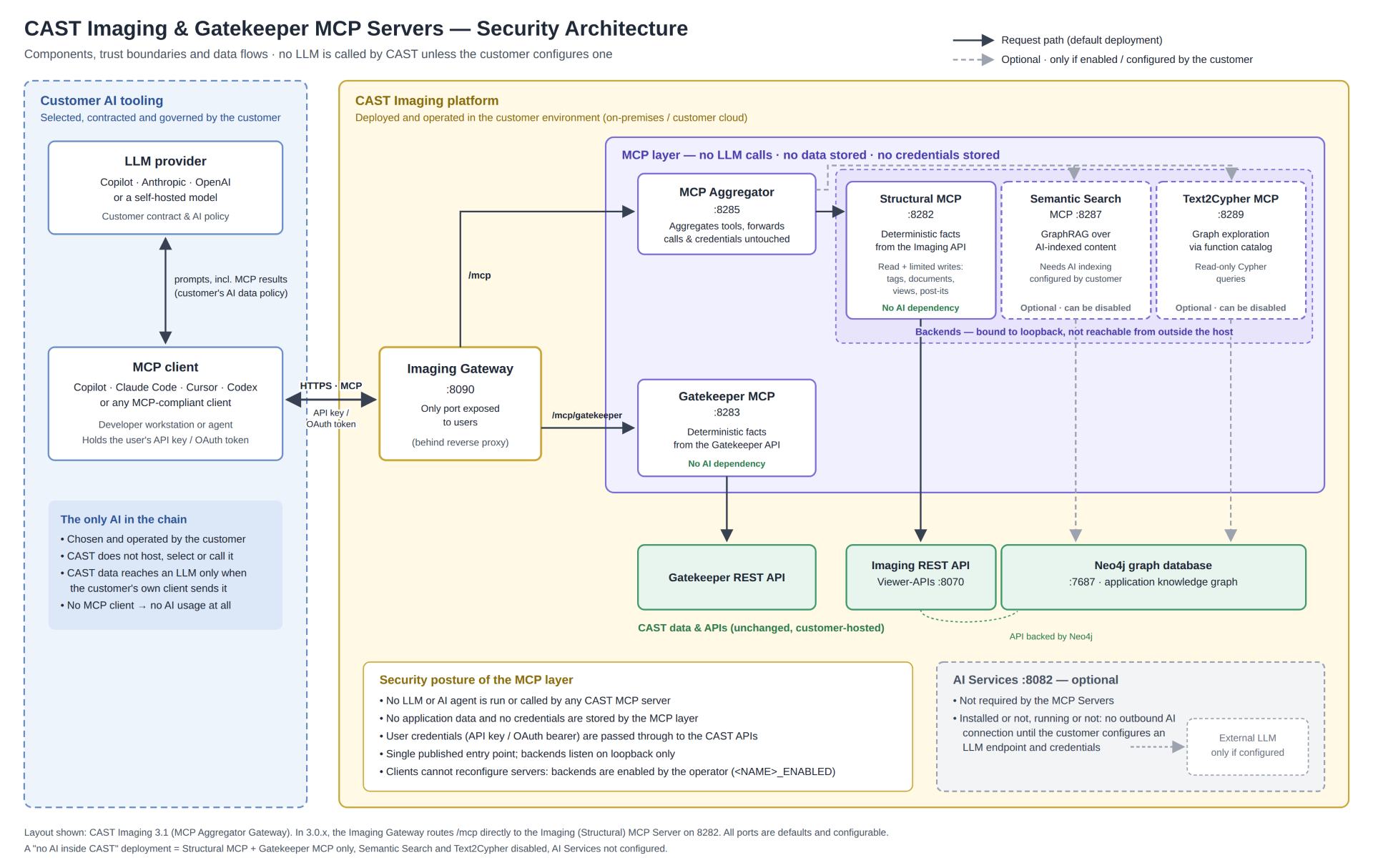
For data safety questions, see Frequently Asked Questions.
Requirements
- CAST Imaging 3.6.6-funcrel or later (see below)
- the MCP Server release matching the results you query:
- MCP Server for CAST Imaging: 3.0.4-funcrel or later
- MCP Server for CAST Gatekeeper: 3.0.1-funcrel or later
- access to the Keycloak admin UI at
http://<imaging-services-fqdn>:8090/authwith thekcadminaccount - see Configure authentication and Keycloak accounts and passwords - an MCP-aware client, either Claude Code or Visual Studio Code
- for a production setup HTTPS configuration enabled on the CAST Imaging gateway is highly recommended
What is already configured
The following is provided by the CAST Imaging installation and requires no action:
- the Keycloak CIMD feature is enabled out of the box
- the
mcp:*client scopes, their audience mappers, and the confidentialmcp-token-exchangeclient are created automatically at start up - the CAST Imaging gateway (the
imaging-servicescomponent) performs the token exchange for MCP requests
The configuration you perform is the per-client CIMD policy in Keycloak (Step 1) and the AI client configuration itself (Step 2), plus the PUBLIC_URL environment variable described below for a Windows installation accessed over http.
Windows installations accessed over HTTP
This applies to a Windows installation only, when CAST Imaging is accessed over http. No action is required for a Docker installation, or when HTTPS configuration is enabled.
On the machine on which the imaging-services component is installed, create a SYSTEM level environment variable called PUBLIC_URL, using the fully qualified domain name of that machine and the user access port 8090:
PUBLIC_URL=http://<imaging-services-fqdn>:8090
Restart the imaging-services services for the change to be taken into account.
Step 1 - Create the CIMD client policy in Keycloak
In Keycloak, a CIMD policy consists of two linked objects:
- a profile, which holds the rules
- a policy, which determines the clients the rules apply to
Create one profile and one policy per AI client you intend to support. Log in to the Keycloak admin UI, ensure you are working in the aip-realm realm, then navigate to Realm Settings > Client Policies.
Use the tabs below to select the configuration matching your deployment: HTTPS for a production deployment, HTTP for a development or test deployment only.
Claude Code
Create the profile from Profiles > Create client profile, then add the client-id-metadata-document executor:
| Setting | Value |
|---|---|
| Name | cimd-profile-claude |
| Executor | client-id-metadata-document |
| Allow http scheme | OFF |
| Restrict same domain | OFF |
| Only Allow Confidential Client | OFF |
| Trusted domains | claude.ai, localhost, 127.0.0.1 |
Create the policy from Policies > Create client policy, then add the client-id-uri condition:
| Setting | Value |
|---|---|
| Name | cimd-policy-claude |
| Condition | client-id-uri |
| URI scheme | https |
| Trusted domains | claude.ai |
Visual Studio Code
Create the profile from Profiles > Create client profile, then add the client-id-metadata-document executor:
| Setting | Value |
|---|---|
| Name | cimd-profile-vscode |
| Executor | client-id-metadata-document |
| Allow http scheme | OFF |
| Restrict same domain | OFF |
| Only Allow Confidential Client | OFF |
| Trusted domains | vscode.dev, code.visualstudio.com, 127.0.0.1 |
Create the policy from Policies > Create client policy, then add the client-id-uri condition:
| Setting | Value |
|---|---|
| Name | cimd-policy-vscode |
| Condition | client-id-uri |
| URI scheme | https |
| Trusted domains | vscode.dev |
- Link the profile to the policy. Open the policy, for example
cimd-policy-claude, then in Associated client profiles add the matching profile, for examplecimd-profile-claude. Without this link the policy has no effect and the browser sign-in fails without an error message. This is the most common configuration mistake. - The CAST Imaging gateway holds the confidential token exchange secret and must remain the only entry point exposed to end users. Do not expose the MCP Server or Keycloak directly.
This configuration allows the http scheme and loopback callbacks, and is acceptable only on a trusted local or CI host that is not reachable from the internet. Use the HTTPS (production) configuration for any shared deployment.
For a Windows installation, ensure that the PUBLIC_URL environment variable is set - see Windows installations accessed over HTTP.
Claude Code
Create the profile from Profiles > Create client profile, then add the client-id-metadata-document executor:
| Setting | Value |
|---|---|
| Name | cimd-profile-claude |
| Executor | client-id-metadata-document |
| Allow http scheme | ON |
| Restrict same domain | OFF |
| Only Allow Confidential Client | OFF |
| Trusted domains | claude.ai, localhost, 127.0.0.1 |
Create the policy from Policies > Create client policy, then add the client-id-uri condition:
| Setting | Value |
|---|---|
| Name | cimd-policy-claude |
| Condition | client-id-uri |
| URI scheme | https, http |
| Trusted domains | claude.ai |
Visual Studio Code
Create the profile from Profiles > Create client profile, then add the client-id-metadata-document executor:
| Setting | Value |
|---|---|
| Name | cimd-profile-vscode |
| Executor | client-id-metadata-document |
| Allow http scheme | ON |
| Restrict same domain | OFF |
| Only Allow Confidential Client | OFF |
| Trusted domains | vscode.dev, code.visualstudio.com, 127.0.0.1 |
Create the policy from Policies > Create client policy, then add the client-id-uri condition:
| Setting | Value |
|---|---|
| Name | cimd-policy-vscode |
| Condition | client-id-uri |
| URI scheme | https, http |
| Trusted domains | vscode.dev |
Link the profile to the policy. Open the policy, for example cimd-policy-claude, then in Associated client profiles add the matching profile, for example cimd-profile-claude. Without this link the policy has no effect and the browser sign-in fails without an error message. This is the most common configuration mistake.
About the two trusted domain lists
The two Trusted domains lists serve different purposes and are not interchangeable:
- the list in the profile defines where Keycloak fetches the client metadata document from, and validates the loopback callback address, which is why it includes
localhostand127.0.0.1 - the list in the policy matches the origin of the
client_idURL only
Each AI client presents a fixed client_id:
| AI client | client_id |
|---|---|
| Claude Code | https://claude.ai/oauth/client-metadata.json |
| Visual Studio Code | https://vscode.dev/oauth/client-metadata.json |
The client_id must contain a path and must not carry a query string or a fragment. For the full description of the executor and condition see the Keycloak MCP authorization server documentation .
Step 2 - Configure your AI client
Each user configures their AI client as described in Connect your AI client: the OAuth configuration is the API key configuration without the x-api-key header. The client must point to the CAST Imaging gateway - the machine on which the imaging-services component is installed - and not to the MCP Server directly, using the /mcp endpoint for CAST Imaging and /mcp/gatekeeper for CAST Gatekeeper.
If domain mapping is enabled, the AI client must still send the x-user-tenant header with the name of the target domain (tenant). OAuth handles the sign-in only and does not select the domain.
Step 3 - Verify
Run the following from any machine that can reach the CAST Imaging gateway, replacing the URL and the endpoint with your own values:
# Protected resource metadata, unauthenticated - returns JSON pointing at the Keycloak issuer
$ curl -s http[s]://<fqdn-or-IP-address-imaging-services-machine:[port]>/.well-known/oauth-protected-resource/mcp | jq

# The healthcheck endpoint remains open - expect 200
$ curl -s -o /dev/null -w '%{http_code}\n' http[s]://<fqdn-or-IP-address-imaging-services-machine:[port]>/mcp/healthcheck

# An unauthenticated POST returns the Bearer challenge
$ curl -s -i -X POST http[s]://<fqdn-or-IP-address-imaging-services-machine:[port]>/mcp | grep -i www-authenticate
The last command returns a header of the following form:
WWW-Authenticate: Bearer resource_metadata="http[s]://<fqdn-or-IP-address-imaging-services-machine:[port]>/.well-known/oauth-protected-resource/mcp"
The setup is complete when, after signing in from the AI client, a query such as List all applications returns results.
Troubleshooting
Claude Code reports "JSON Parse error: Unrecognized token '<'"
Claude Code probes the path-inserted discovery URLs first, and the error is raised when those URLs return HTML instead of JSON. CAST Imaging already redirects these requests to the Keycloak discovery endpoint, so no action is required. If the error persists, confirm that the AI client points to the CAST Imaging gateway and the /mcp endpoint, and not to the MCP Server or to Keycloak directly.
The browser sign-in never opens, or the callback fails
Check the following:
- the domain of the AI client is listed in the Trusted domains of both the profile and the policy
- the profile is linked to the policy through Associated client profiles
- for a development deployment over
http, the Allow http scheme setting is ON in the profile
Sign-in succeeds but the tools return 401 or 403
The token issued to the AI client carries no CAST Imaging roles until it has been exchanged, and the exchange is performed by the CAST Imaging gateway. Confirm that requests are routed through the gateway - the imaging-services machine - and not sent directly to the MCP Server.
The policy exists but CIMD is ignored
The profile is not linked to the policy. Open the policy, then in Associated client profiles add the matching cimd-profile-* profile.
FAQ
See the frequently asked questions for the CAST Imaging MCP Server and the CAST Gatekeeper MCP Server.