Transaction investigation
Overview
Transaction investigation ranks the application’s transactions by how much risk they carry, then lets you drill from a transaction to the rules it violates and the objects responsible. It is the view to use when you care about business impact rather than code structure: a violation in a heavily used transaction matters more than the same violation somewhere inert.
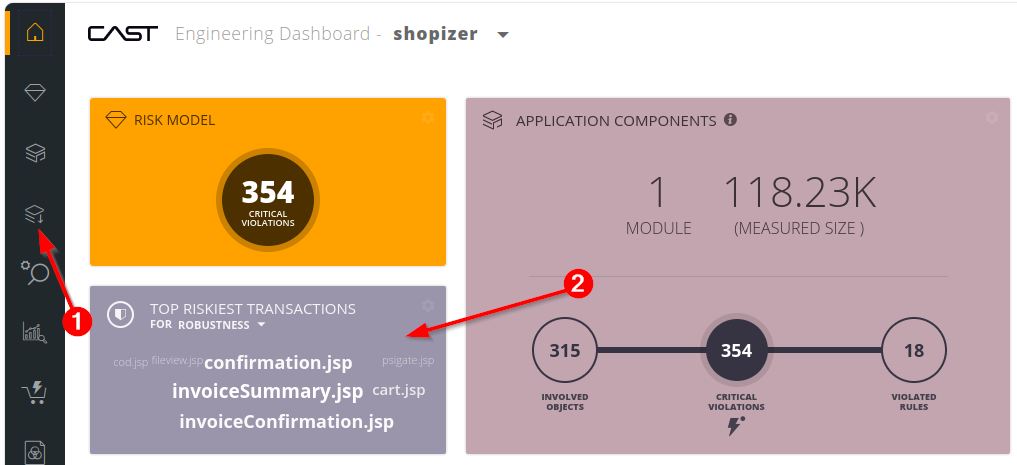
Reach it from the sidebar, or by clicking a transaction in the Top Riskiest Transactions tile:
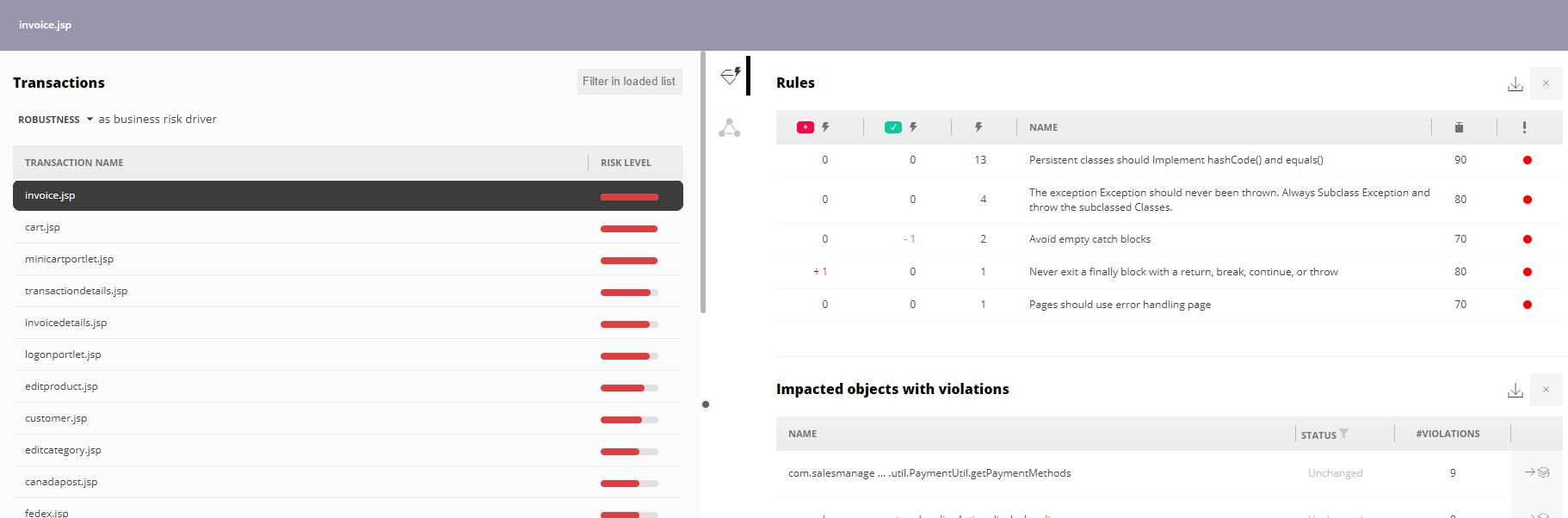
It behaves much like Risk investigation: you select on the left, contributing detail appears on the right, and each selection shifts left as you go deeper:
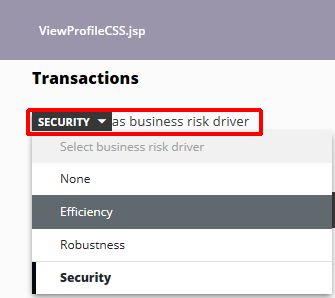
The default Health Measure here is Robustness, changed from the selector in the top left:
The transaction browser
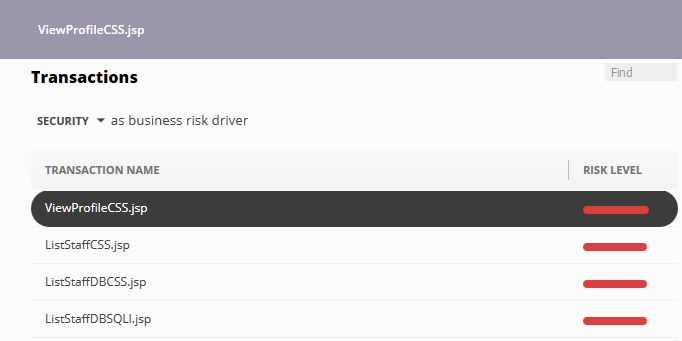
Transactions are listed 50 to a page, ranked by TRI, the Transaction Risk Index.
TRI expresses the cumulative risk of a transaction, derived from the risk in the individual objects along its path. It is calculated from the rules those objects violate, the weight and criticality of those rules, and how often the violations occur across the transaction’s path. Ranking by TRI is what makes this view useful for prioritising: it surfaces the transactions where remediation buys the most.
Rules violated by a transaction
Selecting a transaction lists the rules its objects violate:
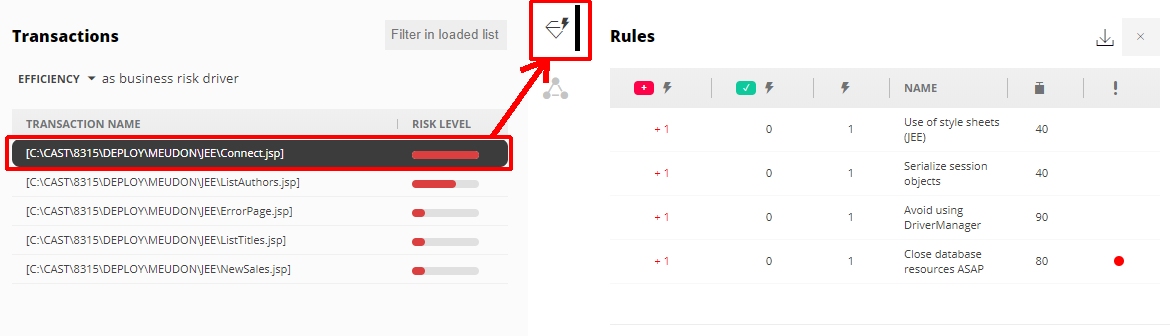
| Column | Meaning |
|---|---|
| Added | Violations added to this snapshot since the last one |
| Removed | Violations removed since the last one |
| #Critical / #Violations | The violation count, and the default sort |
| Name | The rule, distribution or measure |
| Weight | Its weight within the parent technical criterion |
| Critical Rule | A red dot marks a rule set as critical in the assessment model |
The download icon exports the list to Excel.
Violations and rule documentation
Clicking a rule shifts the panel left and opens a list of the objects violating it, in alphabetical order, with the rule’s documentation:
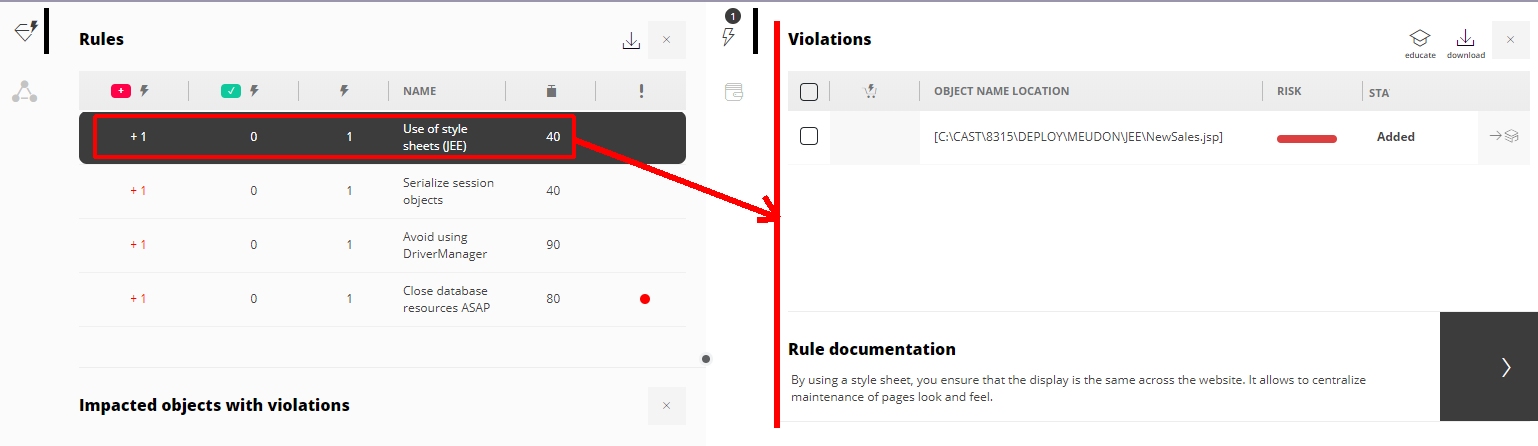
The Plan, Object Name Location, Risk and Status columns work as they do in Risk investigation.
Only 10 violations load initially, with SHOW MORE to add more and a default ceiling of 5000 on All - configurable, see violationsCount. A search button filters on object name and location.
Parameter details
For a parameterized rule, the parameter name, technology and value, for the current and previous snapshot:

Rules without parameters report “No parameter details available”.
Source code
Selecting an object opens its source code:
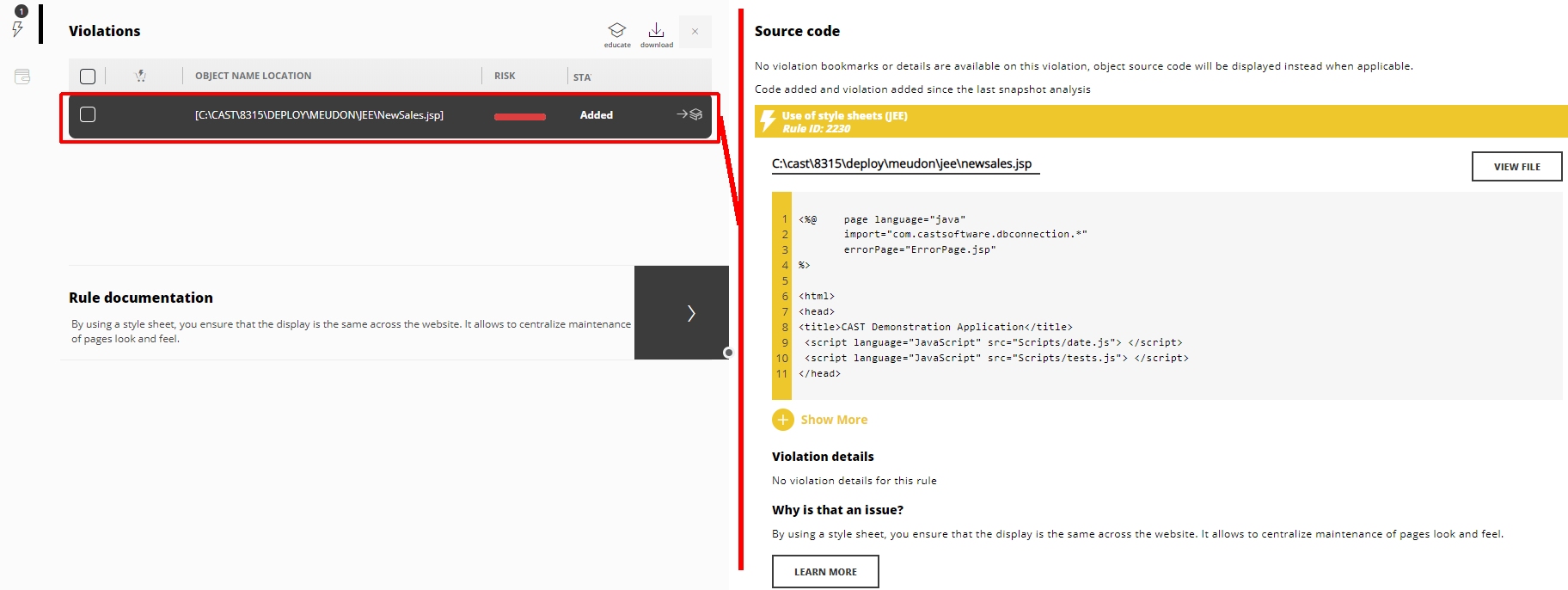
The same limitations apply as in Application investigation: the whole file is shown rather than a bookmarked fragment, violation bookmarks are not displayed, and violations are not shown for rules referencing user input security elements.
Impacted objects with violations
The objects taking part in the selected transaction that also carry violations:
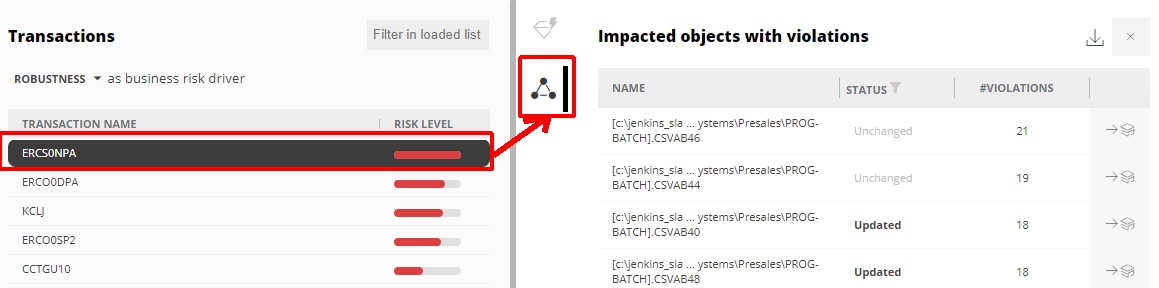
| Column | Meaning |
|---|---|
| Name | The object involved in the transaction |
| Status | Its status in this snapshot - unchanged, updated or added. Filter on it from the column header |
| #Critical / #Violations | Its violation count, and the default sort |
An icon on each row opens the object in Application investigation. Switching the critical filter changes whether the counts reflect critical or non-critical violations, and the download icon exports the list to Excel.