View user details and account status
Identify the right user before you assign them a profile, and control whether they can log in.
What the Users tab shows
The Users tab in Settings > User Permissions lists the users and groups known to the CAST Imaging authentication system - see Where users and groups come from:
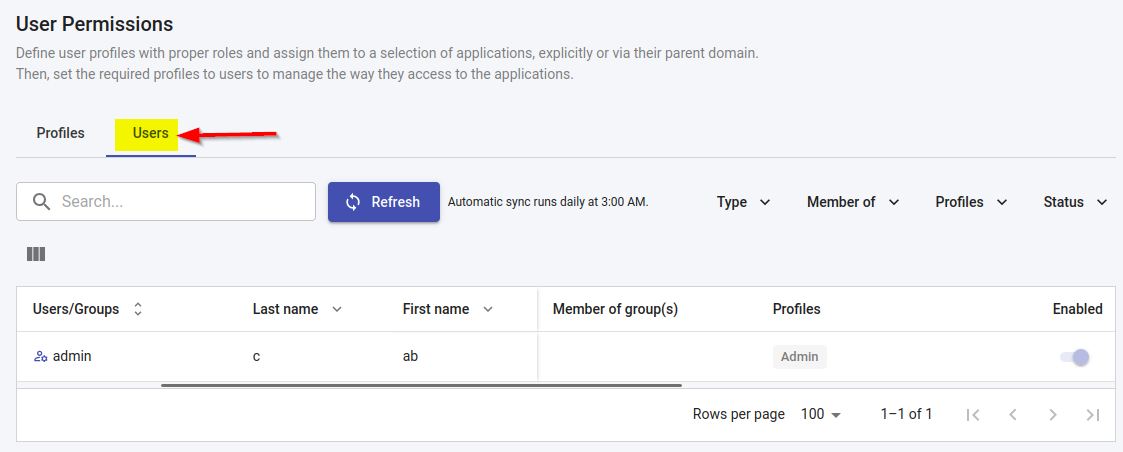
Each row shows:
| Column | Description |
|---|---|
| Users/Groups | The user name or the group name |
| Last name | The user’s last name |
| First name | The user’s first name |
| The user’s email address | |
| Member of group(s) | The groups the user belongs to |
| Profiles | The profiles assigned to the user or group - see Assign access to users and groups |
| Enabled | A toggle controlling whether the user can log in - see Enable or disable a user |
All values are read from Keycloak - CAST Imaging does not store a second copy of them. Last name, first name and email apply to users only and are therefore empty for groups. The table scrolls horizontally when the browser window is too narrow to show every column.
Find a user
Use any of the following, individually or in combination:
- The Search box, to filter the list on a name or an email address.
- The Type, Member of, Profiles and Status drop downs, to filter the list on the corresponding value.
- The sort control in a column header, to sort the list on that column in ascending or descending order.
Use the Rows per page setting and the pagination controls at the bottom of the table to page through long lists.
Enable or disable a user
Use the toggle in the Enabled column of the user’s row:
- Enabled - the user can log in to CAST Imaging.
- Disabled - the user cannot log in. The account and any profiles assigned to it are not deleted, so enabling the account again restores the user’s previous access.
The change is applied directly to the user account in Keycloak.
The default admin account is an exception: it cannot be disabled and its toggle is therefore greyed out.
Disabling a user is the recommended way to remove access temporarily, for example while an employee is on extended leave. Users that no longer need access at all should be removed in your enterprise authentication system or in Keycloak.