Manage license keys
CAST Imaging requires a valid license key to onboard and analyze applications. The license key strategy - either Named Application or Contributing Developers - is chosen when a fresh installation is initialized, and determines whether each application needs its own dedicated key or is covered by a single global key. This page explains both strategies, how to add and update keys, and how to switch between strategies.
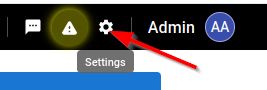

Overview
When a fresh installation of CAST Imaging is initialized, a license key strategy is chosen, from one of the following:
- a
Named Applicationstrategy, where each application you onboard requires a dedicated license key (matching the application name) entered when you perform the onboarding.
- a
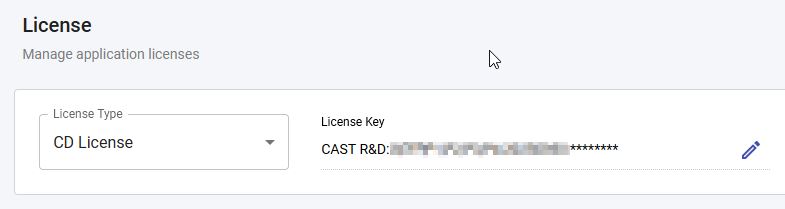
Contributing Developersstrategy (a global license key based on the number of users, expiry data etc.) - individual applications do not require a dedicated license key.
Whichever strategy is in place, a license key can be at most 1023 characters long. A longer key is rejected with the message Invalid license, both when a key is added and when one is updated.
What a license key enables
Each license key enables specific CAST Imaging features, for example the viewer, dashboards or GraphRAG. A feature that is not included in a key remains disabled:
Contributing Developersstrategy: the global license key determines the features available for every application.Named Applicationstrategy: each application’s license key determines the features available for that application. Other applications are unaffected.
To obtain access to a feature that your current key does not include, contact CAST for a new key, then add it as described in Managing a Contributing Developers global license key or Managing Named Application license keys.
GraphRAG license
GraphRAG, and the semantic search it provides to Ask CAST Imaging, require a license key that includes GraphRAG. Such a key enables GraphRAG on its own: it does not also need to include the CAST Imaging viewer. Keys issued before GraphRAG was licensed do not include it.
Managing a Contributing Developers global license key
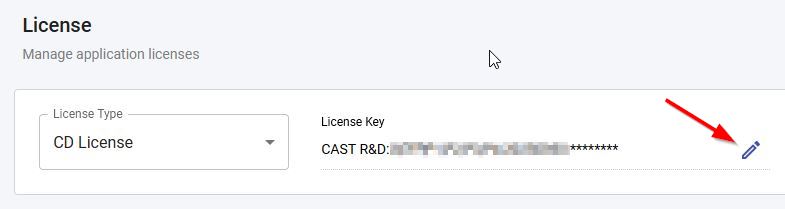
Use the edit button to input a new license key, for example if the existing key has expired:
Managing Named Application license keys
When a Named Application strategy is in place, each application onboarded for analysis requires a dedicated license key (matching the application name). This can be achieved in two ways:
- Either when creating the application:
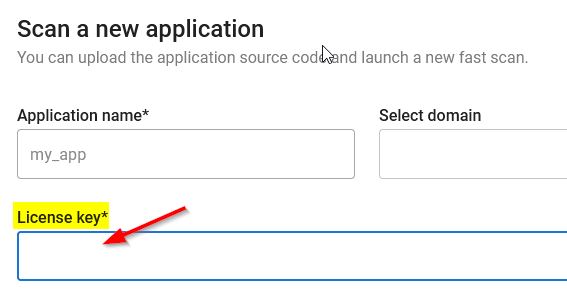
- Or by bulk uploading licenses in advance of the application creation:
- accepts a
.txtfile containing oneNamed Applicationlicense key per line - requires
text/plainMIME type and must beUTF-8encoded - rejects extensions such as
.exe,.bat,.sh, etc. - where the file contains at least one invalid license key, the entire file will be rejected
- where the file contains two or more valid licenses for the same application, the license closest to the end of the file will be applied for that application
- accepts a
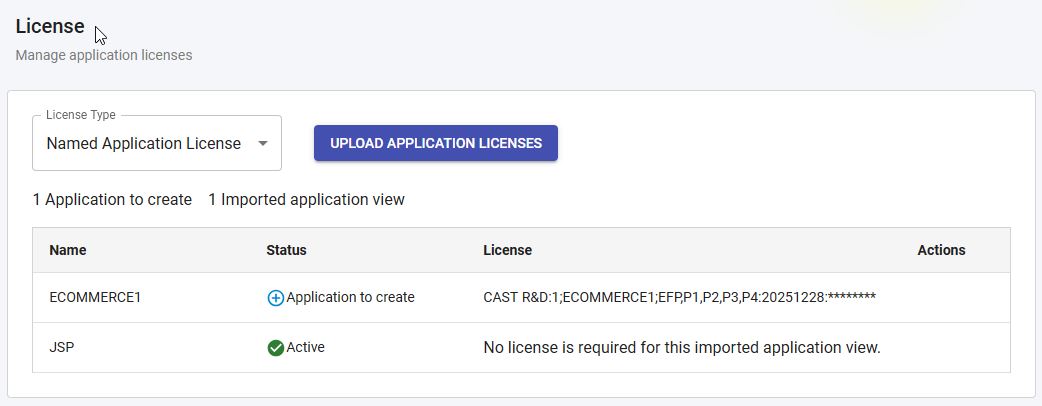
The image below shows two Named Application license keys that have been uploaded in advance of the application creation:
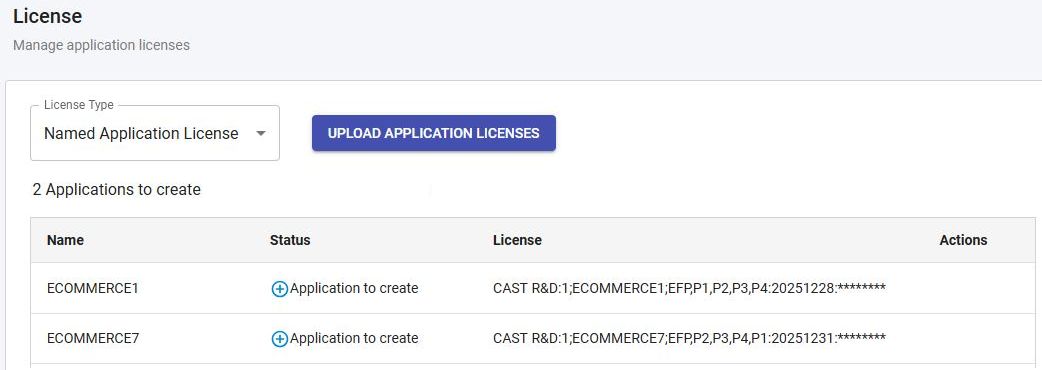
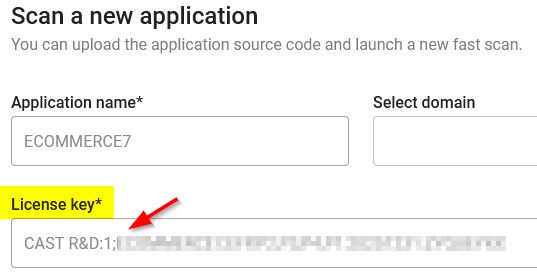
When an application matching the name defined in any pre-uploaded license key is created, the license key will be automatically populated in the License Key field:
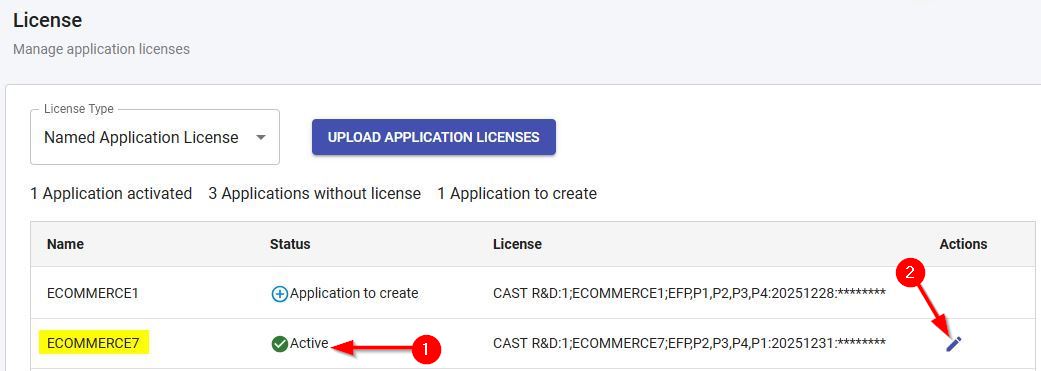
And then listed in the table (use the edit button to update the license key if it expires for example):
Note that application results uploaded for viewer or dashboards (standalone mode) do not require a license key and will be flagged as such: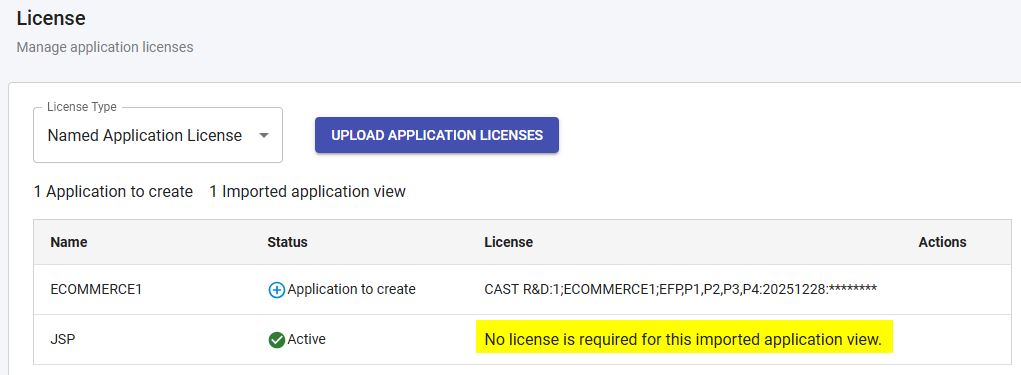
Update a Named Application license key from the Applications panel
You can also update or replace a Named Application license key directly from an individual application’s Details panel - for example, if the license is expiring and you have a replacement key. Enter the replacement key in the License Key field and click Update:
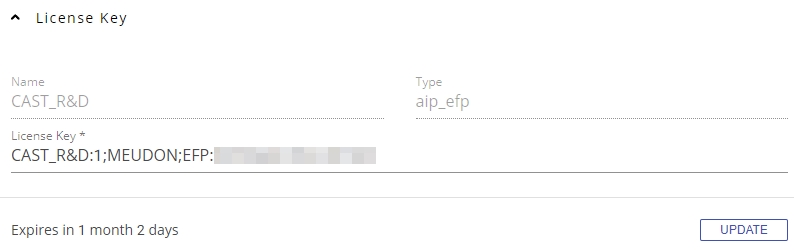
The replacement license key MUST contain the SAME application name as the previous license.
Switching license key strategies
It is possible to switch license key strategy in either direction before or after onboarding applications, i.e.:
From Named Application to Contributing Developers
This switch will mean that users will no longer be prompted for an application license key when they attempt to onboard new applications: all applications are covered by a “global” license key.
From Contributing Developers to Named Application
In this situation you will be prompted to confirm this choice since it means that individual application specific license keys will need to be assigned to any existing application onboarded using the Contributing Developers strategy:
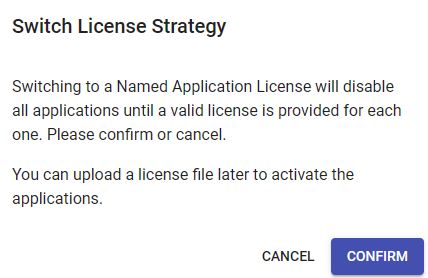
Any existing applications that have been onboarded previously will all need an appropriate application specific license key before any further analysis can be actioned, as will any new applications you need to onboard in the future. When the switch is complete, the panel will list all applications and their licensing status - in the example below, neither application has an appropriate license key and both will need one before analyses can be run or results consulted:
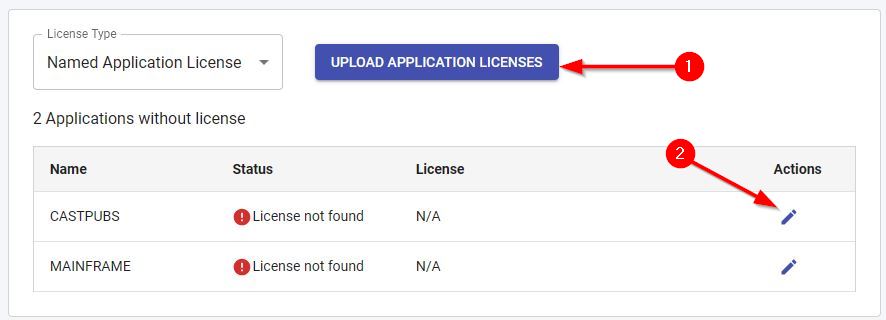
You can assign a new license to existing applications using either of the options highlighted in the image above (see Managing Named Application license keys above for more information about using the Upload Application Licenses option).