HTTPS configuration for Microsoft Windows
Overview
Configuring HTTPS for Microsoft Windows installations involves modifying various CAST Imaging services that are part of the imaging-services component, therefore, all configuration should be actioned on the machine on which this component is installed. The services in question are:
- CAST Imaging SSO Service
- CAST Imaging Gateway Service
- CAST Imaging Authentication Service
In addition, a persistence data schema needs updating.
The procedure changed in 3.6.9-funcrel: the CAST Imaging SSO Service no longer needs its own certificate, because it is reached over HTTPS through the CAST Imaging Gateway Service, and the CAST Imaging Authentication Service takes the public URL from a PUBLIC_URL environment variable. Steps 2 to 4 give the configuration for the latest releases, with the configuration for earlier releases in collapsed sections.
Requirements
- CAST Imaging v3 must be installed and up and running before you proceed.
- CAST highly recommends using CA (Certificate Authority) signed certificates, rather than self-signed. This documentation assumes that CA signed certificates are in use.
- Local administrator privileges (ability to
Run as administratoron Microsoft Windows)
Step 1 - generate public/private keys
A public (e.g.: public_key.crt) and private (e.g. private_key.key) key pair is required and CAST highly recommends that you do not use self-signed certificates - instead you should use certificates signed by a CA (Certificate Authority). One certificate key pair can be used for both CAST Services.
To generate a private key and a CSR (certificate signing request) which can be sent to a Certificate Authority, run the following command on the host machine (see also the openssl req documentation ):
openssl req -new -newkey rsa:2048 -nodes -keyout private_key.key -out csr.csr
Where:
req- indicates that we want a CSR-new- generates a brand new CSR-newkey- generates a new private keyrsa:2048- generates a 2048-bit RSA mathematical private key-nodes- no DES, meaning do not encrypt the private key in a PKCS#12 file-keyout- defines the name of the private key file-out- defines the name of the CSR file
Retain the private_key.key file and use the contents of the csr.csr file to generate the public_key.crt at your chosen CA.
- OpenSSL (OpenSSL website) is not shipped with Microsoft Windows, therefore you will need to obtain this tool first. If you have a recent release of
gitinstalled on the machine,openssl.exeis provided here:%PROGRAMFILES%\Git\usr\bin. - OpenSSL generates private keys and CSRs in
PEMcontainer format by default. - When prompted for the Common Name, enter the public FQDN (fully qualified domain name): the exact hostname your users type in their browser, e.g.
imaging.corp.domain.com. This is not necessarily the Windows machine name. The certificate must also list this FQDN as a SAN (Subject Alternative Name) entry - browsers and Java validate the SAN, not the Common Name. Use the same value wherever<FQDN>appears on this page.
Step 2 - Configure CAST Imaging SSO Service
3.6.9-funcrel and later
The CAST Imaging SSO Service does not need a certificate: it continues to use HTTP and is reached through the CAST Imaging Gateway Service on the /auth path. You only need to declare the public HTTPS URL.
If you are updating an installation where this service already uses its own certificate (the configuration for 3.6.8-funcrel and earlier), the update retains keycloak.conf and that configuration continues to work.
Open the following file in a text editor:
%PROGRAMFILES%\CAST\Imaging\CAST-Imaging-SSO\conf\keycloak.conf
Make the following changes:
- Change the existing
hostnameentry from its HTTP value (e.g.http://<hostname>:8090/auth) tohttps://<FQDN>/auth - Add the line
proxy-headers=xforwardedso that the service accepts the forwarded headers set by the CAST Imaging Gateway Service. Alternatively, set the environment variableKC_PROXY_HEADERS=xforwarded
For example:
hostname=https://imaging.corp.domain.com/auth
proxy-headers=xforwarded
Finally, save and close the file.
3.6.8-funcrel and earlier
Show the instructions
This service can be configured to load the required key pair using files in PEM container format or from a Java Keystore. When both alternatives are configured, the PEM container format takes precedence over the Java Keystore. This documentation provides instructions using keys in PEM container format.
Copy key pair to correct location
Copy your key pair (e.g.: public_key.crt and private_key.key) to the following location:
%PROGRAMFILES%\CAST\Imaging\CAST-Imaging-SSO\conf\
Edit keycloak.conf file
Open the following file in a text editor:
%PROGRAMFILES%\CAST\Imaging\CAST-Imaging-SSO\conf\keycloak.conf
Make the following changes:
- Change the line
http-port=8096tohttps-port=8096 - Uncomment the line starting
#https-certificate-fileand modify it to point to yourpublic_key.crtfile, e.g.:https-certificate-file=C:/Program Files/CAST/Imaging/CAST-Imaging-SSO/conf/public_key.crt - Uncomment the line starting
#https-certificate-key-fileand modify it to point to yourprivate_key.keyfile, e.g.:https-certificate-key-file=C:/Program Files/Cast/Imaging/CAST-Imaging-SSO/conf/private_key.key
For example:
https-port=8096
...
...
...
# HTTP

# The file path to a server certificate or certificate chain in PEM format.
https-certificate-file=C:/Program Files/CAST/Imaging/CAST-Imaging-SSO/conf/public_key.crt

# The file path to a private key in PEM format.
https-certificate-key-file=C:/Program Files/Cast/Imaging/CAST-Imaging-SSO/conf/private_key.key
...
...
...
Finally, save and close the file.
Step 3 - Configure CAST Imaging Gateway Service
This service requires that the key pair are stored in a Java Keystore (gateway.jks). You can re-use the same key pair that you generated in Step 1.
Convert key pair into PKCS#12 format keystore
Private .key files cannot be stored directly in a Java Keystore, therefore you will need to first convert/combine the public_key.crt and private_key.key files into PKCS#12 format keystore, which can then be imported into the Java Keystore. To do so, run the following command to generate the .P12 PKCS#12 format keystore (see also the openssl pkcs12 documentation ):
openssl pkcs12 -export -in public_key.crt -inkey private_key.key -name gateway -out gateway.p12
Where:
pkcs12- indicates the format of the output file-export- indicates that we require the creation of a file-in- defines the name of the public key file-inkey- defines the name of the private key file-name- defines a “friendly” name for the combined key pair-out- defines the name of the resulting .p12 file
Running this command will request that you create a password for the gateway.p12 file. Make a note of the password you choose.
Import PKCS#12 format keystore into Java format keystore
Run the following command using the Java keytool tool. This will import the gateway.p12 keystore into the Java format keystore:
keytool -importkeystore -srckeystore gateway.p12 -destkeystore gateway.jks -srcstoretype PKCS12
- The Java Keytool tool(https://docs.oracle.com/en/java/javase/17/docs/specs/man/keytool.html) is shipped with your Java installation.
- Running this command will request that you create a password for the
gateway.jkskeystore. Make a note of the password you choose. In addition you will be prompted to enter the password for thegateway.p12keystore you created previously.
With Java 9 and later, keytool creates a PKCS12 keystore by default, even when the file extension is .jks. Check the actual keystore type, as you need it in the .yml file:
keytool -list -v -keystore gateway.jks -storepass <keystore password>
The Keystore type line in the output shows PKCS12 or JKS.
Copy Java keystore to correct location
Copy your Java keystore (e.g.: gateway.jks) to the following location:
%PROGRAMFILES%\CAST\Imaging\CAST-Imaging-gateway\
Trust a self-signed certificate
Skip this section if you use a CA signed certificate. A self-signed certificate must be added to the truststore of the Java runtime used by the CAST Imaging services, otherwise they fail with a PKIX path building failed error:
-
From the folder containing
gateway.jks, export the certificate from the keystore:keytool -export -alias gateway -file gateway.crt -keystore gateway.jks -
Open a command prompt using
Run as administratorand check that%JAVA_HOME%points to the Java installation used by the CAST Imaging services:echo %JAVA_HOME% -
Import the certificate into the Java truststore. The default truststore password is
changeit:keytool -importcert -trustcacerts -file gateway.crt -alias gateway -keystore "%JAVA_HOME%\lib\security\cacerts"
Edit .yml file
Open the following file in a text editor:
3.6.2-funcrel and later (if the file does not exist, you will need to create it manually):
%PROGRAMFILES%\CAST\Imaging\CAST-Imaging-gateway\application-default.yml

Older releases (note that this file will be overwritten when updating to a new release):
%PROGRAMFILES%\CAST\Imaging\CAST-Imaging-gateway\application.yml
When using application-default.yml (3.6.2-funcrel and later) add the HTTPS configuration matching your environment. When using application.yml edit the existing server entry.
The configuration required depends on your release. 3.6.4-funcrel introduced a change to the underlying webserver used by the CAST Imaging Gateway Service, which alters how the key pair is declared, and 3.6.9-funcrel removed the service entries.
3.6.9-funcrel and later
spring:
  ssl:
    bundle:
      jks:
        https-bundle:
          keystore:
            location: "gateway.jks"
            type: "<PKCS12-or-JKS>"
            password: "<keystore password>"
          # Optional - only required if the key alias/password differ from the keystore:
          #key:
            #alias: gateway
            #password: "<key password>"
server:
  forward-headers-strategy: framework
  port: 443
  ssl:
    enabled: true
    bundle: "https-bundle"
    server-name-bundles:
      - server-name: "<FQDN>"
        bundle: "https-bundle"
  tomcat:
    remoteip:
      remote-ip-header: x-forwarded-host
Where:
spring, ssl, bundle, jks, https-bundle- defines a named SSL bundle (https-bundle) that holds your key pair. You can choose any name for the bundle as long as it matches the name referenced underserver, ssl, bundlekeystore, location- set this to the filename (or full path) of your Java keystore, e.g.gateway.jkskeystore, type- set this to the keystore type reported bykeytool -list(PKCS12orJKS). Do not leave the<PKCS12-or-JKS>placeholder in placekeystore, password- set this to the password you created when running the Java keytool tool to import the PKCS#12 format keystore into Java format keystorekey, alias/key, password- optional. Only uncomment and set these if the key alias/password differ from the keystore.aliasis the friendly name configured via the OpenSSL-namecommand;passwordis the password you created when converting the key pair into thePKCS#12format keystoreserver, port- set this to443to ensure your end-users do not need to append a port number to the CAST Imaging access URLserver, ssl, enabled- set this totrueserver, ssl, bundle- set this to the name of the bundle declared underspring, ssl, bundle, jks(i.e.https-bundle)server, ssl, server-name-bundles- required when accessing CAST Imaging via an FQDN: if it is missing, the browser fails to load with aERR_CONNECTION_CLOSEDerror (see Troubleshooting). Add one entry per FQDN, mapping theserver-name(the FQDN) to thebundle. This ensures the webserver returns the correct certificate in response to the browser’s SNI (Server Name Indication) request- there is no
server, serviceentry:authuses its installation default and does not need configuring for HTTPS. If you are updating an installation where the CAST Imaging SSO Service uses its own certificate (the configuration for 3.6.8-funcrel and earlier), keepauth
3.6.8-funcrel and earlier
Show the instructions
3.6.4-funcrel to 3.6.8-funcrel
Starting with 3.6.4-funcrel, the key pair must be declared as a named spring.ssl.bundle which is then referenced from the server.ssl entry. In addition, when your end-users access CAST Imaging using an FQDN (fully qualified domain name), you must map the FQDN to the bundle using server.ssl.server-name-bundles - if you do not, the browser will fail to load with a ERR_CONNECTION_CLOSED error (see Troubleshooting).
spring:
  ssl:
    bundle:
      jks:
        https-bundle:
          keystore:
            location: "gateway.jks"
            type: "JKS"
            password: "<keystore password>"
          # Optional - only required if the key alias/password differ from the keystore:
          #key:
            #alias: gateway
            #password: "<key password>"
server:
    forward-headers-strategy: framework
    port: 443
    ssl:
        enabled: true
        bundle: "https-bundle"
        server-name-bundles:
          - server-name: "<FQDN>"
            bundle: "https-bundle"
    service:
        auth: https://localhost:8096
    tomcat:
        remoteip:
            remote-ip-header: x-forwarded-host
The parameters are the same as for 3.6.9-funcrel and later, except:
keystore, type- set this toJKS(orPKCS12if you reference a.p12keystore directly, or ifkeytool -listreportsPKCS12)server, service, authis present: change theauthprotocol fromhttptohttps(this line refers to the CAST Imaging SSO Service which is now using HTTPS)
The spring.ssl.bundle approach replaces the inline key-alias, key-store, key-store-type, key-store-password and key-password keys used in 3.6.3-funcrel and earlier. If you are updating an existing installation, see In-place component update for Microsoft Windows.
3.6.3-funcrel and earlier
server:
    forward-headers-strategy: framework
    port: 443
    ssl:
        enabled: true
        key-alias: gateway
        key-store: gateway.jks
        key-store-type: JKS
        key-store-password: <keystore password>
        key-password: <key password>
    service:
        auth: https://localhost:8096
    tomcat:
        remoteip:
            remote-ip-header: x-forwarded-host
Where:
server, port- set this to443to ensure your end-users do not need to append a port number to the CAST Imaging access URLserver, ssl, enabled- set this totrueserver, ssl, key-alias- set this to the friendly name configured when running the OpenSSL tool to convert the key pair into thePKCS#12format keystore via the-namecommandserver, ssl, key-store-type- set this to JKSserver, ssl, key-store-password- set this to the password you created when running the Java keytool tool to import the PKCS#12 format keystore into Java format keystoreserver, ssl, key-password- set this to the password you created when running the OpenSSL tool to convert the key pair into thePKCS#12format keystoreserver, service, auth- change the existinghttpprotocol tohttps(this line refers to the CAST Imaging SSO Service which is now using HTTPS)
Step 4 - Configure CAST Imaging Authentication Service
Open the following file in a text editor:
3.6.2-funcrel and later (if the file does not exist, you will need to create it manually):
%PROGRAMFILES%\CAST\Imaging\CAST-Imaging-auth-service\application-default.yml

Older releases (note that this file will be overwritten when updating to a new release):
%PROGRAMFILES%\CAST\Imaging\CAST-Imaging-auth-service\application.yml
When using application-default.yml (3.6.2-funcrel and later) add the HTTPS configuration matching your release (shown below). When using application.yml edit the existing server entry.
3.6.9-funcrel and later
server:
  forward-headers-strategy: framework
  port: 8092
  service:
    gatewayPort: 443
  tomcat:
    remoteip:
      remote-ip-header: x-forwarded-host
Where:
service, gatewayPort: set to443- there is no
service, gatewayUrl,service, nginxorservice, authentry - if you are updating from 3.6.8-funcrel or earlier, the update leaves this file untouched: after the update and before you sign in, remove
nginx(no longer used) andgatewayUrl(sign-in fails if it is set to the public URL) - see In-place component update for Microsoft Windows. If the CAST Imaging SSO Service uses its own certificate (the configuration for 3.6.8-funcrel and earlier), keepauth
Save and close the file.
Set the PUBLIC_URL environment variable
The CAST Imaging Authentication Service takes the public URL from the PUBLIC_URL system environment variable. Set it on the machine on which the imaging-services component is installed - in a distributed deployment, no other machine needs it. Open PowerShell using Run as administrator and run the following command, replacing <FQDN> with your public FQDN:
[Environment]::SetEnvironmentVariable('PUBLIC_URL', 'https://<FQDN>', 'Machine')
Do not add a trailing slash to the URL. When you update from 3.6.8-funcrel or earlier, the update does not set this variable: set it manually after the update and before you restart the services. If PUBLIC_URL is not set, sign-in fails and the browser keeps returning to /login?error.
After setting the variable, restart the machine so that the CAST Imaging services pick it up, then restart the services in the order given in Step 6.
This system environment variable is not the PUBLIC_URL installation variable used in releases before 3.6.7-funcrel, which is now called IMAGING_SERVICES_HOSTNAME.
3.6.8-funcrel and earlier
Show the instructions
server:
  forward-headers-strategy: framework
  port: 8092
  service:
    auth: https://localhost:8096
    gatewayPort: 443
    gatewayUrl: https://<FQDN>
    nginx: https://<FQDN>
  tomcat:
    remoteip:
      remote-ip-header: x-forwarded-host
Where:
service, authentry is updated tohttps(this line refers to the CAST Imaging SSO Service which is now using HTTPS)service, gatewayPort: set to443service, gatewayUrlandservice, nginxentries are updated to the fully qualified domain name of the current machine withhttps://protocol
Finally, save and close the file.
Step 5 - Modify the control_panel schema
Using pgAdmin, connect to the PostgreSQL instance on which the control_panel schema (admin_center in ≤ 3.2) schema is located (this schema is created during the installation process).
Locate the properties table in this schema and then locate the keycloak.uri entry:
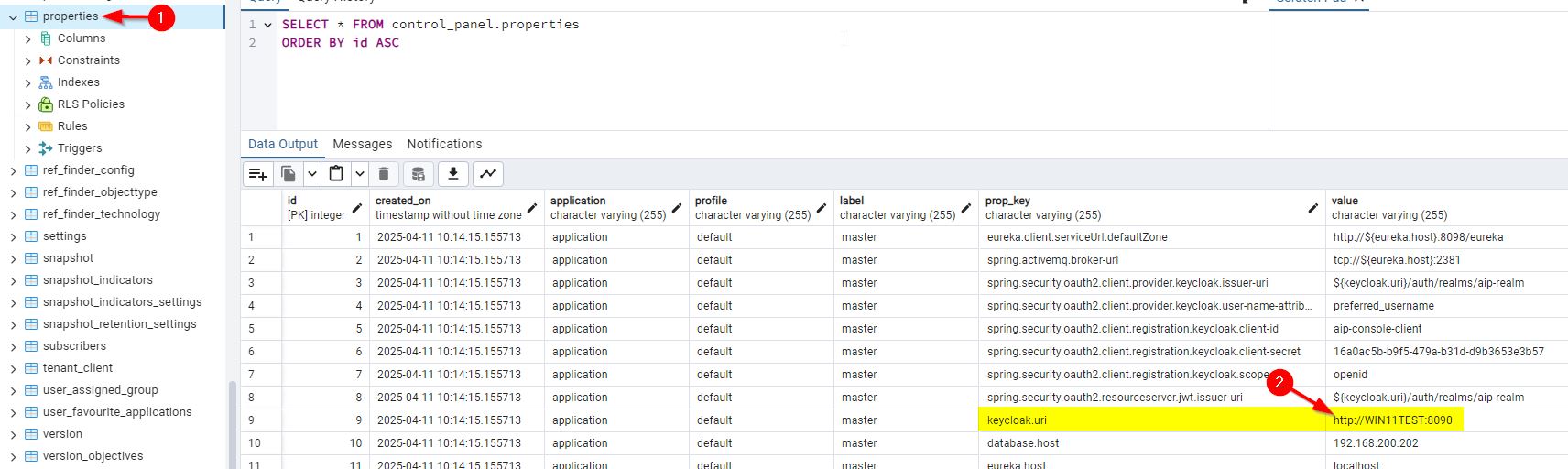
The Value column contains the URI used to access the CAST Imaging SSO Service - you need to change this to ensure that HTTPS is used and remove the port number (assuming you have set the CAST Imaging Gateway Service to use port 443 in Step 3):

Ensure the new value is saved.
Step 6 - Restart all services and test access
To ensure that all changes are taken in to account, restart all CAST Imaging services, including those on separate machines (remote nodes, CAST Imaging Viewer), in this order:
- CAST Imaging SSO Service
- CAST Imaging Control Panel Service
- CAST Imaging Gateway Service
- CAST Imaging Authentication Service - start it only once the CAST Imaging Gateway Service has started
- CAST Imaging Console Service
- CAST Imaging Analysis Node Service
- CAST Imaging Dashboards Service
- CAST Imaging Viewer services - Neo4j first, then the others
You can then test access using the secure HTTPS protocol, for example using the machine’s FQDN (fully qualified domain name):
https://imaging.corp.domain.com
Step 7 - Install additional node(s)
If you need to install an additional node component AFTER having enabled HTTPS, you should ensure that you edit the SECURED_CONNECTION installation variable in the config-analysis-node.conf file and set it to true. This is to ensure that the health check that is actioned at the end of the component installation process to check that the component is “up” and running will use HTTPS. See also Microsoft Windows installation variables.
Troubleshooting
Common SSL errors
Use these checks when the CAST Imaging Gateway Service, the CAST Imaging Authentication Service, the CAST Imaging SSO Service or browser access fails after you enable HTTPS. Restart the CAST Imaging services after each fix.
| Error or symptom | Cause | Resolution |
|---|---|---|
PKIX path building failed or unable to find valid certification path to requested target |
The Java runtime used by the service does not trust the certificate, typically because it is self-signed | Import the certificate into the Java truststore, see Trust a self-signed certificate. Check that %JAVA_HOME% points to the Java used by the CAST Imaging services |
| The browser connects but a CAST Imaging service fails the handshake | The certificate is in the Windows certificate store but not in the Java truststore | Import the certificate into the Java truststore, see Trust a self-signed certificate |
Alias name does not identify a key entry, or the Gateway does not start |
The key alias in the .yml file does not match the alias in gateway.jks |
Check the alias with keytool -list -v -keystore gateway.jks. Either regenerate the PKCS#12 keystore with -name gateway or change the alias in the .yml file |
Keystore was tampered with, or password was incorrect |
A keystore or key password in the .yml file is wrong |
Use the passwords you created when generating the keystores. In 3.6.4-funcrel and later, set only the keystore password unless the key password differs |
Invalid keystore format or DerInputStream.getLength(): lengthTag |
The keystore type in the .yml file does not match the actual keystore format |
Check the type with keytool -list -v -keystore gateway.jks and set type (3.6.4-funcrel and later) or key-store-type (3.6.3-funcrel and earlier) to match |
No subject alternative names present, Certificate for <host> does not match, or a browser hostname warning |
The certificate SAN does not include the FQDN used to access CAST Imaging | Regenerate the certificate with the public FQDN as a SAN entry (and localhost where it is used), then access CAST Imaging using that FQDN |
After sign-in, the browser keeps returning to /login?error and the login redirect goes to http://<FQDN>:443/auth/... |
3.6.9-funcrel and later: PUBLIC_URL is not set, or the CAST Imaging Authentication Service .yml file still sets gatewayUrl |
Set PUBLIC_URL and remove gatewayUrl and nginx from the CAST Imaging Authentication Service .yml file, see Step 4 |
| Redirects to HTTP or to the wrong port, or the login callback fails | Public URLs, ports or forwarded headers differ between services | Check forward-headers-strategy: framework and gatewayPort: 443 in the .yml files. In 3.6.9-funcrel and later, check that PUBLIC_URL is set to the HTTPS public URL; in earlier releases, check the HTTPS values for gatewayUrl and nginx. In 3.6.9-funcrel and later, also check hostname and proxy-headers=xforwarded in keycloak.conf. Check that keycloak.uri in the control_panel schema uses HTTPS without the port |
If the problem persists, inspect the certificate and chain the server presents (with a browser certificate viewer or OpenSSL) and compare the host name, alias, keystore location and passwords with the .yml configuration.
CAST Imaging Gateway Service unreachable via FQDN (3.6.4-funcrel and later)
In 3.6.4-funcrel and later, when accessing CAST Imaging using an FQDN (fully qualified domain name), the browser shows a blank page with a ERR_CONNECTION_CLOSED error, even though all CAST Imaging services are up and running. Accessing the machine using its IP address instead succeeds.
This is caused by the change to the underlying webserver used by the CAST Imaging Gateway Service in 3.6.4-funcrel: the webserver requires an explicit mapping between the certificate and the hostname in order to respond to the browser’s SNI (Server Name Indication) request. Without this mapping, the webserver does not return a certificate and the browser closes the connection.
To resolve this, ensure that the server.ssl.server-name-bundles entry in the CAST Imaging Gateway Service application-default.yml file maps your FQDN to the SSL bundle, as described in Step 3 - Configure CAST Imaging Gateway Service. Then restart the CAST Imaging services.