Tags and categories
Overview
Where the Management Dashboard holds many applications, categories and tags let you group them on your own terms and then filter the portfolio view by those groups - by country, by business unit, by whatever distinction matters to you.
CAST already does this for one dimension. A Technologies category is assigned automatically, tagging each application with the technologies it contains, so an application holding Cobol source is tagged Cobol. Everything below is about adding your own dimensions alongside it.
For how an end user then filters on them, see Categories and tags.
The model
You can build either of two shapes:
- Category > Tag - a Country category holding UK and France tags.
- Category > Sub-category > Tag - a Region category holding Europe and North America sub-categories, which in turn hold tags.
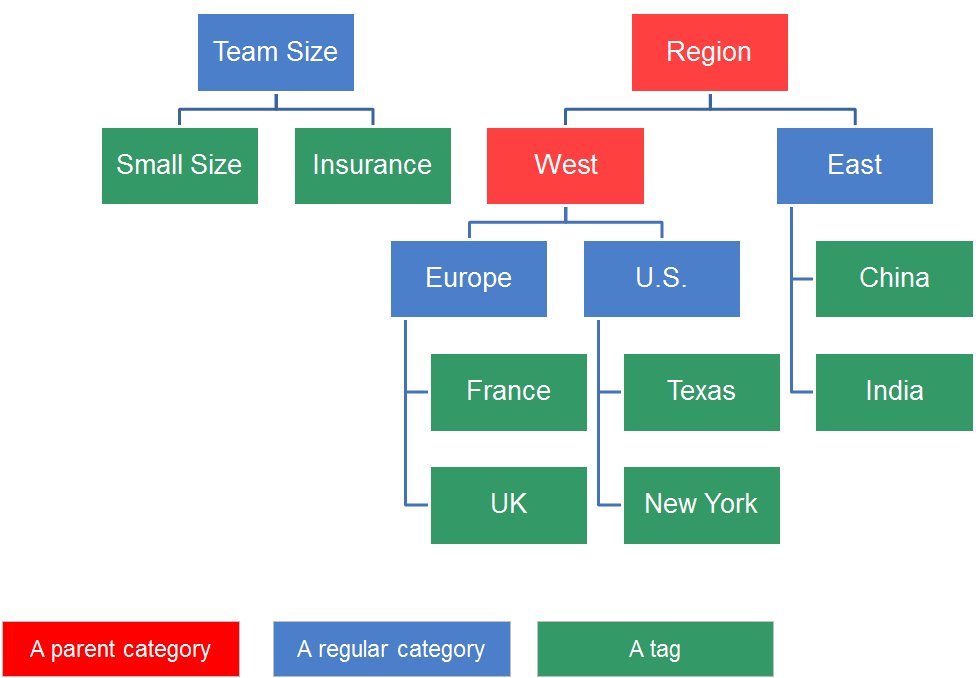
The rules are strict, and worth reading before you design anything:
- A category must contain at least one tag or one sub-category. It cannot be empty.
- A category cannot contain both tags and sub-categories. One or the other.
- A category name is unique, and within a category a tag name is unique.
- A category may be the parent of another category, but parent relationships must not form a loop.
- A tag or category has exactly one parent.
- Where a category has sub-categories, tags are assigned to an application through the sub-category, never through the parent.
Where the configuration is done
Categories and tags are managed from a dedicated static page, not from a configuration file:
http://<public-url>:8090/static/tags.html
Use the public URL of your CAST Imaging installation. The page is organised as four numbered sections, to be worked through in order.
Note the port. This page is served on 8090, the port CAST Imaging itself is reached on - not 8097, which is the port the dashboards component listens on internally.
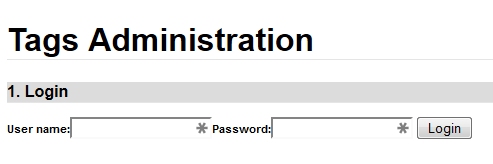
1. Log in
Log in with a user holding the ADMIN role. The next section appears only once this succeeds.
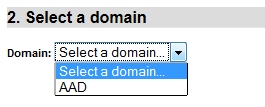
2. Select a domain
Choose the domain from the drop-down. It offers only AAD, the Measurement Service schema behind the Management Dashboard.
3. Set categories and tags
Two editors are offered, and they act on the same configuration:
| Editor | Use it when |
|---|---|
| Tree-view | Building or adjusting a handful of categories and tags. The easier of the two |
| CSV | Creating many at once, or working from a spreadsheet |
Tree-view
The Actions panel drives everything:
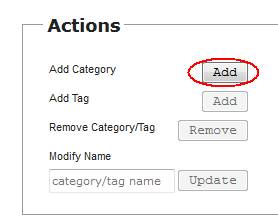
Add next to Add Category creates a newCategory(0) entry; select it, type a name into Modify Name and click Update. With that category selected, Add next to Add Tag does the same for a tag. Remove deletes the selected category or tag. Repeat, then Save.
CSV
The CSV editor takes one relationship per line, semicolon or tab delimited:
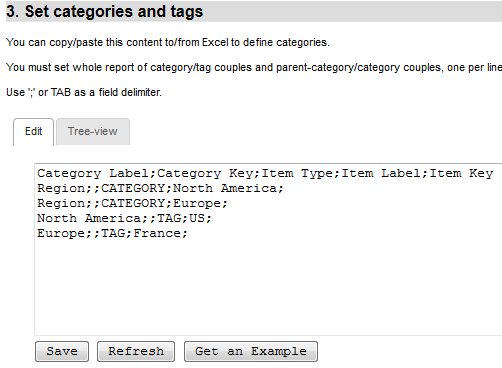
The columns are Category Label, Category Key, Item Type, Item Label and Item Key. Item Type is what decides whether you are creating a sub-category or a tag:
Region;;CATEGORY;North America;
Region;;CATEGORY;Europe;
North America;;TAG;US;
Europe;;TAG;France;
Read that as: Region contains two sub-categories, and each of those contains one tag. A simple category holding tags directly needs only TAG lines.
Leave Category Key and Item Key empty - the two consecutive semicolons and the trailing one hold their place, and both are filled in automatically when you save.
Get an Example produces a worked configuration to adapt, and Get AppMarq Example produces the configuration behind CAST’s Appmarq benchmarking, which is a useful starting shape. Refresh reloads what is currently saved.
Saving in this section populates section 4 automatically.
4. Assign tags to applications
This section lists one line per application consolidated into the dashboard, with a header line carrying REF, NAME, DB and your categories. The header is maintained for you - do not edit it.
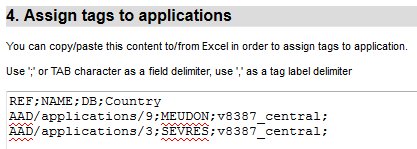
To tag an application, add the tag names to its line:
- Separate multiple tags with a comma.
- Where several categories exist, the semicolon positions decide which category a tag belongs to. Put each tag between the appropriate pair of semicolons:

- An application does not have to be tagged at all.
Where you built category and sub-category relationships, this section lists the sub-categories rather than the parents, which follows from tags being assignable only through the sub-category.
Save applies the changes, and they are visible in the dashboard immediately.
Using Excel for larger configurations
The CSV editor is semicolon-delimited, so a spreadsheet is easier for anything sizeable:
- Copy the contents of the Edit tab in section 3.
- Paste it into the first cell of an Excel sheet.
- Select the first column, then Data > Text to Columns.
- Choose Delimited, then Next.
- Select Tab and Semicolon as the delimiters, then Finish.

Work in the sheet, then paste the result back into the editor.
What a user sees
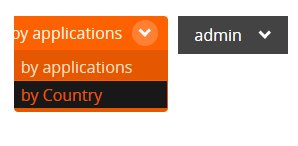
Selecting one of your tags in the dashboard filters the portfolio to the applications carrying it, and reports how many of the total are being shown. The categories are also available inside some drill-down pages, where they appear alongside the default grouping:
A category that exists but has no application tagged within it displays “No values to display” when filtered on. That means the category is defined but unused, not that anything is broken.