Search
Overview
There are two searches, and they answer different questions.
| Search | Finds | Scope |
|---|---|---|
| Basic search | Rules and other assessment model items, and object names | Results depend on where in the dashboard you search from |
| Advanced search | Objects, via their violations, with filters | Independent of where you are |
Basic search
The magnifying glass in the top menu bar opens a search field:

It matches in “contains” mode, reports the number of results, paginates them as you scroll, and drills straight to an item when you click it.
What it returns depends on where you searched from:
| Searching from | Returns |
|---|---|
| Home page, Risk investigation, Transaction investigation, or the Action, Exclusion, Education and Continuous Improvement lists | Business Criteria, technical criteria, rules, measures and distributions |
| Application investigation | Objects, with the object name page, object type and object full name |
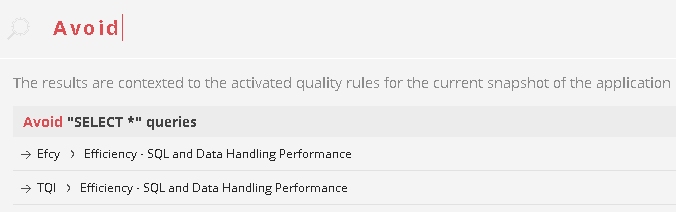
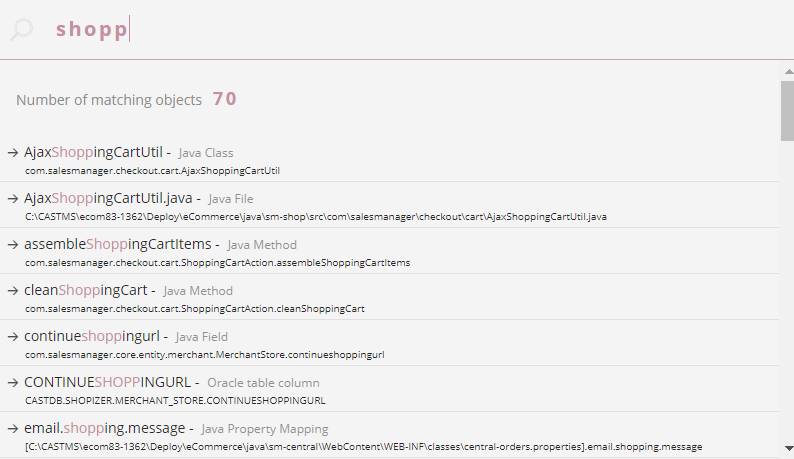
The critical violations filter applies here. While it is on, non-critical rules are left out of the results, and searching for one reports “No results were found to match your search” - which looks like the rule does not exist.
Search is not contextual: it covers the whole current snapshot. It is built on Lucene and depends on an index, which is maintained automatically.
Advanced search
Advanced search works the other way round: instead of looking for a name, you describe the violations you care about and get the objects that carry them. Reach it from the sidebar:

Advanced search is served by its own index, separate from the one behind basic search. That index is not refreshed as promptly, so shortly after a new snapshot is generated advanced search can still be answering from the previous one. If results look as though they belong to an older snapshot, that is why - ask your administrator to check and rebuild the index, as described in Search indexes.
Using it
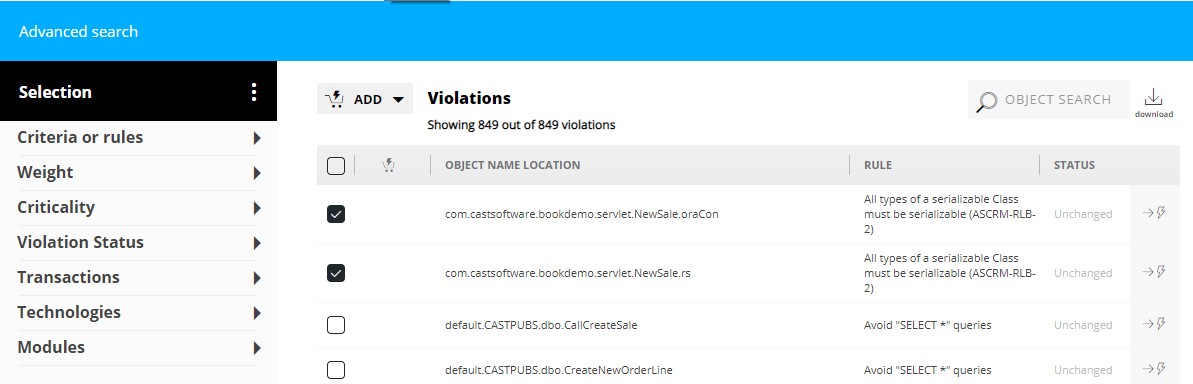
Results carry these columns:
| Column | Meaning |
|---|---|
| Object Name Location | The object, and for file-based objects its location on disk |
| Rule | The rule the object violates. An academic cap marks a rule on the education list |
| Status | How the object changed since the previous snapshot: Added, Updated, Deleted or Unchanged |
An icon on each row opens the object in Application investigation. Selecting violations lets you add them to the action plan, the scheduled exclusion list or the education list, subject to holding the Quality Manager, Exclusion Manager or Quality Automation Manager role respectively.
Filters
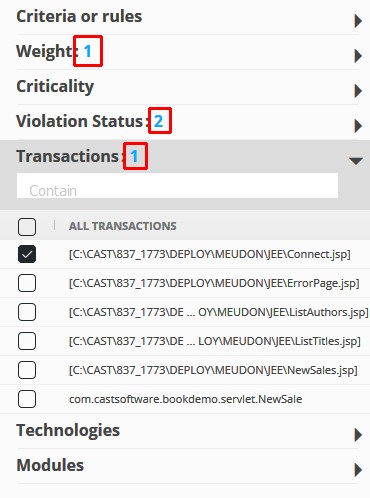
The left-hand panel narrows the scope. An indicator shows how many filters are active:
| Filter | Restricts to |
|---|---|
| Criteria or Rules | A Health Measure, technical criterion or rule, or a combination. Results are the union of what you select, with duplicates omitted. Sorting is disabled on this section |
| Weight | The weight of the rule in its parent technical criterion |
| Criticality | Critical or non-critical rules |
| Violation Status | Added, Updated or Unchanged in the current snapshot |
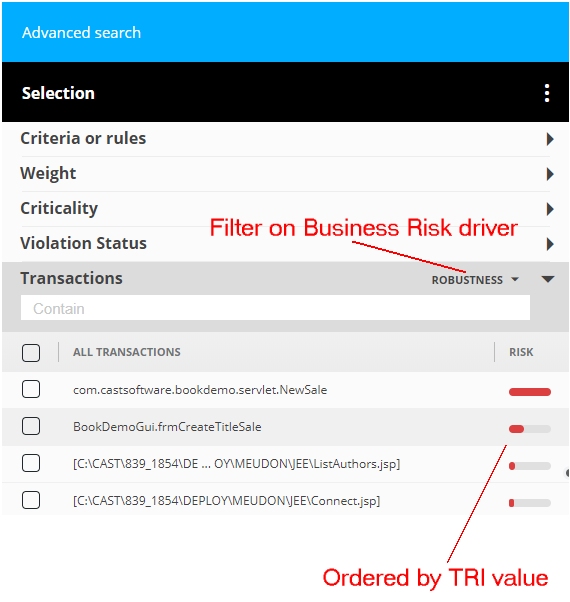
| Transactions | Objects that are transactions, ordered by TRI. Can be filtered further by business risk driver - Efficiency, Robustness, Security or none |
| Technologies | Technologies present in the current snapshot |
| Modules | A module in the current snapshot |
Filters combine as an OR within a filter and an AND between filters. Selecting two technologies gives you either; selecting a technology and a module gives you only objects matching both.
The Violation Status and Modules selections persist when you navigate away and come back. The others do not.