Reloading the dashboard cache
Overview
The dashboards hold results in a server-side cache so that pages render quickly, answering a request from that cache rather than from the Measurement or Dashboard Service schema each time.
In most deployments you will never need this page. Publishing results is part of the analysis itself: the job’s Upload stage declares the application in the Management database and publishes the snapshot - see Run analysis. Once a deep analysis finishes, the application and its new snapshot are available in all three dashboards with no administrator action.
What follows is for the cases the analysis pipeline does not cover:
- Results that arrived outside an analysis, as in a standalone read-only deployment where schemas are imported by hand. There the Synchronize action in the Admin center is the normal route, and this page is the fallback.
- A snapshot deleted or reconsolidated directly in the database.
- A license key or authorization file that has been replaced.
- Results that are still missing after a job has completed successfully.
Open the administration page
http://<public-url>:8090/static/default.html
Use the public URL of your CAST Imaging installation.
Note the port. This page is served on 8090, the port CAST Imaging itself is reached on - not 8097, which is the port the dashboards component listens on internally.
The page sits behind the CAST Imaging authentication service, so open it while signed in to CAST Imaging with a user holding the ADMIN role. Without an active session the URL redirects to the CAST Imaging login page first, and returns you here once you have signed in.
Then open the Help section and its Administration tab, which carries the buttons:
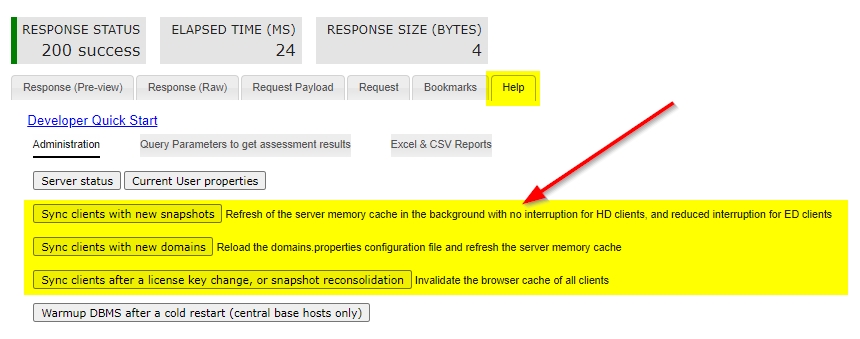
The tab carries other actions besides these, which are outside the scope of this page.
Which button to use
Three of the buttons on that tab reload the cache. They differ in what they reload and in how much they disturb anyone using a dashboard at the time:
| Button | Reloads | Effect on users |
|---|---|---|
| Sync clients with new snapshots | The server memory cache, in the background | None for Management Dashboard users, and limited interruption for Engineering Dashboard users |
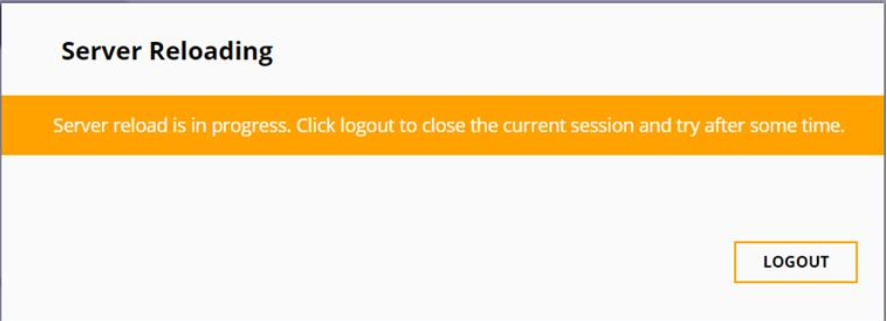
| Sync clients with new domains | The domain configuration, then the server memory cache | Anyone signed in is interrupted and prompted to log out |
| Sync clients after a license key change, or snapshot reconsolidation | The license files, and invalidates each client’s browser cache | Brief, with no need to log out |
Which one you need depends on what changed:
| What changed | Use |
|---|---|
| A new snapshot of an application already visible | Sync clients with new snapshots |
| A new application, in the Management Dashboard | Sync clients with new snapshots |
| A new application, in the Engineering or Security Dashboard | Sync clients with new domains |
A license key, license.xml, or a reconsolidated snapshot |
Sync clients after a license key change, or snapshot reconsolidation |
A new application reaches the Engineering and Security dashboards only through Sync clients with new domains, the one action that interrupts everyone signed in. That is because each application has its own Dashboard Service schema, and so its own domain - see Search indexes. A new snapshot of an application already listed needs only the first button, which interrupts nobody.
What users see
Each action announces itself to anyone with a dashboard open, so choose a quiet moment for the two disruptive ones.
After Sync clients with new snapshots, a banner offers to load the new data:


Sync clients with new domains blocks activity until the server has reloaded, and asks the user to log out:
After Sync clients after a license key change, or snapshot reconsolidation, the dashboard refreshes itself:

These actions can also be triggered through the CAST Dashboard REST API, which is useful for scripting a cache refresh at the end of an automated analysis. The REST API is not yet documented for CAST Imaging v3.