How can I change a PostgreSQL user password?
Overview
When a PostgreSQL instance is installed and configured for CAST Imaging, two custom users/roles are available for use with CAST Imaging: operator/CastAIP and guest/WelcomeToAIP. An additional user postgres is provided out of the box in all situations.
Where you are changing this password as part of a wider credential rotation, see Rotate credentials for the order to work through and what each step restarts.
Changing the password in PostgreSQL is not sufficient on its own. CAST Imaging stores the password of the user it connects with in several locations, and all of them must be updated with the new value. If any location retains the old password, the affected services fail to start with a password authentication error, and any subsequent update of CAST Imaging fails part way through because the update process reuses the stored credentials.
This page covers the change itself and all the locations that must be updated afterwards. Complete the steps in the order shown: until both the Control Panel and the SSO service can connect with the new password, the CAST Imaging login page does not work.
Most steps apply to any deployment. Step 5 and Step 8 apply to a Microsoft Windows deployment only, and are marked as such.
Never change a PostgreSQL password and update CAST Imaging to a new release at the same time. Complete the password change, verify that all services start and that CAST Imaging is usable, and only then start the update. See Update CAST Imaging.
Step 1 - Change the password
CAST recommends either using PgAdmin or a SQL query. Both are explained below.
Using PgAdmin
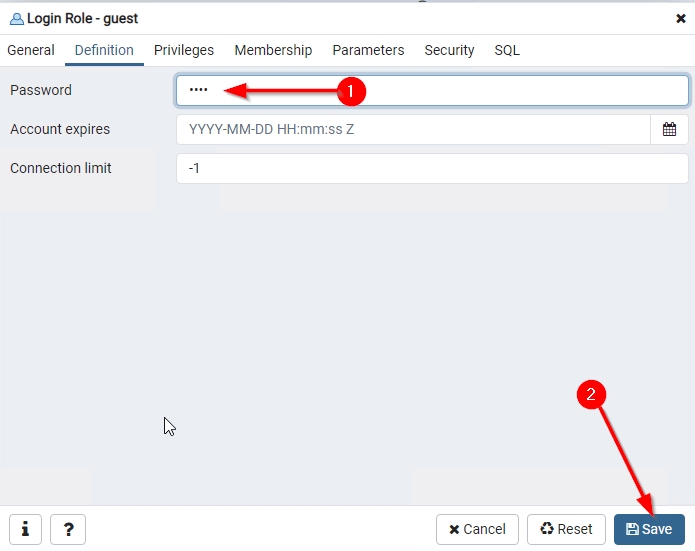
Right click the user and choose Properties. Then click the Definition tab and enter the new password in the Password field. Click Save to action the changes.
Using a SQL query
Use the ALTER USER statement, where username is the name of the user and password is the new password:
ALTER USER username
WITH PASSWORD 'password';
Step 2 - Encrypt the new password
Several of the locations updated in the steps below store the password in encrypted form rather than in plain text. Neither the installer nor the update script encrypts the password for you, so you must generate the encrypted value yourself using the encryption tool shipped with the installation media:
Microsoft Windows
<extracted_installer_folder>\tools\imaging-encryption-tool.bat

Linux via Docker/Podman
<extracted_installer_folder>/tools/cast-imaging-encryption-tool.sh
Run the tool, provide the new password, and copy the value it returns. The value takes the following form:
CRYPTED2:<encrypted_value>
Keep both the plain text password and the CRYPTED2: value to hand - the steps below need both.
- The tool requires a 64-bit JDK with
JAVA_HOMEset. On Microsoft Windows this is a mandatory prerequisite of CAST Imaging; on Linux it is needed only to encrypt and decrypt passwords - see Installation prechecks. - The same encrypted format is used by the
CSS_ENCRYPTED_PASSWORDinstallation variable on Microsoft Windows and byDB_ENCRYPTED_PASSWORDon Linux - see Microsoft Windows installation variables and Docker installation variables.
Step 3 - Update the control_panel schema
Information about the PostgreSQL instances available to your node instances (including the user credentials) is stored in the control_panel schema, on the default PostgreSQL instance defined during the CAST Imaging installation. The Control Panel reads its own database credentials from two tables in this schema.
Run the following queries against the control_panel schema, using the CRYPTED2: value generated in Step 2:
UPDATE control_panel.properties
SET value = 'CRYPTED2:<encrypted_value>'
WHERE prop_key = 'spring.datasource.password';
UPDATE control_panel.database_connection_settings
SET password = 'CRYPTED2:<encrypted_value>';
The second query updates the password of every PostgreSQL instance declared in CAST Imaging. Where you have declared multiple instances and have changed the password on only one of them, add a WHERE clause to target that instance, for example WHERE host = 'my_host_name'.
Step 4 - Update the stored database credentials
Each deployment keeps its own copy of the credentials the platform connects with. Update it before restarting the services.
Microsoft Windows
Open the CAST Imaging Control Panel configuration file in a text editor:
%PROGRAMFILES%\CAST\Imaging\CAST-Imaging-Control-Panel\application-default.yml
On installations earlier than 3.6.2-funcrel the file is:
%PROGRAMFILES%\CAST\Imaging\CAST-Imaging-Control-Panel\application.yml
Set the datasource password to the CRYPTED2: value generated in Step 2:
spring:
  datasource:
    password: CRYPTED2:<encrypted_value>
Linux via Docker/Podman
Open the .env file of the imaging-services component:
/opt/cast/installation/imaging-services/.env
Update both entries - the plain text password, and the CRYPTED2: value generated in Step 2. The two must always describe the same password:
DB_PASSWORD=<new_password>
DB_ENCRYPTED_PASSWORD=CRYPTED2:<encrypted_value>
These values are passed to the containers as they start: DB_PASSWORD to the embedded postgres instance and to sso-service, DB_ENCRYPTED_PASSWORD to control-panel, and both to auth-service. Until the file carries the new password, those services restart with the old one.
The analysis-node, dashboards and imaging-viewer components have their own .env files, but none of them holds database credentials: they reach the database through the Control Panel. Only the imaging-services file needs changing.
Save your changes, then continue with the next step.
Step 5 - Update the SSO configuration file
This step applies to a Microsoft Windows deployment only. On Linux via Docker/Podman the sso-service container reads the password from the imaging-services .env file updated in Step 4.
The SSO component connects to the keycloak schema with the same PostgreSQL user and stores the password in its own configuration file. Open the file in a text editor:
%PROGRAMFILES%\CAST\Imaging\CAST-Imaging-SSO\conf\keycloak.conf
Set the db-password entry to the new password. This file stores the password in plain text - do not use the CRYPTED2: value generated in Step 2:
# The username of the database user.
db-username=operator

# The password of the database user.
db-password=<new_password>
The SSO service fails to start if this file still carries the old password, and the CAST Imaging login page is unavailable while it is down. See Replace an existing PostgreSQL instance for the other entries held in this file.
Save your changes, then continue with Step 6.
Step 6 - Restart the CAST Imaging services
Restart all CAST Imaging services, not only the Control Panel, so that every component picks up the new credentials before you go any further:
imaging-services, which includes the SSO serviceanalysis-nodedashboardsimaging-viewer
On Microsoft Windows, restart the services from the Windows Services control panel. On Linux via Docker/Podman, restart each installed component in turn, for example:
$ cd /opt/cast/installation/imaging-services
$ sudo docker compose down
$ sudo docker compose up -d
The remaining components are installed under /opt/cast/installation/imaging-node, /opt/cast/installation/imaging-viewer and /opt/cast/installation/imaging-dashboards.
Restarting only the Control Panel leaves the other components connecting with the old password.
Step 7 - Update the database connection in the admin UI
Steps 3 to 6 restore the credentials the Control Panel and the SSO service use, which means you can now log in to CAST Imaging and update the database connection through the admin UI. Doing so ensures that the password is stored in the format CAST Imaging expects and that the connection is validated.
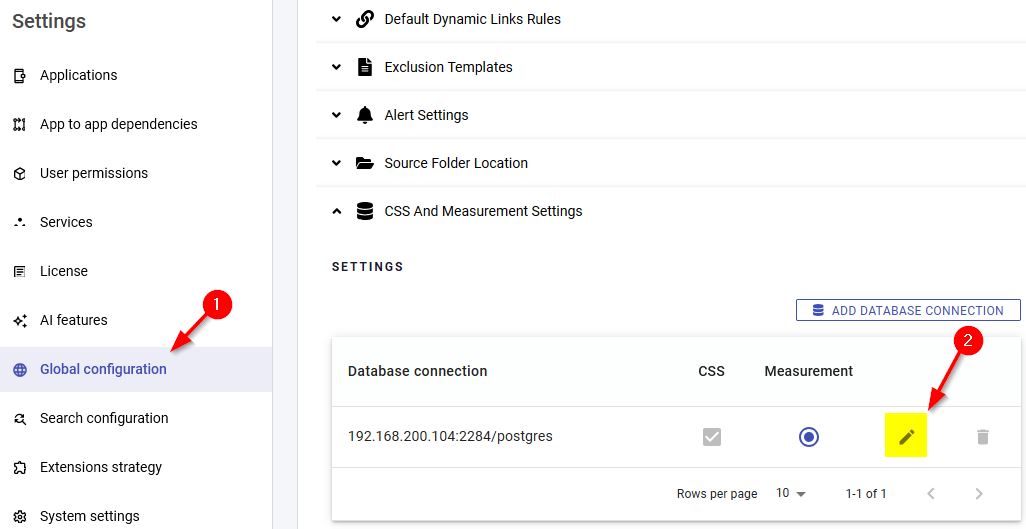
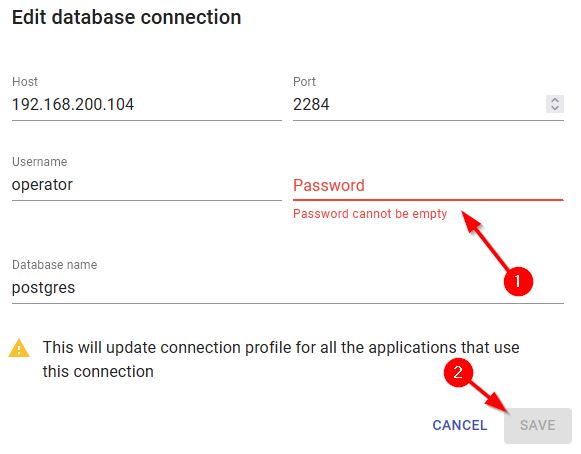
Go to Settings > Global Configurations > CSS and Measurement Settings, select the instance under the database connection list, click Edit, enter the new password and click Save:
See Using the database connection list for more information about this panel.
This step must be completed after Steps 3 to 6. Until the Control Panel and the SSO service can connect with the new password, the CAST Imaging login page does not work and the admin UI is not available.
Step 8 - Update the stored installation properties
This step applies to a Microsoft Windows deployment only.
The installer records the properties used for each component installation in the following folder:
%PROGRAMDATA%\CAST\CAST\.install
The update process reads these files to reuse the settings of the previous installation, so a stale password here re-introduces the old credentials the next time you update CAST Imaging.
Open each _previous<COMPONENT>InstallProperties.txt file present in that folder and update the CSS_PASSWORD entry with the new plain text password. Where a CSS_ENCRYPTED_PASSWORD entry is also present, update it with the CRYPTED2: value from Step 2 - the two entries must always describe the same password. These entries are described in Microsoft Windows installation variables.
Where you have set the CAST_INSTALLATION_CONF Windows system environment variable, the files are stored in that custom folder instead.
Step 9 - Verify the change
Confirm that every CAST Imaging service restarted in Step 6 is running, then log in to CAST Imaging and run an analysis on one application to confirm that the new credentials are used everywhere.
Only once this verification succeeds should you consider updating CAST Imaging to a new release. When you do, the configuration file you use for the update must also carry the new password: the CSS_PASSWORD and CSS_ENCRYPTED_PASSWORD entries on Microsoft Windows, or DB_PASSWORD and DB_ENCRYPTED_PASSWORD on Linux - see Update CAST Imaging.