Tag objects, transactions and modules
Overview
Tags are custom labels that you can apply to objects, nodes or groups of objects/nodes to classify them in a way that is meaningful to your investigation. Once applied, a tag can be used as a search term to find tagged items more quickly, or to filter the view.
How do I add a tag?
To add one or more tags to the selected items:
- use the Tags tool in the Action toolbar
- right click the item and select Manage Tags > Add
Select an existing tag from the dropdown, or type a name to create a new one:
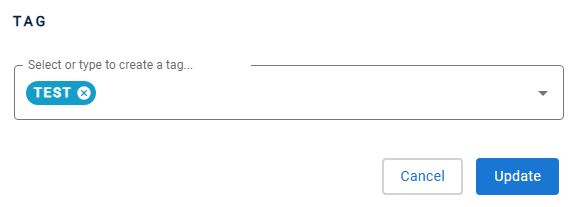
The dropdown lists only the tags that can still be applied to your selection:
- for a single item, any tag already applied to that item is excluded
- for multiple items, any tag applied to all of the selected items is excluded. Tags applied to only some of the selection remain listed, so you can apply them to the rest
How do I remove a tag?
- use the Tags tool in the Action toolbar
- right click the item and select Manage Tags > Remove
Then select the tags you want to remove:
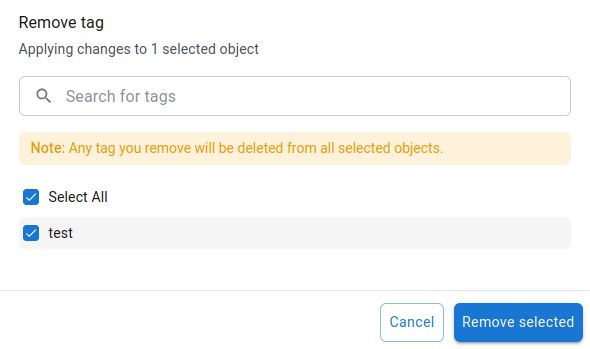
Tags can be removed from a single item or from multiple items in bulk.
How do I find or filter by tag?
Tags are displayed and managed via the right panel, and can be used to filter the items shown in the view.
You can view specific tags for specific objects using the right click contextual menu on an object and selecting Show details > Tags.
- The same add and remove flow is available in the structural flaws table - see Improving code quality and ISO-5055 compliance - and in the Advisor for modernization results - see Assess modernization.
- Tags can also be listed and managed programmatically using the API.
- Tags can be bulk imported - see Using the bulk Tag/Post-It import feature.