Query your application with GraphRAG
Overview
GraphRAG is currently provided in beta and is under active development. Validate the results carefully before relying on them in a production context.
GraphRAG builds a semantic knowledge base from the functional documents and source-code context available for a CAST Imaging application. It creates semantic representations of that content, extracts business concepts and their relationships, and can group related concepts into topics. The resulting knowledge graph is stored in the application’s Neo4j database.
You can then ask conceptual and business-oriented questions through an MCP-aware client such as GitHub Copilot, Claude Desktop or Codex App. The CAST Imaging MCP Server searches the generated knowledge graph and combines those semantic results with CAST Imaging’s structural information.
GraphRAG can also extract the business rules that the application implements and consolidate them into the same knowledge graph. Whether it does so is determined by whether you select Business rule purpose content before the pipeline starts - see Business rule extraction.
The GraphRAG generation service is included and enabled by default in CAST Imaging.
Generating the knowledge graph is done from the CAST Imaging UI and requires configured LLM and embedding settings. Querying the generated knowledge graph requires the CAST Imaging MCP Server 3.1 - see Compatibility.
Compatibility
Querying GraphRAG requires the CAST Imaging MCP Server 3.1. GraphRAG is not supported by MCP Server 3.0.x or earlier releases.
Both GraphRAG and MCP Server 3.1 are under active development, and each 3.1.0-x release adds to the semantic search capabilities available to your MCP client. CAST therefore recommends that you install the latest 3.1.0-x release rather than pinning to a specific one, and that you keep CAST Imaging itself up to date.
The remainder of this page describes the flow available in 3.6.6-funcrel and later, with the additions made in 3.6.7-funcrel marked by a version badge. If you are running 3.6.5-funcrel, the generation flow and the MCP Server configuration differ from the instructions below and CAST therefore highly recommends you update to leverage the improvements provided.
What GraphRAG uses
GraphRAG uses the active documents associated with the application, including:
- AI-generated summaries for Transactions and Data Call Graphs.
- Functional-purpose documents for the objects present in those views.
- Business-rule-purpose documents for those objects, where that content has been selected.
- Source code associated with those object-purpose documents.
- User-created post-its attached to objects, Transactions and Data Call Graphs.
Functional-purpose text and source code are represented separately. This helps GraphRAG preserve the business meaning of an object while still making relevant implementation details and code snippets discoverable.
GraphRAG uses only the current active version of an object and its documents. When an application is updated and the pipeline is run again, changed and new content is processed while unchanged content can be reused. Content that is no longer current is excluded from semantic search.
How it works
Generation
Before running GraphRAG, generate the AI summaries for the application’s Transactions and Data Call Graphs, from the GraphRAG page in CAST Imaging. These summaries also prepare the functional-purpose and source-code documents used for the objects in those views. See Prepare AI summaries.
Once that is done, run the GraphRAG pipeline from the GraphRAG page. The pipeline:
- Creates semantic representations of the active application documents and source-code context.
- Extracts business entities and relationships.
- Optionally groups related entities into topics.
- Extracts and consolidates the application’s business rules, where the Business rule purpose content has been generated.
The generated data is stored in the application’s Neo4j database.
GraphRAG does not start Transaction or Data Call Graph AI-summary generation automatically. Complete that step before starting GraphRAG.
Retrieval
After the pipeline completes, an MCP-aware client queries the knowledge graph through the CAST Imaging MCP Server. Use semantic search for questions such as:
- What business processes are implemented in this application?
- Where is order cancellation handled?
- Which objects contribute to invoice validation?
- What concepts are related to customer onboarding?
- Show the functional context and relevant code for refund processing.
- Which business topics appear in this Transaction or Data Call Graph?
- Which business rules govern discount eligibility?
Use CAST Imaging’s structural search for exact questions about application inventories, objects, Transactions, call chains, dependencies, technologies and quality insights.
An MCP client can use both types of search in the same conversation. For example, it can first find a business concept semantically and then use structural information to trace its callers, callees or containing Transaction.
Before you start
Make sure that:
- CAST Imaging and the target application are installed and accessible.
- The application analysis is complete and its data source is configured.
- AI summaries have been generated for the application’s Transactions and Data Call Graphs.
- The GraphRAG service is running and reachable from CAST Imaging.
- Neo4j is reachable from both the GraphRAG service and the CAST Imaging MCP Server.
- The LLM and embedding settings are configured in AI Settings.
- The latest CAST Imaging MCP Server 3.1.0-x release is installed if you want to query GraphRAG from an MCP client.
Configure the LLM and embedding providers
Both are configured in AI Settings by a user with the Administrator role:
- LLM provider - used for completion when the pipeline runs.
- Embedding provider and model - used to create the semantic representations of your application documents and source code.
The embedding provider may be the same as, or different from, the LLM provider. For example, you can use Claude AI for generation and OpenAI for embeddings.
Where both use the same provider, CAST Imaging can reuse the stored LLM credentials, although the embedding model name is still required. Where they use different providers, configure separate embedding credentials.
The supported embedding providers, their credential requirements and their default models are listed in AI Settings - GraphRAG.
The embeddings stored in the knowledge graph are specific to the embedding provider and model used to create them. If you change the embedding provider or model after generation, rerun the GraphRAG pipeline before using semantic search again - otherwise semantic search can fail or return poor results.
Prepare AI summaries
Before running GraphRAG:
- Open the target application in CAST Imaging.
- Generate the AI summaries for its Transactions and Data Call Graphs from the GraphRAG page - see Generate AI Summary for details about generating summaries, including in bulk. Note that you can also generate these summaries via the GraphRAG tab, described below.
- Wait for AI-summary processing to complete.
- Open the GraphRAG tab.
This preparation provides GraphRAG with:
- Functional summaries for Transactions and Data Call Graphs.
- The purpose of the objects participating in those views.
- The source-code context associated with those object-purpose documents.
User-created post-its remain additional context. They do not replace the primary object-purpose document.
Run GraphRAG from the UI
From the landing page select Customize the results for your chosen application:

Then choose the GraphRAG tab:
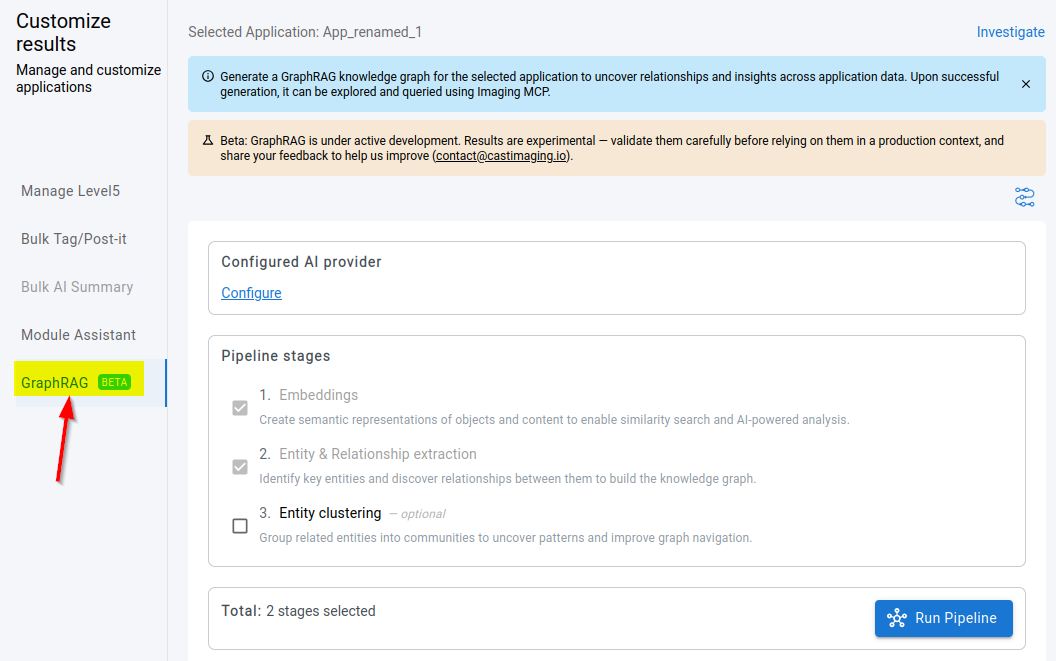
The configured AI provider and embedding model are displayed at the top of the page for quick reference, together with a Change link back to AI Settings:

The Beta info banner at the top of the page links directly to this documentation.
The Build knowledge graph page is organized into four numbered sections:
| Section | Purpose |
|---|---|
| 1 Prepare content | What feeds the graph: the AI summaries and, optionally, the Business rule purpose documents. |
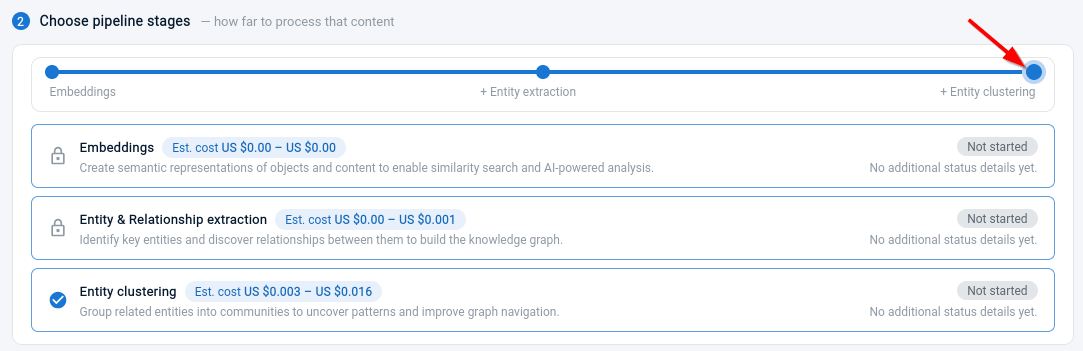
| 2 Choose pipeline stages | How far to process that content. |
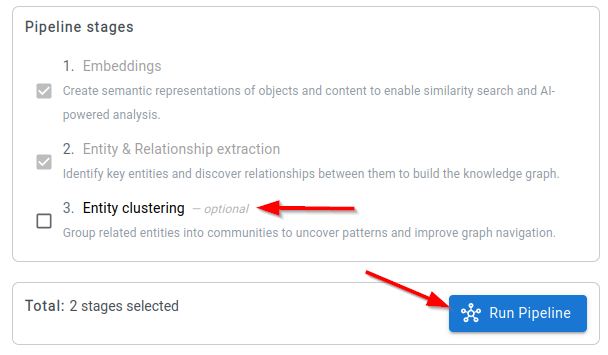
| 3 Review & run | A summary of what will run, and the button that starts it. |
| 4 Run history | The pipeline runs already executed for the application. |
Then:
- Confirm that the LLM and embedding settings are configured.
- In Prepare content, choose whether to generate Business rule purpose documents alongside the AI summaries - see Business rule extraction.
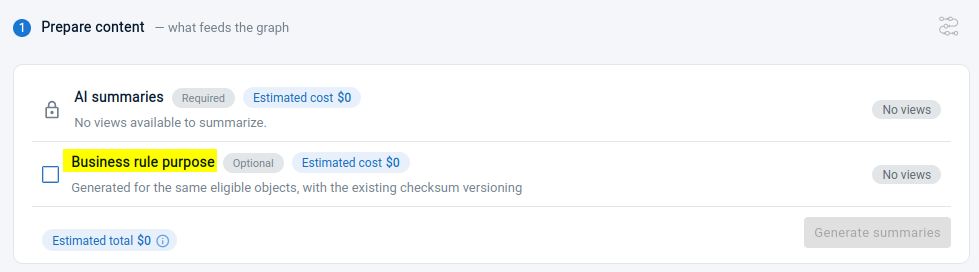
- Generate the AI summaries for the application’s Transactions and Data Call Graphs if not already complete, confirming the run when you are prompted - see Confirm before a run starts.
- Once that is complete, choose whether to run the Entity & Relationship extraction and Entity clustering stages (enabled by default) in the Choose pipeline stages:
- In Review & run, check the number of stages and the stages listed, then click Run Pipeline and confirm the run - see Confirm before a run starts. The button is labelled Rerun Pipeline where the pipeline has already been run for the application.
- Wait until the job status shows complete.
While a generation is running, the Business rule purpose option in Prepare content and the selectable pipeline stages are disabled. They become available again once the job has completed, failed or been cancelled.
The GraphRAG tab verifies that the service is available, that the required LLM and embedding settings are configured, and that the application data source is available. It may also prevent the pipeline from starting until the required application preparation is complete.
Confirm before a run starts
Both Generate summaries and Run Pipeline ask you to confirm before any work begins. The dialog names what will run and gives the estimated total cost as a US dollar range, so that you can check the scope and the likely spend with your AI provider before committing to it.
Generate summaries names the content that will be generated, which depends on whether Business rule purpose is selected in Prepare content:
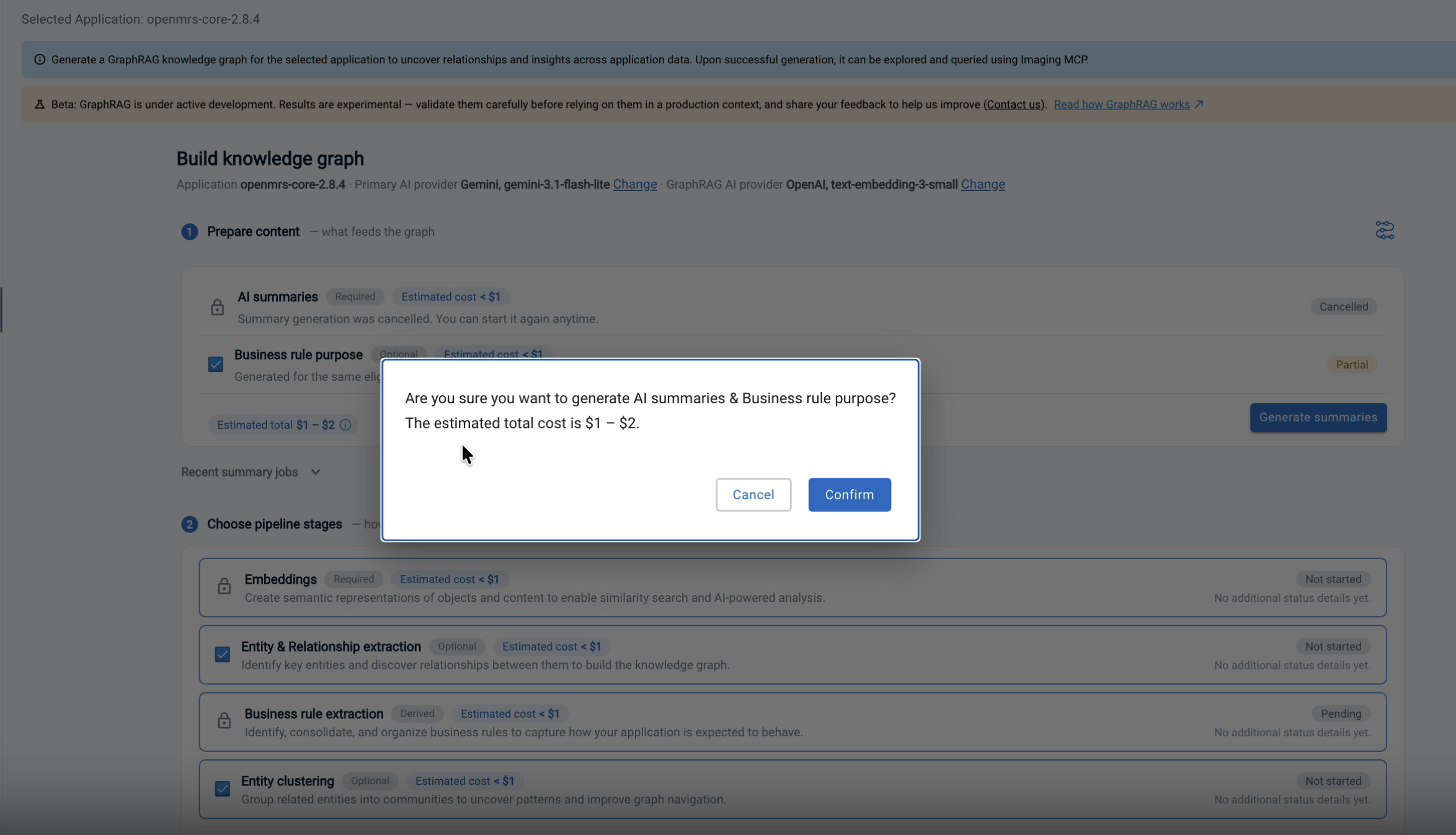
Run Pipeline names the stages that will run, according to what is selected under Choose pipeline stages:
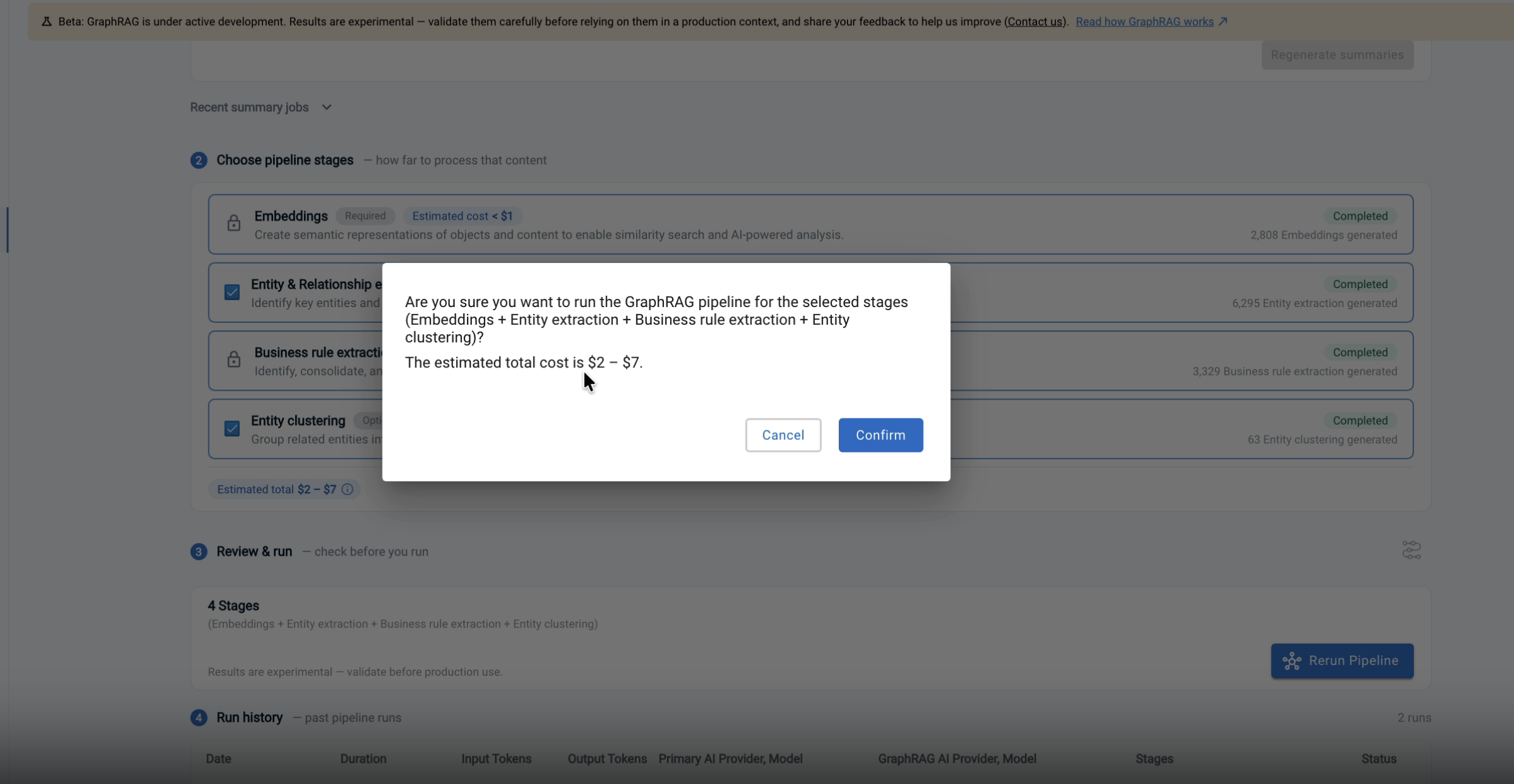
Click Confirm to start the run, or Cancel to change your selection first. See Cost estimation for how the figure is calculated and what it excludes.
Estimated cost
The AI Summaries section displays an estimated cost for generating the summaries for the objects you have selected, so that you can gauge the spend with your AI provider before starting the run:

The figure is a US dollar range - see Cost estimation for how it is calculated and what it excludes.
Summary run history
The Summary Run History section lists each AI summary generation run for the application:

| Detail | Description |
|---|---|
| Date and time | When the run was started. |
| Duration | How long the run took to complete. |
| Input/output tokens | The tokens consumed by the run, for cost tracking. |
| Scope | The objects for which the AI summaries were generated. |
| AI provider and model | The provider and model used for the run. |
| Status | The outcome of the run. |
| Logs | Download the log for the selected run. |
The section is labelled Recent summary jobs and is now collapsible, collapsed by default, so that the configuration options remain the focus of the page.
Entity clustering
Keep Entity clustering enabled when you want GraphRAG to organize related concepts into readable topics and themes.
Clustering is optional. Only embedding generation is always run. Because clustering is an additional AI driven stage, it adds to the cost of the run - use the estimate shown on the stage to decide whether to include it.
Business rule extraction
Business rule extraction is an additional pipeline stage that identifies the business rules implemented by the application, then consolidates and organizes them into the knowledge graph. The stage works from the Business rule purpose content produced with the AI summaries, therefore those summaries must be regenerated before the stage can run.
To run the stage:
- In Prepare content, select Business rule purpose document generation. The content is generated for the same eligible objects as the AI summaries, using the existing checksum versioning.
- Click Generate summaries so that the Business rule purpose content is produced, confirming the run when you are prompted.
- Once the content is complete, run the GraphRAG pipeline.
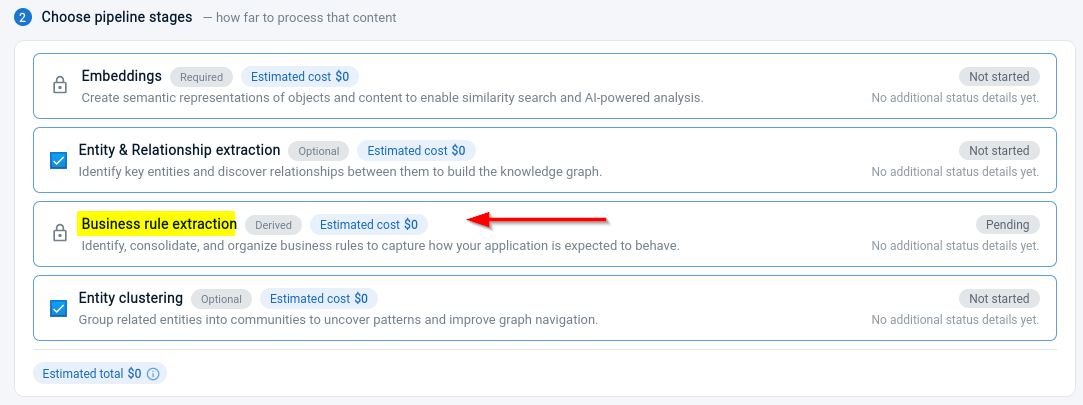
The Business rule extraction stage is marked Derived: you do not select it under Choose pipeline stages, it is enabled automatically when the Business rule purpose content is selected. It is always listed, and shows the status Pending until then.
Because this is an additional AI driven stage, both the extra summary content and the stage itself add to the cost of the run - see Cost estimation.
Pipeline stages
| Stage | Selection | Purpose |
|---|---|---|
| Embeddings | Required | Creates semantic representations of active view summaries, object purposes, source-code context and user documents. |
| Entity & Relationship extraction | Optional | Extracts functional and business concepts and the relationships between them. |
| Business rule extraction | Derived | Identifies, consolidates and organizes the business rules that capture how the application behaves. Run only when Business rule purpose content is selected in Prepare content. Available in ≥ 3.6.7-funcrel. |
| Entity clustering | Optional | Groups related concepts into topics and themes. |
Each stage is listed as a card carrying its selection type, its estimated cost and its current status. A stage that has not yet run shows Not started, and Business rule extraction shows Pending until the content it depends on is selected. Once a stage has run, the card reports what it produced - 2,808 Embeddings generated, for example.
Cost estimation
Before a run starts, the GraphRAG tab shows an estimated cost as a US dollar range, both for the AI summaries and for each pipeline stage. Two things are worth knowing about these figures:
- They are produced from application metadata. Calculating an estimate does not call an AI model and does not consume billable tokens.
- Each estimate distinguishes the cost of the next run, which excludes work that is already current and can be reused, from the cost of processing everything from scratch.
The estimates account for the additional Business rule purpose content where that content has been selected. An Estimated cost is shown against each content item and each pipeline stage, and an Estimated total is shown for Prepare content and for Choose pipeline stages.
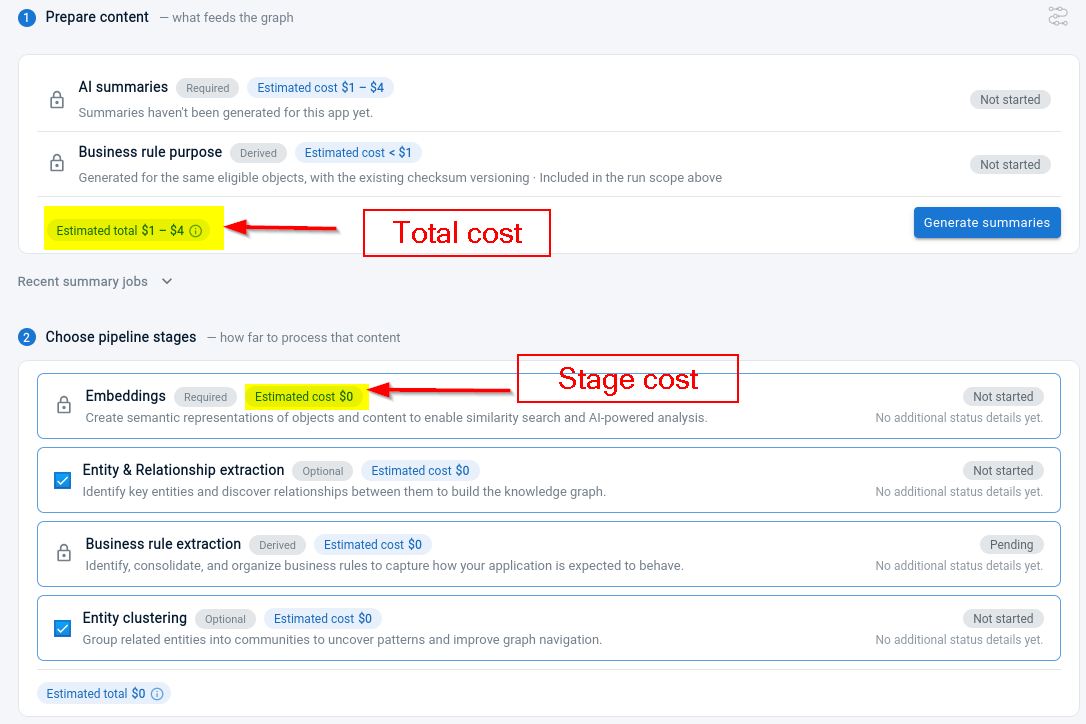
Estimated tokens are converted to US dollars using the rates of the model that will do the work - the completion model for generation stages, the embedding model for embeddings - as configured in AI Settings:
cost = (input tokens × input rate + output tokens × output rate) / 1,000,000
AI summary estimates
The estimate covers the Transaction and Data Call Graph summaries, and is calculated in two parts:
- Object-purpose analysis - each distinct code object is estimated from its lines of code, the prompt and the expected output. An object whose purpose document is already current is excluded from the next-run estimate, and work shared between objects is deduplicated where possible.
- View summarization - each selected view is estimated from its objects, relationships, prompt chunks, expected summary and final aggregation. Where a reasoning model is used, the reasoning output you are billed for is included.
Recorded usage from the same application is used wherever it is available. Where it is not, the estimate is derived from a sample of the source, from comparable history for other applications, or from the size of the content to process.
Pipeline estimates
The pipeline estimate is the sum of the stages that will run:
| Stage | What is counted | Priced with |
|---|---|---|
| Document preparation | Source size, prompt and expected output for the objects that need a new or refreshed purpose document | Completion model |
| Embeddings | Input tokens from eligible document text and source-code chunks. There is no output-token charge | Embedding model |
| Entity and relationship extraction | Prompt, document text and expected output for the embeddings still awaiting extraction | Completion model |
| Clustering | Prompt, entity names and expected output for each per-type batch of entities | Completion model |
| Business rule extraction | Prompt, Business rule purpose content and expected output for the rules still awaiting consolidation | Completion model |
Blank and very short text is excluded. Large source documents are split into chunks and can therefore produce several embedding calls.
On an application that has not been processed before, the extraction and clustering figures are projected from the counts of the stages that precede them, and are correspondingly less precise. Once content has been processed, later estimates count the data actually awaiting processing.
A range is shown rather than a single figure because the volume of generated output, and your provider’s accounting of it, both vary. Estimates exclude retries and rate-limit backoff, and provider prices change over time. Where contract rates are configured they take precedence over list prices. Your provider’s invoice remains authoritative.
What a build costs in practice
The estimate tells you what a particular run will cost. The figures below, measured by CAST in October 2026 across nine applications ranging from 1,515 to 133,637 objects, are intended for budgeting before you get that far.
Building the AI layer for one application cost between $2 and $148 in LLM fees. That is a one-time cost per application version, covering the AI summaries and the GraphRAG build together, and it does not scale with the number of people who then use the results.
Cost tracks the purposes generated, not the size of the application. Every application measured fell between $2.50 and $8.10 per 1,000 purposes. Budget $5 per 1,000 as a typical figure and $8 per 1,000 as a ceiling:
annual cost ≈ (purposes in scope / 1,000) × rate × rebuilds per year
Purposes track the distinct objects in the selected transactions and data call graphs. The objects in scope reported before a run are a higher number, because an object appearing in several views is given one purpose: across these runs, purposes came to 53-91% of the objects in scope.
| Scale | Purposes in scope | Build cost |
|---|---|---|
| Small | Up to 1,000 | $2 - $5 |
| Medium | 2,000 - 3,500 | $9 - $16 |
| Large | Around 12,500 | Around $43 |
| Very large | 18,000 and above | Around $148 |
A few things follow from the measurements:
- Application size alone does not set the cost. One 20,119-object application had only 777 purposes in scope and was the cheapest run measured, while a 1,515-object application cost more because far more source had to be summarised and Business rule purpose was selected.
- The choice of completion model is the largest single lever, worth 40-48% of the total between the two models measured on the same application.
- Input tokens dominate, at 64-82% of the AI summary spend on the larger applications, because source code is sent as context. Narrowing the transactions and data call graphs you select is therefore the most direct way to spend less.
- The GraphRAG build is the larger share on small and medium applications, at 77-87% of the total. On the very largest it is overtaken by the AI summaries.
- Repeat runs are predictable, agreeing within 1% on the same application and model.
These figures are LLM fees only, priced at the providers’ list rates at the time of measurement. They exclude CAST licensing, the hosting of Neo4j and the MCP Server, and the tokens your AI client spends querying GraphRAG afterwards. Provider prices change, and contract rates, batch APIs and prompt caching all lower them.
Monitor a run
The GraphRAG tab shows the current application status and stage progress. It also provides:
- The current stage and the work completed.
- Run history - see Run history below.
- Overall and stage-level AI token consumption.
- Cancellation for a running job.
- Downloadable logs for a selected run.
Logs can be downloaded while a run is active, but the log for the current stage may be incomplete until that stage finishes.
If a stage completes with failures or warnings, review the logs before relying on the generated results. A retry can continue recoverable work without rebuilding content that is already current.
Run history
The Run History section lists the pipeline runs executed for the application:
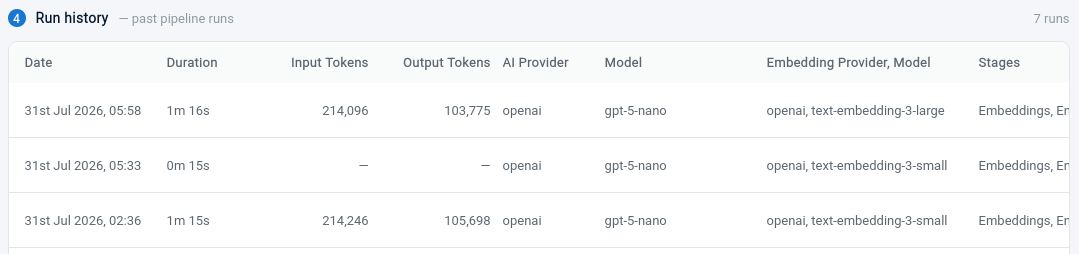
In addition to the date, duration, stages and status of each run, the following execution details are provided:
- Input and output tokens consumed.
- The primary AI provider and model used.
- The GraphRAG AI provider and model used, which is the embedding provider.
Recording the provider and model alongside each run makes it easy to see which configuration produced the knowledge graph currently stored for the application - useful when the embedding configuration has been changed and the graph needs to be rebuilt.
Rerun after an application update
The GraphRAG pipeline is designed to be rerun safely:
- If nothing relevant has changed, completed work is reused and the run can finish quickly.
- If the application contains new or changed objects and documents, GraphRAG processes the new content and refreshes the affected semantic data.
- If a document was edited or removed, its previous semantic representation is no longer returned as current.
- User-created post-its are processed as independent documents and are refreshed when their content changes.
Refresh the application’s AI summaries before rerunning GraphRAG, so that Transaction, Data Call Graph and object-purpose documents represent the current application analysis.
GraphRAG service configuration
The provider, credentials, completion model and embedding model used for generation all come from AI Settings. The following GraphRAG-specific option is available to administrators:
#IMAGING-GRAPH-RAG
GRAPHRAG_PORT=8286
GRAPHRAG_PORTcontrols the internal GraphRAG service port.
You can find this option here:
-
For CAST Imaging installed on Docker/Podman, in the imaging-viewer .env file located in
/opt/cast/installation/imaging-viewer/.env -
For CAST Imaging installed on Microsoft Windows, in the following file:
%PROGRAMDATA%\CAST\Imaging\CAST-Imaging-Viewer\setup-config\imaginggraphrag\app.config
The pipeline selects its content from the active application documents, therefore no content-selection setting is required.
Query GraphRAG through the MCP Server
Semantic search over the GraphRAG knowledge graph is exposed by CAST Imaging MCP Server 3.1 - see CAST Imaging MCP Server 3.1 (beta).
Install the latest MCP Server 3.1.0-x release and enable the semantic search MCP server in its configuration (.env on Linux via Docker, configuration.conf on Microsoft Windows). The recommended configuration is:
SEMANTIC_MCP_ENABLED=true
SEMANTIC_MCP_TOOL_SURFACE_PROFILE=intents
NEO4J_URL=bolt://<neo4j-host>:7687
NEO4J_USER=neo4j
NEO4J_PASSWORD=<password>
See MCP Server 3.1 installation on Linux via Docker or MCP Server 3.1 installation on Microsoft Windows for the location of these options and for the other settings available.
For normal tenant-based operation, the MCP Server reads the embedding provider, model and credentials configured in CAST Imaging AI Settings.
MCP intents mode
intents is the default and recommended MCP tool-surface profile. It gives the AI client a compact search interface instead of exposing every GraphRAG function as a separate top-level tool. See Meta Tool mode for a full explanation, and for the full profile which remains available where you deliberately want every underlying function exposed directly.
With GraphRAG enabled, the MCP client receives four search tools:
get_structural_search_function_syntaxrun_structural_search_functionget_semantic_search_function_syntaxrun_semantic_search_function
The client uses the semantic syntax and execution tools to select the appropriate GraphRAG capability. You normally ask questions in natural language and do not need to select these functions manually.
Semantic-search capabilities include:
- Finding code and document context related to a business question.
- Finding extracted business entities by keyword.
- Listing entity types and relationship types.
- Listing or semantically searching entity topics.
- Finding prevalent concepts for an object, Transaction or Data Call Graph.
- Retrieving documents associated with a selected CAST Imaging identifier.
- Checking the GraphRAG configuration and connectivity.
- Adding supplied documentation to the semantic document store when requested.
Recommended setup flow
- Configure a supported LLM provider in AI Settings.
- Configure the embedding provider and model in AI Settings.
- Ensure that the GraphRAG service and the application data source are available.
- Choose whether to generate Business rule purpose content for the application.
- Generate or refresh the Transaction and Data Call Graph AI summaries where the application contains those views.
- Run the GraphRAG pipeline from the application’s GraphRAG tab.
- Install and configure the latest CAST Imaging MCP Server 3.1.0-x release, setting
SEMANTIC_MCP_ENABLED=trueandSEMANTIC_MCP_TOOL_SURFACE_PROFILE=intents. - Ask your MCP client to verify GraphRAG connectivity and the embedding configuration.
- Ask semantic or business-oriented questions about the application.
Troubleshooting
| Problem | What to check |
|---|---|
| The GraphRAG tab is unavailable | Confirm that the GraphRAG service is running and reachable from CAST Imaging. |
| The GraphRAG embedding options are unavailable in AI Settings | Save the primary AI provider configuration first. If your primary provider does not support embedding generation, choose Use a different AI provider and configure one of the supported embedding providers. |
| A custom (Other) embedding model fails | Confirm that the model name is correct, that it is an embedding model, and that it is available to your provider account or deployment. Rerun the pipeline once corrected. |
| Run Pipeline is blocked | Check the LLM configuration, the embedding configuration, the application data source, and the AI-summary preparation. |
| The pipeline fails immediately | Check Neo4j connectivity, AI credentials, provider support, the application data source settings, and the GraphRAG logs. |
| A run completes with failures | Download the run logs, correct the provider or connectivity issue, and retry the pipeline. |
| Semantic-search tools are not available in the MCP client | Set SEMANTIC_MCP_ENABLED=true, keep SEMANTIC_MCP_TOOL_SURFACE_PROFILE=intents, restart the MCP Server and reconnect the client. |
| The semantic connection check fails | Verify Neo4j connectivity and the embedding configuration in CAST Imaging AI Settings. |
| Semantic search fails or returns poor results | If the embedding configuration has changed, rerun GraphRAG before querying again. |
| Entity topics are unavailable | Confirm that Entity clustering was enabled and completed successfully. |
| The Business rule extraction stage stays Pending | The stage is derived from the content selection. Select Business rule purpose in Prepare content, then regenerate the summaries. |
| Business rules are missing from the knowledge graph | Confirm that the summaries were regenerated once Business rule purpose was selected, so that the content exists, and that the Business rule extraction stage completed successfully. |
| Recently updated application content is missing | Refresh the AI summaries, then rerun GraphRAG so that changed documents and source context are processed. |
Security consideration
The generated knowledge graph can contain functional documentation, user post-its and source-code-derived context, and semantic search may return relevant code snippets when they answer a question. Protect access to Neo4j, the GraphRAG service and the MCP Server according to your organization’s source-code access policy.
Key rules
- Configure the LLM and embedding settings in AI Settings before running GraphRAG.
- Generate or refresh the Transaction and Data Call Graph AI summaries before running GraphRAG.
- Check the estimated cost shown for the AI summaries and for each pipeline stage before starting a run.
- After changing the embedding provider or model, rerun GraphRAG before using semantic search.
- Select Business rule purpose before generating the AI summaries - the extraction stage needs that content, and it is produced with the summaries.
- Use Entity clustering where business topics and themes are useful.
- Use semantic search for business meaning and relevant implementation context.
- Use structural search for exact CAST Imaging objects, dependencies, call paths, Transactions and quality information.
- Rerun GraphRAG after refreshing the AI summaries when the application analysis changes.