View - Graph options

Expand / Collapse All
Only available in the Application scope at Object level when drill down mode is set to Display children with caller/callees in the left panel.


- Expand all (ungroup) all nodes in one go
- Collapse all (regroup) all nodes in one go (only displayed once the Expand all option has been selected).
Transaction details / Update start and end points
Only available as follows:
- When using the Transaction scope and the Simplified Call Graph is active.
- When using the Get start and end points option.

Allows you to set the required depth level between the source object and the end points via the Update Hops option visible in the left panel.
View zoom options

From left to right:
- Zoom in
- Focus center (zoom reset) - all nodes visible
- Zoom out
Graph info tour

The Graph Info Tour is an interactive, in-app guide that helps users understand the key elements of the application graph. It provides contextual explanations of nodes, links, and badges directly within the graph view.
The tour is presented as an inline panel positioned at the bottom-right of the canvas, allowing users to continue interacting with the graph while the tour is active.
The tour is shown automatically for first-time users and can be relaunched at any time via the icon in the graph view.
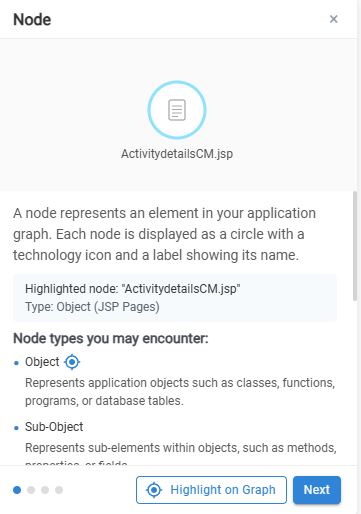
Node
Provides an overview of nodes and their different sub-types. Covers all node sub-types:
- Object
- SubObject
- Level
- Grouped
- Community
- Table Column
- App / SoS
Highlight buttons for each sub-type are shown only when that sub-type is present in the current view. A Highlight on Graph footer action allows you to locate relevant nodes.
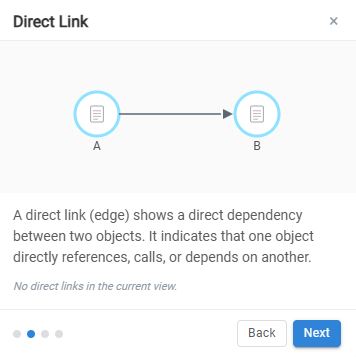
Direct link
Explains solid-line edges, representing direct relationships between nodes. Highlights a direct link within the current graph view.
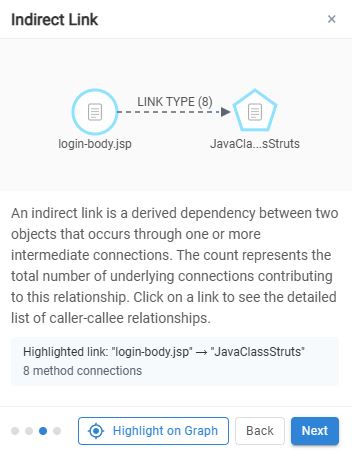
Indirect link
Explains dashed-line (escalated) edges, representing indirect relationships. Highlights an indirect link if one is present in the current view.
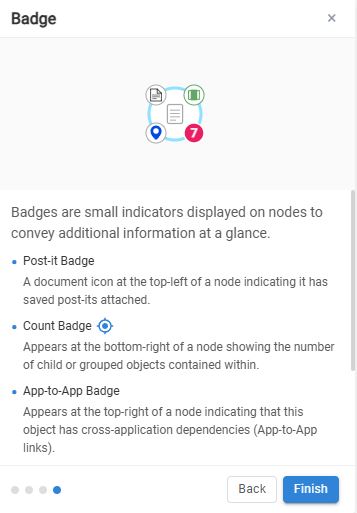
Badge
Describes the different badge types associated with nodes. Covers the following badge types:
- Post-it
- Count
- A2A
- Start Point
- End Point
Highlight buttons for each badge type are shown only when applicable in the current view.
Undo/redo

Undo and redo options for actions such as:
- adding callers/callees
- repositioning objects
- adding custom objects/links
- ungrouping manual and auto-grouped objects
- hide/unhide objects
The standard keyboard commands CTRL+X and CTRL+Y are also supported.
Graph info

Provides basic information about the items in the view:
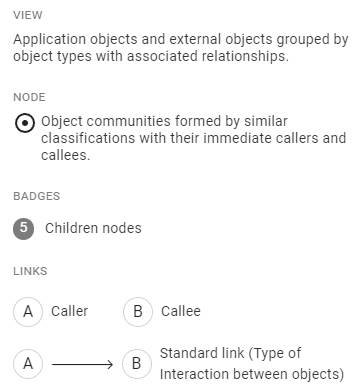
This button/information has been moved to the right-panel in 3.6.0-funcrel and later releases. See Right panel - About this view.
Loading icon

In the majority of scenarios, this button will be invisible. However, when accessing a node (double click) which contains more than 1000 child nodes, or more than 2000 links, a progressive rendering system is invoked in order to avoid situations where the rendering process locks the browser. Portions of the full graph are displayed progressively in steps and when this occurs, this icon will be displayed. You can click this button to stop the progressive loading if it is continuing for too long.