Application analysis configuration - Config - Advanced - Maven Dependency Settings
Overview
When analyzing an application that includes Maven based source code, you must tell CAST Imaging where to find the Maven local or remote HTTP/S repository. The location of the repository is crucial to ensure that any associated JAR files can be automatically discovered and that POM dependencies can also be located. To do so use this panel:
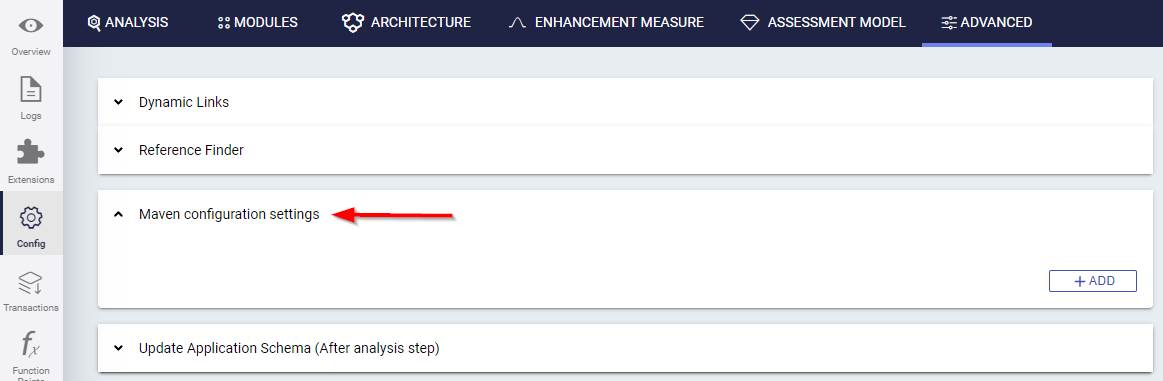
- The repositories listed in this panel apply only to the parent application and are not used during source code delivery for any other application. To define repositories for all applications managed in CAST Imaging, see Maven Dependencies Settings.
- Repositories discovered in the uploaded source code are always used, and take priority over the repositories listed in this panel.
The panel also provides dependency extraction settings which control how many Maven dependencies are extracted for this application when those POM dependencies are resolved.
Maven Repositories
By default, this panel lists the repositories defined in the global configuration for all applications, so that you can see the complete set of repositories that may be used for this application and the order in which they are searched. A message at the top of the panel indicates which configuration is currently in use:
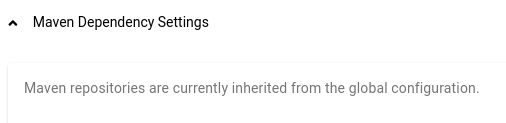
The first change you make in this panel - adding, editing, removing or reordering a repository - switches the application to its own repository configuration. From that point:
- only the repositories listed in this panel are used for this application, and those defined in the global configuration are no longer added to them
- later changes to the global configuration are no longer inherited by this application
- the global configuration is not modified, and no other application is affected
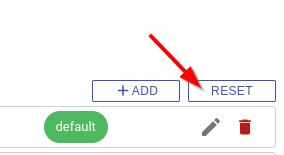
Use Reset to discard the application’s own configuration and return to inheriting the global repositories.
Adding a new repository
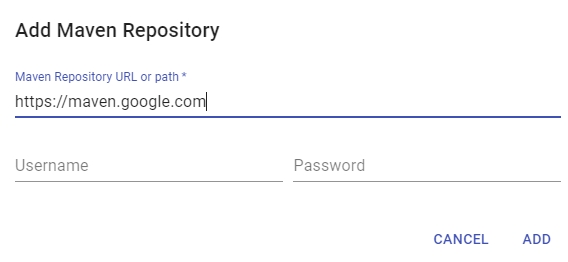
Repository URL/Path
Enter the URL or path to the Maven repository you want to add. For example:
- Remote repository: enter the URL to the repository (e.g.: Google’s repository https://maven.google.com )
- Local repository: enter the path to the
.m2file, e.g.:C:/my_repo/.m2
The Maven repository URL will be validated when the ADD button is clicked, and if it is inaccessible, an error will be displayed and the repository will not be saved.
Username/Password
Enter the credentials for the repository - leave blank if the repository is public or does not require credentials.
Editing a repository
Click the edit icon next to a repository to change its URL or path, or to update the credentials used to access it. An existing password is never displayed: to change it, enter the new password.
Editing a repository that is inherited from the global configuration creates the application’s own configuration - the repository defined in the global configuration is left unchanged.
Removing a repository
Click the delete icon next to a repository to remove it from this application’s configuration, including a repository inherited from the global configuration.
Removing every repository leaves the application with an empty repository configuration. There is no automatic fallback to the repositories defined in the global configuration, therefore only repositories discovered in the uploaded source code will be used.
Changing the order of repositories
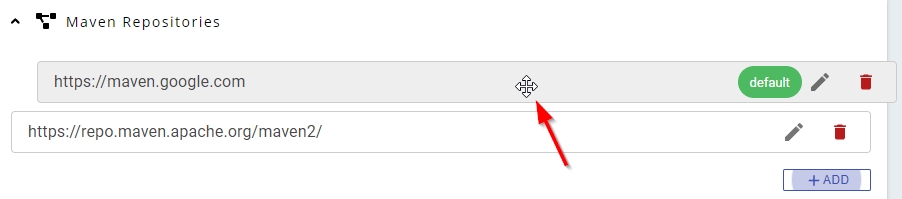
You can change the order of the repositories by dragging and dropping them in to the correct position (this is the order in which the repositories are scanned for artifacts). The repository at the top of the list is marked as the “default”, i.e. this repository is always scanned first:
Resetting to the global configuration
Click RESET to discard all the changes made in this panel and return the application to the repositories currently defined in the global configuration. This option is displayed only when the application has its own repository configuration, and a confirmation is requested before that configuration is discarded:
Troubleshooting issues accessing remote HTTPS repositories
In certain situations, an error may be registered in the Delivery log when the Node attempts to access an HTTPS repository. For example, in the log located at delivery\{app-guid}\data\{guid}\{guid}\{guid}\DMTDeliveryReport.CastLog2:
ERROR cast.dmt.engine.extractor.jee.maven.http.connectionFailed Unknown format id: cast.dmt.engine.extractor.jee.maven.http.connectionFailed =>  %URL%="https://my.maven.repo/artifactory/maven-release/"

%MESSAGE%="sun.security.validator.ValidatorException: PKIX path building failed: sun.security.provider.certpath.SunCertPathBuilderException: unable to find valid certification path to requested target"

javax.net.ssl.SSLHandshakeException:sun.security.validator.ValidatorException: PKIX path building failed: sun.security.provider.certpath.SunCertPathBuilderException: unable to find valid certification path to requested target at sun.security.ssl.Alerts.getSSLException(:0).
The error reported in the log is generated by the DeliveryManagerTool-CLI.exe tool located on the node. This tool uses the Java JRE delivered with CAST Imaging Core in the following location:
%PROGRAMFILES%\CAST\<release>\jre\
This error usually occurs if the remote HTTPS repository you have defined is using an SSL certificate:
- where the signing authority is not listed in the Java JRE cacerts file located at
%PROGRAMFILES%\CAST\<release>\jre\security\cacerts - that is self-signed
Resolving the issue involves importing the required SSL certificates into the Java JRE cacerts Java keystore (located in %PROGRAMFILES%\CAST\8.4\jre\lib\security) delivered with CAST Imaging Core. You should ensure that all certificates are imported, especially if you have a “bundle” containing multiple embedded certificates. This process is out of the scope of this document and you should contact CAST Support for advice.
Dependency extraction settings
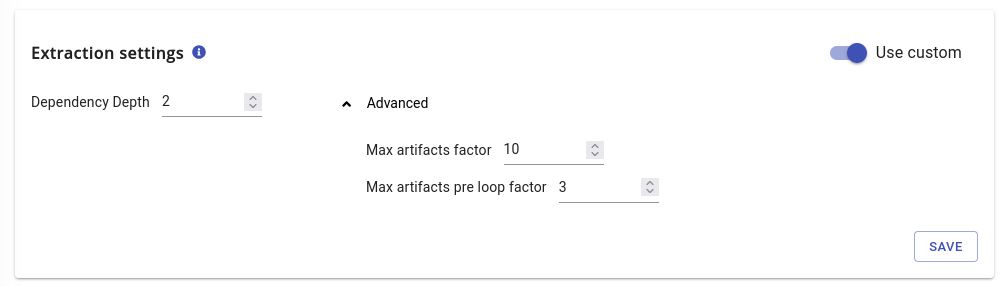
These settings control how many Maven dependencies are extracted when POM dependencies are resolved during source code delivery. They apply to this application only and ensure stability of transaction call graphs.
These options should not be modified unless you are specifically having issues such as missing JARs, missing classes, broken transactions etc. In the vast majority of situations, the default values for these options are sufficient:
| Setting | Default | Description |
|---|---|---|
| Dependency Depth | 2 |
How many levels of Maven transitive dependencies are extracted. |
| Max artifacts factor | 10 |
Upper bound factor for the number of extracted artifacts. |
| Max artifacts pre loop factor | 3 |
Upper bound factor applied before loop detection. |
Max artifacts factor and Max artifacts pre loop factor are advanced settings: increasing them increases both the number of artifacts extracted and the time taken to deliver the source code.
- By default, the settings are hidden: use the “Use custom” slider to enable them.
- Values defined here always take priority over the equivalent settings defined at a global level for all applications - see Maven Dependencies Settings.
- CAST Imaging pushes the values that apply to this application into the configuration of the
com.castsoftware.jee-mavenhttpextension.
Unlimited extraction settings
To extract as many artifacts as needed, you can use the following settings:
- Dependency Depth: 99
- Max artifacts factor: 999
- Max artifacts pre loop factor: 999
However, when using these unlimited options, the maximum extracted artifacts would be 999 * minimum remediated artifacts. This level of extraction can lead to performance issues, therefore, using unlimited settings should be done with caution.