Manage multiple canvases with tabs
Work across several canvases at the same time using tabs
Overview
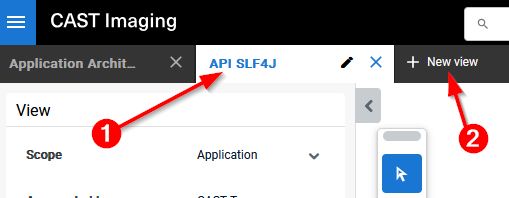
CAST Imaging displays results in tabs, so you can work with several canvases at the same time. Each tab keeps its own state - its scope, level and object selection - which makes tabs useful for comparison, for example opening the same scope at two different levels to compare the high-level structure with the detailed objects.
How do tabs open?
A new tab is opened when:
- you display the results of a global search (one tab per search display)
- you open an item in a new view from the contextual menu, e.g. using Open view > Expand objects
- you click the New view option to open a blank tab on the Overview panel
How do I add objects to an existing tab?
By default a search always opens its results in a new tab. To add further objects to a tab that is already open, use the Add objects action in that tab - see Add new search results to an existing tab.
The contents of a tab are not kept when you close it or refresh the browser. To preserve a canvas, save it as a view.