Managing a node
Overview
A node is the “analysis engine service” that is responsible for analyzing your application. This screen enables you to set a specific node for your application.
Default behavior
CAST Imaging will automatically function as follows when there are multiple nodes available (when only one node is available, for example in a single machine installation, this screen is irrelevant):
- Applications are not tied to a specific node
- Nodes are considered to be stateless
- CAST Imaging will automatically operate in load-balancing mode where nodes are chosen from the pool of available nodes to perform the next job in this order:
- the node running the most recent release of CAST Imaging Core will be chosen first, above all others
- if all nodes are running the same release of CAST Imaging Core, then the least used node instance is selected
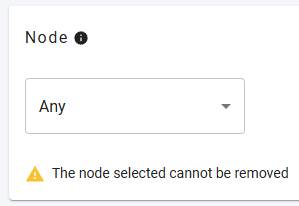
- therefore, by default, this section will display Any as follows, indicating that any node can be used to process the application, provided that the release of CAST Imaging Core running on the node is equal to the release of CAST Imaging Core used for your application for previous actions:
How do I set a specific node for my application?
If you need to set a specific node for your application (for example where your application requires specific configuration, such as RAM or CPU), use the drop down list to select the node:
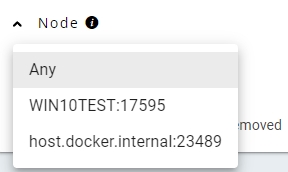
- CAST Imaging will ONLY offer nodes running the same release of CAST Imaging Core used for your application for previous actions: nodes running older releases of CAST Imaging Core will not be offered for selection.
- When you select a specific node it is not possible to change the node again in the future. This is to ensure result consistency.
Why can’t I select a different node?
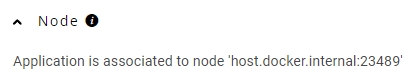
If you have multiple nodes but you cannot select a different one using this drop down list (i.e. it is disabled), this means that a dedicated node has already been set in the Overview page under the Advanced Platform Configuration section. In this situation, the node that has been selected will be displayed:
Technical information about multiple analysis nodes
CAST Imaging routes job requests at the moment the job is submitted - it does not queue it and re-assign it later when a new analysis node comes online.
For example if Node 1 is busy when a new job request arrives, CAST Imaging will still send it to Node 1 immediately. When Node 2 comes online shortly after, the analysis node will be available for the next request, not the one already running on Node 1.
How nodes are discovered
When an analysis node starts up, it registers itself with Eureka (the internal service registry). CAST Imaging checks Eureka every 15 seconds to refresh its list of available analysis nodes. In other words a brand-new analysis node becomes visible to CAST Imaging within 15 seconds of it registering.
What happens in the auto-scale scenario
-
If the job request has not been sent yet: once the new node registers, the next submission will see it and CAST Imaging can route to it.
-
If the request has already been sent and accepted (job ID returned): it’s already locked to an analysis-node. The new analysis node coming online has no effect on it.
-
If all analysis nodes are busy when the request arrives: CAST Imaging still picks the least-busy node immediately and sends it there. It does not wait for a free slot or a new analysis node.