Configure single sign-on (SSO)
Overview
CAST Imaging Express can delegate user authentication to your organization’s identity provider (IdP) using either SAML 2.0 or OpenID Connect (OIDC). This page explains how to configure, enable and manage SSO for your organization, and is intended for organization owners and administrators working with their IT or security team.
Before you start
- An active CAST Imaging Express subscription.
- You must have the Owner or Admin role in your organization to access Authentication configuration.
- The email address you log in with must belong to your organization’s email domain. If it does not, invite a member whose email address uses the correct domain, give them the Admin role, then log in as that member to configure SSO.
- Obtain one of the following from your IT or security team:
- SAML 2.0: the IdP metadata URL, or the IdP metadata XML file
- OpenID Connect: the discovery endpoint URL (usually ending in
/.well-known/openid-configuration) or the discovery JSON file, plus the client ID and client secret registered for CAST Imaging Express
Step 1 - Choose a protocol and method
- Open the user drop down menu and select Organization settings, then click Authentication configuration.
- Under How would you like to configure your Identity Provider?, select SAML 2.0 or OpenID Connect.
- Select how you want to provide your IdP details:
- Metadata URL (SAML 2.0) or discovery endpoint URL (OpenID Connect) - recommended, because CAST Imaging Express fetches the metadata directly from your IdP
- Upload XML File (SAML 2.0) or JSON upload (OpenID Connect) - for static or offline configurations
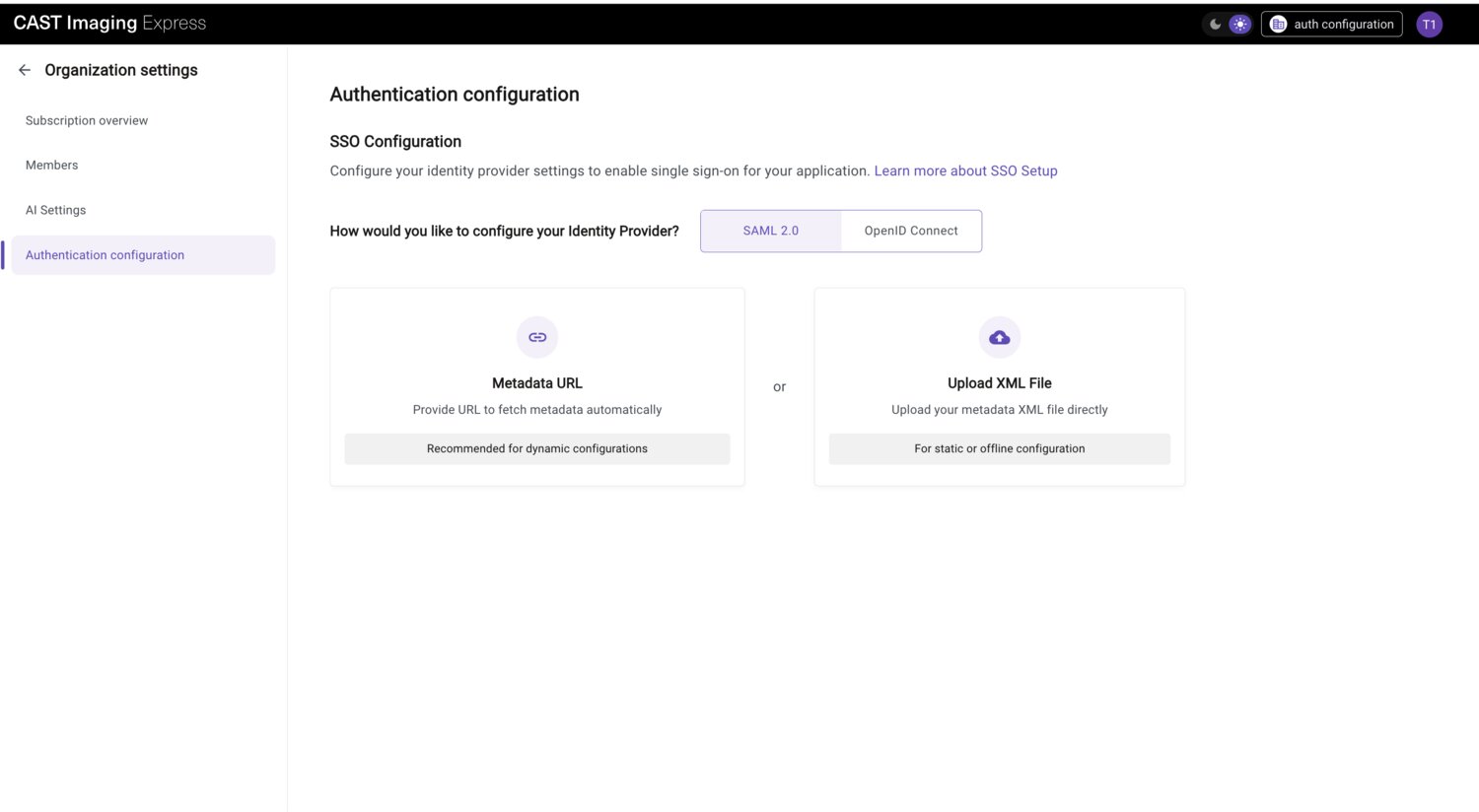
The selected method is shown next to Configuration Method. Click Change Method at any point before saving to return to this screen.
Step 2 - Provide your IdP metadata
SAML 2.0
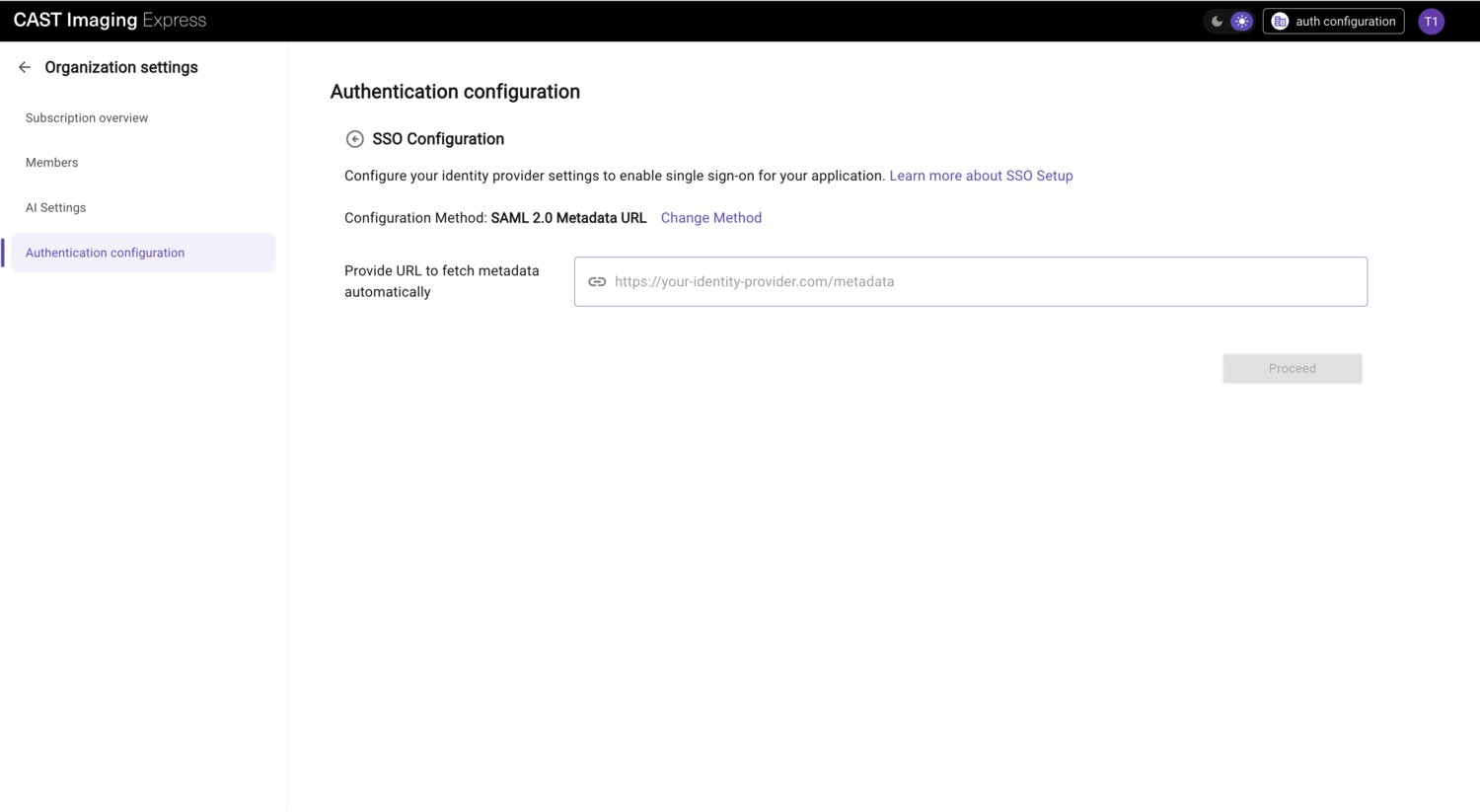
- Metadata URL: paste the URL provided by your IdP. The URL is validated automatically when you stop typing, and a check mark appears in the field when the metadata is valid.
- XML file: drag and drop your SAML 2.0 metadata file onto the upload area, or click to browse. Only
.xmlfiles up to 1 MB are accepted. To replace an uploaded file, remove it and upload a new one.
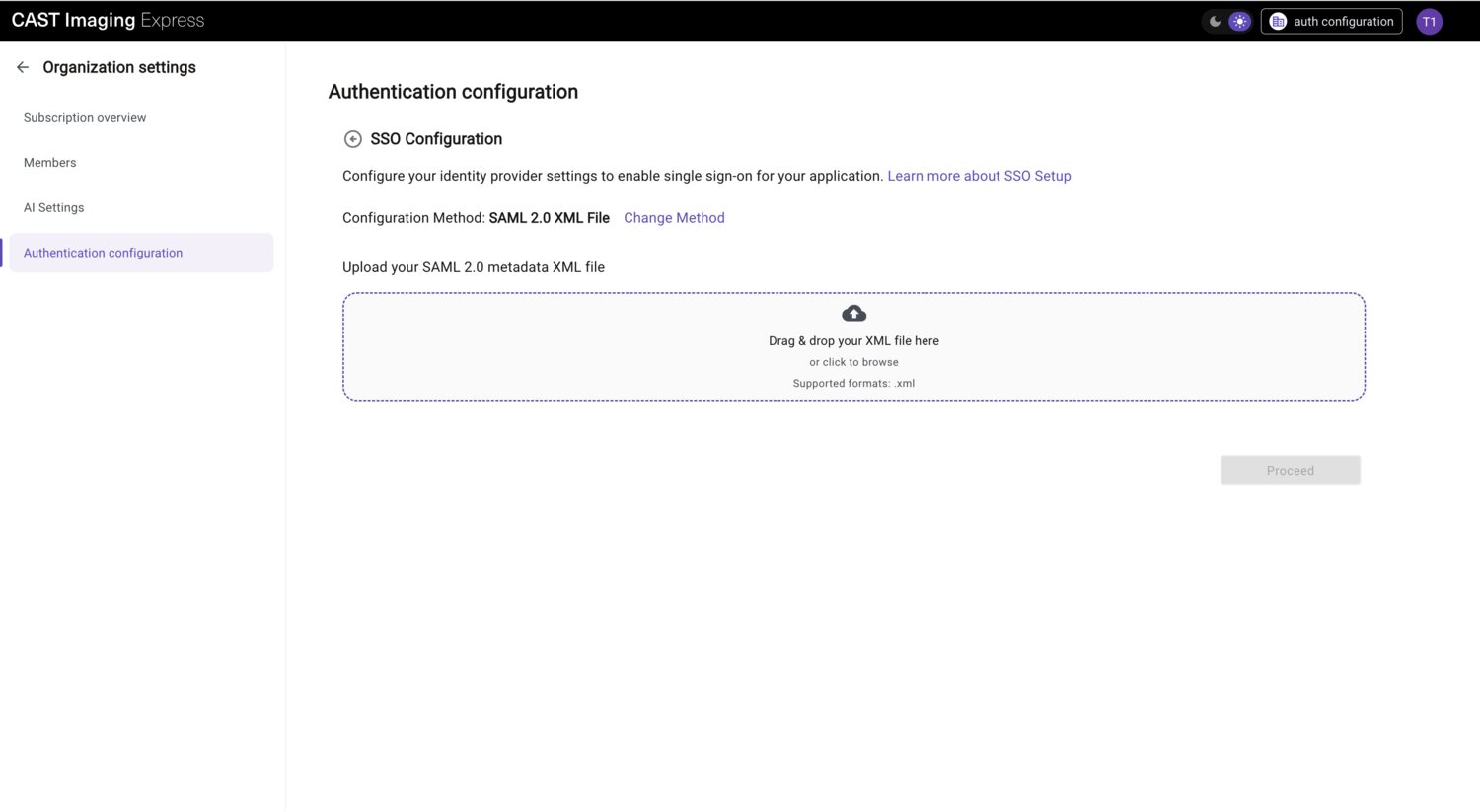
When the metadata is valid, click Proceed. Proceed remains unavailable until validation succeeds.
OpenID Connect
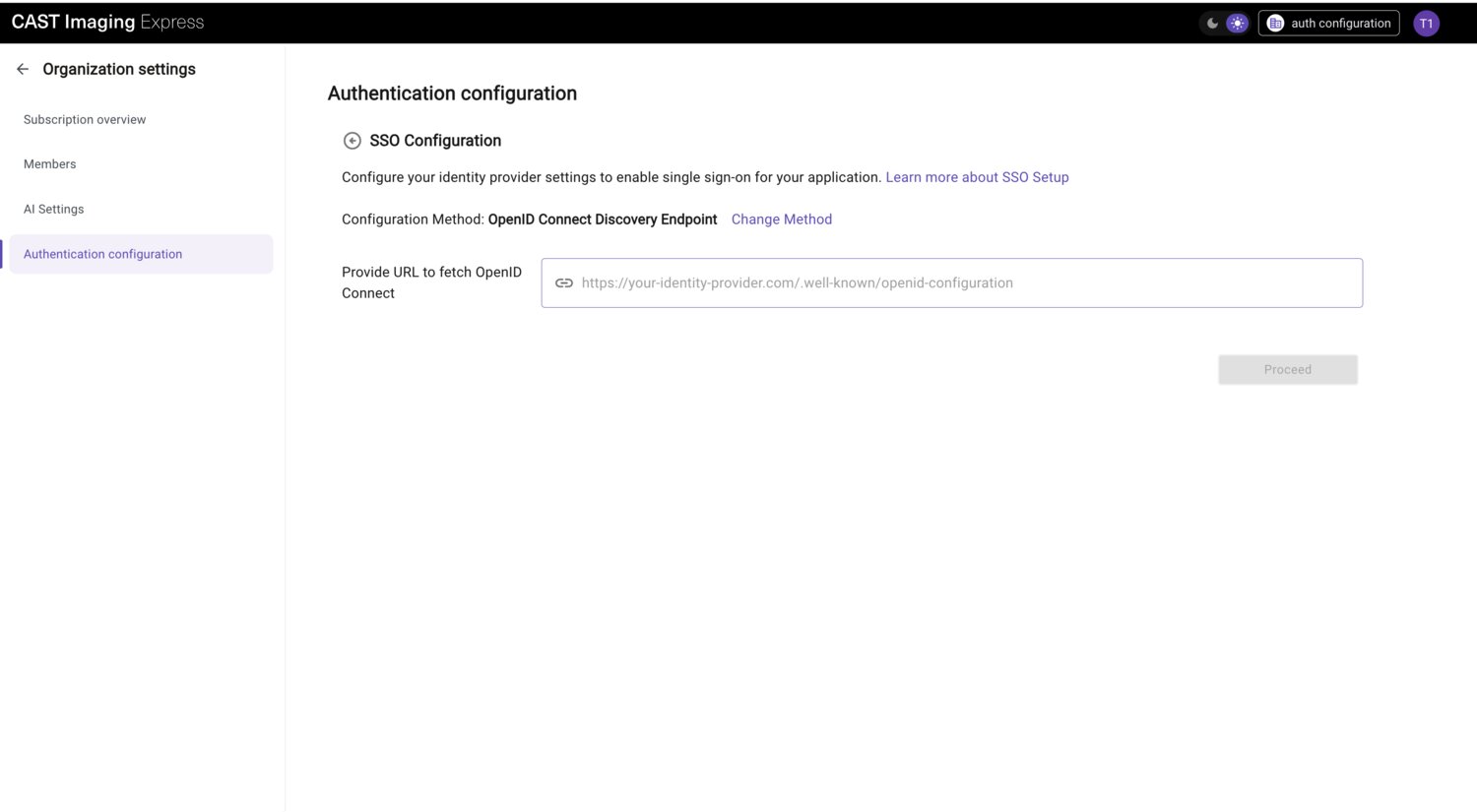
- Discovery endpoint: paste the URL of your IdP’s OpenID Connect discovery document, for example
https://your-identity-provider.com/.well-known/openid-configuration. The URL is validated automatically when you stop typing.
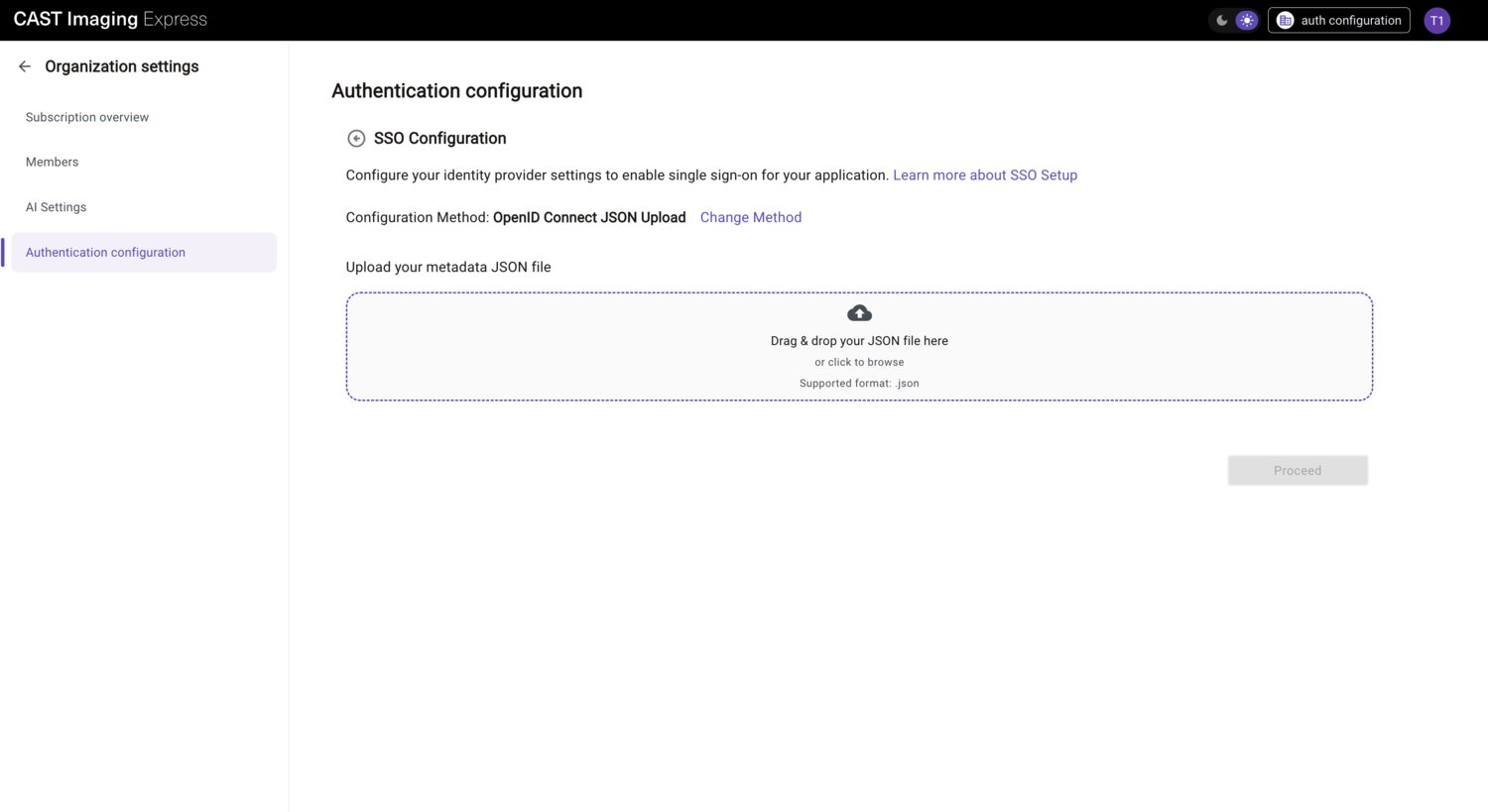
- JSON file: drag and drop your OpenID Connect metadata file onto the upload area, or click to browse. Only
.jsonfiles are accepted.
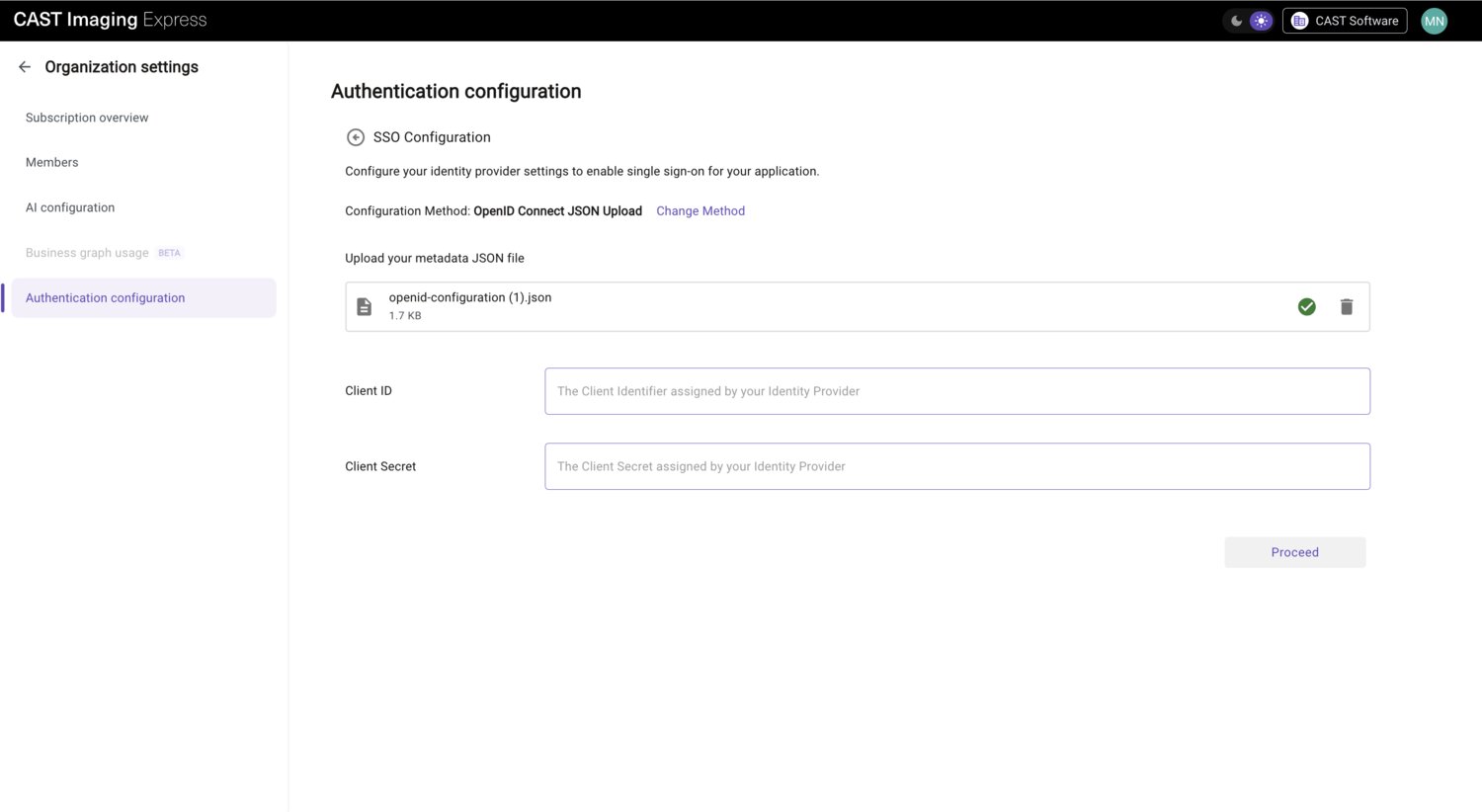
When the metadata is valid, the Client ID and Client Secret fields are displayed. Enter the values assigned to CAST Imaging Express by your IdP, then click Proceed. Proceed remains unavailable until both fields are completed.
Step 3 - Review the metadata and map attributes
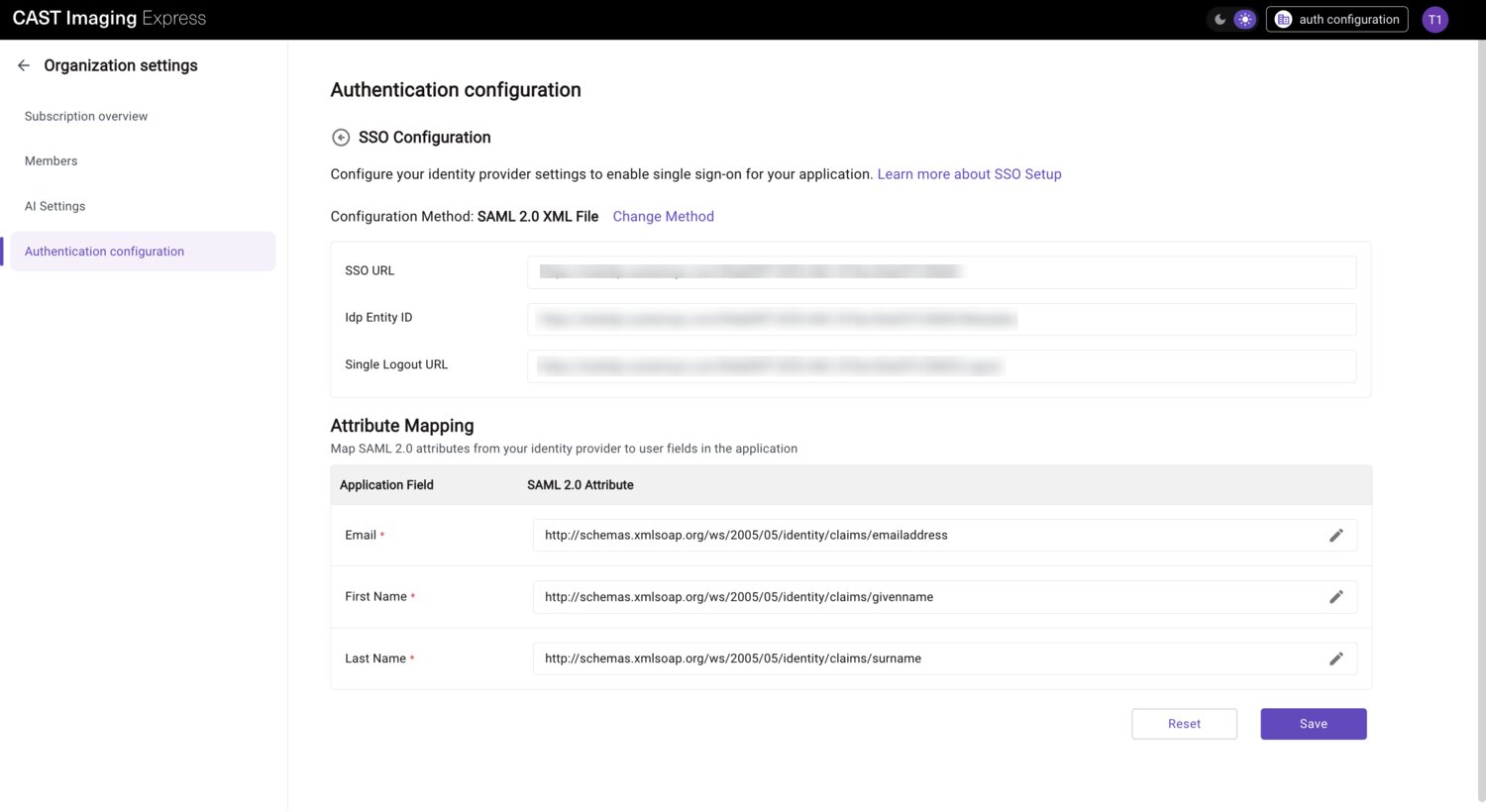
CAST Imaging Express displays the values read from your metadata so that you can check them. These values are read-only:
- SAML 2.0: the SSO URL, Idp Entity ID and Single Logout URL
- OpenID Connect: the Client ID and Client Secret you entered, and the User Info URL, Token URL and Authorization URL from the discovery document
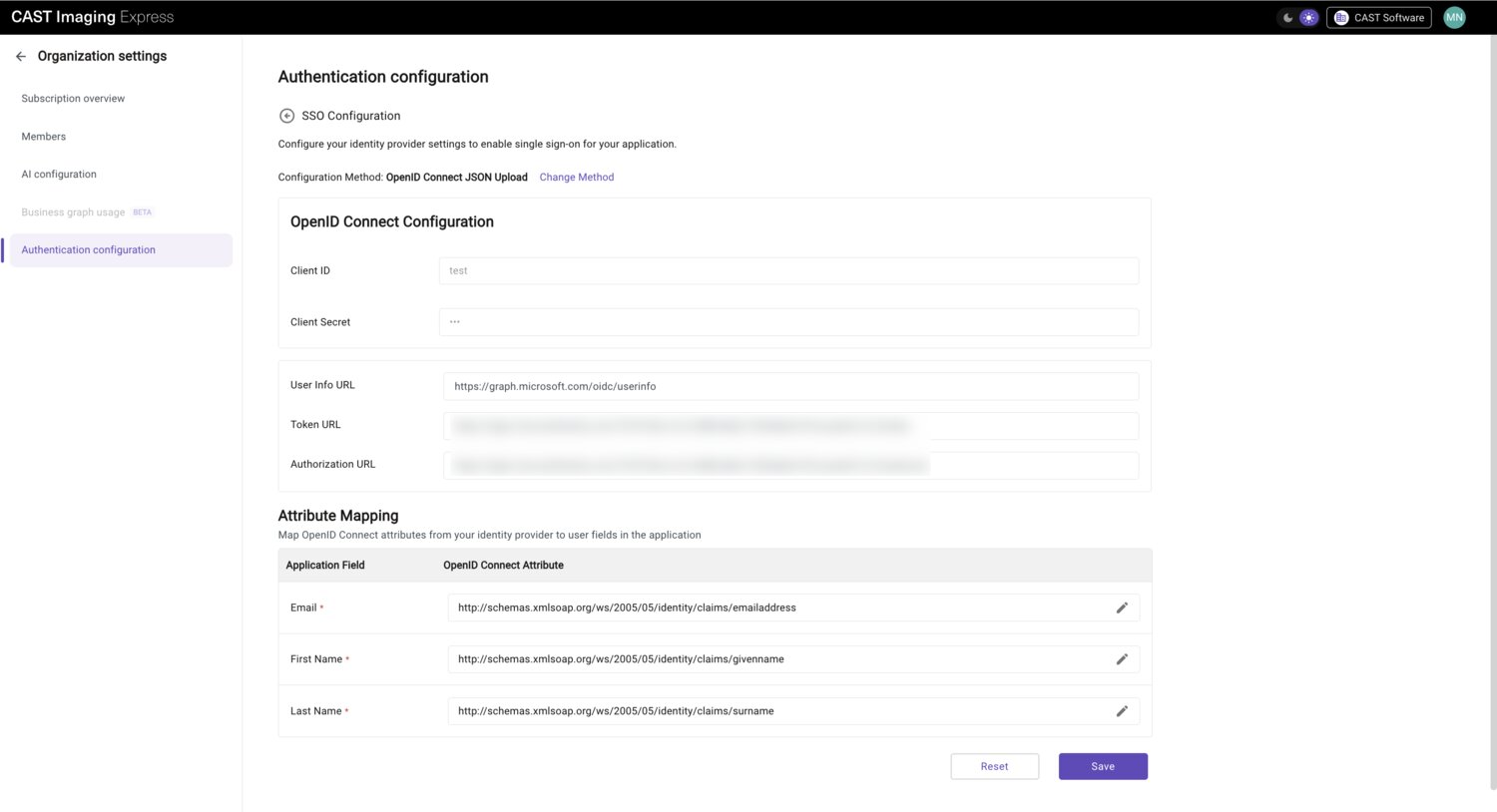
Under Attribute Mapping, check that each application field is mapped to the attribute your IdP sends. All three fields are required. The defaults are:
| Application field | SAML 2.0 attribute | OpenID Connect claim |
|---|---|---|
http://schemas.xmlsoap.org/ws/2005/05/identity/claims/emailaddress |
email |
|
| First Name | http://schemas.xmlsoap.org/ws/2005/05/identity/claims/givenname |
given_name |
| Last Name | http://schemas.xmlsoap.org/ws/2005/05/identity/claims/surname |
family_name |
If your IdP uses different attribute names, click the edit icon next to a field and enter the correct attribute. Click Reset to discard the configuration and return to Step 2.
Click Save to store the configuration.
Step 4 - Register CAST Imaging Express with your IdP and enable SSO
After saving, the configuration is displayed as a summary card. The configuration is saved disabled, so it has no effect until you enable it.
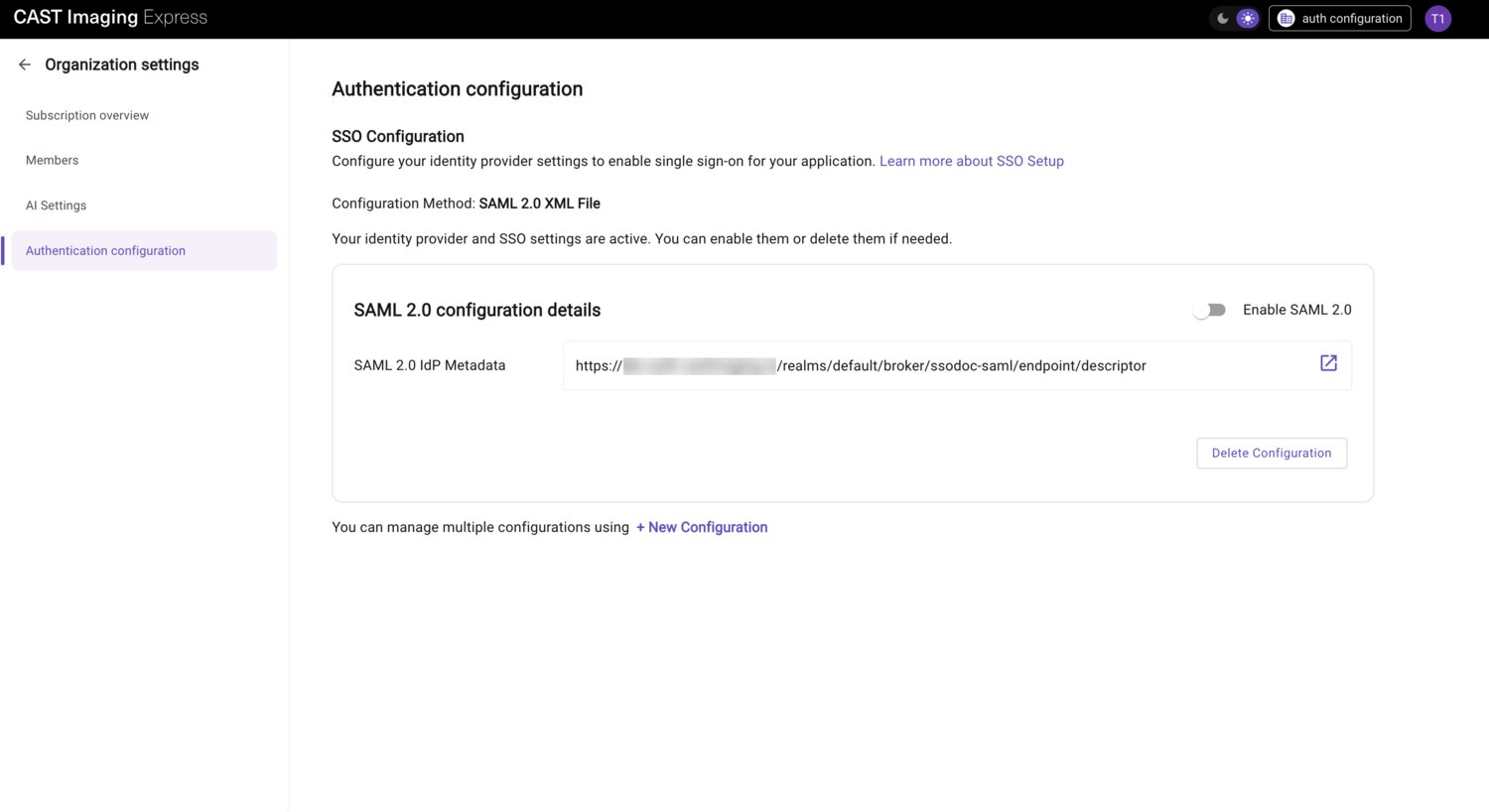
- Give your IT or security team the value they need to register CAST Imaging Express in your IdP:
- SAML 2.0: the URL shown in SAML 2.0 IdP Metadata. This is the metadata describing CAST Imaging Express as a service provider. Click the open icon to view it.
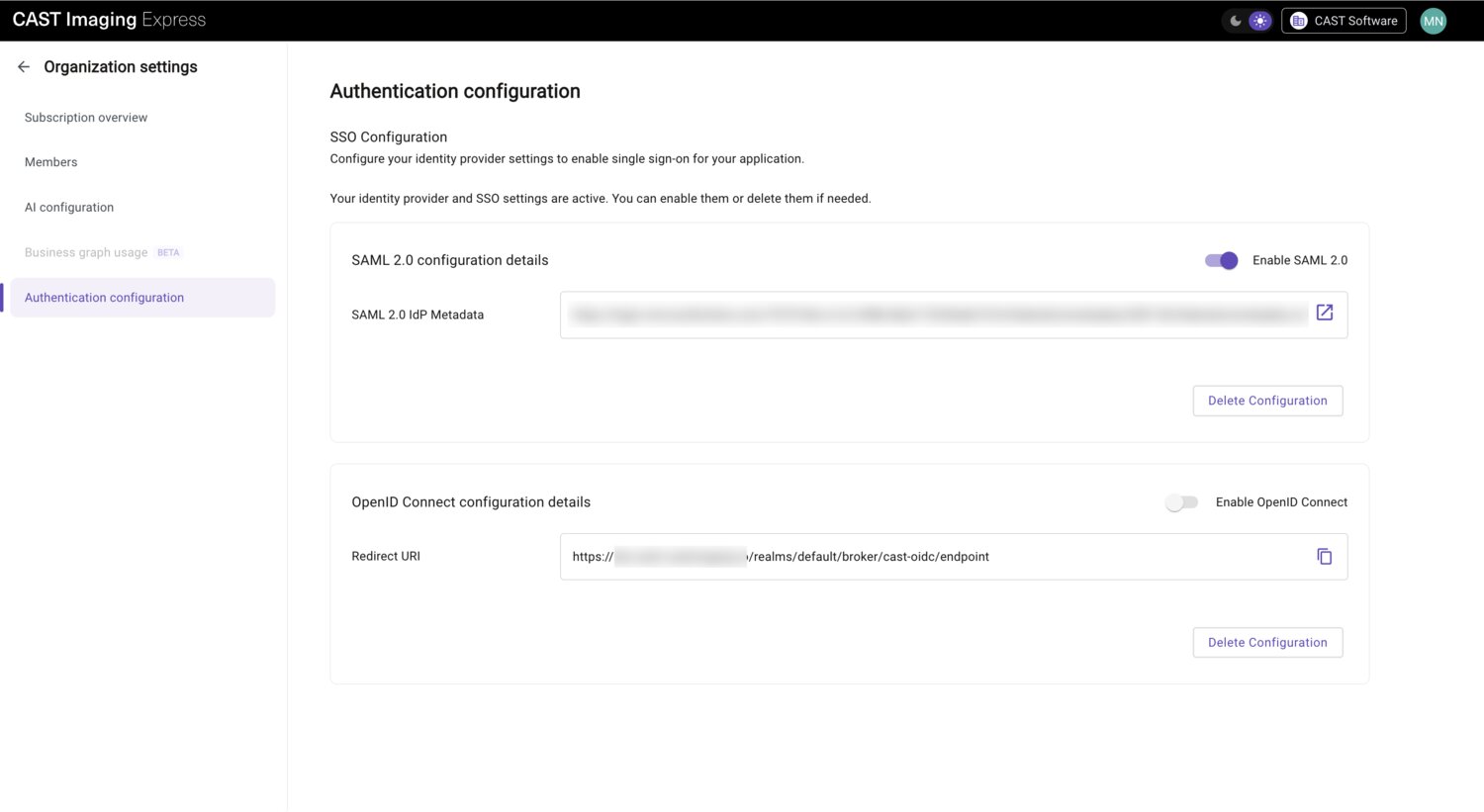
- OpenID Connect: the URL shown in Redirect URI. Click the copy icon to copy it to the clipboard.
- When your IdP has been configured, turn on the Enable SAML 2.0 or Enable OpenID Connect toggle on the card.
What changes for your users
- The login page does not change: there is no separate SSO button.
- Existing CAST Imaging Express accounts are linked to your IdP automatically, using the email address, the first time each user logs in through SSO.
- Users can still log in with their email address and password.
Manage your SSO configuration
- Enable or disable: the toggle is the only setting you can change after saving. To change any other value, delete the configuration and create it again.
- Configure a second protocol: if only one protocol is configured, click + New Configuration to configure the other one. You can save a SAML 2.0 and an OpenID Connect configuration at the same time, but only one can be enabled.
- Delete: click Delete Configuration on the card, then click Delete in the Confirm Delete dialog.
If SSO is misconfigured, an organization Owner or Admin can still log in with their email address and password, then turn off the toggle or delete the configuration.