Find objects with AI Mode in Global Search
Overview
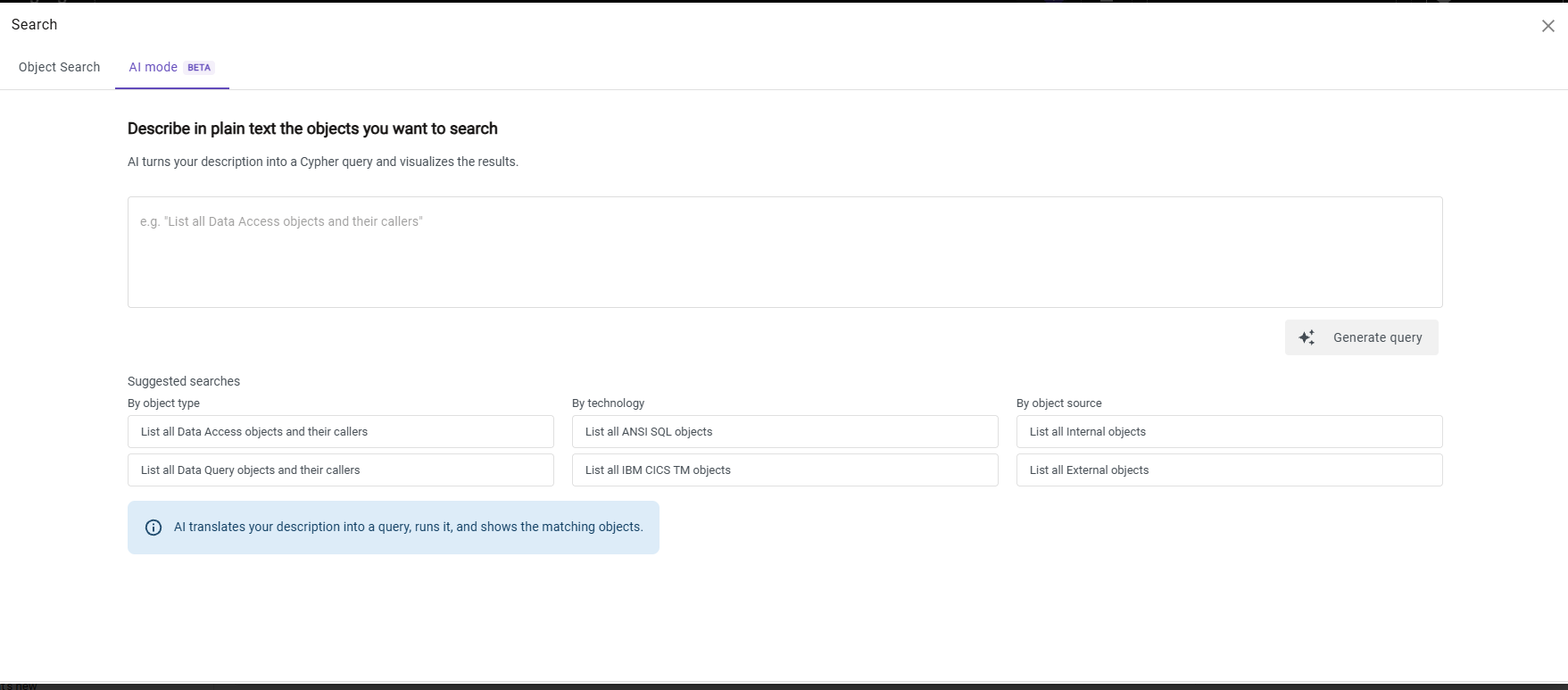
AI Mode in Global Search lets you find objects in your application by describing them in plain English. You do not need to build filters manually or know object types, link directions or query syntax: AI turns your description into a Cypher query, runs it and shows the matching objects.
AI Mode is under active development. Its behavior and results may change between releases.
AI-generated results
AI Mode uses AI to interpret your request. The same request, or a slightly different wording of it, can return different results, and a request can occasionally be misinterpreted. Always check that the results match your intent before relying on them. If they do not, rephrase your request or use the standard Object Search tab.
Before you start
AI Mode is available only when an organization administrator has configured the following in AI Settings:
- Enable AI features organization-wide is on.
- An AI provider is selected: CAST AI or Own Provider with valid credentials.
- The AI-assisted search (beta) toggle is on.
Use AI Mode
- Open Global Search.
- Select the AI mode tab.
- Describe the objects you want in the text box. The placeholder shows an example based on your own application.
- Optionally, select one of the Suggested searches. They are displayed while the text box is empty, grouped by category. Depending on the content of your application, the groups can include object type, insight, tag, post-it, technology and object source. You can use a suggestion as is or edit it.
- Click Generate query. A progress indicator is displayed while your request is processed.
- Review the results. Your original request is displayed above the matching objects.
- Select the objects you want, or click Display all, to open them on the graph.
If processing fails, the message “Something went wrong while generating the query. Please try again.” is displayed. Try again, or rephrase your request.
Example requests
| Goal | Example |
|---|---|
| Objects by type | “List all COBOL programs and their callers” |
| Objects by tag | “List objects tagged with Payment” |
| Objects by insight | “List objects violating the Cyclomatic complexity insight” |
| Objects by post-it | “Objects annotated with the Review post-it” |
| Objects by technology | “List all Java objects” |
Result limits
Results are capped at 10,000 objects:
| Situation | Message | What to do |
|---|---|---|
| Results are capped | “A limit of 10000 has been applied by default.” | Nothing, unless you need a narrower set. |
| Your request matches more than 10,000 objects | “Showing the first 10000 results. Your question matches more objects - refine your question to narrow the results.” | Refine your request so it matches fewer objects, for example by adding a name pattern, technology or tag. |


Troubleshooting - AI mode tab is disabled
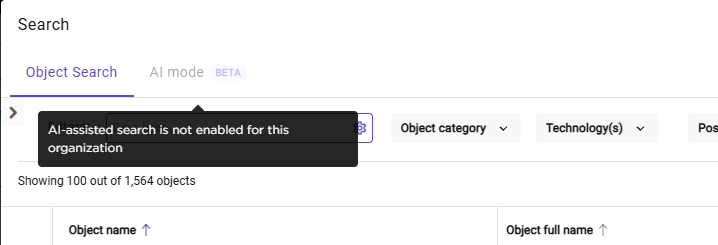
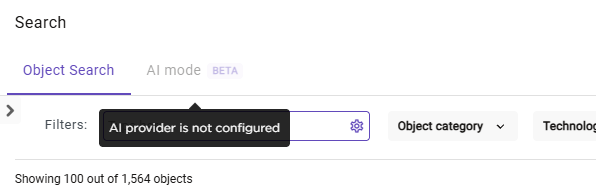
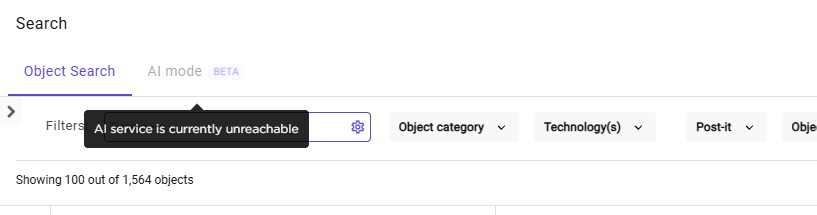
When the AI mode tab is grayed out, hover over it to see the reason:
| Message | Cause | Resolution |
|---|---|---|
| “AI-assisted search is not enabled for this organization” | The AI-assisted search toggle is off. | Ask an administrator to enable it in AI Settings. |
| “AI provider is not configured” | AI features are off, or Own Provider is selected without credentials. | Ask an administrator to enable AI features and configure a provider. |
| “AI service is currently unreachable” | The AI service cannot be reached at the moment. | Try again later. If the problem persists, contact your administrator or CAST Support. |
User responsibility and consent
By using AI Mode, you acknowledge that your request may be transmitted to an AI service. This feature is governed by CAST’s Artificial Intelligence and Machine Learning Terms.