Create a Business Graph
Overview
A Business graph is a GraphRAG knowledge graph built from an application’s analysis results. It captures the entities, relationships and business rules in your application, and once generated it can be explored and queried with natural-language questions through the CAST Imaging Express MCP Server. This page is for application owners and organization administrators who build and monitor Business graphs.
The Business graph is under active development. Results are experimental: validate them carefully before relying on them in a production context, and share your feedback at contact@castimaging.io.
Before you start
- The Business graph requires an Own Provider. It is not available when the organization uses CAST AI.
- An organization administrator must turn on Business graph (beta) under Available AI features in AI Settings.
- The application must have AI summaries. These are produced by AI Transaction Summary, so that feature must be enabled and the application analyzed (or re-analyzed) with it turned on.
- The Create Business Graph page is only visible to the application owner and organization administrators.
Where to find it
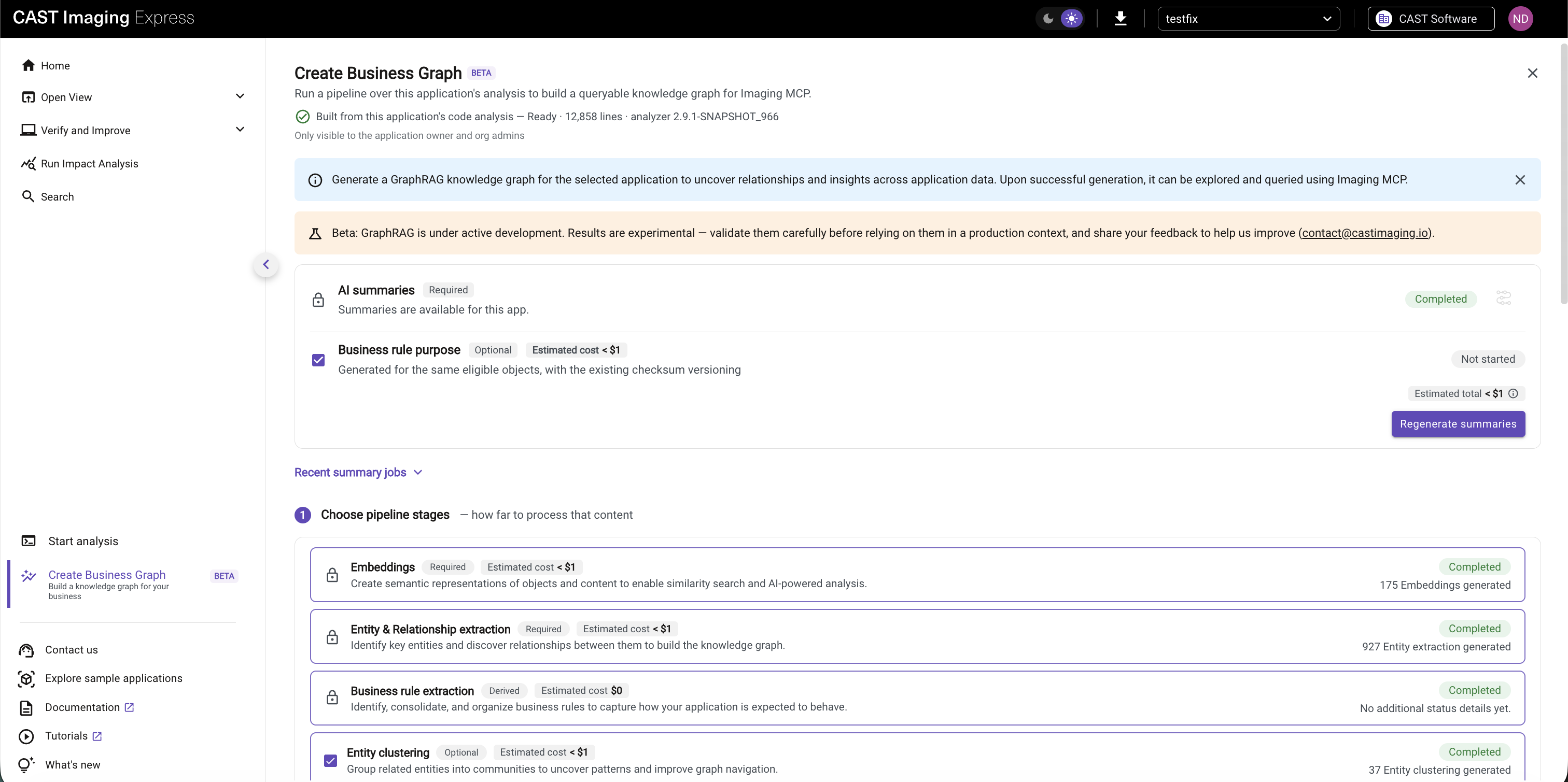
Open the application, then select Create Business Graph in the left panel.
Step 1 - Prepare AI summaries
The top of the page shows the content the graph is built from:
| Content | Selection | Description |
|---|---|---|
| AI summaries | Required | Object-level AI summaries for the application. The status shows Completed when summaries are available. |
| Business rule purpose | Optional | Additional content, generated for the same eligible objects as the AI summaries using the existing checksum versioning. Required for the Business rule extraction stage. |
To generate or refresh the content, select the content you want and click Regenerate summaries. The Estimated total cost is shown before you start, and Recent summary jobs lists previous summary runs.
Object-level summaries must exist before anything else can run. If they are missing, the following error is displayed: “No transactions or data call graphs with object functional summaries found for application ‘
Step 2 - Choose pipeline stages
Under Choose pipeline stages, select how far to process the content. Each stage is shown as a card with its selection type, estimated cost and status:
| Stage | Selection | Purpose |
|---|---|---|
| Embeddings | Required | Creates semantic representations of objects and content to enable similarity search and AI-powered analysis. |
| Entity & Relationship extraction | Required | Identifies key entities and discovers the relationships between them to build the knowledge graph. |
| Business rule extraction | Derived | Identifies, consolidates and organizes business rules to capture how your application is expected to behave. Enabled automatically when Business rule purpose content is selected in Step 1. |
| Entity clustering | Optional | Groups related entities into communities to uncover patterns and improve graph navigation. |
Entity clustering trades speed for structure:
- Enabled - Similar entities are grouped together, giving hierarchical insights.
- Disabled - Summaries are processed without clustering, which is faster but gives flatter results.
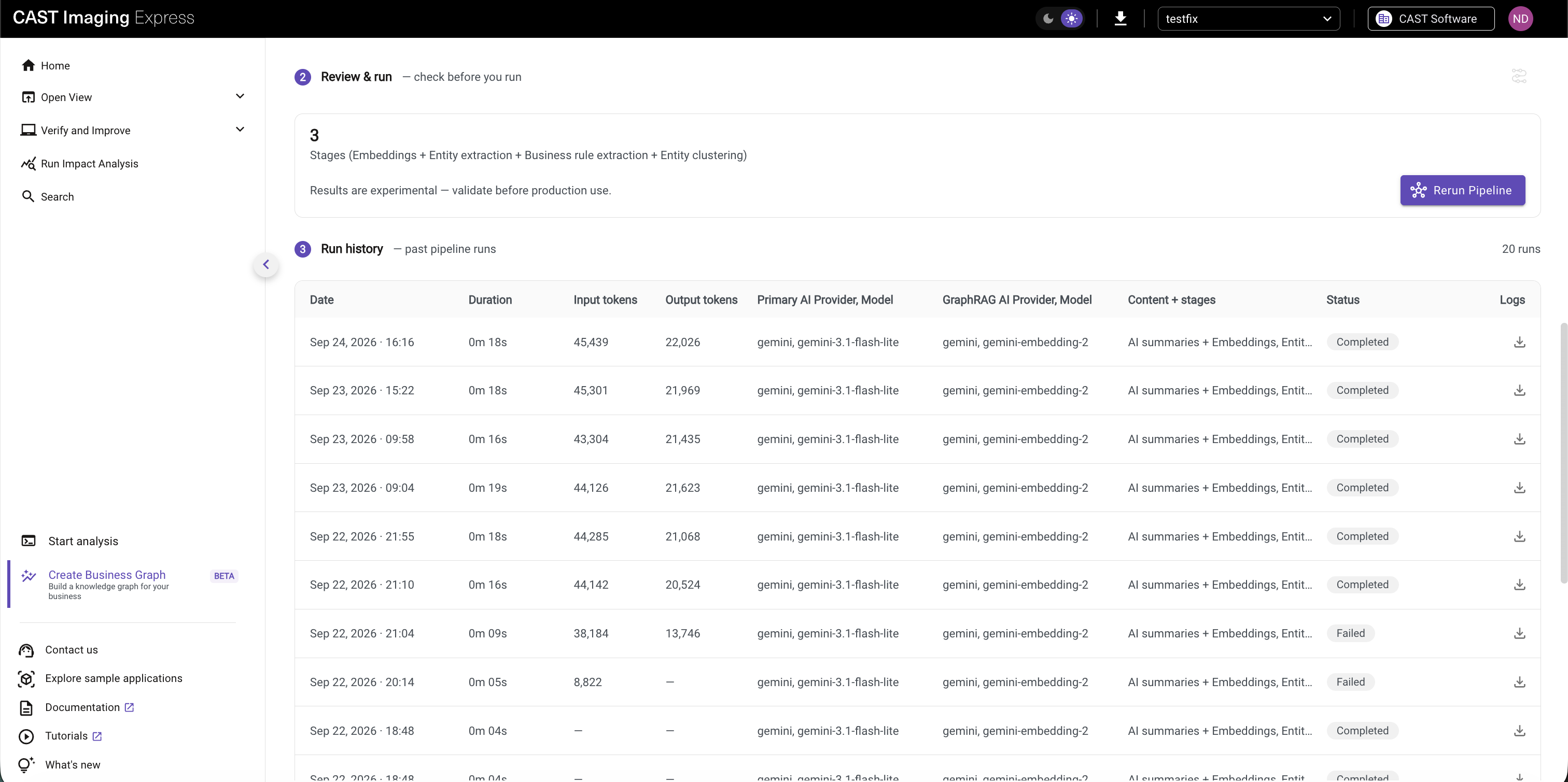
Step 3 - Review and run
Under Review & run, check the number of stages that will run, then click Run Pipeline (or Rerun Pipeline if the graph has been built before). Progress is shown on each stage card, in order: embeddings, entity and relationship extraction, business rule extraction (when selected) and entity clustering. Once a stage completes, its card reports what it produced, for example 175 Embeddings generated.
Cost estimation
Business graph runs incur AI provider costs. Each content type and stage shows an Estimated cost, and the content section shows an Estimated total, so you can plan expenses before you run:
- With business rules - Includes the Business rule purpose content and the Business rule extraction stage.
- Without business rules - Covers the AI summaries and the selected pipeline stages only.
Run history
The Run history section on the Create Business Graph page lists past pipeline runs for the application:
| Column | Description |
|---|---|
| Date | When the run started. |
| Duration | Run time in minutes and seconds. |
| Input tokens | Prompt tokens sent to the model. |
| Output tokens | Completion tokens returned by the model. |
| Primary AI Provider, Model | Provider and model used for the run. |
| GraphRAG AI Provider, Model | Embedding provider and model used for the run. |
| Content + stages | The content and pipeline stages included in the run. |
| Status | State of the run, for example Completed or Failed. |
| Logs | Download the log file for the run. |
Query the Business graph
Once the graph is generated, query it from your AI client through the CAST Imaging Express MCP Server.
Monitor usage across the organization
Organization administrators can monitor Business graph usage across every application from one page. Runs are started from each application’s Create Business Graph page. This page only reports on them.
- Open the profile dropdown in the top-right corner.
- Select Organization settings.
- Select Business graph usage.
Data is scoped to your organization. Runs from other organizations are never shown.
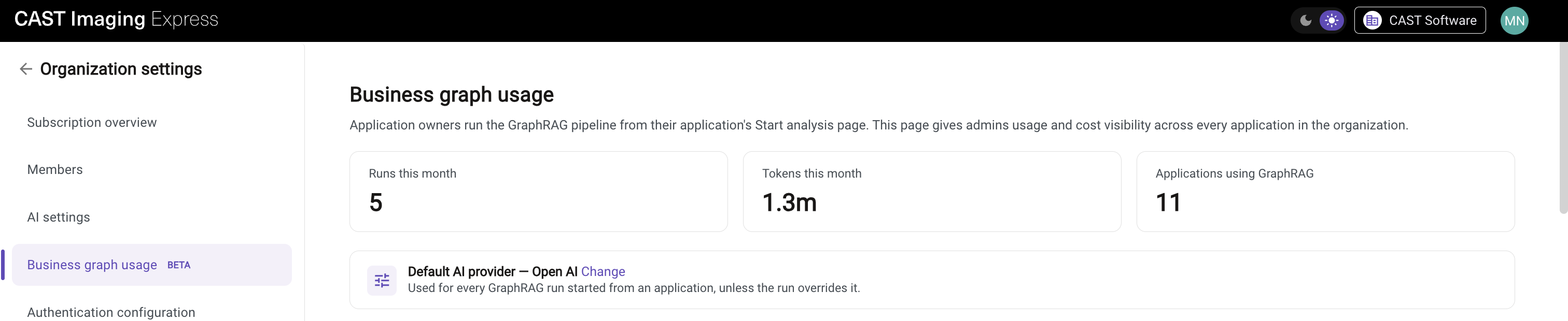
Usage summary
Three cards summarize the current month for the whole organization:
- Runs this month - Number of Business graph runs started this month, across all applications.
- Tokens this month - Total tokens used by those runs, in compact form (for example
1.3m). - Applications using GraphRAG - Number of applications with Business graph runs.
The cards show a dash (-) while loading or if data cannot be loaded.
Default AI provider
A banner shows the default AI provider used for every Business graph run started from an application, unless a run overrides it:
- Own Provider configured - That provider is shown, or the dedicated GraphRAG provider if one is set.
- CAST AI - The CAST AI provider is shown. Business graph runs require an Own Provider, so configure one in AI Settings.
- No provider available - Default AI provider - Not configured is shown.
Click Change to open AI Settings and edit it.
Run history across applications
One row per run, across all applications. Hover over a truncated cell to see its full value.
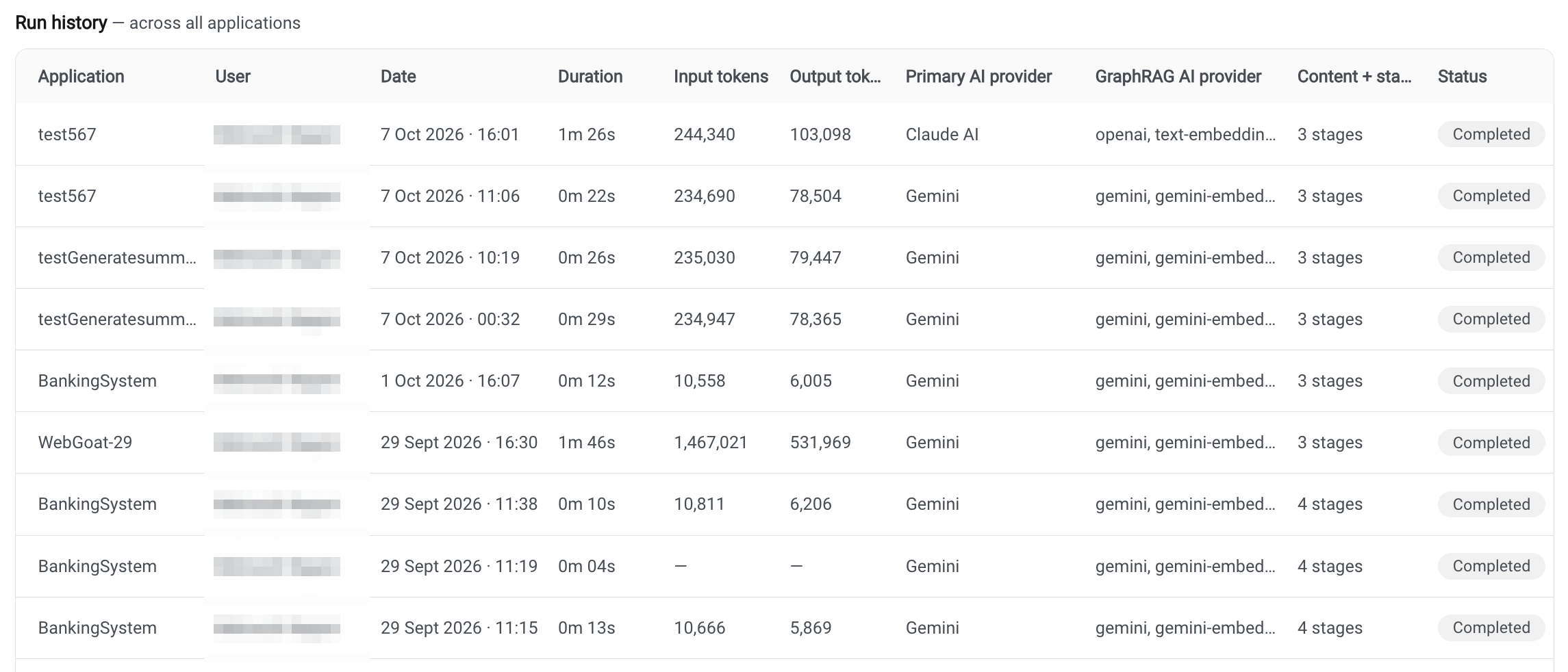
The columns are the same as the application-level run history, plus:
- Application - The application the run belongs to.
- User - The person who started the run: full name, falling back to email address, or a dash if it cannot be resolved.
User responsibility and consent
By building a Business graph, you acknowledge that application content and metadata are transmitted to your organization’s AI provider. These features are governed by CAST’s Artificial Intelligence and Machine Learning Terms.