Configure AI Settings
Overview
AI features in CAST Imaging Express are disabled by default. This page is for organization administrators and explains how to enable them, choose the AI provider they run on and select which features are available to users. Settings apply to every user in the organization.
Where to find it
- Open the profile dropdown in the top-right corner.
- Select Organization settings.
- Select AI settings.
Step 1 - Enable AI features
Turn on Enable AI features organization-wide. When this toggle is off, no AI feature is available to any user, regardless of the other settings on the page.
Step 2 - Choose an AI provider
Select one provider for the whole organization:
| Provider | Description |
|---|---|
| CAST AI | Hosted by CAST. An enterprise configuration of Claude Sonnet, covered by your subscription. No setup required. |
| Own Provider | Your organization’s own LLM API credentials. Gives you control over data residency and model selection. |
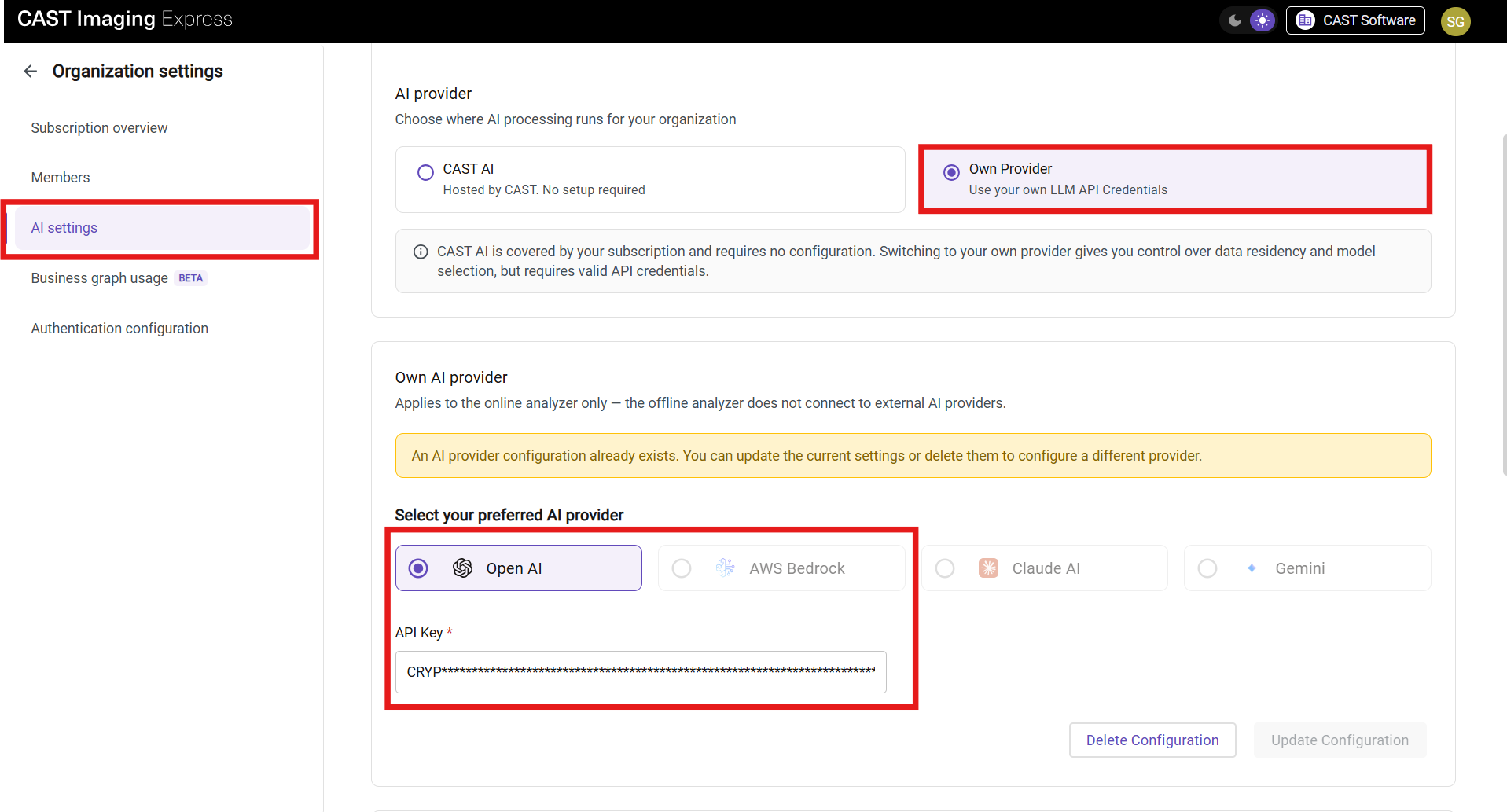
Step 3 - Configure your own provider
Skip this step if you selected CAST AI.
- Select your provider: OpenAI, AWS Bedrock, Claude AI or Gemini.
- Enter the credentials the provider requires. For example, OpenAI requires an API key, and Claude AI requires an API key and a Claude model such as
claude-sonnet-4-6. - Click Update Configuration to save.
To remove the current provider setup, click Delete Configuration. A warning banner is displayed when a configuration already exists.
Own Provider configuration applies to the online analyzer only. The offline analyzer never connects to external AI providers.
Step 4 - Choose the available features
Under Available AI features, turn on the features you want to make available to your users:
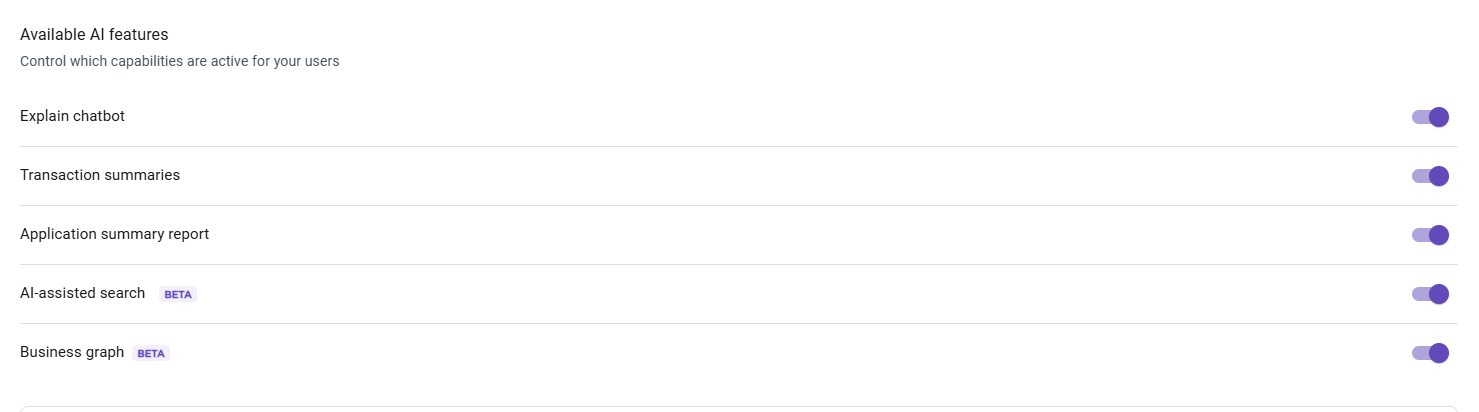
| Toggle | Feature | Supported providers |
|---|---|---|
| Explain chatbot | Explain View | CAST AI or Own Provider |
| Transaction summaries | AI Transaction Summary | Own Provider only |
| Application summary report | Application Summary Report | CAST AI or Own Provider |
| AI-assisted search (beta) | AI Mode in Global Search | CAST AI or Own Provider |
| Business graph (beta) | Business graph | Own Provider only |
Per-user control
Some features also let each user opt out for their own account, on top of the organization-wide setting. This currently applies to AI Transaction Summary, which users can turn off under Profile settings > AI features.