AI Transaction Summary
Overview
AI Transaction Summary explains what each transaction and data call graph in your application does. It generates a natural-language summary of its functional purpose and technical flow, so you can understand how it works without reading the code. This page covers the administrator and user setup, the analysis step and how to view a summary.
Before you start
- AI Transaction Summary requires an Own Provider. It is not available when the organization uses CAST AI.
- Summaries are generated by the online analyzer only. The offline analyzer does not connect to external AI providers, so applications analyzed offline do not get transaction summaries.
Step 1 - Configure an AI provider (administrator)
In AI Settings, an organization administrator must:
- Enable AI features organization-wide.
- Select Own Provider and configure the provider credentials. CAST AI cannot be used for this feature.
Step 2 - Enable transaction summaries (administrator)
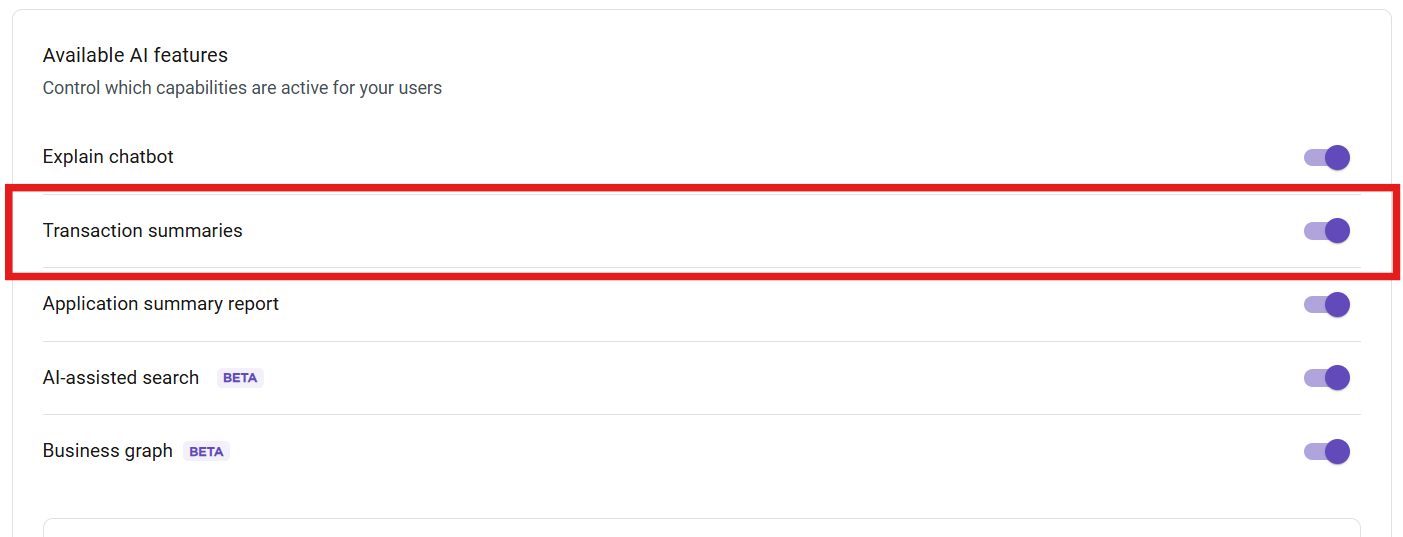
In AI Settings, under Available AI features, turn on Transaction summaries:
Step 3 - Check your profile setting
Once the administrator has enabled the feature, each user can turn it on or off for their own account. Open Profile settings > AI features and check that AI Transaction Summary is on:
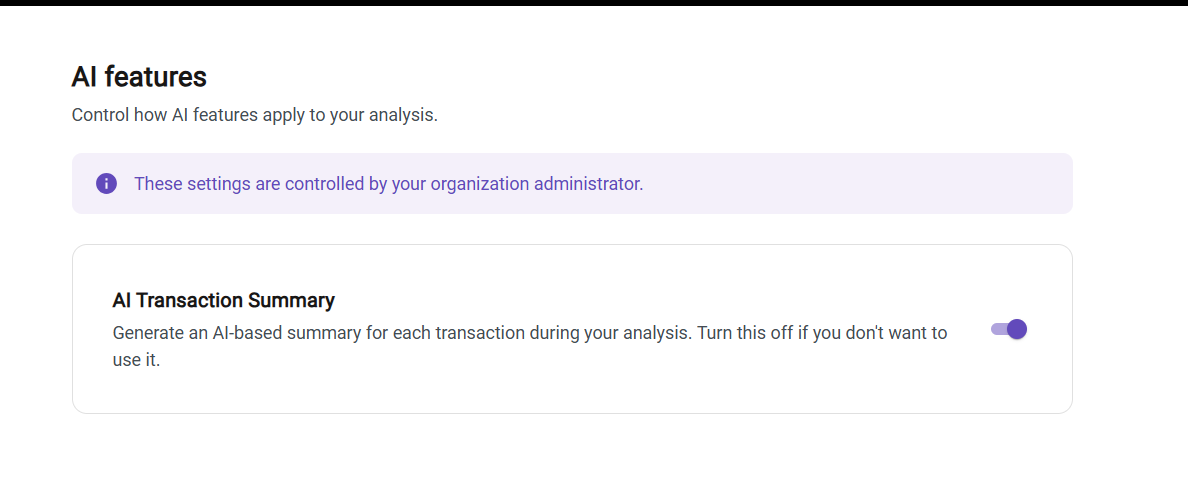
Your choice applies to all your analyses. If the administrator disables the feature or removes the AI provider configuration, this toggle is disabled and the administrator’s setting applies.
Step 4 - Analyze the application
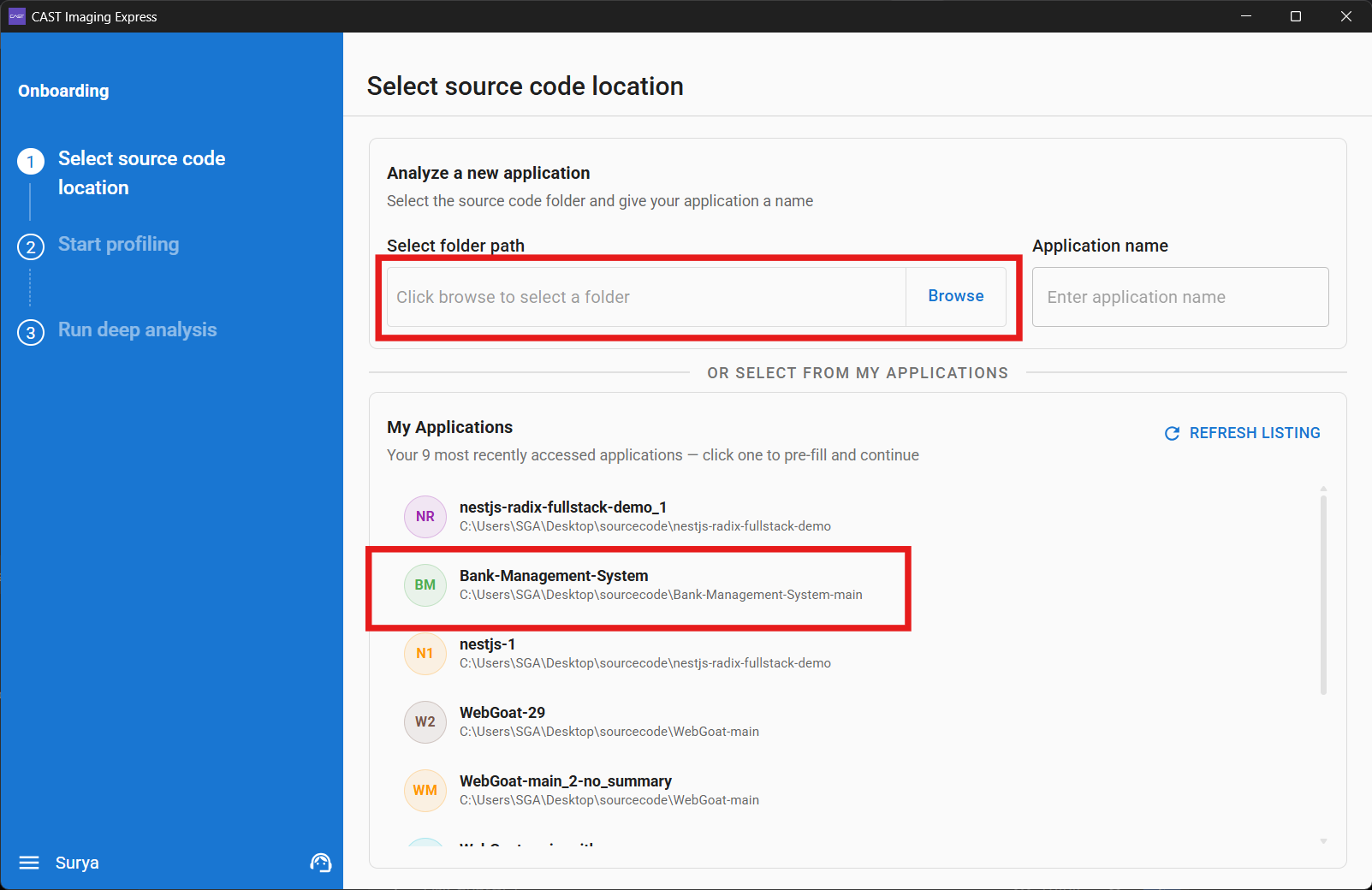
Run an analysis with the online analyzer. During the analysis, the source code of each object is sent to your AI provider to generate an object-level summary. These summaries are stored in the CAST Imaging Express database; the source code itself is never stored. An application must therefore be analyzed (or re-analyzed) after the feature is enabled:
- For a new application, select the source code folder and enter an application name.
- For an application that was analyzed before the feature was enabled, select it from My Applications and run the analysis again.
Step 5 - View a transaction summary
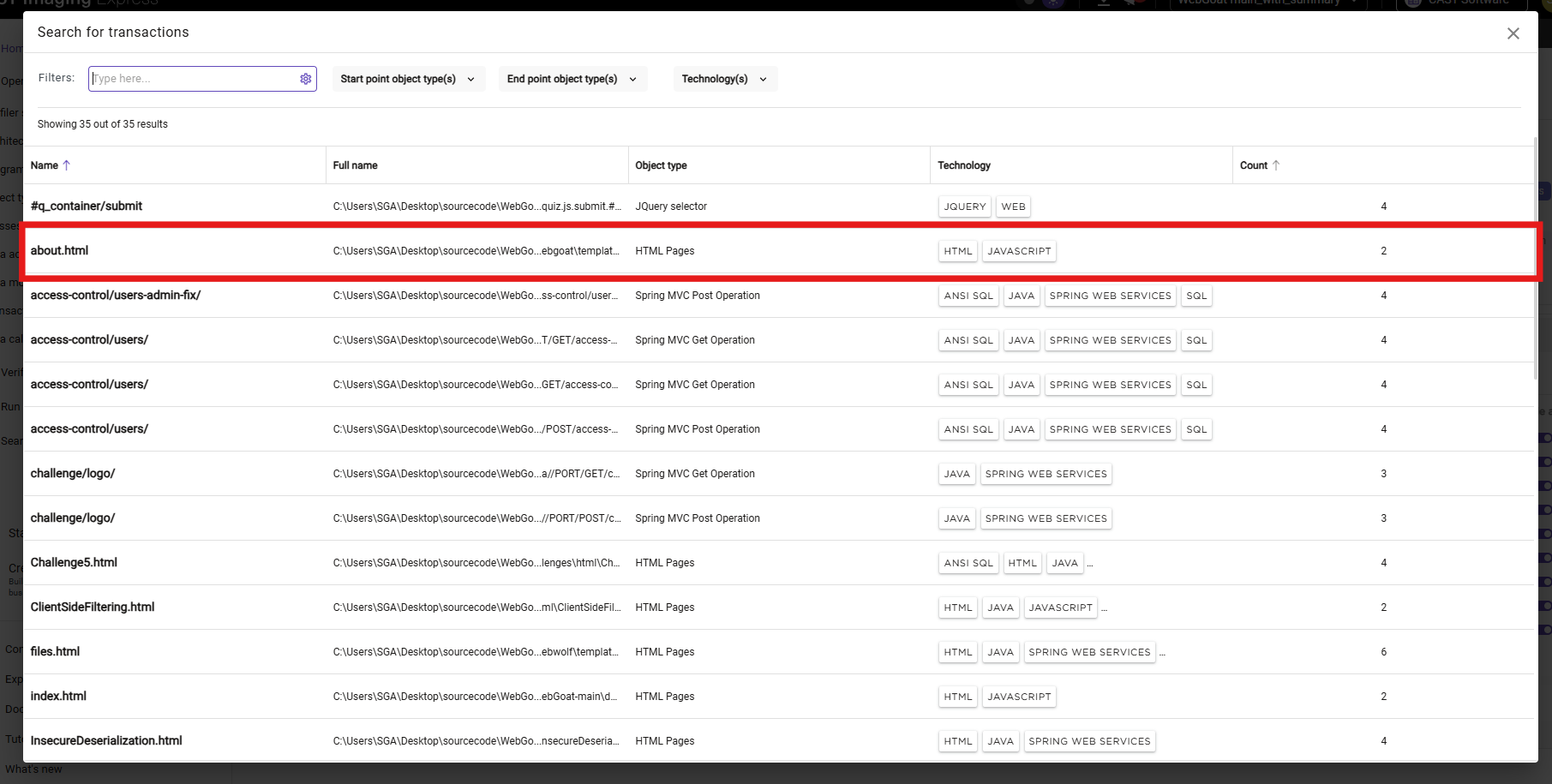
- Once the analysis is complete, open the application in CAST Imaging Express and open a transaction or data call graph, for example from the Search for transactions dialog:
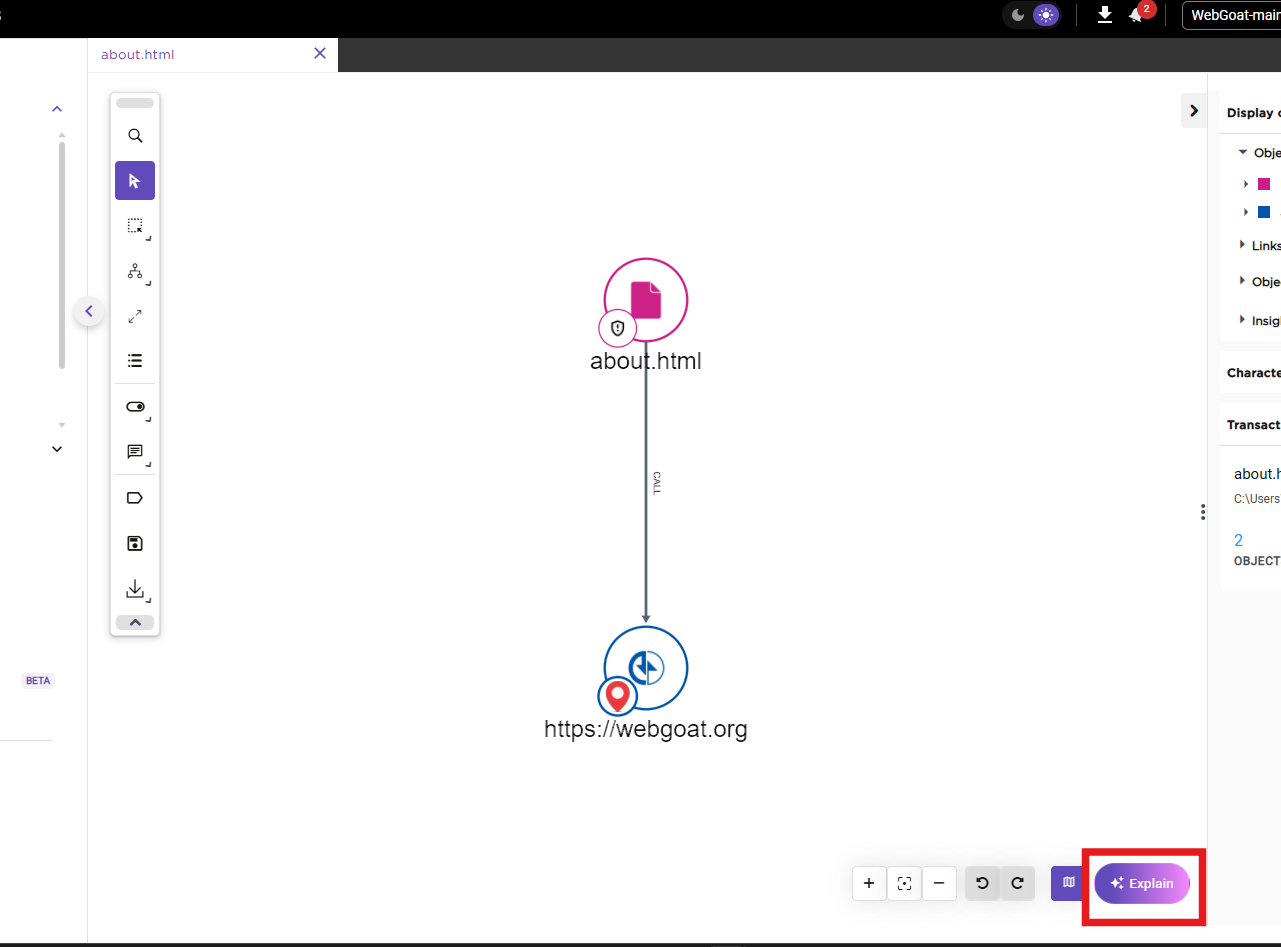
- Click Explain at the bottom-right of the view:
- The AI Assistant opens and displays the summary, with a Functional Explanation, a Technical Explanation and the Objects of Interest in the transaction. You can ask follow-up questions in the prompt box:
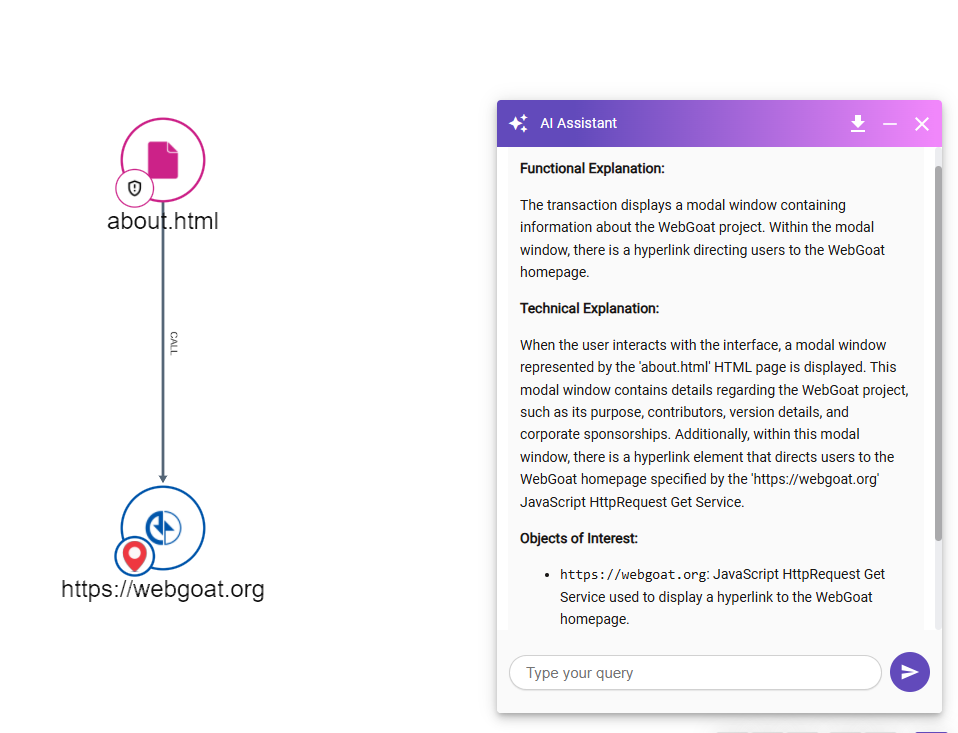
The transaction summary is generated the first time you click Explain: the object-level summaries of the objects in the transaction are sent to your AI provider, which returns the functional explanation. This can take some time, depending on the size of the graph. The summary is then stored, and later requests display it without regenerating it.
Processing flow
Analysis:      Source code of each object → Own AI provider → Object-level summaries (stored)
First Explain: Object-level summaries for the transaction → Own AI provider → Transaction summary (stored)
What data is used
Transmitted to your AI provider
| When | What is sent |
|---|---|
| During analysis | The source code of each object in the application |
| First Explain on a transaction or data call graph | The object-level summaries of the objects it contains |
Stored
- Object-level summaries and transaction summaries are stored in the CAST Imaging Express database.
- Source code is never stored.
Because the source code of every object is sent to your AI provider during analysis, any content embedded in that code, such as hard-coded credentials, is sent too. Make sure your organization’s agreement with the provider covers this use.
Limitations
- Not available with CAST AI: an Own Provider is required.
- Not available for applications analyzed with the offline analyzer.
- Applications analyzed before the feature was enabled must be re-analyzed.
User responsibility and consent
By enabling AI Transaction Summary, you acknowledge that the source code of each analyzed object is transmitted to your organization’s AI provider. You are responsible for ensuring that the analyzed application is appropriate for AI-assisted analysis.
These features are governed by CAST’s Artificial Intelligence and Machine Learning Terms.