Storing analyzed source code in encrypted format
Overview
CAST Imaging can be configured to store analyzed source code in an encrypted format within your PostgreSQL instance(s). Encryption uses PostgreSQL’s built-in pgcrypto module and operates at the PostgreSQL host level - when enabled, all application schemas on that host will store source code in encrypted format (in the _local and _central schemas).
Source code is transmitted unencrypted over the network between the analysis node and PostgreSQL. Encryption in this document applies only to data at rest within the database. If you need to secure your communication as well, see Configuring certificate-based authentication for database connections.
Important considerations
Before enabling source code encryption, note the following:
- Encryption and decryption introduce performance overhead during both source code upload (analysis) and retrieval (viewing in the UI).
- Encrypted source code requires more storage space than unencrypted source code.
- There is no tooling to change encryption keys once applied. To change a key you must re-upload the source code by running a new analysis.
- This feature should be enabled after a “from scratch” installation and after updating to a new release of CAST Imaging which supports the feature.
Configuration
Step 1 - Install the pgcrypto module
Run the following SQL on each PostgreSQL instance that will store encrypted source code - the module will be installed to the public schema:
SET search_path = public;
CREATE EXTENSION IF NOT EXISTS pgcrypto;
You can check that the module has been installed by running:
SELECT * FROM pg_available_extensions WHERE name='pgcrypto';
Step 2 - Create an encryption key file
The feature to enable the use of an SSL encrypted connection between CAST Imaging and PostgreSQL also uses an .ini file in exactly the same way as described here, therefore you may already have an .ini file/environment variable available and configured if you have enabled SSL connections - see Configuring certificate-based authentication for database connections. If this is the case, you can re-use this file and you can mix and match configuration from both features in this same file.
Create a plain text .ini file with the following structure:
[host:port,database]
encryption_key_default=MYKEY
Guidelines:
- The host name must use lowercase letters (ip address or fully qualified domain name)
- Ensure that the host name used in your
.inifile exactly match the host name configured in CAST Imaging. A mismatch will prevent decryption. For example:
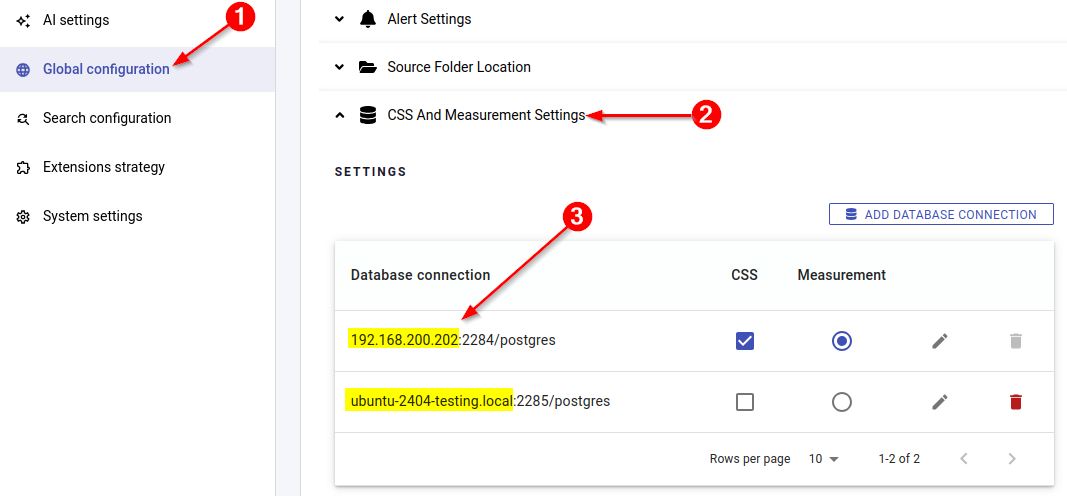
- If the
databasevalue is omitted,postgresis assumed. - Avoid using
localhostas the host name, especially in Docker environments - use the actual hostname instead. - Use a completely random encryption key. Using a unique key per PostgreSQL instance is recommended.
- The file can be stored on a shared network drive (recommended so all nodes can access a single copy to ease maintenance) or on the local file system of each machine that requires the file. Note that since the file contains the encryption key, appropriate permissions should be granted so that unauthorised access is prevented.
Example - single PostgreSQL instance:
[my_postgresql1:2284,postgres]
encryption_key_default=J3citp%FNYF*qa7c&Ps
Example - multiple PostgreSQL instances:
[my_postgresql1:2284,postgres]
encryption_key_default=J3citp%FNYF*qa7c&Ps

[my_postgresql2:5432,postgres]
encryption_key_default=AFK%3JdMEn99WypMVSCU
Current known issue on custom database names
Where the database value is anything other than postgres, for example postgres_362, specific configuration is required in the .ini file - the database should be configured twice - first as normal and then with a LIBPQ entry, for example:
[my_postgresql1:2284,postgres_362]
encryption_key_default=J3citp%FNYF*qa7c&Ps
[LIBPQ:my_postgresql1:2284,postgres_362:2284,postgres_362]
encryption_key_default=J3citp%FNYF*qa7c&Ps
Step 3 - Set the environment variable
The CASTCONNECTIONEXTRAPARAMETERS environment variable must point to the .ini file on every machine running any of the following CAST Imaging components:
imaging-servicesimaging-vieweranalysis-nodedashboards
Microsoft Windows
Create a new SYSTEM environment variable on the relevant machine(s):
| Setting | Value |
|---|---|
| Variable name | CASTCONNECTIONEXTRAPARAMETERS |
| Variable value | Full path to the .ini file, e.g. C:\cast\encryption\myfile.ini |
- Single machine deployment: apply this on the host machine.
- Distributed deployment: apply this on each machine.
CAST recommends storing the .ini file on a shared network drive accessible to all machines to ease maintenance. If a shared drive is not used, the content of the .ini file must be identical on all machines.
Restart all affected host servers after setting the variable.
Docker/Podman/Kubernetes
The same approach applies for both single machine and distributed deployments. A docker-compose.override.yml file is required in each affected installation directory. The file:
- defines a volume that maps the folder containing the
.inifile on the host into the container - sets the
CASTCONNECTIONEXTRAPARAMETERSenvironment variable to the container-internal path of the.inifile
The .ini file can be stored anywhere on the host machine - only the folder containing it needs to be specified in the volume.
At the current time storing the .ini file on a mounted network drive is not supported. Therefore each machine must have its own local copy of the .ini file, identical across all machines.
analysis-node - create/edit the following file:
/opt/cast/installation/imaging-node/docker-compose.override.yml
services:
  nodev3:
    volumes:
      - /opt/cast:/app/ssl
    environment:
      CASTCONNECTIONEXTRAPARAMETERS: /app/ssl/myfile.ini
imaging-services - create/edit the following file:
/opt/cast/installation/imaging-services/docker-compose.override.yml
services:
  control-panel:
    volumes:
      - /opt/cast:/app/ssl
    environment:
      CASTCONNECTIONEXTRAPARAMETERS: /app/ssl/myfile.ini
imaging-viewer - create/edit the following file:
/opt/cast/installation/imaging-viewer/docker-compose.override.yml
services:
  etl:
    volumes:
      - /opt/cast:/app/ssl
    environment:
      CASTCONNECTIONEXTRAPARAMETERS: /app/ssl/myfile.ini
dashboards - create/edit the following file:
/opt/cast/installation/imaging-dashboards/docker-compose.override.yml
services:
  dashboards:
    volumes:
      - /opt/cast:/app/ssl
    environment:
      CASTCONNECTIONEXTRAPARAMETERS: /app/ssl/myfile.ini
In all examples, /opt/cast is the path on the host to the folder containing the .ini file - replace this with the actual path where the file is stored. The container-internal mount point /app/ssl and the env var value /app/ssl/myfile.ini should remain as shown (but you can change the .ini file name to match your own).
See also Managing docker-compose.yml files.
Run the following in each affected installation directory to restart the containers and apply the changes:
$ sudo docker compose down
$ sudo docker compose up -d
$ sudo docker ps
Step 4 - run a new analysis and check encryption
Check that the source code is stored in encrypted format in the application schema (*_local) by running a new analysis of your existing application, or onboard and analyze a new application.
Then run the following SQL on analysis completion (where <app_name> is the name of the application):
select source_path ,source_id,
	source_error,source_code,source_crc
from <app_name>_local.dss_code_sources
If source code is correctly encrypted, you will see the following in the source_code column (i.e. random characters instead of the source code):
