Configuring CAST Imaging for Microsoft Windows with a reverse proxy and a context URL
Overview
This documentation provides information about placing your CAST Imaging installation on Microsoft Windows behind a reverse proxy, i.e. for load balancing, caching, or security, and specifically using a context URL such as http://<fqdn>/some-path. CAST recommends the use of an NGINX web server to provide the reverse proxy.
The equivalent documentation for Docker/Podman is available in Configuring CAST Imaging for Docker/Podman with a reverse proxy and a context URL.
Assumptions
This documentation assumes that:
- you are using a context URL such as
http://<fqdn>/some-pathand not the roothttp://<fqdn>/. - you are using either HTTPS to access NGINX, i.e. incoming requests will be accepted on TCP port 443, or a non-encrypted connection on TCP port 80.
The documentation for enabling HTTPS is also based on the use of an NGINX web server in reverse proxy mode and shares many configuration similarities.
Requirements
- CAST Imaging v3 must be installed and up and running before you proceed.
- If you intend to use HTTPS to access NGINX, you should follow the instructions for generating the public/private key pair and configuring HTTPS on NGINX in HTTPS configuration for Microsoft Windows and then return here.
- NGINX can be installed on a dedicated machine or on an existing machine where CAST Imaging services are already running.
- Some minor changes are required to CAST Imaging installation, detailed in the instructions below.
Step 1 - Install NGINX
Install NGINX: this is beyond the scope of this document, instead please consult the following third-party documentation: https://nginx.org/en/docs/windows.html .
Step 2 - Configure NGINX
When NGINX is installed, you now need to configure it. There are two parts to this process:
- create the vHost configuration file
- configure the reverse proxy
Step 2a - Create vHost configuration file
Out of the box, NGINX contains one “vHost” called “default”, serving various default files on port 80. CAST recommends creating a new vHost and using this specifically for the reverse proxy requirements. To add a new vHost, create a new empty .conf file using a text editor in the following location on disk (in our example the file is named with the machine’s FQDN imaging.corp.domain.com). You may need to create the vhosts directory:
conf/vhosts/imaging.corp.domain.com.conf
Step 2b - Configure the reverse proxy
The next step involves configuring NGINX to function in reverse proxy mode, i.e. to accept incoming connections and forward them to the relevant CAST Imaging services.
Edit the vHost configuration file (the same one you created in the previous step), add the following parameters and then save the file:
server { # simple reverse proxy
    listen 80;
    server_name imaging.corp.domain.com;
    server_tokens off;
    location /some-path {
        proxy_http_version 1.1;
        proxy_buffering off;
        proxy_cache off;
        proxy_cookie_flags ~.* secure samesite=None; # Required in ≥ 3.4.0-funcrel only
        proxy_pass http://imagingv3_VM.corp.domain.com:8090/;
        proxy_redirect off;
        proxy_set_header Connection '';
        proxy_set_header Host $host;
        proxy_set_header X-Forwarded-Proto $scheme;
        proxy_set_header X-Real-IP $remote_addr;
        proxy_set_header X-Forwarded-For $proxy_add_x_forwarded_for;
        proxy_set_header X-Forwarded-Host $host;
        proxy_set_header X-Forwarded-Port $server_port;
        chunked_transfer_encoding off;
        client_max_body_size 100M;
    }
}
Where:
listen- indicates that we want NGINX to listen on all ipv4 addresses on the server, on port 80server_name- indicates the FQDN on which NGINX will listen for incoming connectionsserver_tokens off- disables emitting NGINX version numbers on error pages and in the “Server” response header field.location- sets the configuration depending on a request URI. The example above uses a context, i.e./some-pathproxy_http_version- sets the HTTP protocol version for proxying, use 1.1proxy_buffering- enables or disables buffering of responses from the proxied server - set tooffproxy_cache- defines a shared memory zone used for caching. - set tooffproxy_cookie_flags- sets specific secure flags for cookies - see https://nginx.org/en/docs/http/ngx_http_proxy_module.html#proxy_cookie_flags for more informationproxy_pass- sets the protocol and address/port of the proxied server - set this to the machine on which the CAST Imaging v3imaging-servicescomponent is installed, using port8090(unless you have customized it). The address can be specified as a domain name or IP addressproxy_set_header- allows redefining or appending fields to the request header passed to the proxied server - see https://nginx.org/en/docs/http/ngx_http_proxy_module.html#proxy_set_header for more informationchunked_transfer_encoding- allows disabling chunked transfer encoding in HTTP/1.1 - set tooffclient_max_body_size- sets the maximum allowed size of the client request body. This limit determines the maximum file size that will be accepted: if your users upload ZIP archive files during the application onboarding, set this to an appropriate limit to accept the file
Don’t forget to ensure that an unhindered path exists between the machine on which NGINX is installed and the machine running the CAST Imaging v3 imaging-services component, e.g. appropriate firewall rules/VLAN configuration is in place.
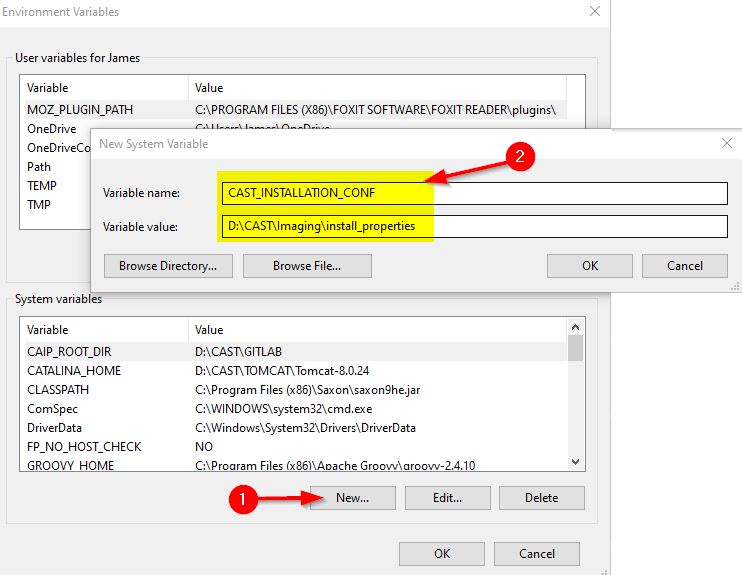
Step 3 - Create a SYSTEM environment variable
On the machine on which the CAST Imaging v3 imaging-services component is installed, create a SYSTEM level environment variable called PUBLIC_URL pointing to the machine running NGINX, with the context path appended, e.g. https://<fqdn>/some-path
Step 4 - Update components
To ensure that the CAST Imaging components function correctly behind the NGINX reverse proxy, you need to add some entries to the following files (if any files do not exist, create them):
%PROGRAMFILES%\CAST\Imaging\CAST-Imaging-SSO\conf\keycloak.conf
%PROGRAMFILES%\CAST\Imaging\CAST-Imaging-Gateway\application-default.yml
%PROGRAMFILES%\CAST\Imaging\CAST-Imaging-Auth-Service\application-default.yml
%PROGRAMFILES%\CAST\Imaging\CAST-Imaging-Control-Panel\application-default.yml
%PROGRAMFILES%\CAST\Imaging\CAST-Imaging-Viewer\nginx\html\index.html
CAST highly recommends backing up these files before you modify them.
Step 4a - Update keycloak.conf
Add the following lines to the end of the file then save it:
proxy-headers=xforwarded
hostname=https://imaging.corp.domain.com/some-path/auth
hostname-url=https://imaging.corp.domain.com/some-path/auth
hostname-admin-url=https://imaging.corp.domain.com/some-path/auth
spi-hostname-default-frontend-url=https://imaging.corp.domain.com/some-path/auth
PUBLIC_URL=https://imaging.corp.domain.com/some-path/
hostname-strict-https=false
proxy=edge
http-enabled=true
Where:
hostname,hostname-url,hostname-admin-urlandspi-hostname-default-frontend-url- set to the machine running NGINX, with the context path appended, e.g.https://<fqdn>/some-pathand the/authpath appended for Keycloak accessPUBLIC_URL- set to the machine running NGINX, with the context path appended, e.g.https://<fqdn>/some-path
Step 4b - Update CAST-Imaging-Gateway\application-default.yml
Add the following lines to the end of the file and then save it (create the file if it does not already exist):
spring:
  application:
    app-context: /some-path
Where:
app-context- is the context path you defined forlocationin theserverblock of the NGINX vHost you created earlier
Step 4c - Update CAST-Imaging-Auth-Service\application-default.yml
Add the following lines to the end of the file and then save it (create the file if it does not already exist):
spring:
  application:
    app-context: /some-path
server:
  service:
    nginx: https://imaging.corp.domain.com/some-path/
Where:
app-context- is the context path you defined forlocationin theserverblock of the NGINX vHost you created earliernginx- - set to the PUBLIC_URL of the machine on which the CAST Imaging v3imaging-servicescomponent is installed, using port8090(unless you have customized it), or no port number andhttpsprotocol in the case of a secure https installation. The address can be specified as a domain name or IP address.
Step 4d - Update CAST-Imaging-Control-Panel\application-default.yml
Add the following lines to the end of the file and then save it (create the file if it does not already exist):
application:
  public-url: https://imaging.corp.domain.com/some-path/
Where:
public-url - set to the PUBLIC_URL of the machine on which the CAST Imaging v3 imaging-services component is installed, using port 8090 (unless you have customized it), or no port number and https protocol in the case of a secure https installation. The address can be specified as a domain name or IP address.
Step 4e - Update CAST-Imaging-Viewer\nginx\html\index.html
Update line 1 of the file to set the context path to the window.defaultBasePath variable and then save the file:
<!doctype html><html lang="en"><script>window.defaultBasePath = '/some-path';
Step 5 - Update control_panel and keycloak schemas
The control_panel and keycloak persistence schemas will be located on the PostgreSQL instance configured during the installation process. Run the following queries to update each to ensure that they function correctly with a reverse proxy in place.
Step 5a - Update control_panel schema
Update the keycloak.uri property in the properties table (control_panel schema) in the postgres database with the PUBLIC_URL:
update control_panel.properties p set value = 'http://imaging.corp.domain.com/some-path' where p.prop_key='keycloak.uri';
Step 5b - Update keycloak schema
Update the frontendUrl property in the realm_attribute table (keycloak schema) in the postgres database with the PUBLIC_URL:
delete from keycloak.realm_attribute ra where ra.realm_id in  (select r.id from keycloak.realm r where r.name in ('aip-realm', 'master')) and ra.name = 'frontendUrl';

insert into keycloak.realm_attribute values ('frontendUrl', (select r.id from keycloak.realm r where r.name='aip-realm'), 'http://imaging.corp.domain.com/some-path/auth/');

insert into keycloak.realm_attribute values ('frontendUrl', (select r.id from keycloak.realm r where r.name='master'),'http://imaging.corp.domain.com/some-path/auth/');
Note that if you are using an older release of CAST Imaging, you may have a keycloak_v3 database instead of a keycloak schema in the postgres database. if that is the case, update the frontendUrl property in the realm_attribute table (public schema) in the keycloak_v3 database with the PUBLIC_URL:
delete from realm_attribute ra where ra.realm_id in (select r.id from realm r where r.name in ('aip-realm', 'master')) and ra.name = 'frontendUrl';

insert into realm_attribute values ('frontendUrl', (select r.id from realm r where r.name='aip-realm'), 'http://imaging.corp.domain.com/some-path/auth/');

insert into realm_attribute values ('frontendUrl', (select r.id from realm r where r.name='master'),'http://imaging.corp.domain.com/some-path/auth/');
Step 6 - Restart services
To ensure the changes you have made are taken into account, you should restart the imaging-services and imaging-viewer components and NGINX:
imaging-services and imaging-viewer components
Restart all imaging-services and all imaging-viewer services in the following order:
imaging-services
- CAST Imaging SSO
- CAST Imaging Control Panel
- CAST Imaging Gateway
- CAST Imaging Authentication
- CAST Imaging Console
imaging-viewer
- any order
You can also use the Microsoft Windows Services startup checker
NGINX
Restart NGINX using the preferred method for your installation.
Step 7 - Check access
Check that you can access CAST Imaging from the FQDN and context URL you declared in the NGINX vHost, e.g. http://imaging.corp.domain.com/some-path.