Understand the User Interface
Overview
CAST Imaging’s interface is divided into various different sections. This page introduces the main areas:
- landing page
- admin settings page
- analysis configuration page
- results consultation page
Landing page
The main page displayed immediately after logging in to CAST Imaging. It lists all applications that have already been onboarded (or are in the process of being onboarded) and which the current logged-in user has permission to interact with (see User Permissions). It also provides an option to onboard new applications:
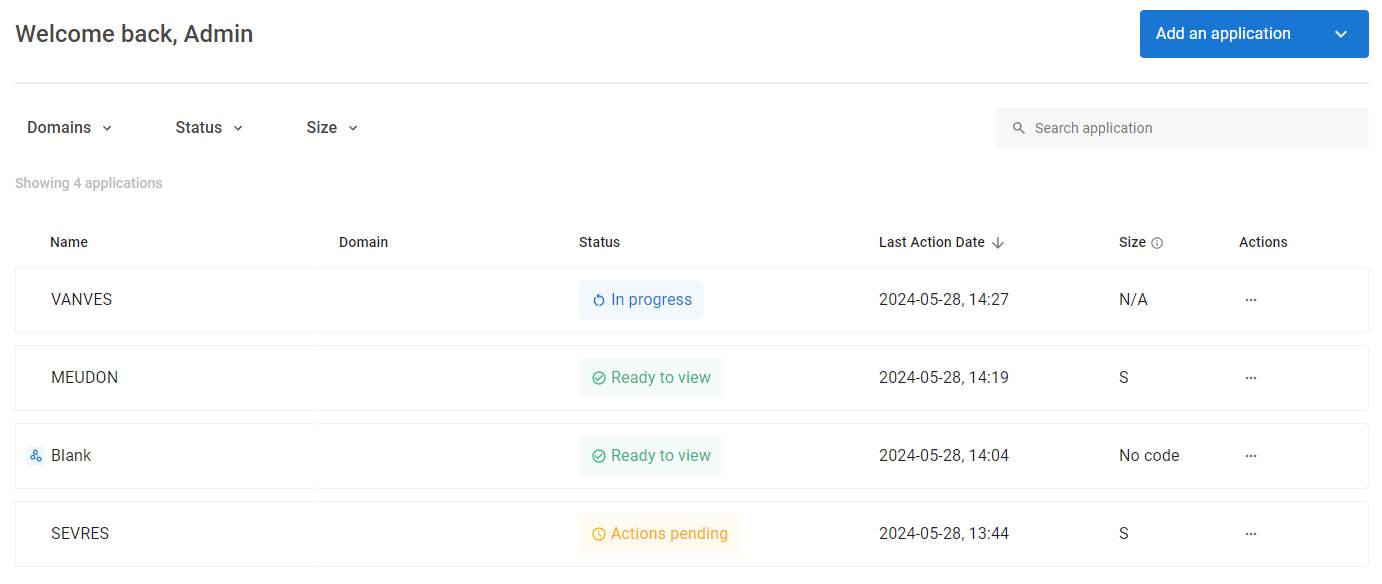
You can return to the application landing page using the hamburger menu or by clicking “CAST Imaging”, both located in the top left corner of the screen.
Admin settings page
The Admin Settings panel is available to users that have the Admin profile, or a custom profile with the Administrator role (see User Permissions). Available settings include:
- Extensions Strategy
- User Permissions
- Application Management
- etc.
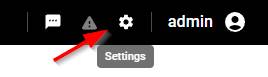
Access the panel using the icon in the top right corner:
Analysis configuration page
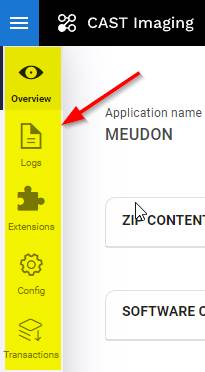
This page comprises multiple sub pages, all used to configure your application analysis. The Overview sub page is displayed automatically immediately following an initial fast scan of your application, other pages are only available once an application analysis has been completed. All pages allow you to manage all aspects of the your application analysis.
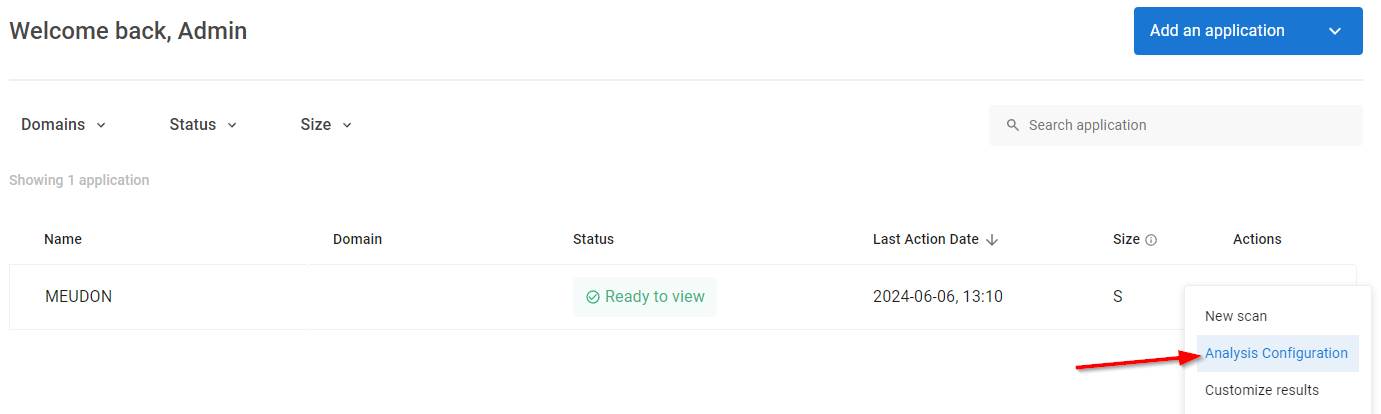
To access this panel use the Analysis configuration option in the Landing page:
Results consultation page
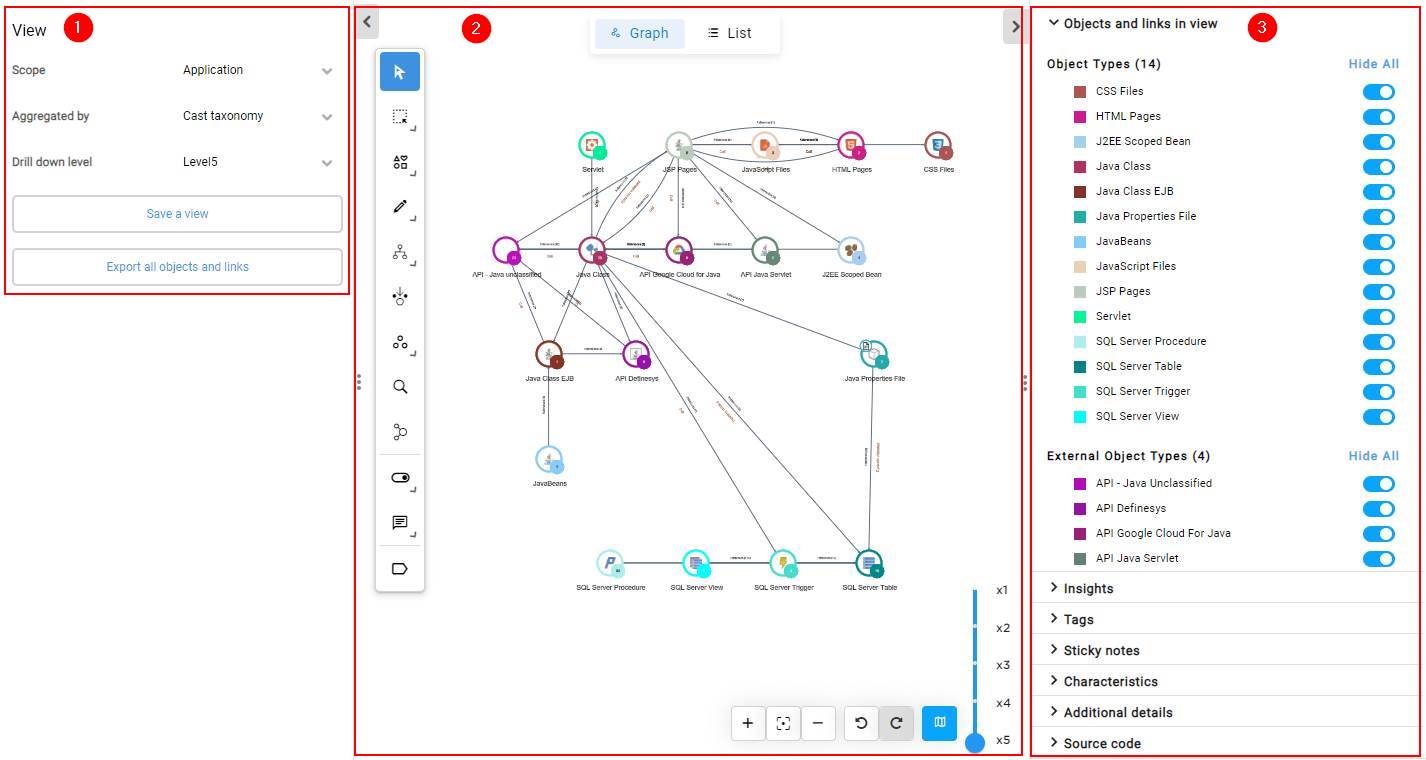
This page provides a rich interface to allow you to investigate the results of an analysis:
Next steps
- Interface reference - full documentation for every panel and view
- Navigate & Investigate - task-based guides for analysis workflows