Diagnostic Report (Troubleshooting) 
This option will display a dialog box containing detailed information about the server you are connected to, how you are connected, the contents of your databases, tablespace used and allowed etc...
All this can help you pinpoint a particular problem you may be having, perhaps with connection, or with tablespace sizes for example.
To access the option:
- Select the database/schema for which you want to display a Diagnostic Report:
- Click Database/Schema Installation > Troubleshooting > Diagnostic Report
The following diagnostic report will then be displayed:
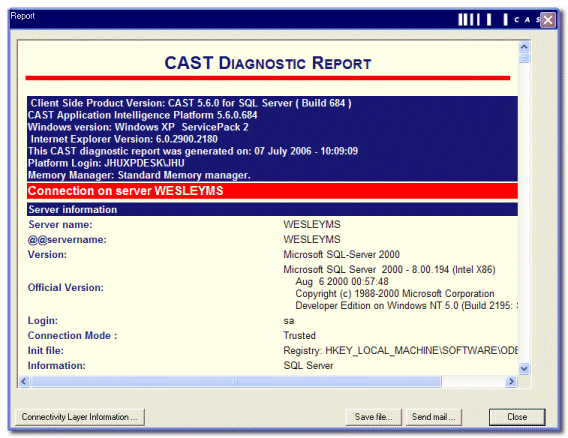
- Clicking the Connectivity Layer Information button will launch the Info dialog box (which is also available from the Help > Connection Layer Information menu).
- Clicking Save file... allows you to save the contents of the CAST Diagnostic Report in HTML format
- Clicking Send Mail... will launch an additional dialog box with a list of support desk email addresses. Click one to automatically send a mail.
 Notes
Notes
- You can also use the button located in the right click shortcut menu to access the option.
- This report can also be accessed from the Help > About menu (see About for more information).
See Also
Contacting CAST - Office Locations | About

