CMS - Delivery tab
Delivery tab
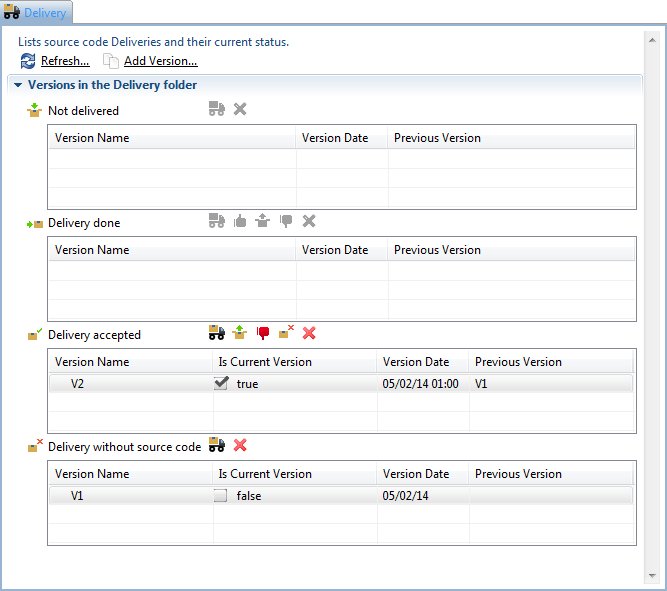
This tab allows you to manage the source code deliveries (Versions) packaged either:
- by your Delivery Managers using the CAST Delivery Manager Tool via the CAST AIC Portal
- by yourself directly from the CAST Delivery Manager Tool launched from the CAST Management Studio
This tab is interacting directly with the Source Code Delivery Folder (see Preferences - Platform Setting for more information).
Buttons
| Refresh | Use this option to refresh the current status of your source code Deliveries. The CAST Management Studio will connect directly to the Source Code Delivery Folder (see Preferences - Platform Setting for more information) to obtain up-to-date information. | |
| Add version | Use this option to add a new source code Version - the Add version wizard will be launched enabling you to define the new version. Please note that CAST recommends that your Delivery Managers create the Versions themselves in the CAST Delivery Manager Tool - this is because only they know what version of the source code they are packaging for you. |
Versions in the Delivery Folder
This section lists the current status of any Versions stored in the source code Delivery Folder (i.e. packaged by the Delivery Managers or by yourself). Using the Refresh option will update the status of each section.
| Not delivered | This table lists the Versions that have been delivered (into the source code Delivery Folder)using the CAST Delivery Manager Tool but that are not yet closed to further source code contributions. To move a Version from this status to Delivery Done, a Delivery Manager needs to close the delivery using the CAST Delivery Manager Tool. Available options
Updating the Version name Note that you cannot update the Version name directly in this field in the CAST Management Studio, however, to update the Version name, you can open the CAST Delivery Manager Tool (whether directly from the CAST Management Studio or from the CAST AIC Portal) and update the Version name. You will need to use the Save option (when using the CAST Delivery Manager Tool directly from the CAST Management Studio) or the Deliver action (when using the CAST Delivery Manager Tool direct from the CAST AIC Portal) to force the name to update. | ||||||||||
| Delivery done | This table lists Versions that have been delivered (into the source code Delivery Folder)using the CAST Delivery Manager Tool and are also closed to further source code contributions. When a Version is in this state, the CAST Administrator needs to validate the contents of the delivery (i.e. the source code that has been packaged) by using the CAST Delivery Manager Tool (select the version, then click the Note that Versions in this state will no longer be visible to Delivery Manager(s) in the CAST Delivery Manager Tool via the CAST AIC Portal if they click the Refresh button. Available options
Updating the Version name Note that you cannot update the Version name directly in this field in the CAST Management Studio, however, to update the Version name, you can open the CAST Delivery Manager Tool (directly from the CAST Management Studio) and update the Version name. You will need to use the Save option to force the name to update. | ||||||||||
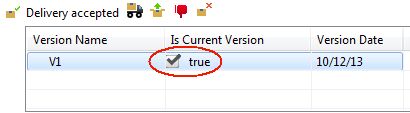
| Delivery accepted | This table lists Versions that have been accepted by the CAST AI Administrator following a validation process (i.e. checking the contents of the delivery). Within this table, a Version can be in two different "states" depending on whether the Is Current Version option is ticked:
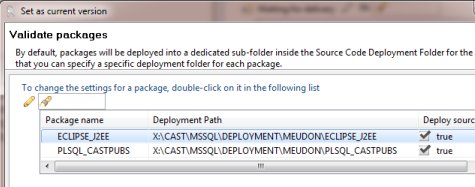
When a Version is first accepted, the Is Current Version will not be ticked - it is up to the CAST Administrator to decide if the Version in question should be the Version that is analyzed. If it is, then using the Available options
| ||||||||||
| Delivery without source code | This section lists the Versions whose extracted source code has been permanently deleted. Versions listed in this section have been subject to the Delete source code from Delivery action.
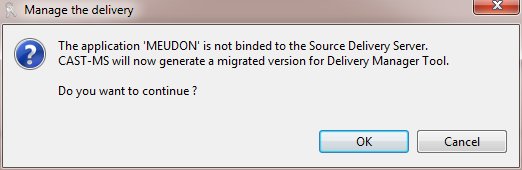
See Delete source code from a Version/Delete a Version. Migrated Versions In addition, following a migration/upgrade to the current CAST release, any Applications that have been migrated from previous CAST releases in which the notion of a Version was not present, will have a default Version created for them automatically. This Version will be placed in the Delivery without source code section. Because the CAST Delivery Manager Tool does not know about this Version, if you click the
It simply asks if you want to configure the Version so that it can be viewed in the CAST Delivery Manager Tool. Note that this Migrated Version can be opened with the CAST Delivery Manager Tool, but it will be in read only mode and no actions will be possible. If you need to re-deliver the source code, you should, instead, create a new Version that is copied from this Migrated Version. Available options
|