Application - Function Points - Enhancement
The Enhancement panel enables you to view Enhancement Size data about your Application. This data is derived from theEnhancement measure (from CISQ/OMG) used during the snapshot process (see Application - Config - Enhancement Measure). You can find out more about the two Enhancement measures that are available in CAST OMG-compliant Automated Function Points.
This panel will not contain any information until a snapshot is generated.
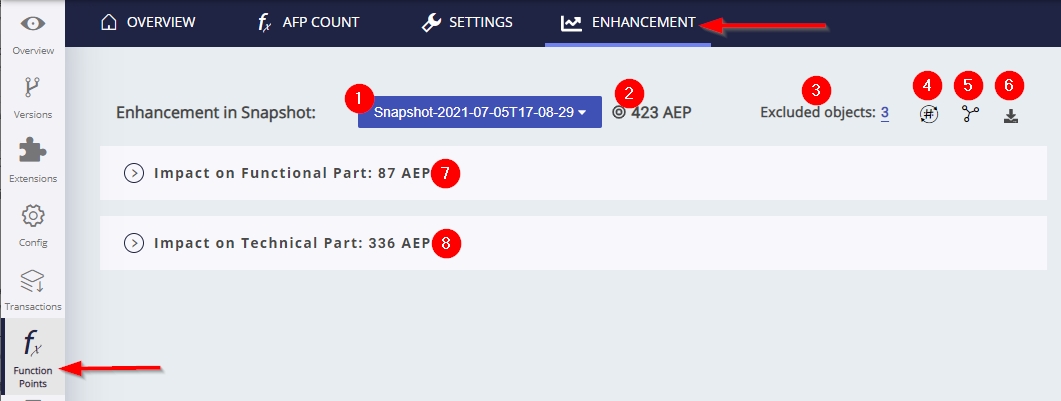
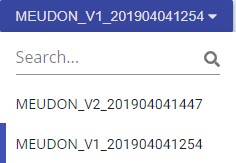
| 1 | This selector indicates which snapshot is currently being displayed. If you have multiple snapshots, you can choose the one you require using the drop down:
| ||||||||||||||||||||||||||||||||||
|---|---|---|---|---|---|---|---|---|---|---|---|---|---|---|---|---|---|---|---|---|---|---|---|---|---|---|---|---|---|---|---|---|---|---|---|
| 2 | Total number of Automated Enhancement Points (AEP) or Enhancement Function Points (EFP) in the current snapshot. When the AEP measure is active, this figure is the combined total of Functional (AEFP) and Technical (AETP) points. | ||||||||||||||||||||||||||||||||||
| 3 | Excluded Objects
Displays the total number of objects:
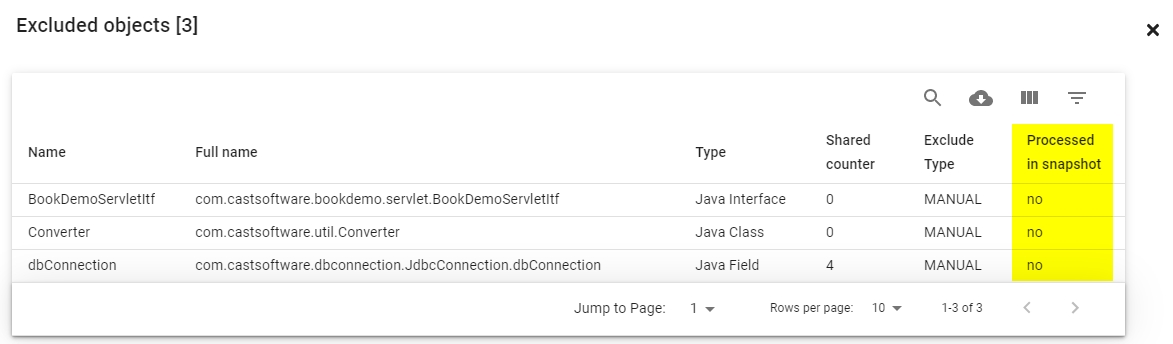
Clicking the number will display a panel listing the excluded objects. This also distinguishes (in the Processed in snapshot column) between the objects that were excluded from the previous snapshot (YES) and those that will be excluded in the next snapshot (NO):
| ||||||||||||||||||||||||||||||||||
| 4 | Recompute Checksums
This option can be used when you have excluded objects and you want the data showing in Console to be up-to-date. This process will recompute all the checksum values for all objects, in order to remove the excluded items from the checksum of the transactions. This will also recompute the metrics for AEP and EFP because the status of the transactions may change following a re-computation of the checksum and can therefore take some time to complete. Recompute checksums is actioned as part of the snapshot generation process during the "compute function point" step. | ||||||||||||||||||||||||||||||||||
| 5 | Shared Counter Exclusion
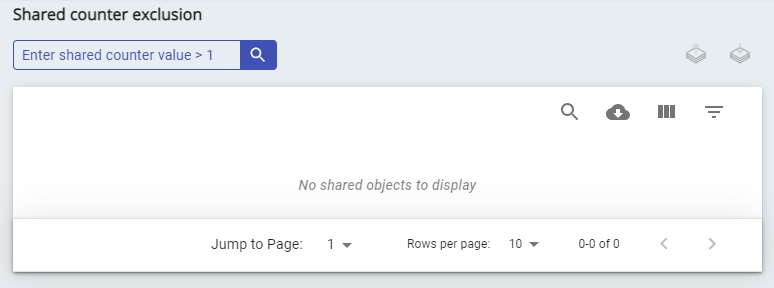
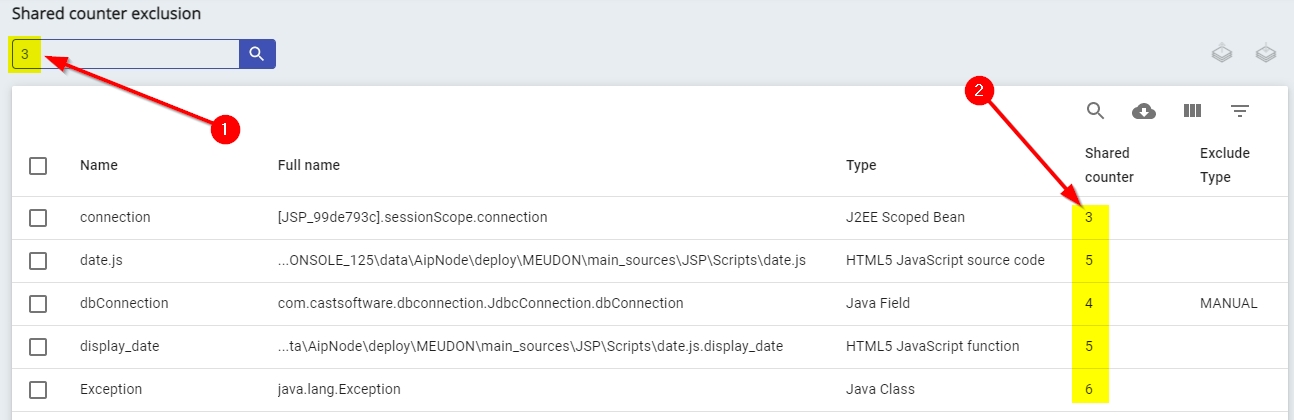
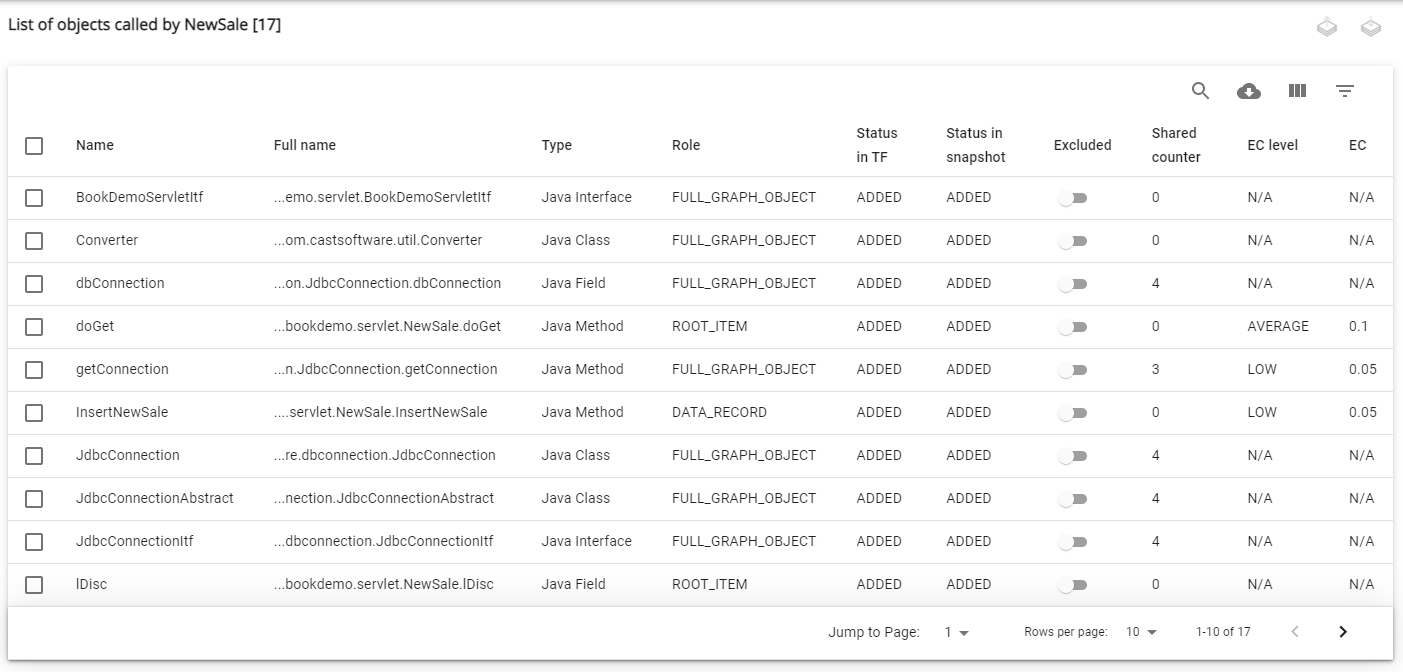
This option allows you to view the list of objects that are "shared" for a given transactional function. When the icon is pressed a new window is displayed with no objects listed:
Enter a value in the text field in the top left to change the filter - for example if you enter 3, then all objects that are shared 3 or more times per a given transactional function will be listed:
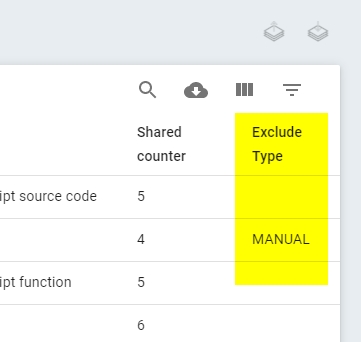
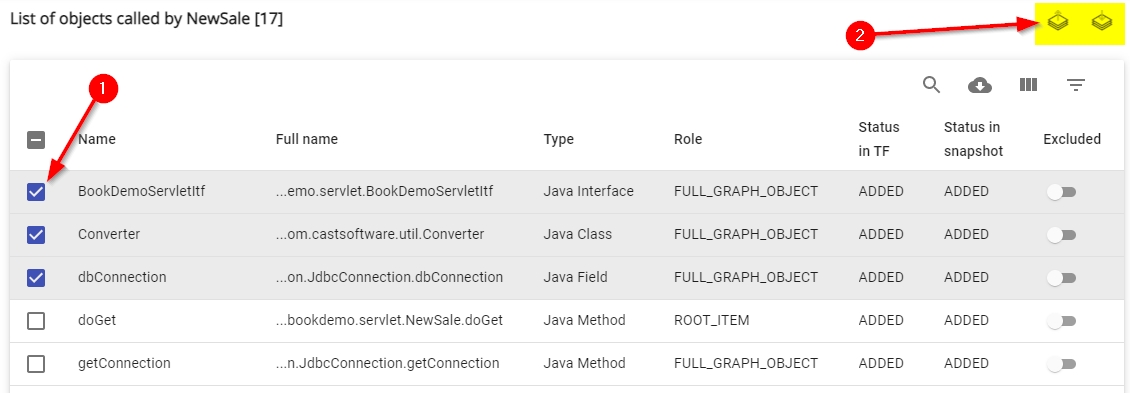
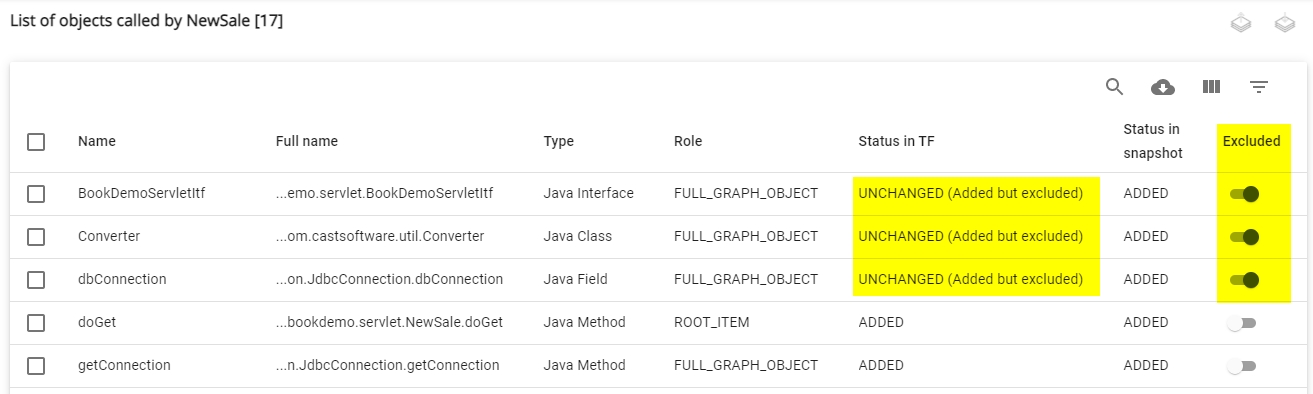
You can then exclude any of these objects from the next snapshot in the same way as explained for Options/View Objects below. The Exclude Type column indicates whether the objects are excluded from the next snapshot or not:
If you exclude objects (or unexclude them) you can use the Recompute checksums action (see above) to ensure that data displaying in Console is up-to-date. | ||||||||||||||||||||||||||||||||||
| 6 | Ability to download a detailed PDF report about how the Enhancement data has been calculated. An example report is available here (for the AEP measure). | ||||||||||||||||||||||||||||||||||
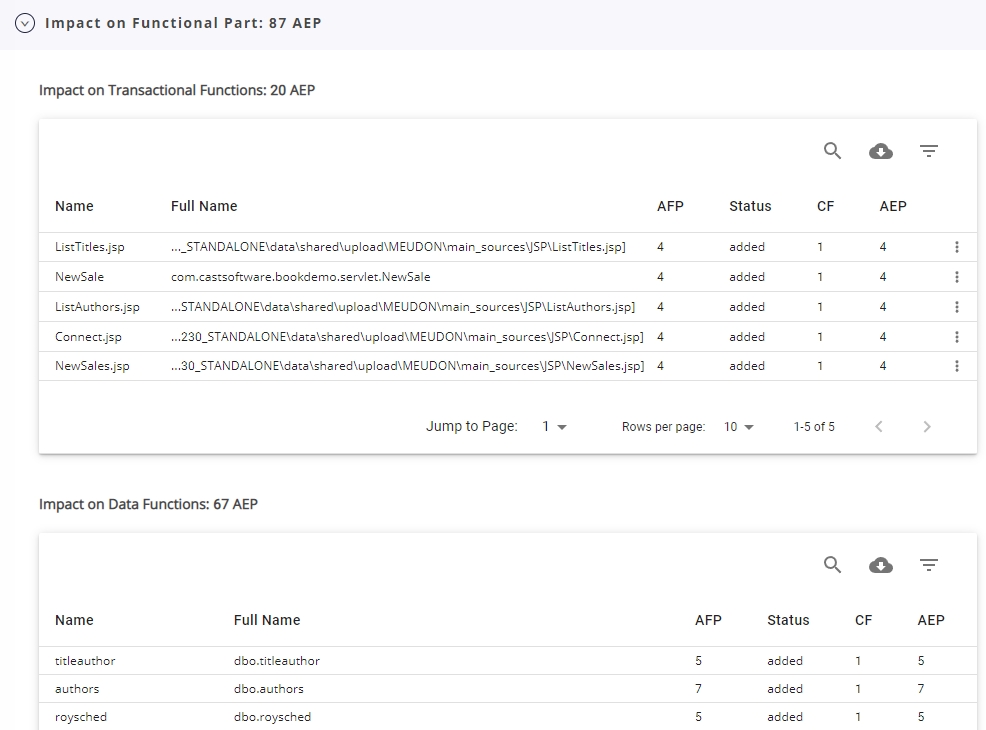
| 7 | Detailed display of each Functional Enhancement (AEP or EFP) point. Expand the section to view the data. Data is split into Transactional Functions and Data Functions (this screenshot shows data derived from the AEP measure):
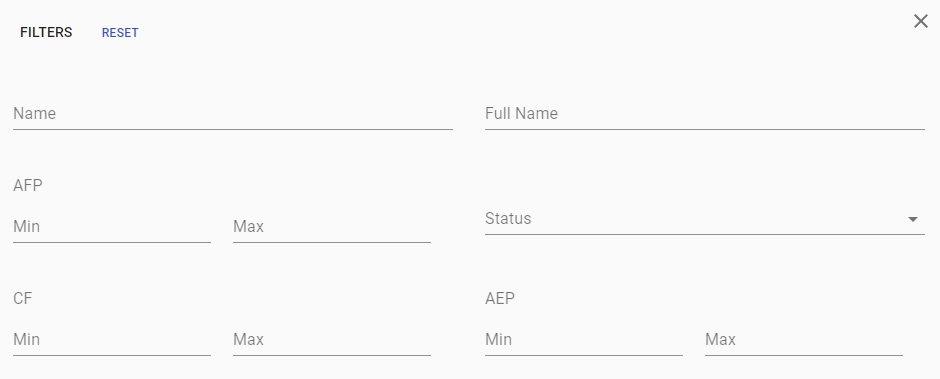
Note that you can sort each column by clicking in the column header. | ||||||||||||||||||||||||||||||||||
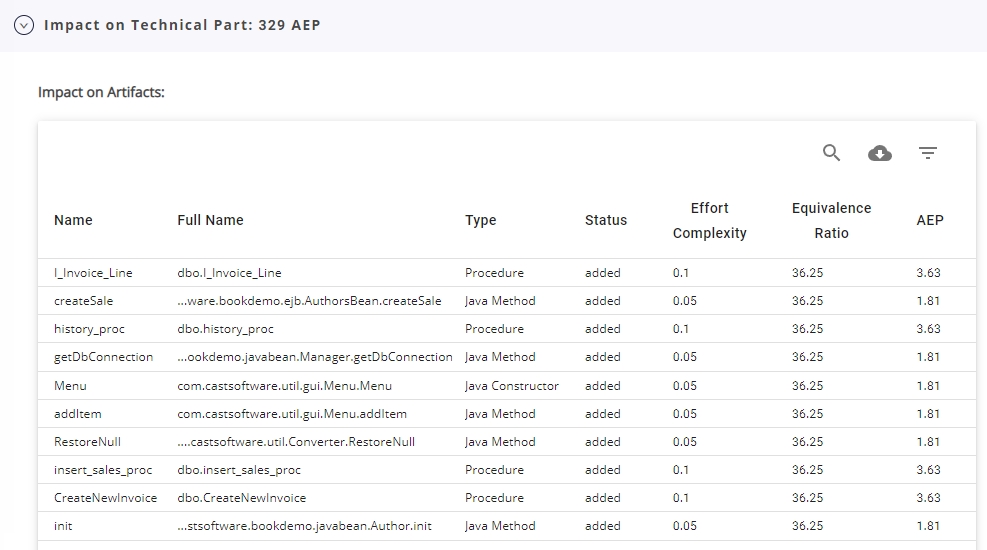
| 8 | Detailed display of each Technical Enhancement point. Expand the section to view the data. Data is displayed by Artifact. Note that this section will not contain any data when the EFP measure is active. Click to enlarge
Note that you can sort each column by clicking in the column header. |